Profit & Loss
One page answers the owner's most important question: did we make money this period, and where did it go.
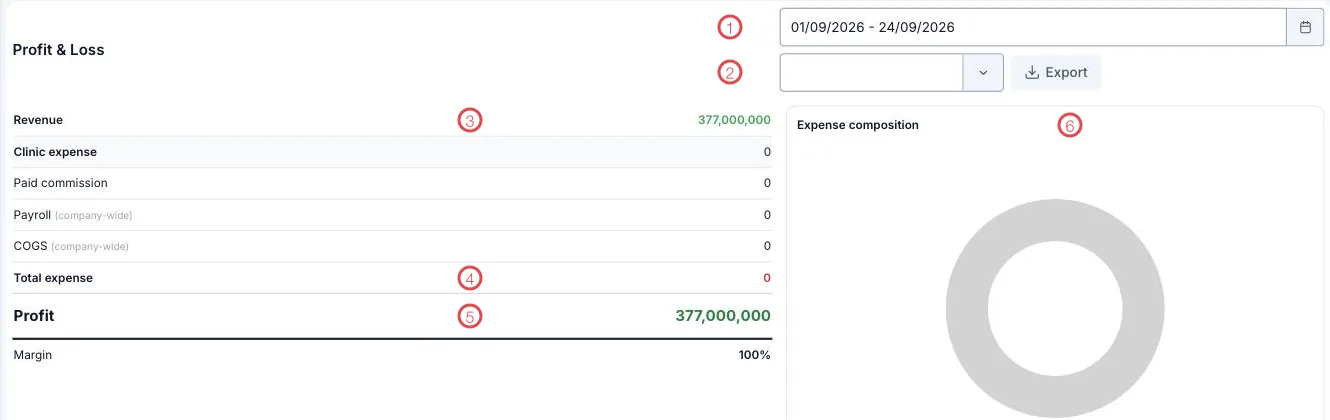
Illustration of the Profit & Loss screen
| Area | What it is |
|---|---|
| 1. Date range | The period on screen; it opens on the start of the month through today. |
| 2. Branch picker and Export | Look at one branch, or save the report to a file. |
| 3. Revenue | What was actually collected in the period. |
| 4. Total expense | The sum of the four expense groups above it. |
| 5. Profit and Margin | Revenue minus expenses, and that as a percentage. |
| 6. Expense composition | A doughnut showing which group takes the largest share. |
The four expense groups
| Group | What it covers |
|---|---|
| Clinic expense | Spending recorded in Clinic Revenue & Expenses: utilities, rent, purchases. |
| Paid commission | Commission actually paid to doctors, consultants and partners. |
| Payroll (company-wide) | Salary costs from the HR module. |
| COGS (company-wide) | The value of materials and medicines used in the period. |
The two marked (company-wide) are counted for the business as a whole rather than split by branch — so when filtering one branch, read them as shared overhead.
How to use it
- Compare periods. Move the date range across several consecutive months to see the trend, rather than reading this month alone.
- Read the margin before the profit. Revenue up with margin down means costs are rising faster — worth acting on early.
- Open the composition when the margin slips. The doughnut points straight at the group that grew.
Settle the figures before reporting to a board
These numbers move when late vouchers arrive. To make them stand still, lock the accounting period before exporting.
Related
- Accounting Period Lock — settling the period.
- Clinic Revenue & Expenses — the source of clinic expense.
- Report List — revenue analysed along more dimensions.