MISA Conversion
If the clinic keeps its books in MISA and wants to move to CluvixHealth, this is the way in: load balances and receivables from file, then run both systems side by side for a while before switching over for good.
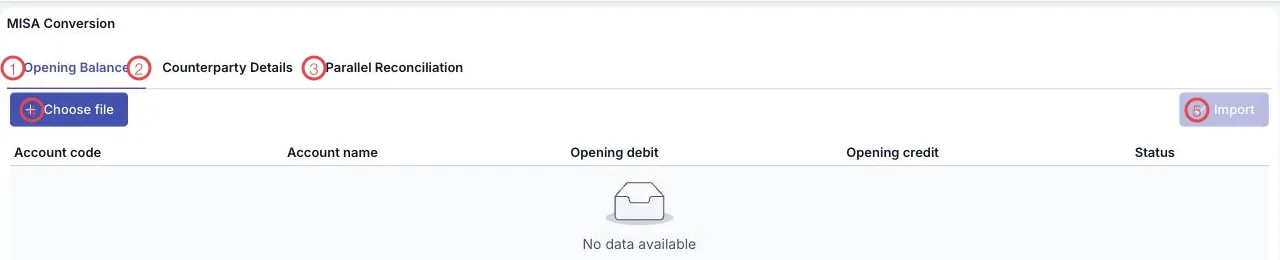
Illustration of the MISA conversion screen
| Area | What it does |
|---|---|
| 1. The Opening Balance tab | Loads the opening balance of each accounting account. |
| 2. The Counterparty Details tab | Loads receivables per customer and payables per supplier. |
| 3. The Parallel Reconciliation tab | Compares CluvixHealth and MISA figures period by period. |
| 4. Choose file | Picks the file exported from MISA. |
| 5. Import | Writes the previewed data into the books. |
Once a file is chosen, a preview table shows Account code, Account name, Opening debit, Opening credit and Status per line, plus a Total row — check it, then Import.
The order to convert in
- Export account balances from MISA, go to Opening Balance, Choose file, check the preview, then Import.
- Do the same on Counterparty Details for receivables and payables — each customer and supplier is matched to their record in CluvixHealth.
- For the first periods, use Parallel Reconciliation to compare both systems by period.
Switch at the start of a period
Pick the first day of an accounting period as the switch-over point: balances load once, and everything after that is posted in CluvixHealth — no month split across two systems.
Related
- Opening Balance — entering balances by hand instead.
- Chart of Accounts — the accounts balances land on.
- Trial Balance — check after loading.