E-invoices
A customer (patient) needs an invoice for what they paid — their company is reimbursing them, or they simply want the document. E-invoice is where invoices are issued through the clinic's e-invoice provider, followed until the tax authority confirms them, and replaced when something on them is wrong.
In the Accounting module, open the Invoices & Tax group in the left menu and click E-invoice.

Illustration of the E-invoice screen
| Area | What it is |
|---|---|
| 1. Status filter | Filter by where the invoice stands. |
| 2. Refresh button | Reload the list after issuing. |
| 3. Status column | What stage each invoice is at — explained below. |
Click the Invoice no. on a row to open the Invoice detail: the buyer, every line with its tax rate, and the codes returned by the provider and the tax authority.
Where invoices come from
An invoice is created from a payment the customer has made. In the Payment Vouchers list, click the Issue button on the voucher row: the software builds the invoice with the service lines and tax rates from the voucher, fills in the buyer from the customer profile, and sends it for issuing straight away.

Illustration of the invoice button on the Payment Vouchers list (here already issued)
- Issued successfully: the button on the voucher turns green and its tooltip reads Issued.
- The button turns red (tooltip Error) — usually because buyer details are missing, e.g. no address: the invoice has been created and is waiting as a Draft on this screen. Open E-invoice to complete it and issue it — see Issuing an invoice.
Each payment voucher has exactly one invoice. A voucher with an issued invoice can no longer be deleted.
Invoice statuses
| Status | Meaning / what to do |
|---|---|
| Draft | Not sent yet. Click Edit buyer to complete it, then Issue. |
| Pending | Sent to the provider, waiting for a number. The software checks back on its own; to know right away, click Check status. |
| Issued | The invoice has a number. A series starting with K is an invoice without a tax authority code — stopping at this status is correct. |
| Accepted | The tax authority has granted the invoice its code. This is the final status of a coded invoice. |
| Rejected | The tax authority did not grant a code — read why under Tax authority message in the detail, then create a replacement invoice. |
| Replaced | A replacement invoice has received its number. This invoice is no longer valid. |
| Cancelled | The invoice has been cancelled. |
The Type column shows whether the invoice is an Original, an Adjustment or a Replacement. A replacement also shows a small line Replaces … under its number so you can trace it back to the original.
The three figures on an invoice
| Column | Meaning |
|---|---|
| Amount before tax | The value of the goods or services, tax excluded. |
| Tax amount | The value-added tax on that amount. |
| Total | What the customer actually pays, tax included. |
Lines that are Non-taxable (KCT) or Not declared/paid (KKKNT) carry zero tax but are recorded as their own type on the invoice, distinct from a 0% rate — set up in VAT rate.
These figures feed the output VAT side of the VAT report. Once an invoice has its number, the software posts the revenue entry to the ledger according to the Posting Rules; when an invoice is replaced or cancelled, it posts the reversing entry automatically.
The buttons on each row
Buttons appear according to the invoice status and the e-invoice provider the clinic uses. Hover over a button to see its name.

Illustration of the buttons on a Draft invoice (1–2) and an issued invoice (3–8)
| Button | Use it when |
|---|---|
| 1. Issue | The invoice is a Draft or Pending — send it out. |
| 2. Edit buyer | The invoice is a Draft — change the buyer or payment method without sending. |
| 3. Check status | The invoice has been sent — ask the provider whether the number and tax authority code are ready. |
| 4. Adjust | The invoice is Issued or Accepted — create an adjustment invoice. |
| 5. Cancel | The invoice is Issued or Accepted — cancel it. |
| 6. Replace | The invoice is Issued, Accepted or Rejected — create a replacement invoice. |
| 7. Download PDF · 8. Download ZIP (XML) | The invoice has a number — download the printable copy to send to the customer, or the original XML to archive. |
| Record number manually | Shown only on a Pending invoice the provider has received — see the dedicated section. |
Issue, Edit buyer and Record number manually need the Issue permission; Adjust, Cancel and Replace need the Adjust/Replace/Cancel permission. If a button is missing although the invoice is in the right status, ask an administrator for the permission.
Issuing an invoice
Click Issue on a Draft invoice. The Buyer information dialog opens, pre-filled with the last saved details. Check them, then click Save & issue. To save without sending, click Save.
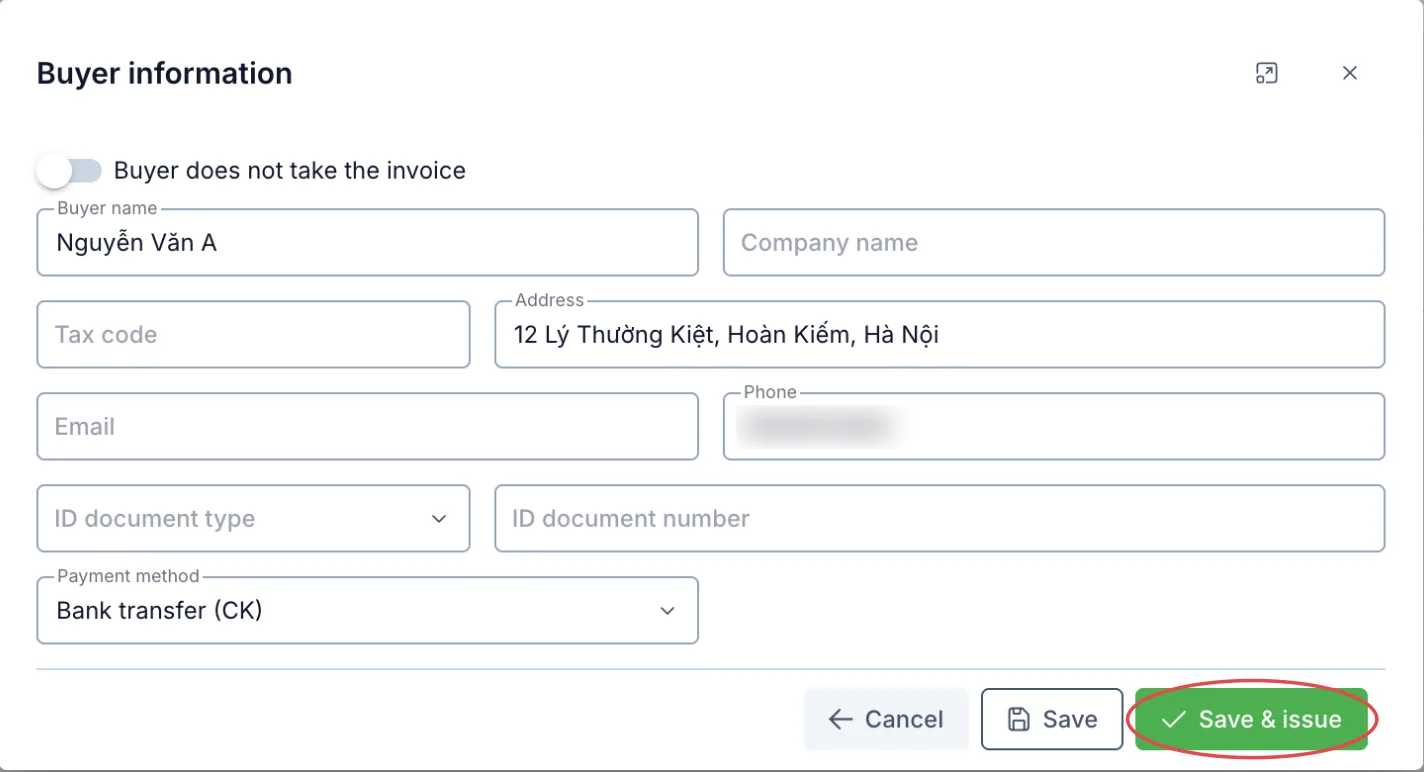
Illustration of the Buyer information dialog
| Field | What to enter |
|---|---|
| Buyer does not take the invoice | Turn on when the customer does not need an invoice in their name. When on, the buyer fields are optional. |
| Buyer name (required if Company name is empty) | The person buying. Example: Nguyen Van An |
| Company name (required if a Tax code is entered) | The company name when invoicing a company. |
| Tax code | The buying company's tax code. |
| Address (required) | The buyer's or the company's address. |
| Email · Phone | So the provider can send the invoice to the buyer. |
| ID document type · ID document number | Citizen ID or Passport. Once a type is chosen, the number is required. |
| Payment method (required) | Cash (TM), Bank transfer (CK) or Cash / Bank transfer (TM/CK). |
The buyer details are stored on the invoice itself. If the customer profile changes its name or address later, invoices already created keep the details they were issued with.
After clicking Save & issue:
- The provider returns a number right away → the invoice becomes Issued and the message Invoice issued appears.
- The provider has not answered yet → the invoice becomes Pending. The software checks back on its own; you can also click Check status after a few minutes.
Once an invoice has been sent, its buyer can no longer be edited — mistakes found after it has a number are corrected with a replacement invoice.
Replacing an invoice
Use this when an invoice already has a number but carries wrong details (buyer name, address, tax code, payment method), or when the tax authority rejected it.
-
Click Replace on the invoice to correct. The Replace invoice dialog opens.
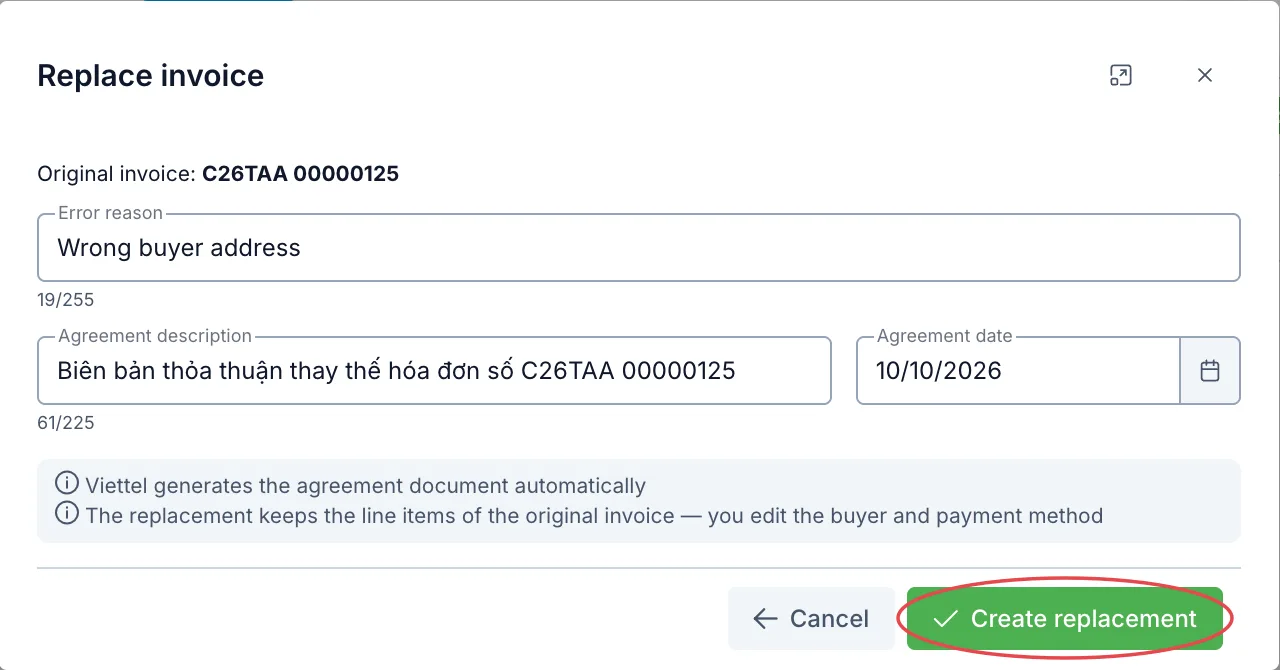
Illustration of the Replace invoice dialog
-
Fill in:
Field What to enter Error reason (required) What was wrong. Up to 255 characters. Example: Wrong buyer tax code Agreement description (required) What was agreed with the buyer. Pre-filled with a standard sentence quoting the original invoice number — always in Vietnamese, because it is printed on the invoice; up to 225 characters. Agreement date (required) The date both sides agreed — future dates cannot be picked. -
Click Create replacement. The software creates a Draft of type Replacement and immediately opens its Buyer information dialog.
-
Correct the buyer details, then click Save & issue.
The replacement keeps the line items of the original invoice. The original only turns Replaced once the replacement has its number — while the replacement is still a draft, the original remains valid. With the Viettel provider, the agreement document is generated by Viettel from what you entered.
Adjusting and cancelling an invoice
- Adjust: click Adjust and confirm — the software creates an invoice of type Adjustment and sends it for issuing. Once the adjustment has its number, the original turns Cancelled.
- Cancel: click Cancel and confirm — the invoice is cancelled at the provider with the reason Cancelled on request.
A cancelled invoice cannot be restored. When you only need to correct details, use Replacing an invoice so the buyer still holds a valid invoice.
Recording a number manually
Use this when an invoice stays Pending in the software, but on the provider portal you can already see it with a number. The Record number manually button appears only once the provider has received the invoice (it has a Provider reference).
Enter the Invoice no. (1–8 digits), the Issue date, the Tax authority code (if any) exactly as shown on the provider portal, and a Reason, then click Record number. The software only records the number — it does not resend the invoice. The invoice becomes Issued, or Accepted if you entered a tax authority code. For a series starting with K, leave the tax authority code empty.
Invoice detail
Click the invoice number to open the Invoice detail: invoice number, status, buyer, and every line with its tax rate and tax amount.
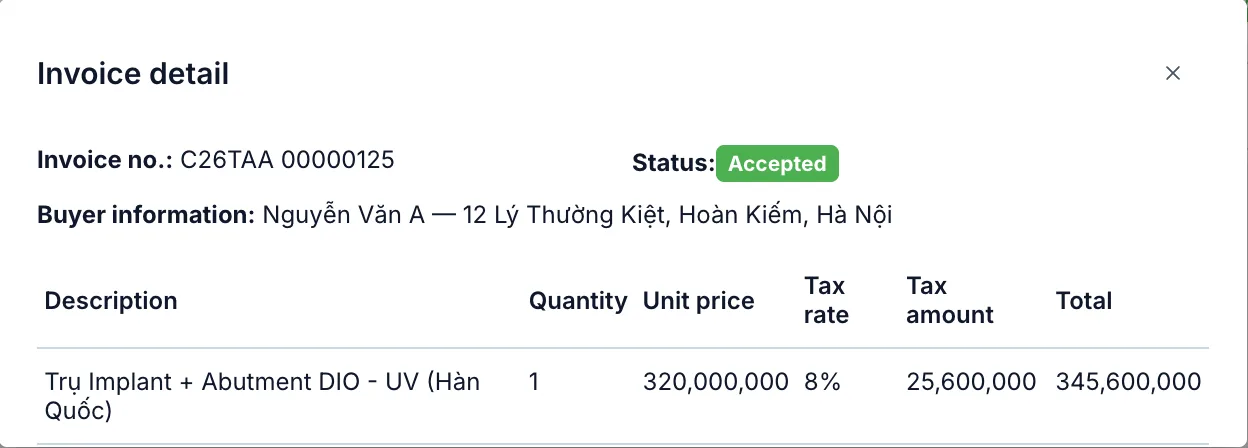
Illustration of the Invoice detail dialog
When the provider and the tax authority return them, the dialog also shows:
| Item | Meaning |
|---|---|
| Lookup code | The code the buyer uses to look the invoice up on the provider portal. Click the copy icon to send it to the customer. |
| Tax authority code | The code the tax authority grants to a coded invoice. |
| Tax authority message | The tax authority's response — read it here when an invoice is Rejected. |
Common errors
The software shows messages in Vietnamese; the meaning is given in brackets.
- "Cần nhập tên người mua hoặc tên đơn vị" (buyer or company name required), "Cần nhập địa chỉ người mua" (buyer address required), "Có mã số thuế thì phải nhập tên đơn vị" (a tax code requires a company name) → fill in that field in Buyer information.
- "Hoá đơn đang được nhà cung cấp xử lý, vui lòng thử lại sau 2 phút" (the provider is still processing the invoice, try again in 2 minutes) → the invoice was just sent. Wait 2 minutes, then click Check status.
- "Đã gửi hoá đơn, đang chờ nhà cung cấp xác nhận…" (invoice sent, waiting for the provider to confirm) → the invoice is Pending; do as the message says.
- "Mẫu hoá đơn bán hàng (mẫu số 2) không có thuế GTGT…" (sales invoice template 2 carries no VAT) → the clinic uses the sales invoice template while a service line has a % rate. Change the service's rate to a not-subject-to-VAT type, or switch to the VAT invoice template in E-invoice configuration.
- "Hoá đơn này đã có bản thay thế đang xử lý…" (this invoice already has a replacement in progress) → find that invoice's Replacement in Draft in the list and issue it instead of creating another one.
Issue the invoice once the corresponding payment has been recorded — then the invoice always agrees with the receipt. At the end of the day, filter Status by Draft and Pending to make sure no invoice was left behind.
Related
- E-invoice configuration — provider connection, template and series.
- VAT rate — tax rates and tax types of services.
- Payment Vouchers — where each payment's invoice is issued.
- VAT Report — output and input totalled by period.
- Supplier Invoices — invoices received from suppliers.