Receipts
For the same payment, a payment voucher looks at it from the order's side, while a receipt looks at it as a document: its own code, a type, a method — what accounting needs when reconciling and when printing something for the customer.
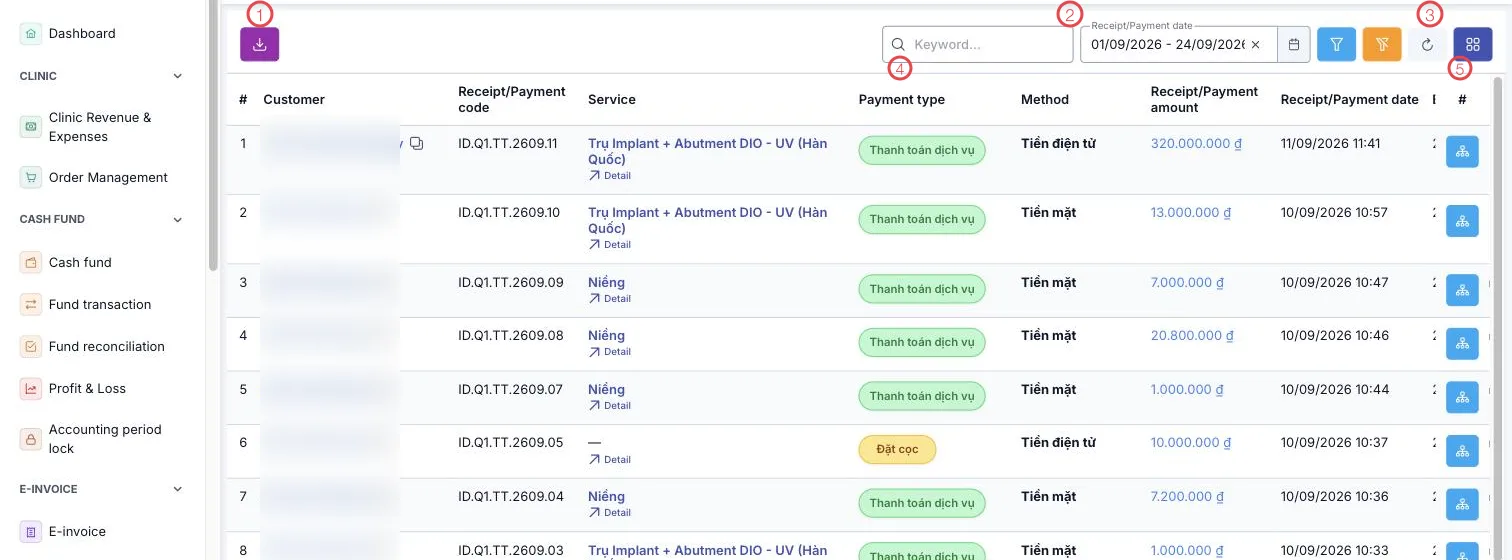
Illustration of the Receipts screen
| Area | What it is |
|---|---|
| 1. Export button | Save the list to a file. |
| 2. Search and Receipt/Payment date | Search by customer or code; change the range for another period. |
| 3. Filter, clear, refresh, columns | Filter by branch, payment type and method. |
| 4. Payment type column | What kind of voucher this is — see below. |
| 5. Row buttons | View the money flow and print the voucher. |
The other columns: Customer, Receipt/Payment code (like ID.Q1.TT.2609.11),
Service, Method, Receipt/Payment amount and the date.
Payment types
The coloured label in the Payment type column says what the voucher came from:
| Type | Meaning |
|---|---|
| 🟢 Service payment | The customer paying for a service on an order. |
| 🟡 Deposit | Money paid ahead, not yet attached to a specific service. |
Filtering by type is the quickest way to separate service money from deposit money when reporting — they are different in nature even though both land in the fund.
Reading the voucher code
The code looks like ID.Q1.TT.2609.11: branch, voucher type, period, then a sequence number.
Read the code and you know which branch and which period it belongs to — handy when a customer
asks about it over the phone.
Set Receipt/Payment date to today, read the total at the foot of the table, and compare it with the cash drawer. If it differs, filter by Method to find which part does not match.
Related
- Payment Vouchers — the same payments from the order side.
- Advance payments — money paid up front, on its own screen.
- Clinic Revenue & Expenses — money not tied to a customer.