Add a Receipt or Expense
Revenue from patients is handled by orders and payment vouchers. But a second stream of money runs through the clinic every day that belongs to no customer at all: the electricity bill, a box of printer paper, a technician fixing a chair, the internet subscription, parking income, rent from a sublet corner.
Those amounts are small and scattered, so they are the easiest to leave out of the books — and then the month-end report shows a profit while the drawer says otherwise. This screen closes that gap: one voucher per item, and at period end the total tells you where the money actually went.
What belongs here
| Record under Add a receipt or expense | Record elsewhere |
|---|---|
| Electricity, water, internet, rent | A customer paying for treatment → payment voucher |
| Stationery, shared supplies, repairs | A customer's deposit → deposit voucher |
| Bank charges, platform fees, advertising | Refunding a customer → service refund |
| Parking income, small income outside services | A purchase with a supplier invoice → supplier invoices |
An easy rule: if the amount traces back to one particular customer (patient) it follows their record; everything else comes here.
Open the screen and click Create
Go to Accounting → Clinic → Clinic Revenue & Expenses.
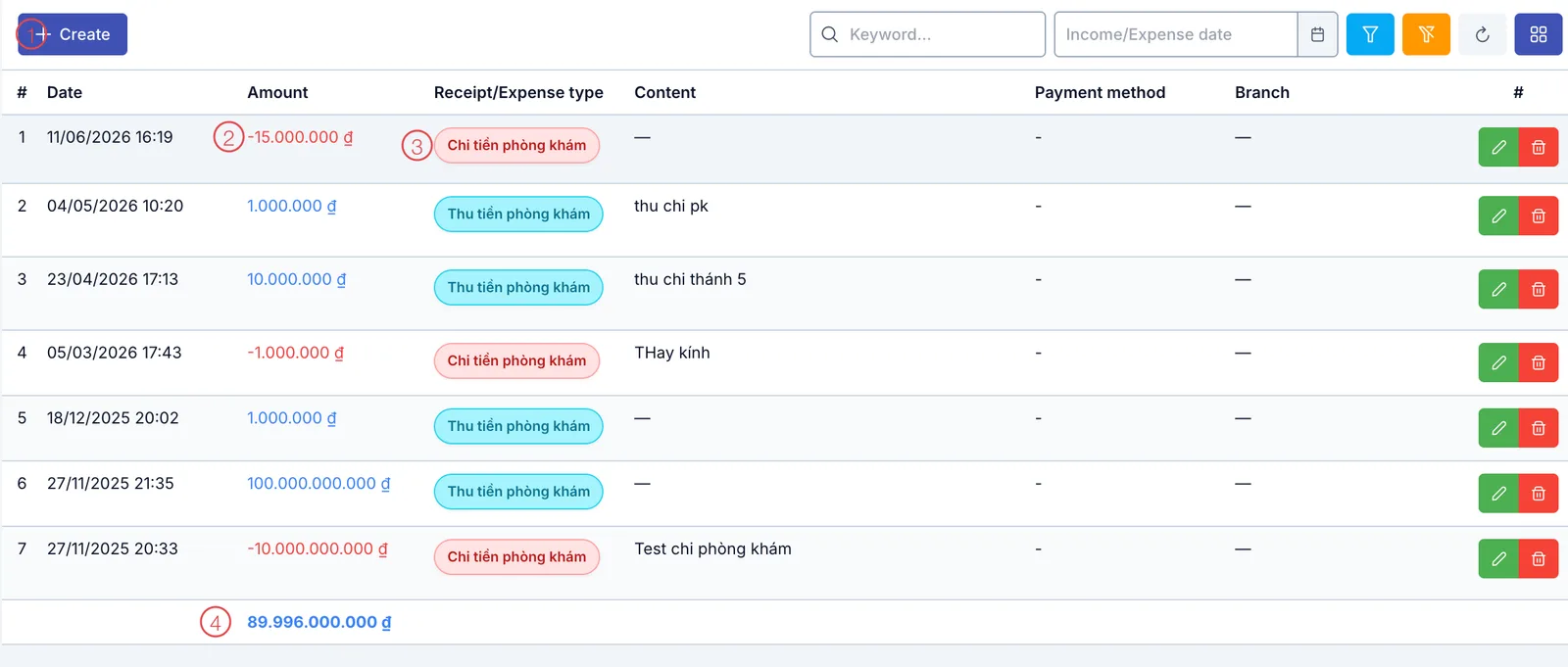
Illustration of the Receipt / Expense screen
| Area | What it is |
|---|---|
| 1. Create | Opens the form for one receipt or one expense. |
| 2. The Amount column | Income shows in blue, spending shows as a red negative number — one glance tells you which way the money went. |
| 3. The Receipt/Expense type column | The tag reads clinic income or clinic expense. |
| 4. The total row | Adds up the date range you filtered — income less spending, the period's net in one figure. |
Filling the form
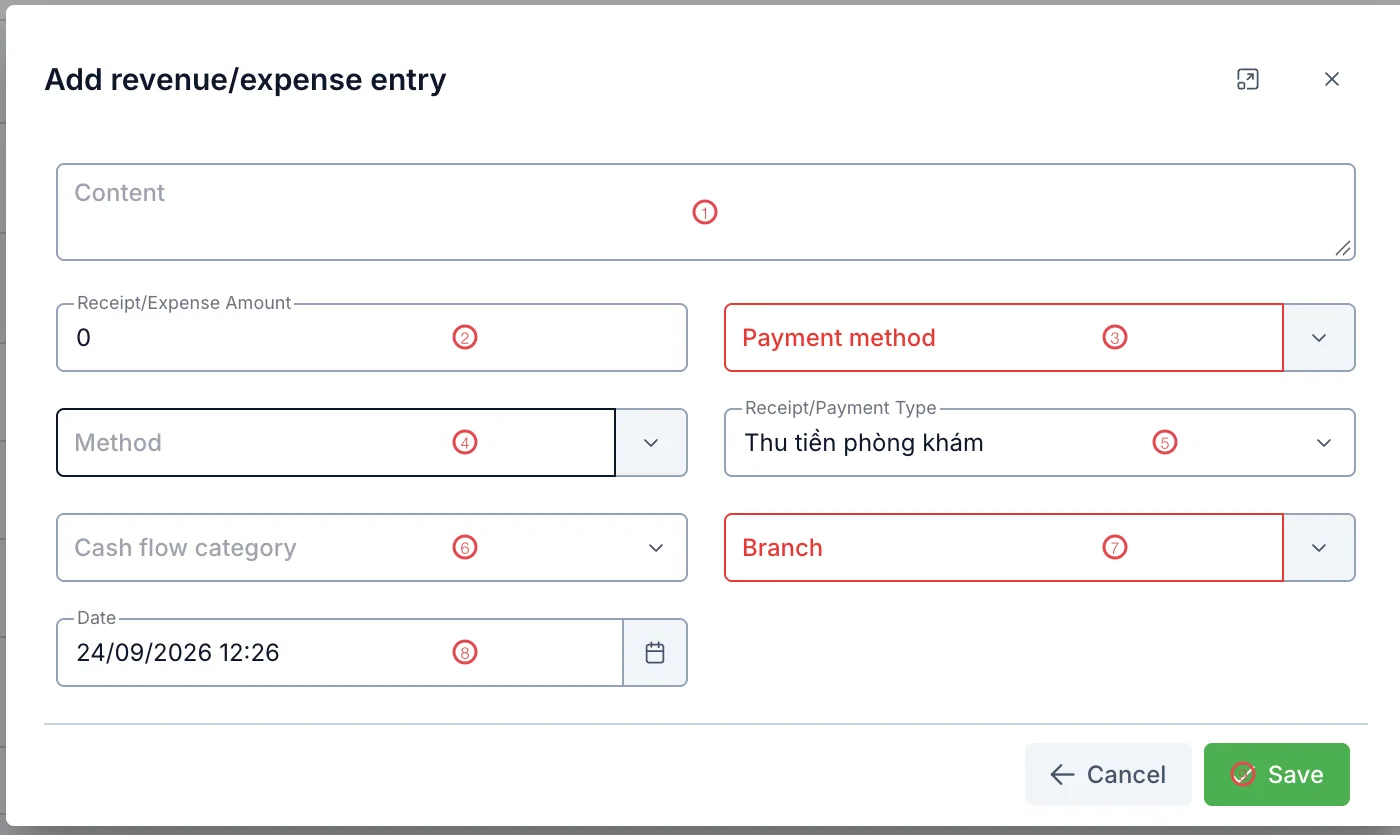
Illustration of the Add revenue/expense entry form
| Area | What goes in |
|---|---|
| 1. Content | What this is: "September electricity", "A4 paper", "Repair to dental chair 2". |
| 2. Receipt/Expense Amount (required) | The amount, always entered positive — direction is set by area 5. |
| 3. Payment method (required) | Cash, bank transfer, card… This is what decides which fund the money moves through. |
| 4. Method | The detail behind the payment method — with a card, this is the card type. The choices follow whatever you picked in 3. |
| 5. Receipt/Payment Type (required) | Clinic income or clinic expense. Get this wrong and the figure counts the other way, so check it before saving. |
| 6. Cash flow category | Files the item for reporting: utilities, stationery, repairs, marketing… |
| 7. Branch (required) | The branch the item belongs to, so each site's profit is right. |
| 8. Date (required) | Defaults to now. Catching up on yesterday? Set the real date. |
| 9. Save | Writes the voucher to the books. |
Recording so the month end is useful
A voucher with the amount, the right direction, a category and a branch is a usable line of data. Skip the category and all you have at month end is one lump sum, which cannot answer "what did we spend the most on".
A week of small items and you have forgotten what they were, let alone whether they were paid in cash or by transfer. Record as you spend and the end-of-shift fund reconciliation matches the drawer without guesswork.
Payment method is what links this voucher to the cash fund. Pay in cash but pick bank transfer and the drawer will be out by exactly that amount at the end of the shift.
Reading the cash flow back
Once you record consistently, three places give the answer:
- The total row on the list screen — filter a date range for the week's or the month's net.
- Profit & Loss report — clinic receipts and expenses sit alongside service revenue, giving the real profit.
- Report list — money in and out by branch and by payment method.
Related
- Clinic Revenue & Expenses — the list screen and its filters.
- Receipt / expense voucher — amounts tied to a customer.
- Cash Fund — where cash and bank accounts are tracked.
- Fund Reconciliation — counting the drawer at end of shift.