Customer Care (Patient Care) Overview
Customer Care (Patient Care) is where the care team, consultants and clinic owners keep track of every follow-up contact with a customer after they leave the clinic — from post-treatment check-in calls, to customers (patients) with unfinished services who haven't come back, to complaints, birthdays and reviews customers (patients) send in. The module makes sure no customer who needs a timely follow-up gets missed.
This guide writes customer (patient) because the software lets each clinic pick its own wording: open Task options and set Subject label, and the screen shows patient (the default) or customer, whichever your staff say day to day.
How to open Customer Care (Patient Care)
On the purple bar at the very top, click the grid icon (four small squares, named System modules). A board of modules appears, each tile being one area of the clinic's work.
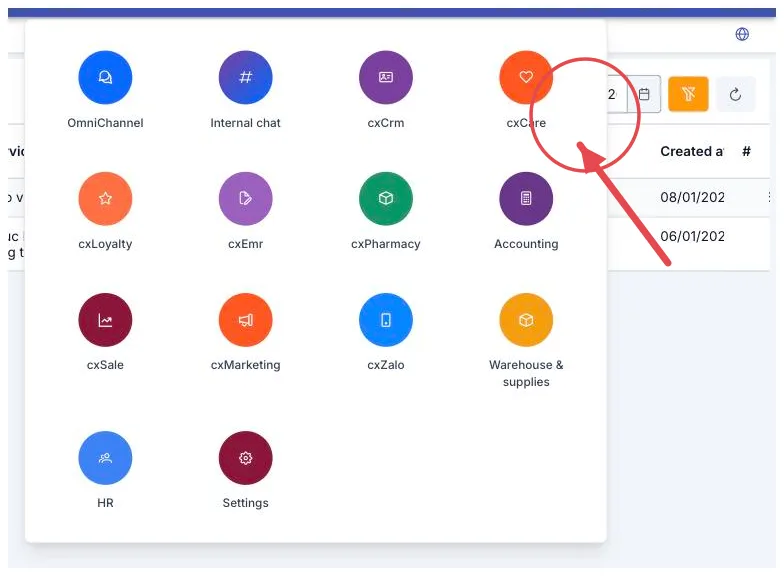
Illustration of the module board
- Find the tile labelled cxCare — a heart icon on a round red-orange background.
- Click that tile — Customer Care (Patient Care) opens straight away.
This works from anywhere in the software: no need to sign out or go back to the home page.
The screen only shows the modules your account is allowed to use, so the number and position of tiles may differ from the illustration. If there is no Customer Care tile, your account has not been given access yet — ask your clinic administrator.
What's on the working screen
Once the module is open, the screen is always split into the same fixed areas — whichever item you open, everything stays in the same place, so you only have to learn it once.
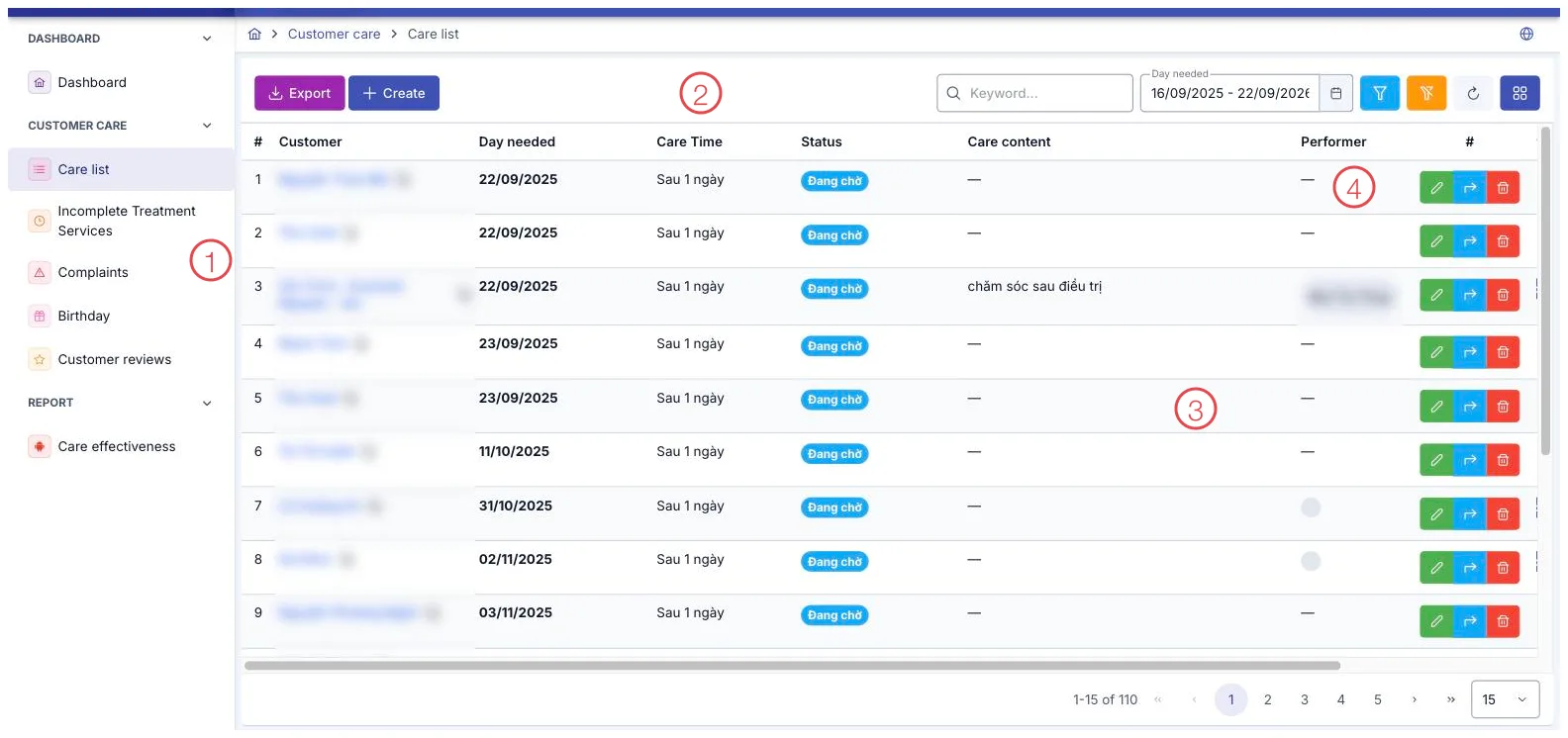
Illustration of the Customer Care working screen
| Area | What it is |
|---|---|
| 1. Left menu | Every item in the module, grouped by area. Click an item to open it. |
| 2. Top toolbar | The load-data button, the create button, the search box and filters. |
| 3. Data table | The main list in the middle of the screen, with page numbers at the bottom. |
| 4. Action buttons | At the end of each row — the actions available for that row. |
The module covers three areas:
Post-treatment care
Track and log every follow-up contact made with a customer after they leave the clinic.
- Care List — view every care follow-up in the clinic, most of it created automatically by the software, and add new ones.
- Incomplete Treatment Services — customers (patients) with an unfinished treatment course, to call and invite them back to complete it.
Complaints
Record and handle incidents and complaints customers (patients) send in.
- Report an Incident — record a customer's complaint.
- Complaint Handling Process — the steps for taking in and resolving a complaint, from logging it to closing it out.
Other
- Birthdays — customers (patients) with an upcoming birthday, so you can send greetings and offers proactively.
- Customer Reviews — the reviews customers (patients) have sent in to the clinic.
Want to know who to call today? Start with the Care List — it's already filtered to today and to follow-ups still waiting to be handled.