Care List
The Care List is where you see every follow-up contact made with customers (patients) across the clinic — not just one customer. Each row is one follow-up that needs to happen with a customer after they leave the clinic. The care team uses this page to know who to call today and how far along each follow-up is.
When you open it, the screen is already filtered to Follow-up date = today and Status = Pending, so you see the day's work right away.
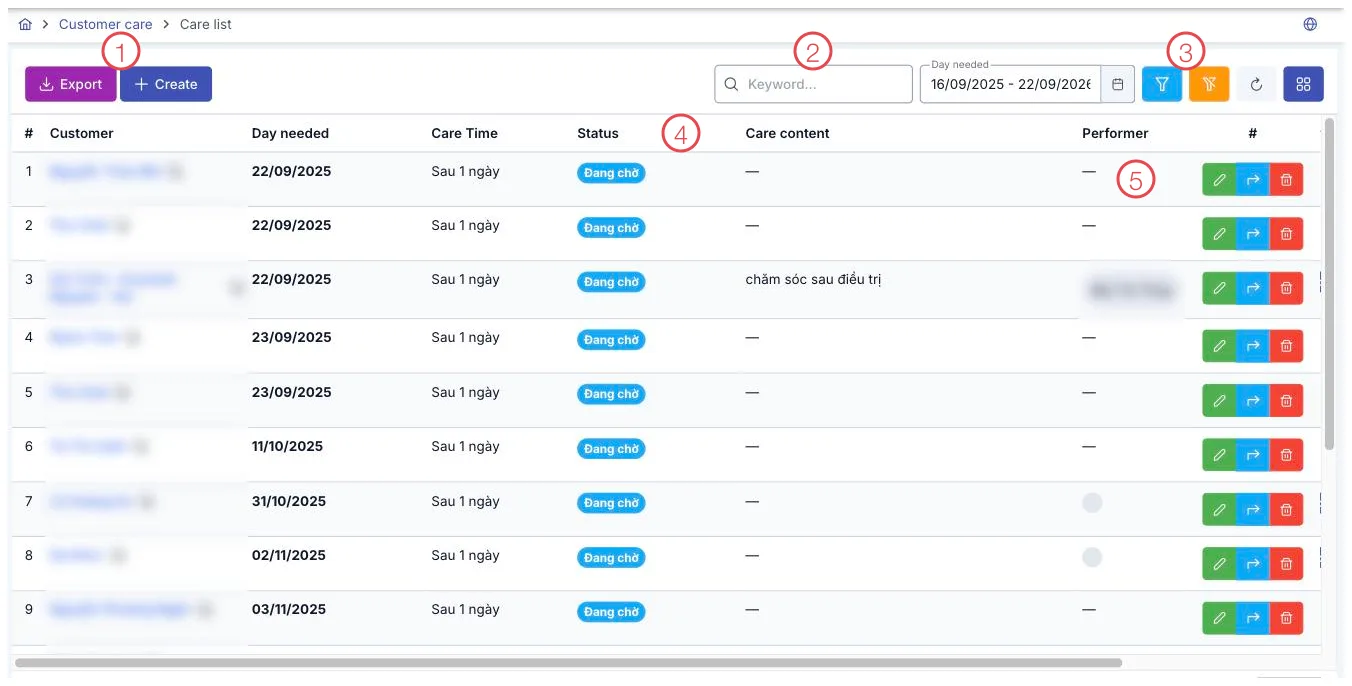
Illustration of the Care List screen
| Area | What it is |
|---|---|
| 1. Load Data and Create New buttons | Load Data exports the list to Excel (with a box to choose columns before exporting); Create New opens the form to log a new follow-up. |
| 2. Search box and Follow-up date | Search by keyword, or change the date range to see days other than today. |
| 3. Filter, clear filter, refresh, choose columns | Click the funnel icon to open the full filter set (see below); the broom button clears every filter applied. |
| 4. Status column | Shows which step this follow-up is at (see the table below). |
| 5. The three end-of-row buttons | Edit (pencil), Create a complaint from this customer (outward arrow), Delete (trash bin). |
To see a status other than Pending, click the funnel icon (area 3) to open the full filter set: Branch, Care channel, Topic, Status, Priority, Follow-up timing, Care outcome, Assigned staff, Supporting staff, Time already spent, Created by, Created date.
The software creates most follow-ups for you
You rarely need to type one in by hand — the software automatically creates a follow-up in these cases:
- After every treatment session: the software creates a follow-up for the next day, with status Pending. If the customer already has one for the same day, it won't create another.
- A treatment service is completed and that service is flagged for follow-up: the software creates one follow-up for each milestone set for that service, e.g. After 1 day, After 1 month…
- A customer buys a product (not a treatment service): a follow-up is created as soon as the order is paid.
Because of this, your daily job is usually to open this list and work through the follow-ups that are already there, instead of having to remember who to call.
Automatic reminders
When a follow-up date arrives, the software sends a bell notification to the assigned staff member. Notifications start going out from 7:30 AM in the clinic's time zone, and are checked again every 30 minutes during the day so newly created follow-ups aren't missed.
What the columns and values mean
Follow-up timing is not a time of day — it's a milestone counted from the treatment session: After 1 day, After 7 days, After 1 month, After 3 months, After 6 months, After 1 year.
Status:
| Status | Meaning |
|---|---|
| 🔴 Pending | Just created or just scheduled, not yet contacted. |
| Raised | Newly raised, handling hasn't started. |
| In progress | Staff is in the process of contacting the customer. |
| 🟢 Completed | Contact made and the outcome logged. |
| 🟡 Duplicate | Matches another follow-up already created for the same customer. |
Care outcome: Satisfied, Not satisfied, Normal, Very poor, No response.
Priority: Low, Normal (default), High, Urgent.
Topic: Consulting, Care, Q&A. Care channel: Phone call, Facebook message, SMS, Zalo, Viber.
The lists of statuses, outcomes, topics and care channels above are categories each clinic sets up in Configuration, so the actual names and colors may differ from the illustration.
Creating or editing a follow-up
Click Create New (area 1) or click Edit on an existing row to open the follow-up form. This is the same form used on the Care tab of each customer's profile — the detailed field-by-field guide is already at Create a Care Record; editing from either place updates the same data.
Once saved, the software automatically updates the customer's last contact date on their profile.
If a customer complains while you're on a follow-up call, click the outward arrow button in the middle of the three end-of-row buttons (area 5) — the software opens the Report an Incident form directly with the customer's details already filled in, so you don't have to look them up again.
Related
- Incomplete Treatment Services — customers (patients) with unfinished courses, another source of follow-ups besides the auto-created ones.
- Create a Care Record — the detailed field guide for this form.
- Customer Details — where each customer (patient)'s Care tab lives.