Complaints
Complaints is where you record every feedback, question, complaint, and incident customers (patients) raise while using the clinic's services. Every time a customer complains — whether by phone, message, or in person — it becomes a ticket here, so someone stays accountable for it until it's resolved instead of it being forgotten.
The toolbar only has two things: a keyword search box to quickly look up by customer name or content, and the Create button.
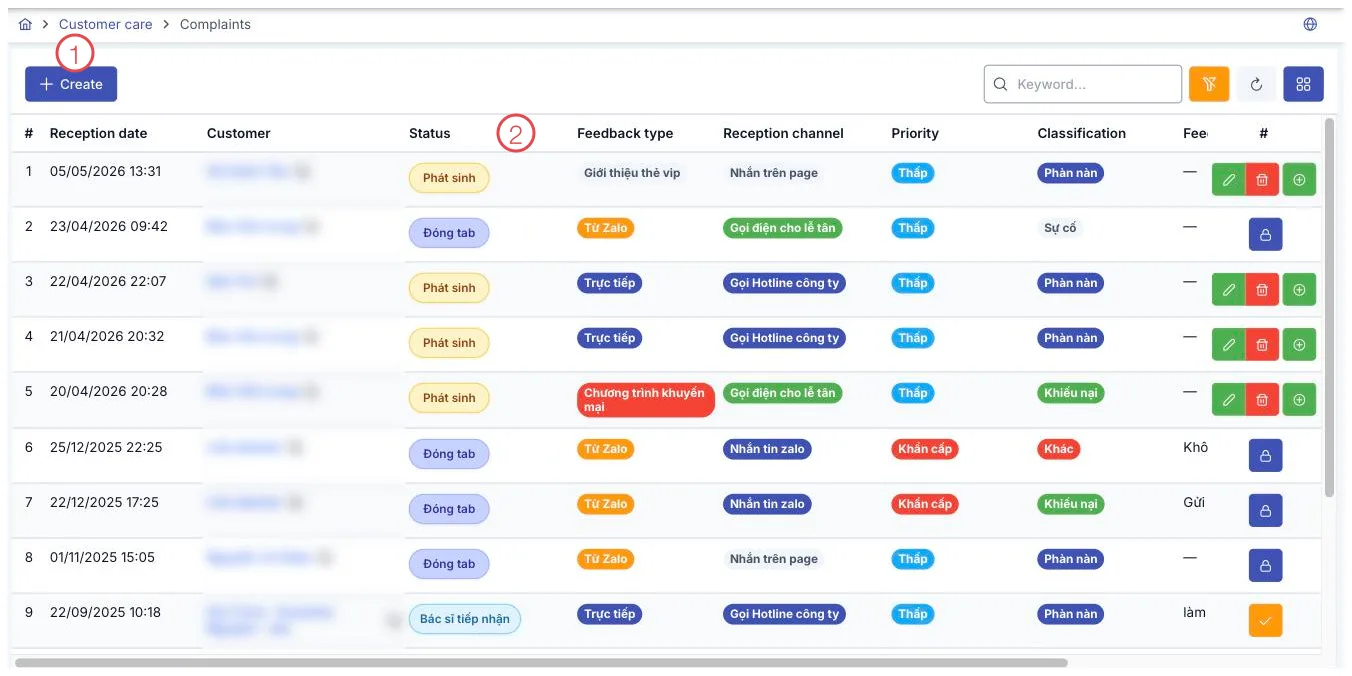
Illustration of the Complaints list
| Area | What it is |
|---|---|
| 1. Create button | Opens the form to log a new complaint. |
| 2. Status column | Which step the ticket is currently at in the handling process (see below). |
Four handling statuses
Every ticket moves through exactly 4 steps in order, shown by color in the Status column:
| Status | Color | Meaning |
|---|---|---|
| New | Yellow | Just created, not yet assigned. |
| Doctor Assigned | Blue | Assigned to a doctor with a resolution date set. |
| Resolved | Green | Has a result and a cause recorded. |
| Closed | Purple | Finalized, no further action. |
For how to move a ticket from one status to the next — which button to press, what to fill in — see Handling a Complaint.
Color-coded categories
Besides status, each ticket also carries 4 category groups, each value shown in its own color for quick scanning on the list:
- Feedback Type: Direct, Reported by Another Department, Cx Survey, Post-incident Care, Trade Lead Sourcing, VIP Card Referral, Promotion Program, From Customer Care.
- Channel: Company Hotline Call, Zalo Message, Survey Form, Direct Feedback, Call to Customer Care (Patient Care), Page Message, Call to Front Desk.
- Issue Type: Complaint, Question, Grievance, Incident, Other.
- Priority: Normal, High, Urgent.
These 4 category groups are set up by each clinic in Configuration, so the exact names shown here may differ at your clinic. The way you use them is the same: pick the value that best describes the customer's situation.
Creating a new complaint ticket
Press Create, and the form opens with the fields below. Fields marked with ⭑ are required:
| Field | Note |
|---|---|
| Customer ⭑ | The customer who had the issue. |
| Feedback Type ⭑ | Defaults to Direct. |
| Receiver ⭑ | Defaults to you — the currently logged-in user. |
| Channel ⭑ | Defaults to Company Hotline Call. |
| Priority ⭑ | Defaults to Normal. |
| Issue Type ⭑ | Defaults to Complaint. |
| Branch ⭑ | The location where the issue occurred. |
| Treating Doctor ⭑ | The doctor related to the service the customer is complaining about. |
The default fields are already filled with the most common values — only change them when the actual situation is different.
Press Save, and the ticket appears right away in the list with New status. At the same time, the customer's profile gets flagged as having an open complaint — anyone who opens that customer's profile afterward will see it immediately, without needing to come here.
Besides the method above, you can open a complaint ticket directly from a row in Care List — press the middle button in the group of 3 action buttons, and the form opens already filled with the customer's name, saving you a step of searching for them.
Related
- Handling a Complaint — how to move a ticket through each step.
- Care List — create a ticket quickly from a customer row.
- Customer Details — where the customer profile shows the open-complaint flag.