Creating a Care Record
A care record is a promise to check on a customer on a particular day. The work does not end when the customer leaves the chair: someone has to call and ask whether it still hurts, remind them about the next visit, ask how things are six months on. CluvixHealth turns those promises into work items with a name, a date and an owner — instead of leaving them to somebody's memory.
Three ways a care record starts
| How | When you use it |
|---|---|
| By hand from the Care List | The customer just rang in, or you want to schedule a call outside the usual plan. |
| From the customer's profile | You already have a customer's profile open and want to log a call for that person. |
| Automatically | The default for a clinic running well — after every treatment session, and after every completed course, the schedule is already there. |
The third way is what produces most care records. The first two are for what comes up in between.
Way 1: By hand from the Care List
Open Care List and click the blue Create button in the top left, next to Export.

Illustration of the Create button on the Care List screen
The Create new care window opens. The fields worth knowing are numbered in the picture:
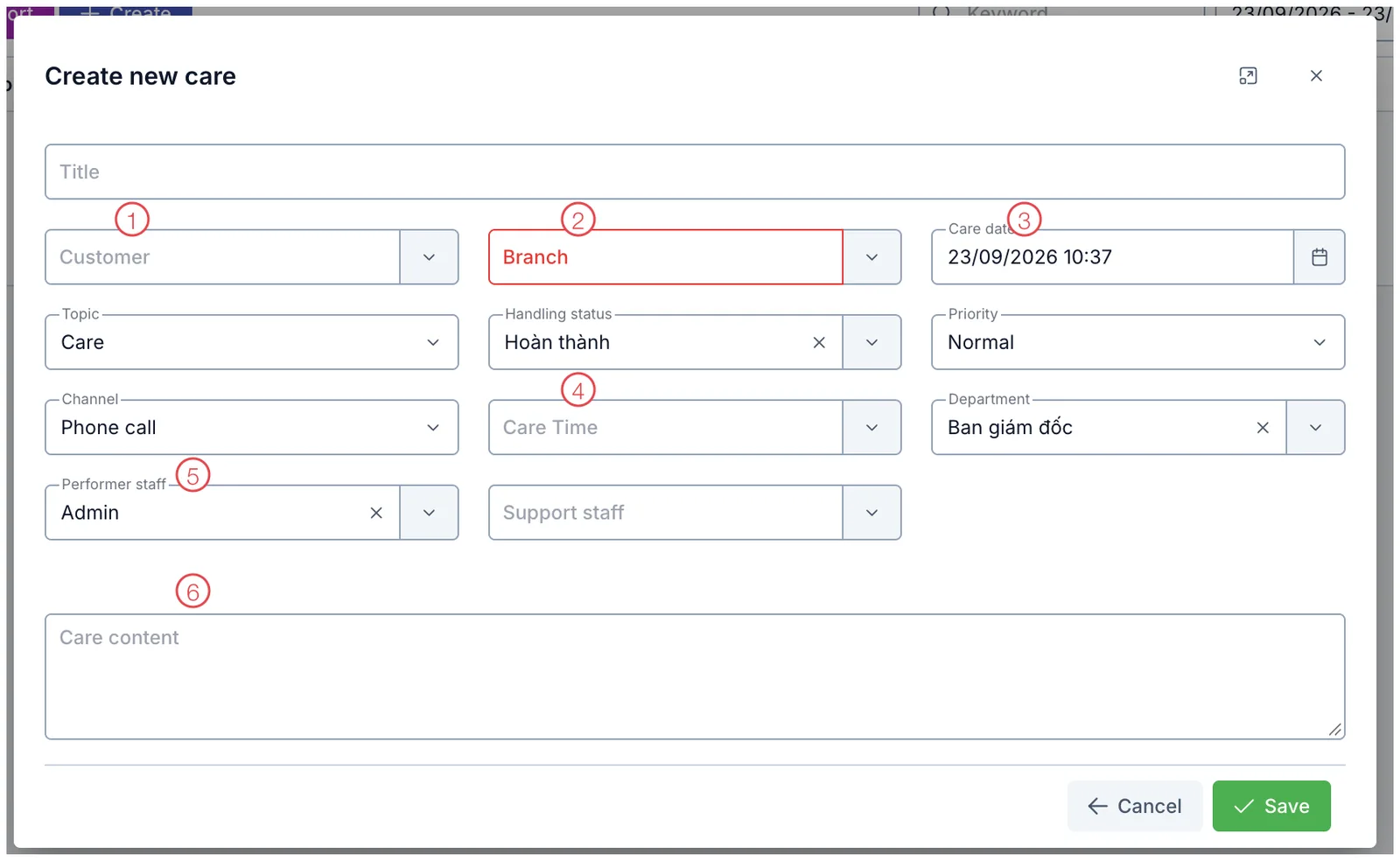
Illustration of the Create new care window
| Field | What to enter |
|---|---|
| 1. Customer (Patient) | Type a name or phone number and pick from the list. This is the person who will be called. |
| 2. Branch (required) | The site responsible for this call. The box is outlined in red while empty — you cannot save until it is filled. |
| 3. Care date | When you will contact the customer. The software pre-fills the current time; change it to the day you intend to call. |
| 4. Care Time | The milestone measured from the treatment — 1 day later, 7 days later, 1 month later… This is not the time of the call, it is the reason this care record exists. |
| 5. Performer staff | Who is responsible for calling. The software pre-fills you; change it if someone else takes it. |
| 6. Care content | What needs saying to the customer, or what was said once the call is done. |
Every other field already holds a usable value: Topic (Care), Channel (Phone call), Priority (Normal), Handling status, Department, Support staff and Title. Adjust them if you need to, otherwise leave them. Click Save and the record joins the list.
Once the call is over, come back and write down what the customer actually said — "still tender on tooth 6, call back Thursday" is worth far more than "called". Whoever picks it up next carries on the conversation instead of making the customer start again.
Records are grouped by Care date, and Care List opens showing only today's work. Put the wrong date in and nobody will see the record on the day it matters.
Way 2: From the customer (patient)'s profile
If you already have a customer's profile open, you do not have to go back to the list: the Care tab in the profile has its own create button, with the customer already filled in. The steps are in Create a Care Record.
The two places hold the same data: a record made in the profile shows up in the Care List, and the other way round. Editing it in either place is the same edit.
Way 3: The software schedules it for you
This is the part worth investing in, because it turns care from "we do it when we remember" into "it happens by default". Two mechanisms run alongside each other.
The day after every treatment session
Each time a member of staff records a treatment session, the software creates a care task for that customer on the very next day and hands it to the customer care team. If that customer already has a care task on that date, nothing extra is created, so the list never doubles up.
This is the single most important call in the whole journey: the customer has just been treated, is still sore, still anxious, and a call at exactly that moment is what people remember for a long time. Turning the mechanism on or off lives in Task Options, under automatically create care the next day.
The long-term schedule, milestone by milestone
When a customer completes a whole course of a service, the software reads the milestones set up in Care Time and lays out a whole run of future calls — 7 days later, 1 month later, 3 months later, 6 months later… one record per milestone, counted from the completion date.
For the run to happen, the service needs Has care switched on and needs to belong to the service group the milestone applies to. Both are set up once in Settings, and from then on the whole run happens for every customer.
The records land in the customer care team's shared queue with nobody's name on them yet — staff pick work up from the queue.
Orthodontics and teeth whitening do not follow the same follow-up rhythm. Give each service group its own milestones and the call lands when the customer actually wants to hear from you — the right rhythm is care, too often is a nuisance.
What the clinic gets out of it
- Nobody slips out of sight. Every session produces a promise, every completed course produces a whole run of them. Staff going on leave — or leaving altogether — does not break the chain, because the work sits in a queue rather than in someone's notebook.
- Somebody gets reminded on the day. Records falling due send a bell notification to the person responsible, starting at 7:30 am and checked again every 30 minutes through the day.
- Customers feel remembered. A call six months later, on the day it was promised, tells a customer something no advertising can: here, people remember me.
- Measured instead of assumed. Every record has a status and an outcome, so the clinic knows how many calls were actually made and how many customers (patients) came back — rather than trusting that "we look after our customers (patients)".
Related
- Care List — where every care record is seen and worked.
- Create a Care Record — creating one inside a customer's profile.
- Care Time — the milestones the automatic schedule is built from.