Handling a Complaint
A Complaints ticket moves through exactly 4 steps from creation to closing. You don't pick the status by hand — the status changes automatically as soon as you finish the form for that step. The action buttons at the end of each row also change with the status, so just looking at the buttons tells you what to do next.
Raising a Complaint walks through these same four steps with real screenshots of every button and form, and covers how customers (patients) send complaints in from the Zalo Mini App.
Step 1: New
This is the status of every ticket right after it's created. At this step, the row has 3 buttons: Edit, Delete, and a plus-sign button to assign a doctor.
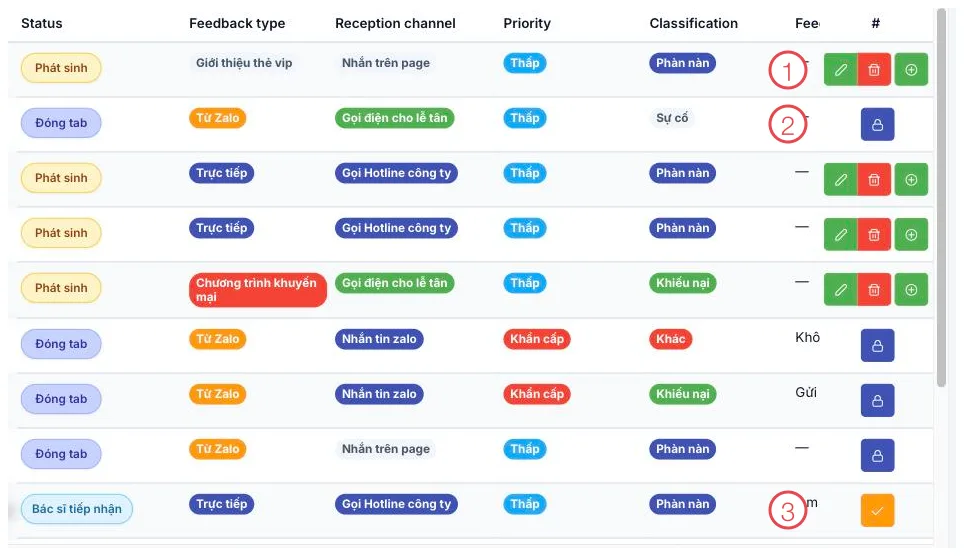
Illustration of action buttons per complaint status
| Area | What it is |
|---|---|
| 1. Row at New status | Has Edit, Delete, and a plus-sign Assign Doctor button. |
| 2. Row at Closed status | Only a lock-icon button remains, to reopen it. |
| 3. Row at Doctor Assigned status | Has a check-mark button to record the resolution result. |
Only at New status can you edit or delete the ticket. Once a doctor has been assigned, the ticket can no longer be edited or deleted — double-check the customer's information and the complaint details before doing step 2.
Step 2: Assign a doctor
Press the plus-sign button (area 1 in the image), and a form opens asking for 3 required fields:
| Field | Note |
|---|---|
| Assigned Doctor | Who will handle this ticket. |
| Assignment Date | The date the doctor starts handling it. |
| Resolution Direction | The planned approach to resolving it. |
Press Save, and the status automatically changes to Doctor Assigned, with the row's action buttons changing to a check-mark button (area 3 in the image).
Step 3: Record the resolution result
Press the check-mark button, and a form opens asking for:
| Field | Required |
|---|---|
| Handling Doctor | Yes |
| Result | Yes |
| Cause | Yes — choose one of 3: Customer's Fault, Doctor's Fault, Supplier's Fault. |
| Completion Date | Yes |
| Resolution Notes | No |
Press Save, and the status automatically changes to Resolved.
Step 4: Close the complaint
Once a ticket is Resolved, a lock-icon button appears — visible only to accounts in the Board of Directors. Pressing it prompts a confirmation, then moves the ticket to Closed status (area 2 in the image).
Press that same lock button again to reopen the ticket — it goes back to Resolved, not back to an earlier step.
The Resolution Direction field in step 2 and Resolution Notes in step 3 are what the next person on shift reads to know what was promised to the customer. Writing them clearly means the next contact with the customer won't contradict what they were already told.
Related
- Complaints — where tickets are created and listed.
- Customer Reviews — open a complaint ticket here when you see a low review.
- Customer Details — where the customer profile shows the open-complaint flag.