Configuration overview
Configuration is where the clinic administrator sets up the foundational information every other module relies on — company/brand details, branches, units of measure, service catalogs, workflows and third-party integrations. This screen is mainly for administrators, not something front-desk or consulting staff use day to day.
Opening Configuration
Right after you log in, the software opens the module selection screen: a board of tiles, each tile a different area of the clinic.
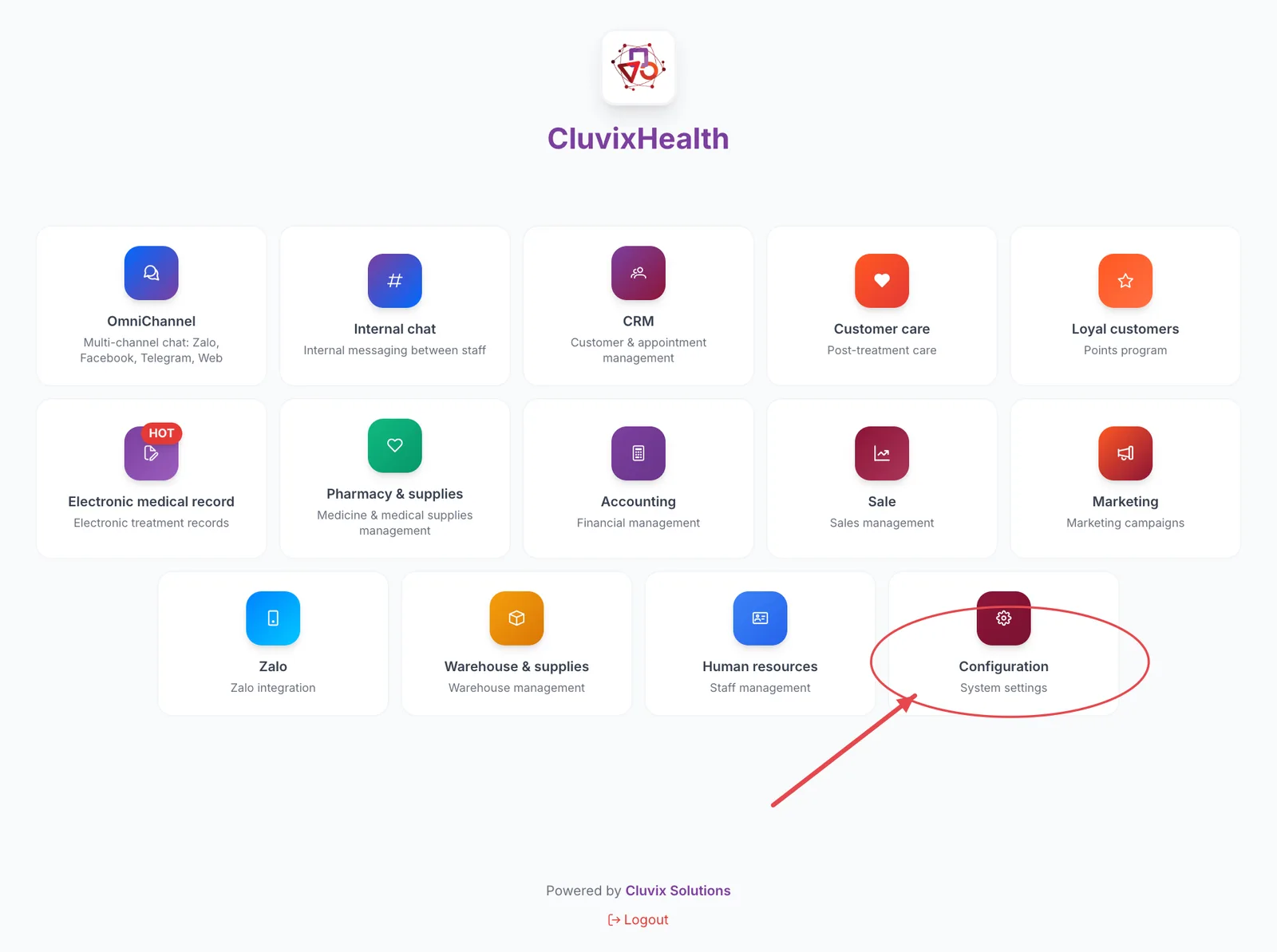
Screenshot of the module selection screen
- Find the tile labeled Configuration, with the small caption "System settings" underneath. This tile has a gear icon on a dark red background.
- Click that tile — the software opens the System configuration screen right away.
You don't need to log out or go back to the screen above. On the purple top bar, click the grid icon (4 small squares, named System modules) and choose Configuration.
The screen only shows the modules your account is allowed to use, so the number and position of tiles may differ from the screenshot. Not seeing the Configuration tile means your account hasn't been granted access — ask your clinic administrator.
What's on the working screen
Once you're in Configuration, the screen is always split into the same fixed zones — open any group and they stay in the same place, so you only need to learn this once.
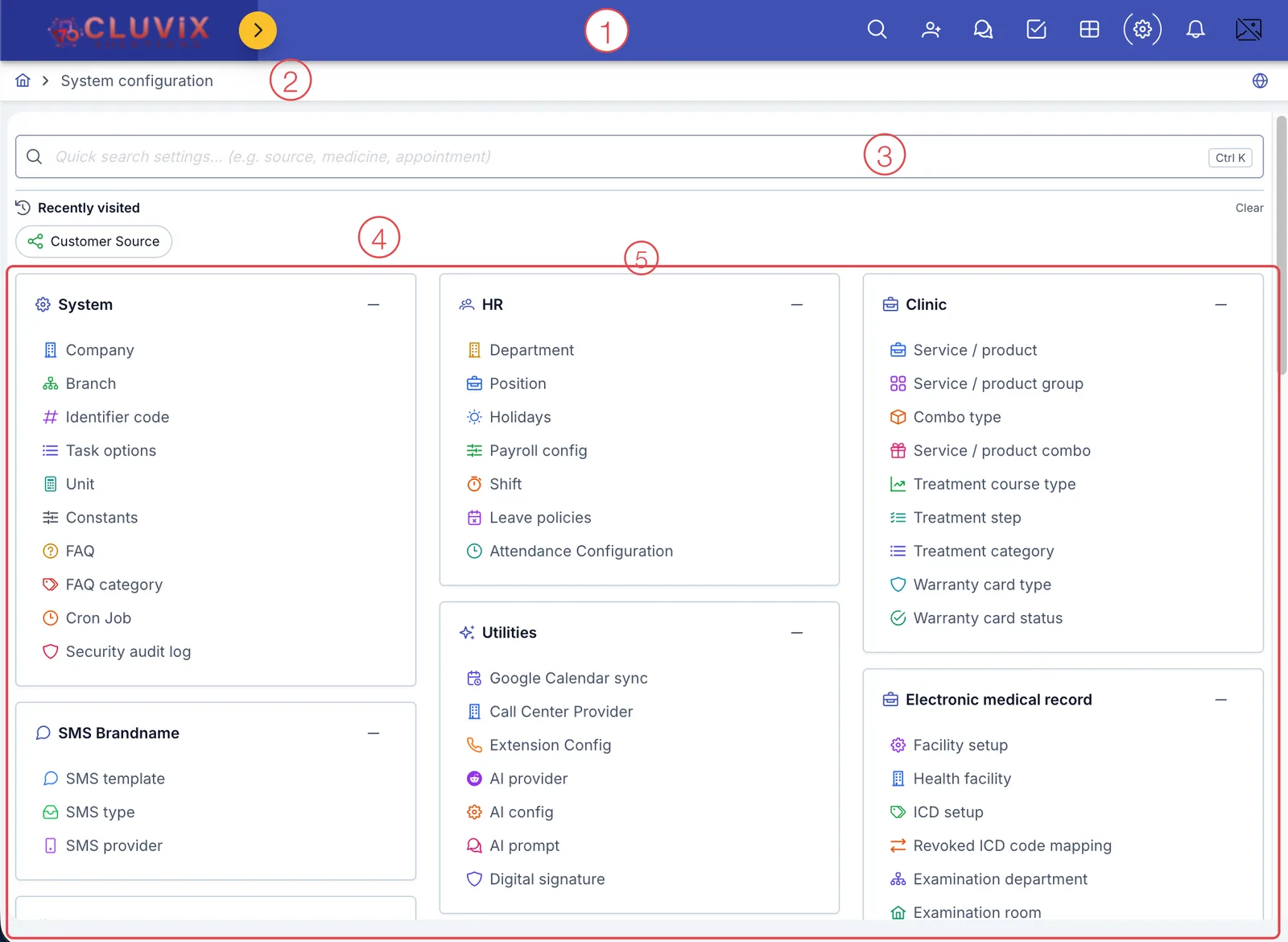
Screenshot of the Configuration working screen
| Zone | What it is |
|---|---|
| 1. Purple top bar | The clinic's logo, the shared search box, the grid icon to jump to another module, and the notification bell. |
| 2. Breadcrumb | Shows where you are — here it's always System configuration. |
| 3. Quick search box | Type the name of the category you need (e.g. source, medicine, appointment) instead of scanning every group — handy when you don't remember which group a category lives in. |
| 4. Recently visited | The categories you opened most recently, click to reopen them quickly. |
| 5. Configuration groups | Arranged in 3 columns, each group covers one area of work (System, HR, Clinic…). Click a category's name to open its data table — add, edit or delete rows inside it. Data here affects the whole clinic, so only administrators should change it. |
This module has many configuration groups, each serving a different business area: System (foundational information), SMS Brandname, Appointment, Accounting, Customer, Customer Care, HR, Utilities, Omnichannel, Zalo, Approval workflow, Marketing, Clinic, Electronic medical record, Consumable supplies, Medicine & prescription, Supplier… This page will be expanded over time as each category gets its own guide.
System
The most foundational settings — usually the first things you set up when starting a new clinic on CluvixHealth.
- Company — the brand/company that owns the clinic: name, logo, contact information.
- Branch — the list of branches/facilities that belong to the company.
- Unit — the list of units of measure used for services, products and supplies (piece, box, bottle…).
- Task options — 22 company-wide switches, from locking edits to old records to Omnichat, EMR and payroll behavior.
If you're setting up a clinic on CluvixHealth for the first time, start with Company then Branch — most other settings require picking the company/branch they apply to.
Clinic
The catalog of services, products and treatment workflows the clinic offers.
- Service / product — the catalog of services and products the clinic offers, with pricing, commissions and consumable materials.
- Service / product group — groups similar services/products for filtering and reporting, quick-pick by specialty.
- Service / product combo — a pre-built template of several services, one pick finishes the order instantly.
- Treatment phase — pre-set a completion percentage for each phase of a long course like braces.
- Treatment step — splits a treatment session into steps, tracking KPI points and commission per technician.
- Treatment category — classifies each treatment session, deciding whether it counts toward treatment progress.
Customer Care (Patient Care)
Configuration for the software to automatically follow up with customers (patients) after treatment.
- Care timing — auto-creates future care reminders when a customer finishes treatment on a service.
Electronic medical record
Catalogs and legal declarations used when writing electronic medical records.
- Facility setup — declare the medical facility's legal information; missing it blocks signing electronic medical records.
- ICD setup — the standard ICD-10/ICD-11 disease code catalog used for diagnoses, loaded from the national library or declared as a custom code.
- BYT technical codes — the Ministry of Health technical service code catalog; load the standard codes or add your own, then link them to services so health insurance claims use the right code.
Marketing
Catalogs used to record where customers (patients) come from and measure each channel's performance.
- Customer Source — the catalog of channels customers (patients) come from (Zalo, Facebook, Website, Referral…), attached to customers (patients) and appointments.
- Customer Source Group — rolls several sources into one group to report and set targets (KPI) at the group level.
Utilities
Integrations and tools that make the software more convenient to use.
- Call Center Provider — connect a call center (Omicall, Stringee) to call customers (patients) directly from the software.
- Digital signature — configure CA digital signing for electronic medical records per Circular 13/2025/TT-BYT, or use traditional handwritten signing.
- AI config — declare a provider and API Key so the software can use AI to chat about and analyze customer information.
Customize Form
Pick which fields are required, and which are locked, on the customer/lead form.
- Customer form — which fields are required when creating/editing a customer, and which get locked after creation.
- Lead form — a separate rule set for Sale/Telesale/Marketing when creating/editing a prospective customer, before they agree.
Customer (Patient)
Rank customers (patients) by accumulated points and configure discount perks per rank.
- Member rank — the catalog of customer (patient) tiers based on accumulated points, each with its own general discount %.
- Rank Discount — configure a discount % specific to individual services for each rank, instead of a general %.
Medicine & Prescriptions
The medicine catalog used when prescribing and managing pharmacy stock.
- Medicine list — the shared medicine catalog for the whole clinic, the data source used when prescribing and managing pharmacy stock.
- Prescription template — pre-built medicine sets with usage instructions, inserted into a real prescription in one click.
- Doctor instruction template — pre-built advice snippets inserted quickly into a prescription's Instruction field, printed on the copy given to the patient.
- DQG Integration Config — the facility account on the National Prescription Portal, its branches and its doctors.
- Doctor portal credentials — each doctor's portal code, without which their prescriptions cannot be sent.
Supply Warehouse
The supply catalog used for retail sale or consumed by services.
- Material — supplies used for direct retail sale or consumed by a service, automatically deducted from stock when performed.
Connected channels
Connect external communication channels to the software to message and chat with customers (patients).
- Zalo OA Connection — link a Zalo Official Account to send ZNS and chat with customers (patients) right in Omnichat.
Zalo
Configure ZNS message templates sent automatically via Zalo.
- ZNS Templates — declare approved ZNS message templates from Zalo, attach an auto-send trigger, and map parameters to ERP data.
Internal chat
Set up the clinic's internal chat structure: channels by department, by branch, and ones you create.
- Organisation channels — create channels, see which types sync themselves, and open a channel to the whole company.
- Channel members and archiving — change who is in a manual channel, archive old ones and restore them.
Accounting
Set up VAT rates and connect the e-invoice provider so invoices are issued right in the software.
- VAT rate — rates, tax types, validity periods, the default rate and the rate in effect.
- E-invoice configuration — Viettel/MISA account, template code, series and connection test.