BYT technical codes
BYT technical codes are the catalog of technical service codes issued by the Ministry of Health (for example, the code for a surgery or an ultrasound scan). You add codes to this catalog, then link the matching code to each service your clinic offers. When you prepare a health insurance (BHYT) claim, the software then fills in the right technical code for every service automatically, so nobody has to type it by hand.
Opening BYT technical codes
- Go to the System configuration screen (see Configuration overview), group Electronic medical record, click BYT technical codes.
- Faster way: type BYT into the quick search box at the top of the System configuration screen, then click the result.
BYT technical code list
The list shows every code, both the national codes and the codes your clinic added itself.
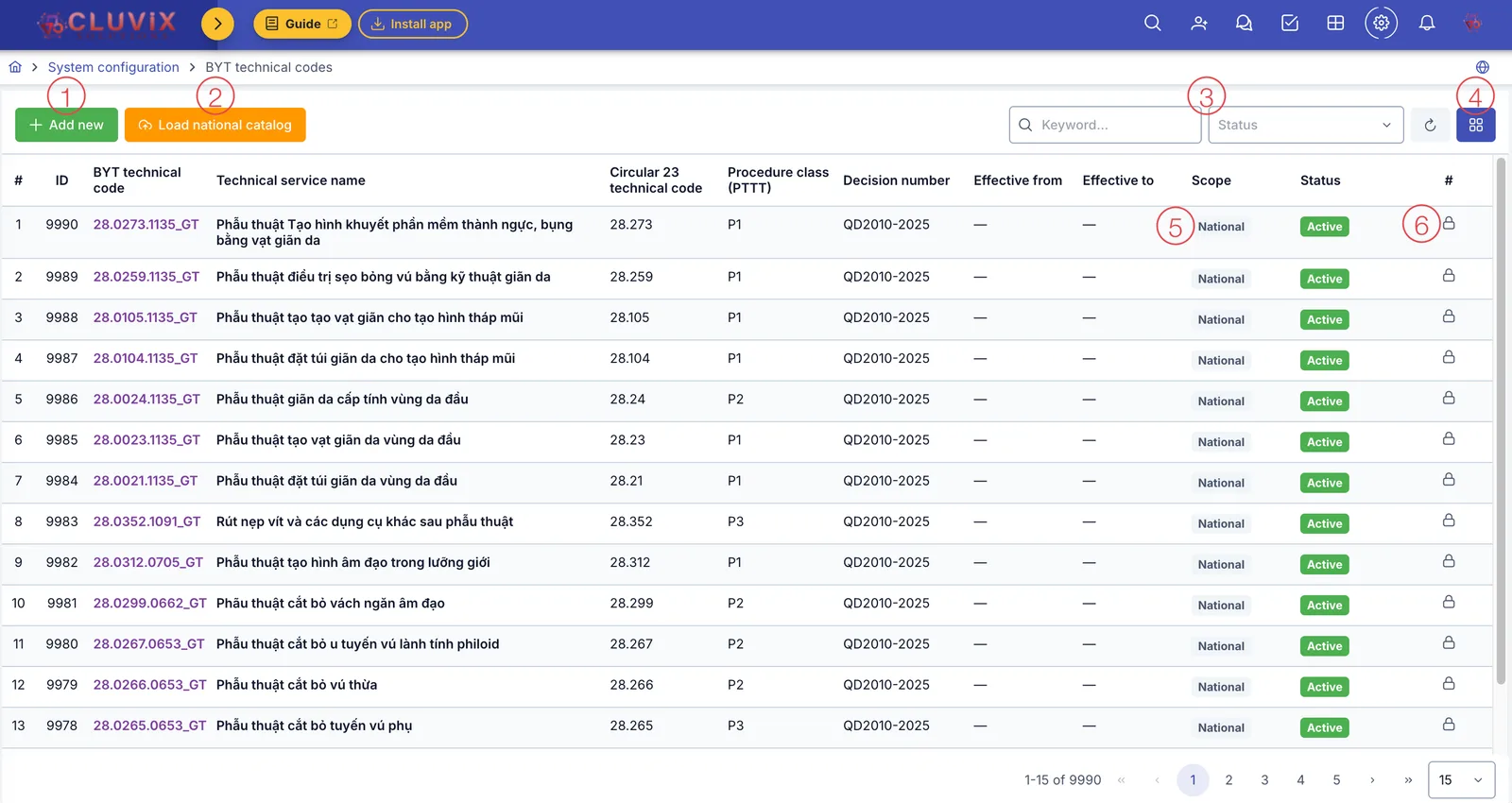
Illustration of the BYT technical codes list
| # | What it is |
|---|---|
| 1. Add new button | Add a code of your own — see Way 1 below. |
| 2. Load national catalog button | Load the Ministry of Health standard codes in bulk — see Way 2 below. This button only appears for the software's top administrator account. |
| 3. Keyword box and Status box | Type a code or service name to search quickly; pick Status to see only active or only inactive codes. |
| 4. Column picker button | Show or hide columns, for example Approved price name or Chapter. |
| 5. Scope column | National is a standard Ministry of Health code. Company-specific is a code your clinic added. |
| 6. Lock icon | National codes are locked and cannot be edited or deleted. Your clinic's own codes show a pencil (edit) and a trash can (delete) instead of the lock. |
Way 1: Add your own code
Use this when you need a code that is not in the national catalog, or you only need to add a few codes.
Click Add new (number 1 in the picture above) to open the Add BYT technical code dialog.
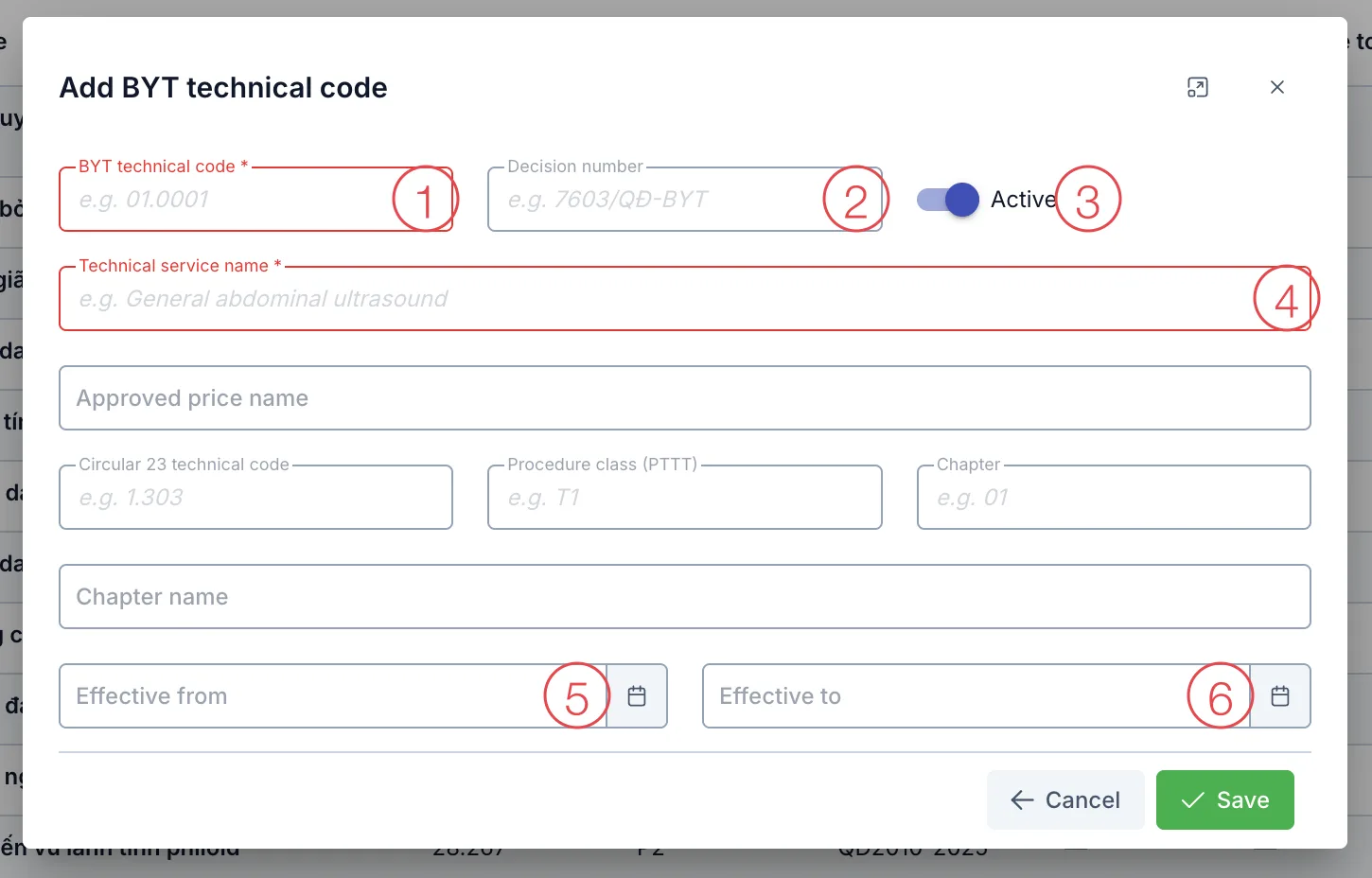
Illustration of the Add BYT technical code dialog
| Field | What to enter |
|---|---|
| 1. BYT technical code (required) | The code from the Ministry of Health catalog. Example: 01.0001 |
| 2. Decision number | The number of the decision that issued the code. Example: 7603/QĐ-BYT |
| 3. Active | An on/off switch. A code that is switched off does not appear when you link a code to a service. |
| 4. Technical service name (required) | The service name as in the catalog. Example: General abdominal ultrasound |
| 5. Effective from | The date the code starts to be used. Leave empty for no limit. |
| 6. Effective to | The date the code stops being used. Leave empty for no limit. |
The remaining fields (Approved price name, Circular 23 technical code, Procedure class (PTTT), Chapter, Chapter name) are reference information from the Ministry of Health catalog. Fill them in if you have them, otherwise leave them empty.
Click Save. The new code appears in the list with the scope Company-specific.
Click the pencil at the end of the row to change the name, the dates, or to switch the code on or off. Once saved, the BYT technical code and Decision number stay as they are, because the services linked to the code look it up by these two values.
Way 2: Load the national catalog
Use this when you are setting the software up for the first time, or need to load many codes at once. Click Load national catalog (number 2 in the list picture). The software asks you to confirm, because this action applies to the whole software. Confirm to open the Load national catalog dialog, which has 3 tabs: Cloud (Decision 2010), Excel and JSON.
With all 3 ways, existing codes are updated, new codes are added, and no code is deleted. When loading finishes, the software shows how many codes were added and how many were updated.
Cloud (Decision 2010) tab — recommended
The fastest way: pick your specialties and the software loads the standard codes from Appendix 1 of MOH Decision 2010/QĐ-BYT dated 19/6/2025.
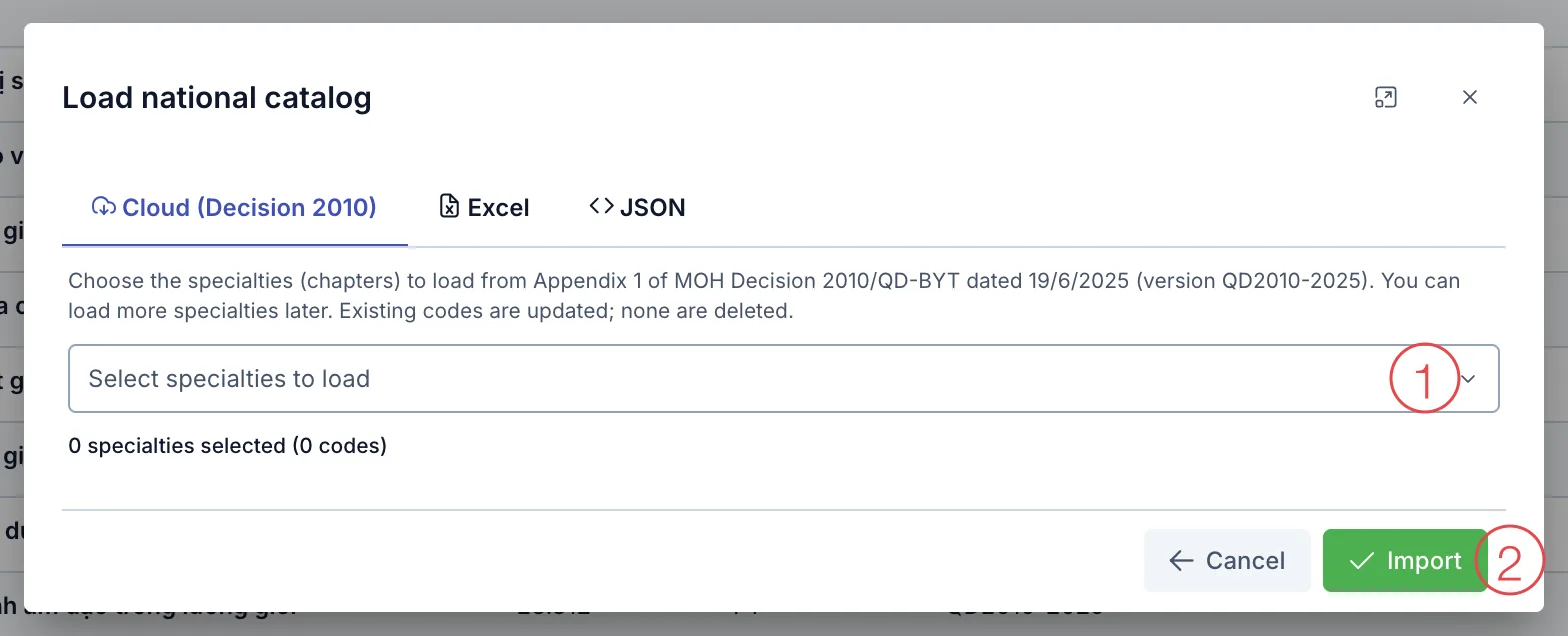
Illustration of the Cloud (Decision 2010) tab
- Click the specialty box (number 1) and tick the specialties your clinic works in. The line below shows how many specialties you picked and the total number of codes to load.
- Click Import (number 2).
If you later need another specialty, load again and pick the new specialty. Codes already loaded are not affected.
Excel tab
Use this when you already have your own list of codes in an Excel file.
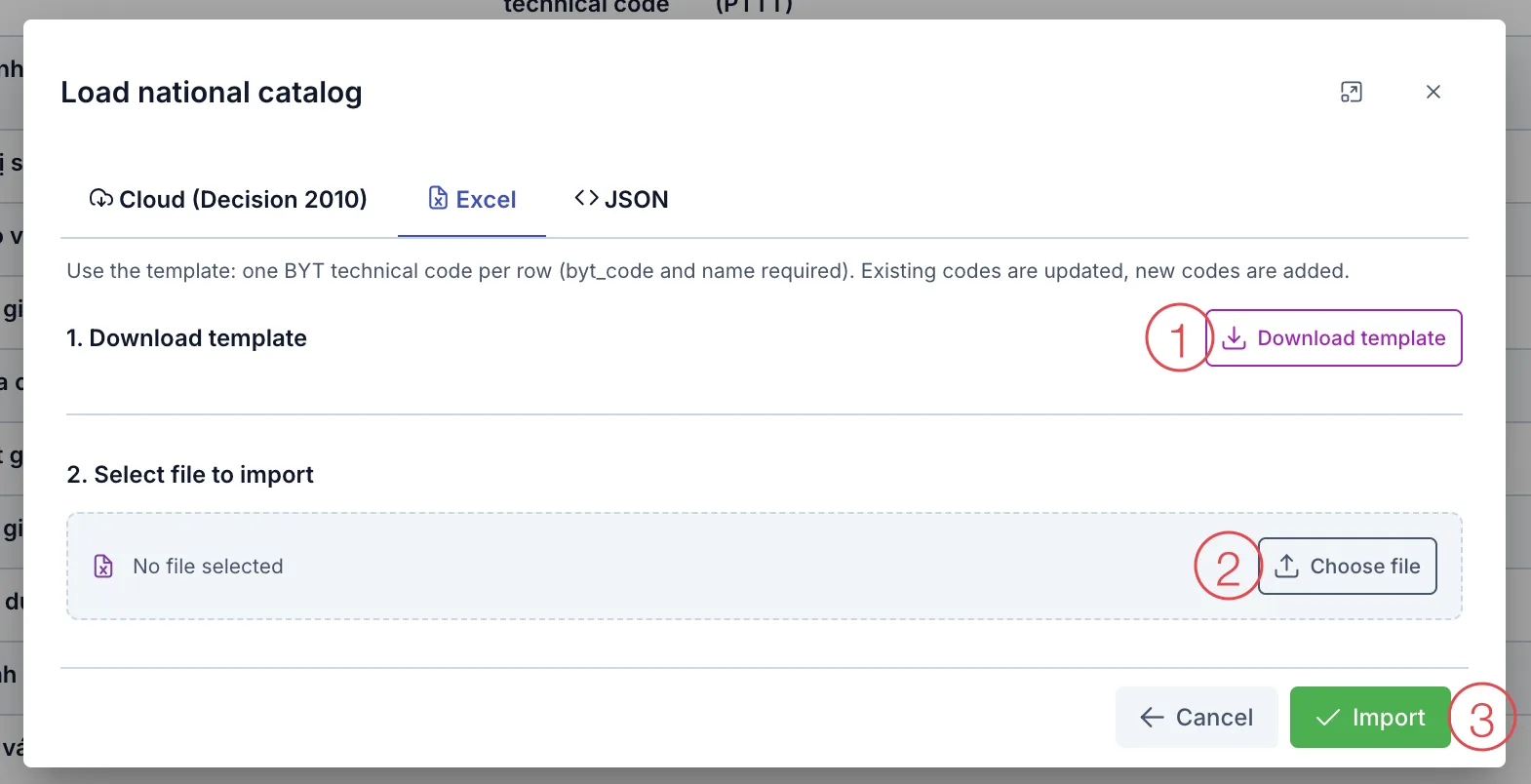
Illustration of the Excel tab
- Click Download template (number 1) to get an Excel file with the columns ready.
- Fill in one code per row. BYT technical code and service name are required; you can leave the other columns empty.
- Click Choose file (number 2) and pick the file you filled in.
- Click Import (number 3).
JSON tab
For people who already have the data in JSON format from another source.
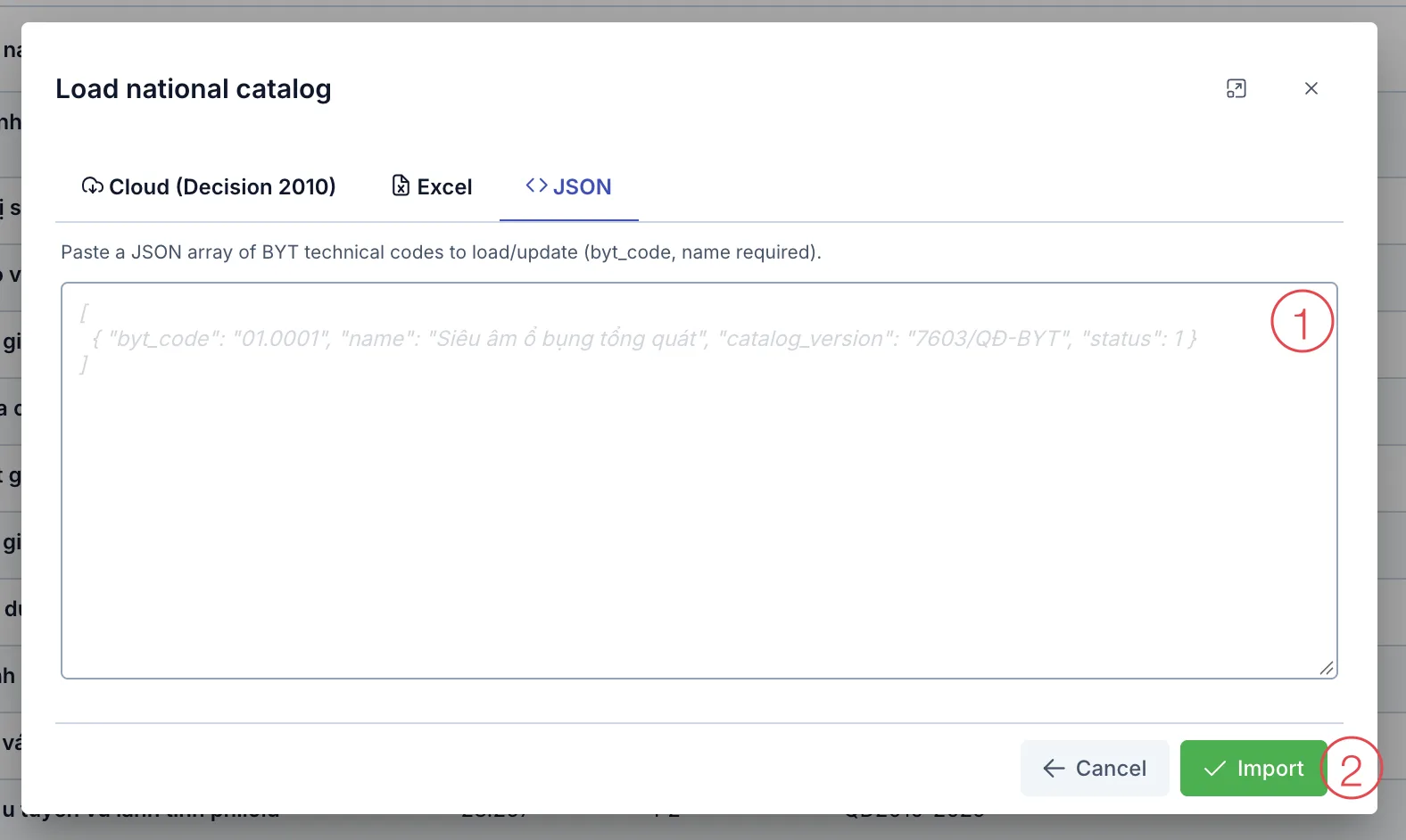
Illustration of the JSON tab
Paste the content into the large box (number 1), following the faded sample shown inside it, then click Import (number 2). Each code needs at least a technical code and a service name.
Link a code to a service
After adding codes to the catalog, you still need to link a code to each service. You do this on the service screen, not on the BYT technical codes screen.
Go to System configuration, group Clinic, click Service / product (see Service / product). A service with no code yet shows an orange BYT unmapped label next to its name.
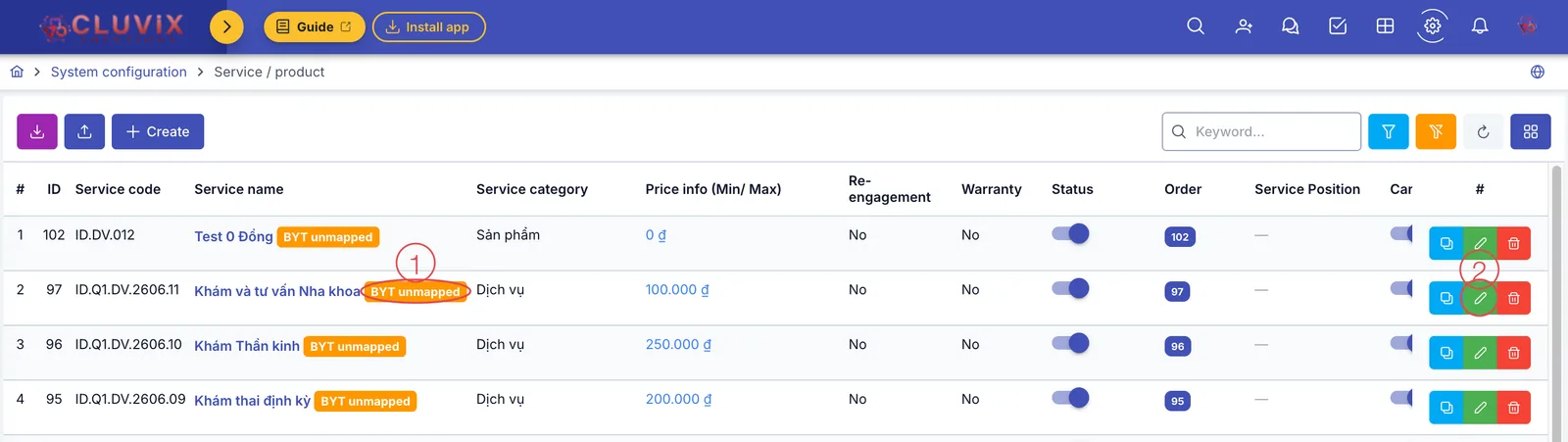
Illustration of the Service / product list
- Find a service with the BYT unmapped label (number 1).
- Click the pencil at the end of the row (number 2) to open the Update dialog.
In the dialog, pick the Other tab (number 1 in the picture below), then click the BYT technical code box (number 2).
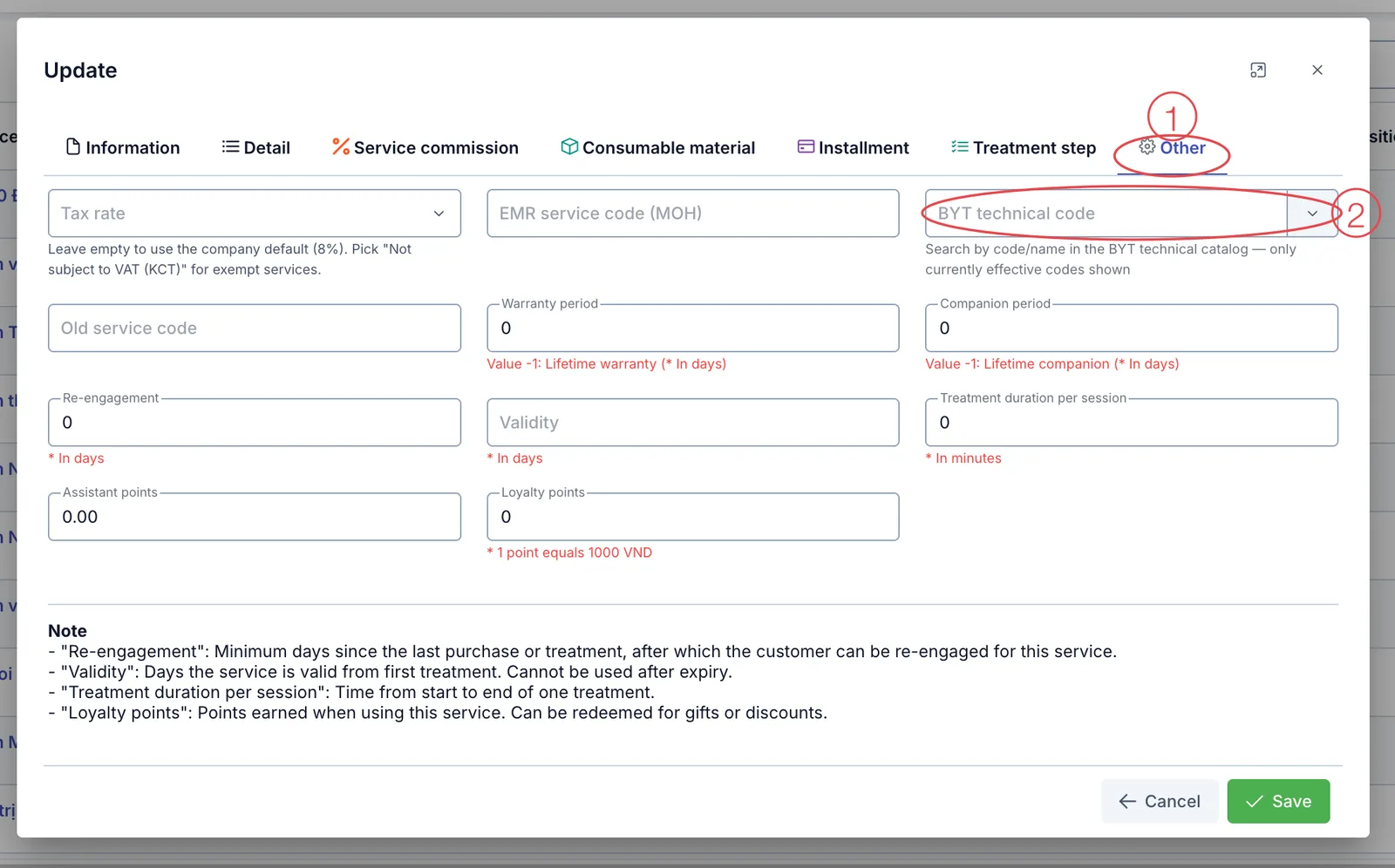
Illustration of the BYT technical code box in the Other tab
- Type part of the code or of the technical service name, then pick the right line from the suggestions.
- Click Save. The BYT unmapped label disappears from the service.
This box only suggests codes that are switched Active and inside their Effective dates. If you cannot find the code you need, check it on the BYT technical codes screen.
Link a code to every service billed through health insurance. When you prepare a claim for social insurance review, the software takes this code into the technical services table. A health insurance service without a code makes the claim report what is missing and list those services. Consultation (examination) services do not use this code; they have their own examination code.
Common errors
- You see "Technical code '…' (version '…') already exists in the company catalog" → your clinic already added this code → find it in the list and edit it instead of adding a new one.
- You see "Technical code '…' is used by … service(s) and cannot be deleted" → the code is still linked to services → open those services, switch them to another code, then delete the code.
Related
- Service / product — where you link a BYT technical code to each service.
- ICD setup — the standard disease code catalog used for diagnoses.