Facility setup
Facility setup declares the legal information of each medical facility — name, operating license, managing Health Department, director... Each branch + brand combination forms its own medical facility. This isn't decorative information — the software blocks signing electronic medical records if a branch/brand hasn't been fully declared, and this information is embedded directly into files submitted to the Department of Health / health insurance.
The exact warning shown in the software: "This information needs to be entered and updated accurately to ensure legality, data transparency and to serve inspection and supervision by the Department of Health. Errors in information may cause medical records to not be recognized as valid." Assign this screen to someone who genuinely understands the clinic's legal paperwork (the facility owner, the person in charge of professional compliance) — don't fill it in as a placeholder.
Opening Facility setup
- Go to the System configuration screen (see Configuration overview), group Electronic medical record, click Facility setup.
- Faster way: type Facility setup into the quick search box at the top of the System configuration screen, then click the result.
Medical facility list

Screenshot of the Facility setup list
Each row is one medical facility, with the full set of legal details: Facility code, Facility name, Director, Specialty, Company, Branch, Health department, License number, License date, BHYT (same data as the BHYT code field in the form below, just under a shorter column header) — scroll right to see every column. Click 1. Create to declare a new facility, and the row action buttons (2.) to edit/delete.
If one physical location currently hosts several brands (e.g. sharing a space as both "Nha khoa Quốc Tế" and "Thẩm mỹ ABC"), each brand needs its own facility record for that branch — don't use a single row for both.
Adding a medical facility
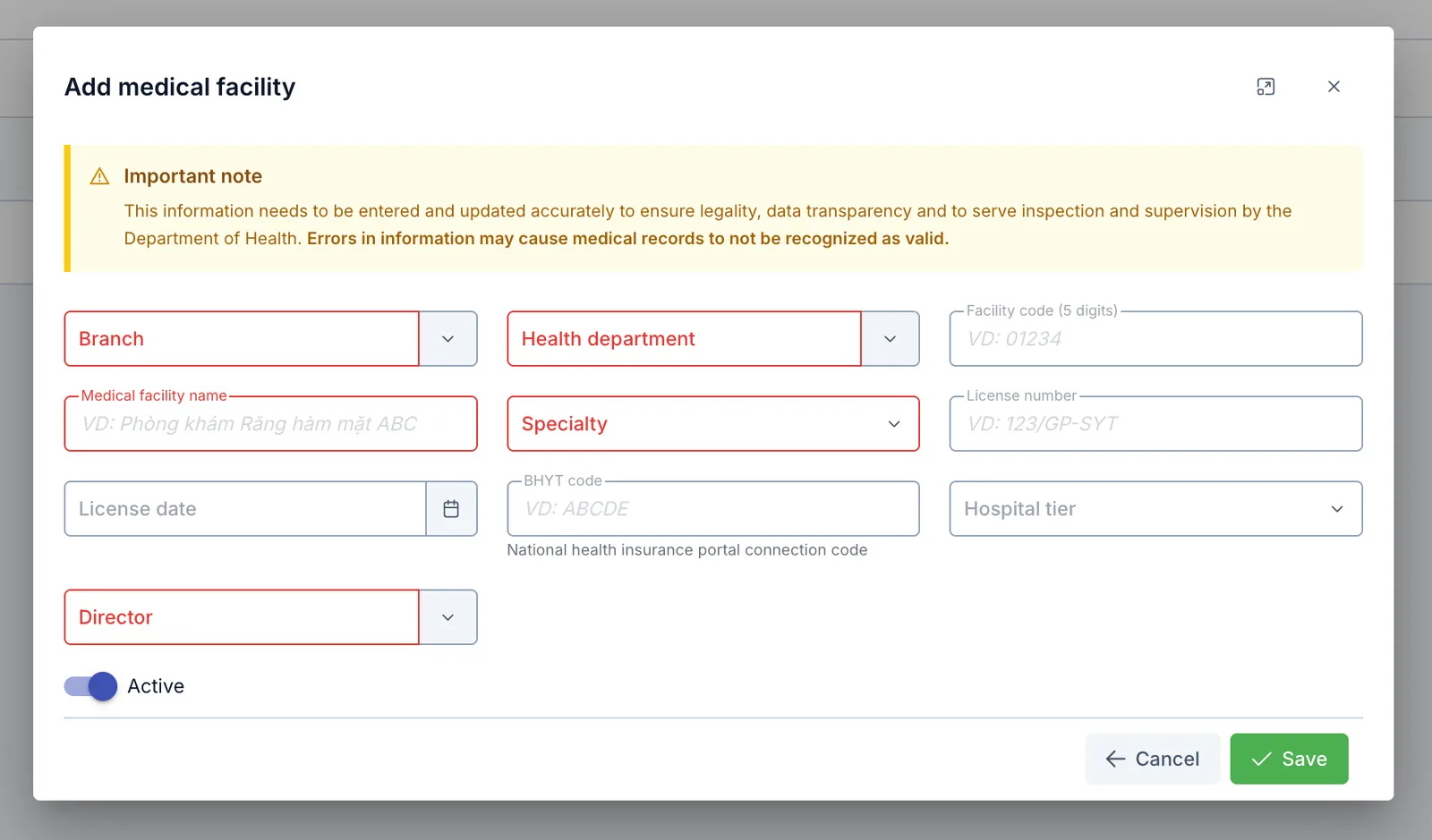
Screenshot of the Add medical facility dialog
| Field | What to enter |
|---|---|
| Branch (required) | The branch this facility applies to |
| Health department (required) | The software already ships with all 63 provincial Health Departments — if yours isn't listed, add it on the Health facility screen (same Electronic medical record group) |
| Facility code (5 digits) | The code the Department of Health assigned to this facility, exactly 5 digits |
| Medical facility name (required) | The name printed on the operating license |
| Specialty (required) | Pick from the built-in specialty list (Dentistry, Beauty/Aesthetics, General practice, Dermatology…) |
| License number | The operating license number |
| License date | The date the Health Department issued the license |
| BHYT code | The national health insurance portal connection code — see "BHYT claims" below |
| Hospital tier | Special / Tier 1 / Tier 2 / Tier 3 / Tier 4 — a private clinic with no official tier leaves this blank |
| Director (required) | Pick a staff member currently working at this branch/brand (the person responsible for professional compliance) |
| Active | Turn off to stop using this facility, without deleting the data |
After saving, reopening the facility for editing shows an additional table, "Doctors allowed to sign electronic medical records", at the bottom of the form — this is a required next step, see below.
Where this facility record takes effect
- Signing electronic medical records — required, blocked if missing: if a branch+brand has no facility declared here, or the facility exists but no doctor has been added to the "Doctors allowed to sign electronic medical records" table, the software blocks signing, with this exact message: "The facility hasn't declared a doctor allowed to sign medical records. Go to Configuration → Medical facility to declare one." The app itself also states: "No doctors declared yet. The facility works normally but medical records cannot be signed."
- BHYT insurance claim files: when exporting a BHYT claim file for a medical record, the BHYT code declared here is embedded directly into the exported XML file (as the facility code field). The software does not submit the file to the BHXH portal itself — it only exports the file for the clinic to submit manually. Leaving BHYT code blank still lets the file export, but with a missing facility code, which the BHYT portal may reject on submission.
- Printed templates inside medical records: the facility name can be used inside
configured note/exam templates (inserted via the
facility.namekeyword).
Opening the Facility setup screen with nothing configured shows no special warning. A missing facility only surfaces when someone actually tries to sign a medical record (blocked) or export a BHYT claim (missing code) — declare a facility for every active branch + brand before the clinic starts using electronic medical records, rather than waiting to be blocked.
Related
- ICD setup — the disease code catalog used for diagnoses in electronic medical records.
- Digital signature — configures how a doctor signs off on an electronic medical record, a required condition alongside this page.