ICD setup
ICD setup is the standard disease code catalog (ICD-10/ICD-11) used for diagnoses on electronic medical records. The software ships with the national standard code library built in, so you don't have to type each code by hand.
Opening ICD setup
- Go to the System configuration screen (see Configuration overview), group Electronic medical record, click ICD setup.
- Faster way: type ICD into the quick search box at the top of the System configuration screen, then click the result.
ICD list
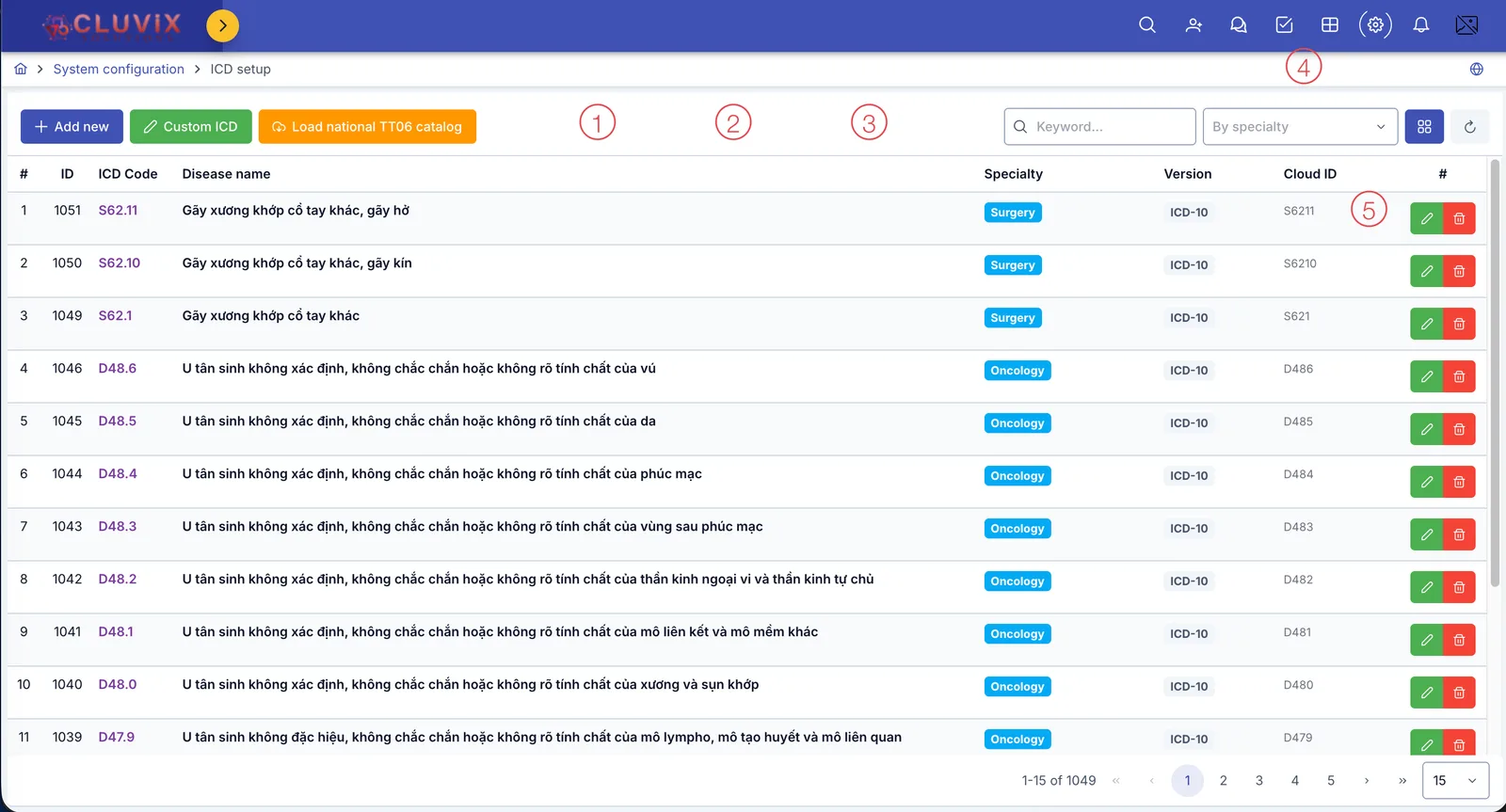
Screenshot of the ICD setup list
| # | What it is |
|---|---|
| 1. Add new button | See Way 1 below — pick codes already in the standard library. |
| 2. Custom ICD button | See Way 2 below — declare a code not in the standard library yourself. |
| 3. Load national TT06 catalog button | See Way 3 below — load the entire national catalog at once. |
| 4. Filter | Type a keyword or pick By specialty to quickly filter the list. |
| 5. Buttons at the end of each row | Pencil to edit, trash can to delete that ICD code. |
Way 1: Add from the standard disease catalog (recommended)
The fastest, safest way — pick exactly the code you need from the standard library, no risk of typos.
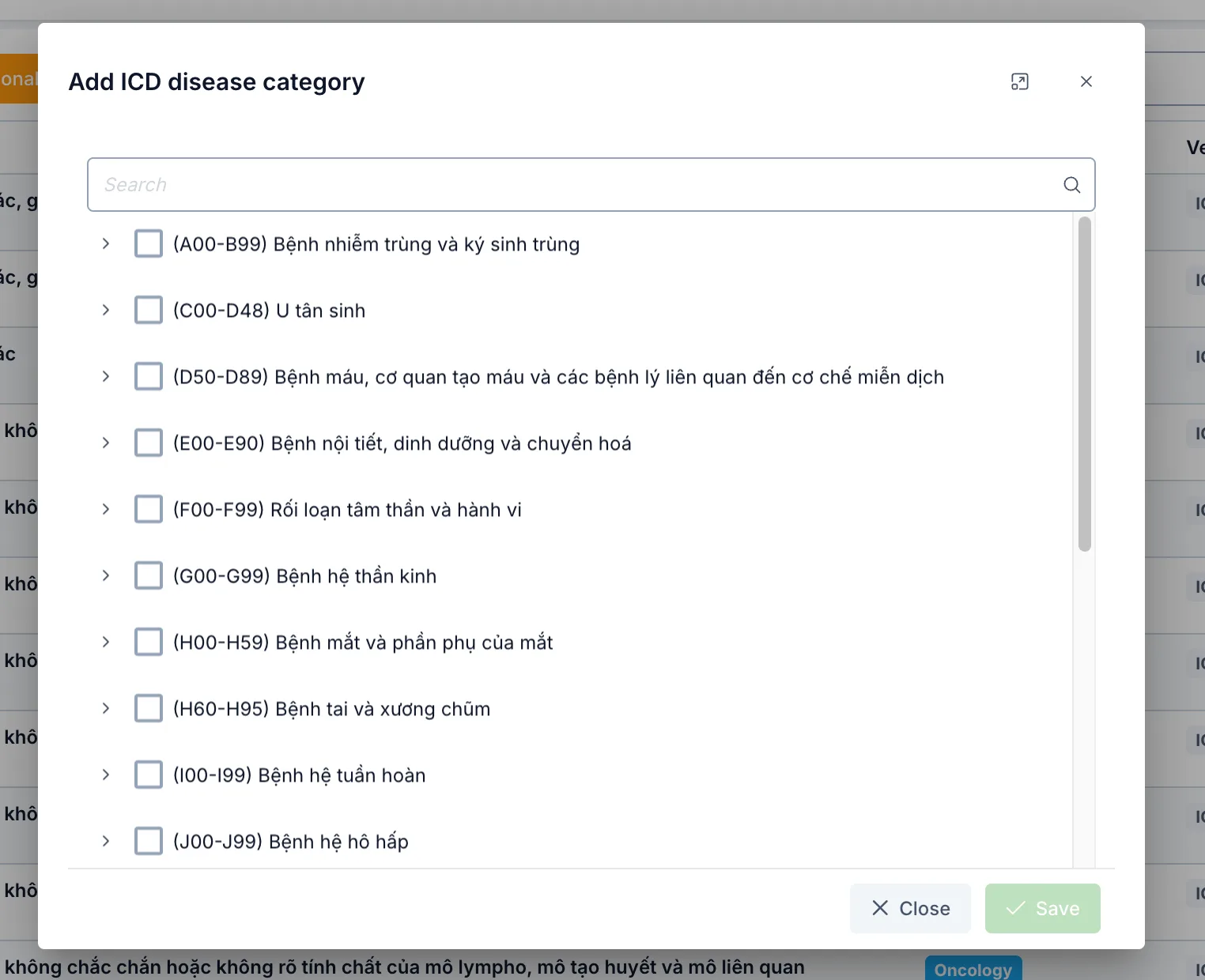
Screenshot of the Add ICD disease category dialog
- Click Add new.
- Type a keyword in the search box, or click the › arrow next to a disease chapter (e.g. (A00-B99) Bệnh nhiễm trùng và ký sinh trùng) to expand it and see the specific codes inside.
- Check the entire chapter or specific codes you need.
- Click Save.
Way 2: Create a custom ICD code
Only use this when the code you need is not in the standard library from Way 1.
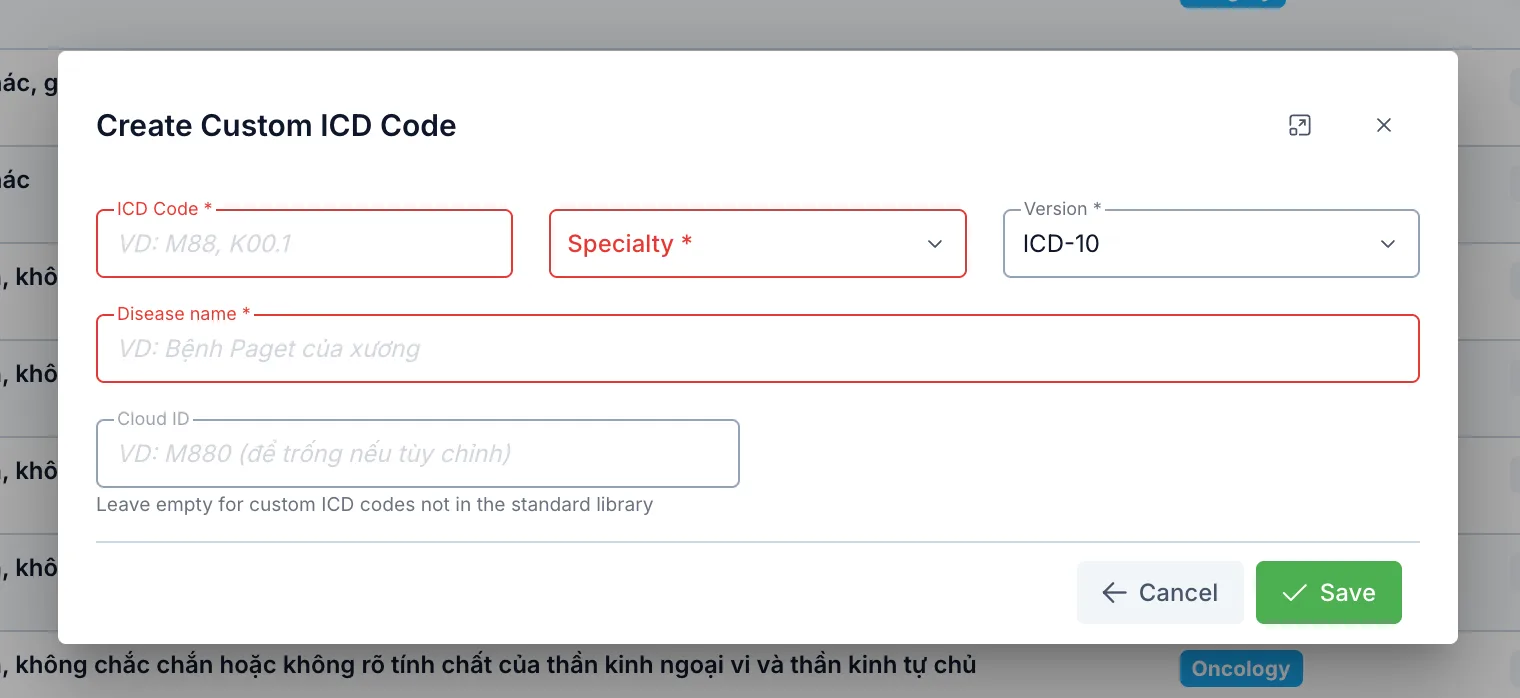
Screenshot of the Create Custom ICD Code dialog
| Field | What to enter |
|---|---|
| ICD Code (required) | E.g. M88, K00.1 |
| Specialty (required) | The specialty this code applies to |
| Version (required) | ICD-10 or ICD-11 |
| Disease name (required) | E.g. Bệnh Paget của xương |
| Cloud ID | Leave empty for a custom code not in the standard library |
Way 3: Load the entire national catalog (consider before using)
Loads the entire ~15,844 national TT06 ICD-10 codes at once, without having to check each specialty by hand like in Way 1.
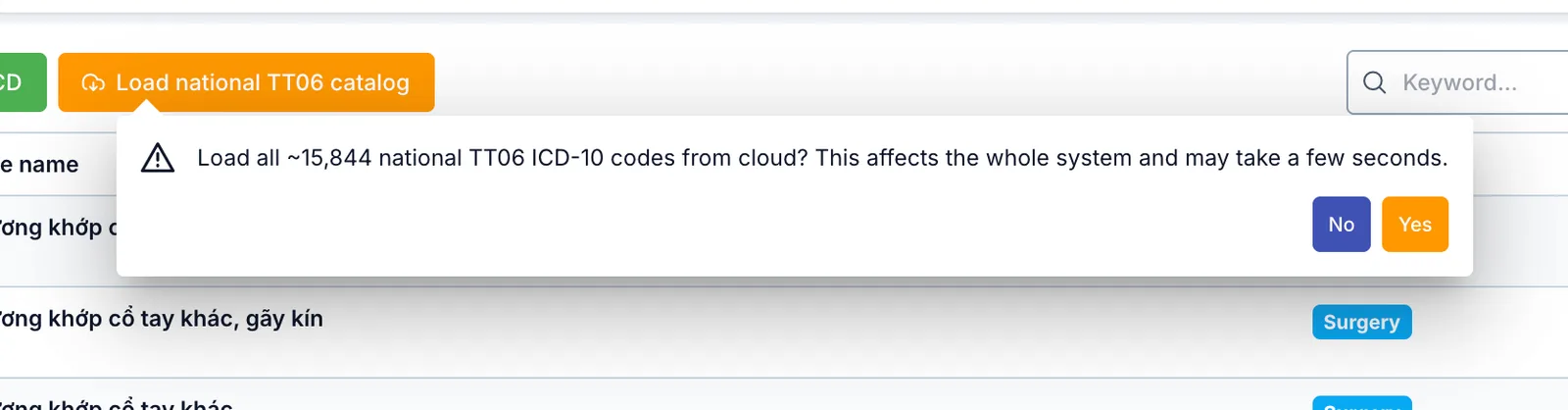
Screenshot of the confirm dialog for loading the national TT06 catalog
Click Load national TT06 catalog — the software asks for confirmation first, because this is a heavy operation that affects the whole system and may take a few seconds. Click Yes to continue. Once done, the software reports exactly how many codes were newly added and how many were updated.
Because there are so many codes (~15,844), only use this when first setting up the software and you need the full catalog right away. Loading it again doesn't create duplicates (the software only adds new codes or updates existing ones), but it's still best to avoid unnecessary repeat loads.
Related
- Facility setup — declare the medical facility's legal information, needed before signing electronic medical records.