Care timing
Care timing lets the software automatically create future care reminders as soon as a customer finishes treatment on a service — staff don't have to remember follow-up dates themselves. This means customers (patients) get checked on at the right time, keeps the clinic top of mind, and improves their experience.
Opening Care timing
- Go to the System configuration screen (see Configuration overview), group Customer Care, click Care timing.
- Faster way: type Care timing into the quick search box at the top of the System configuration screen, then click the result.
Care timing list
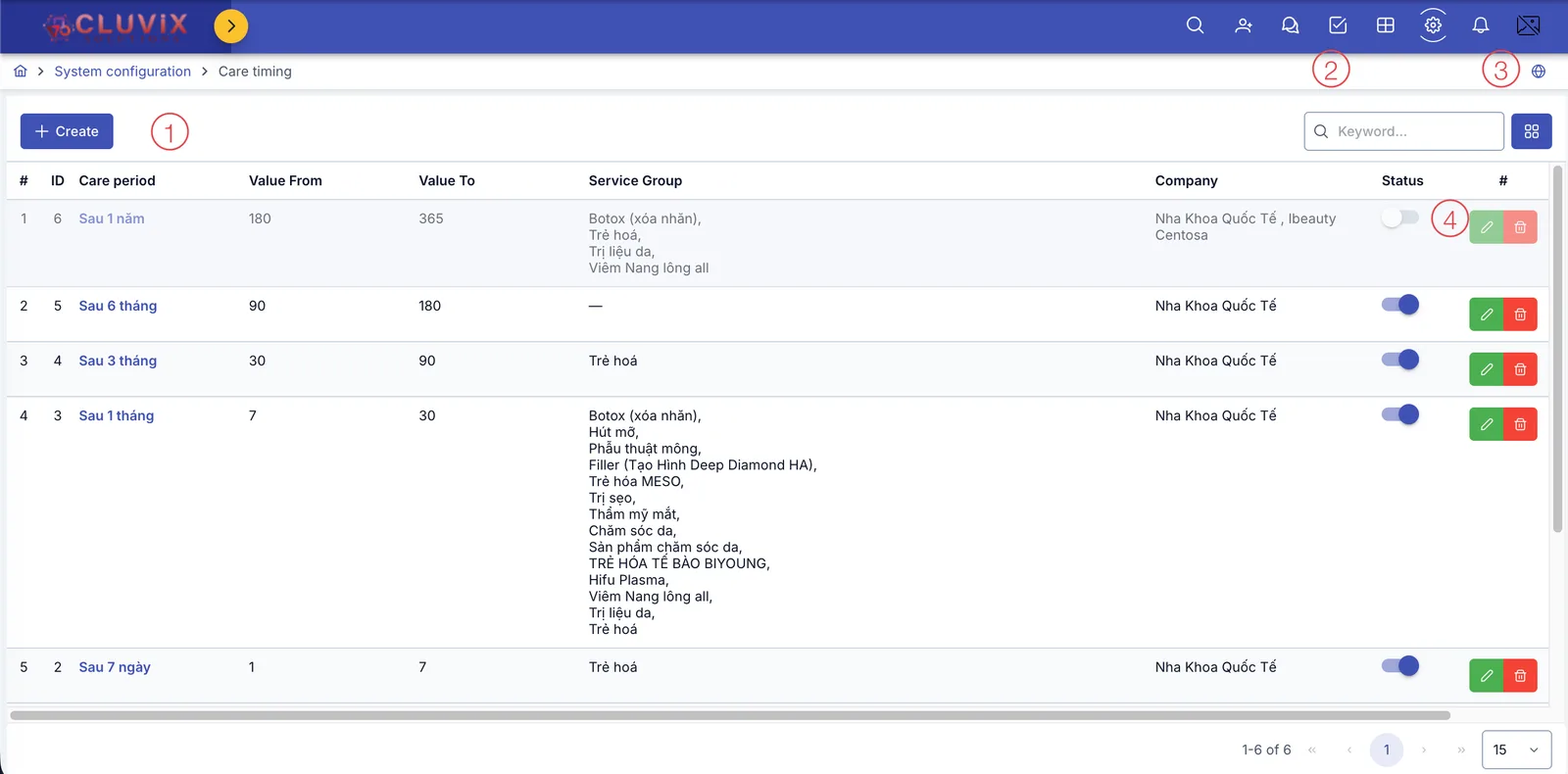
Screenshot of the Care timing list
| # | What it is |
|---|---|
| 1. Create button | Opens the dialog to create a new care period. |
| 2. Search box | Type a name to quickly filter the list. |
| 3. Status column | An on/off toggle — turning it off stops this period from being used to create care reminders. |
| 4. Buttons at the end of each row | Pencil to edit, trash can to delete that care period. |
Each row is a time bucket counted in days since the customer finished treatment — e.g. Sau 7 ngày (After 7 days, Value From 1 – To 7), Sau 1 tháng (After 1 month, 7 – 30), Sau 3 tháng (After 3 months, 30 – 90)… The Service Group column shows which service group this bucket applies to — empty (a —) means it applies to every service group.
Creating a care period
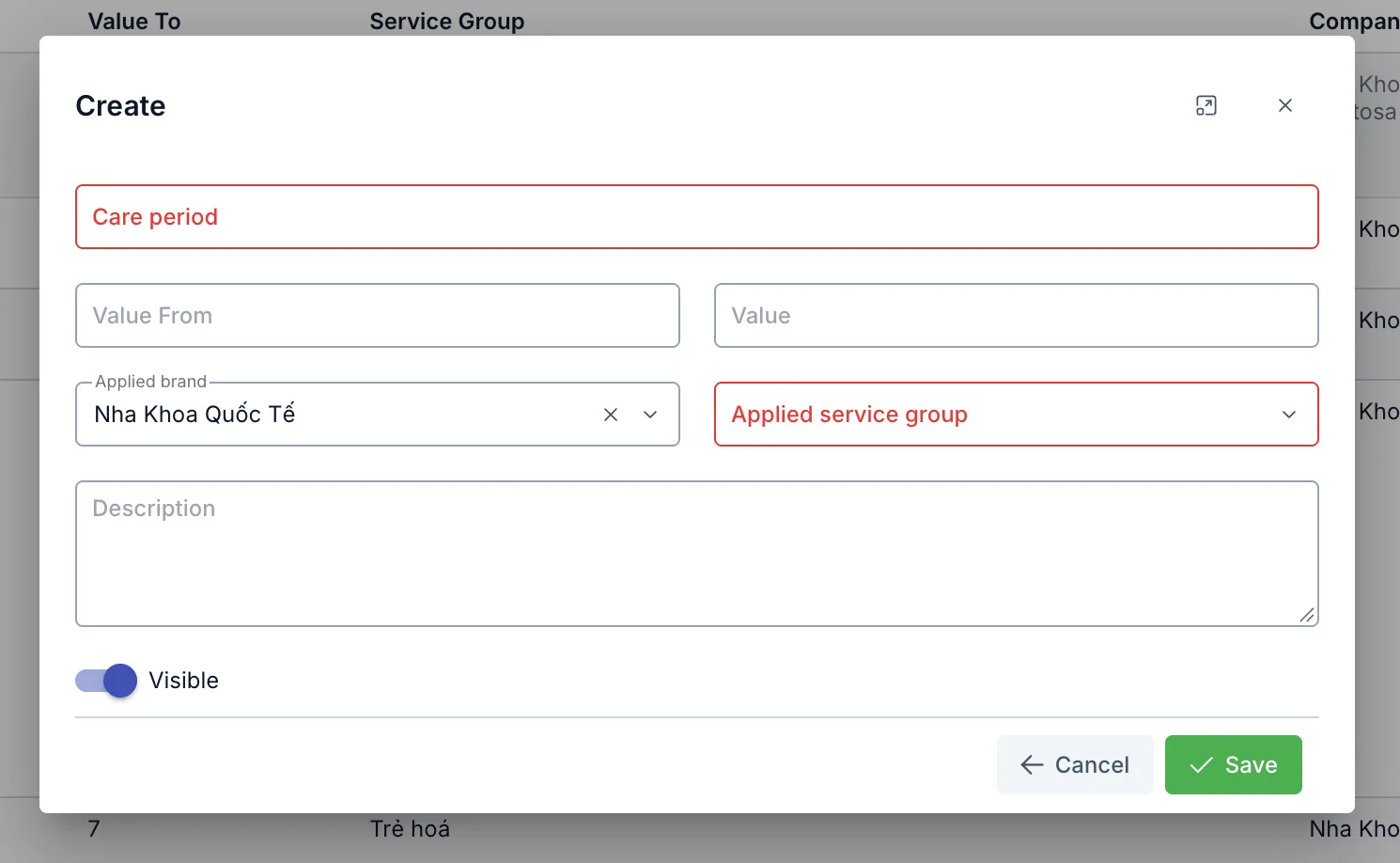
Screenshot of the Create care period dialog
| Field | What to enter |
|---|---|
| Care period (required) | The display name, e.g. "Sau 7 ngày" |
| Value From | The number of days this bucket starts counting from, since the customer finished treatment |
| Value | The number of days this bucket ends at |
| Applied brand | Defaults to the brand you're currently working in |
| Applied service group (required) | Pick the service group this care bucket applies to — see Service / product group |
| Description | Extra notes, optional |
When the software auto-creates a care reminder
As soon as staff log a treatment record and that service completes its full course (enough purchased sessions logged), the software checks 2 conditions:
- Does that service have With aftercare turned on at Service / product?
- Does that service belong to the Applied service group of any care period?
If both are true, the software calculates the date (counted from the treatment completion date) and creates a care reminder for each matching bucket — e.g. a service completes on Jan 1, and there's a Sau 7 ngày bucket, the reminder lands somewhere between Jan 2 and Jan 8.
If the just-completed service doesn't belong to the Applied service group of any care period, the software creates no care reminder for that completion — add the service to the right care period's applied service group instead.
The reminder created goes into the Customer Care department's shared queue, not pre-assigned to a specific staff member — customer care staff pick it up from that queue themselves.
Related
- Service / product — where With aftercare is turned on for each service.
- Service / product group — the service groups picked in the Applied service group field.
- Task options — has a separate "Auto-create care for next day" option, an independent mechanism from this page.