Branch
A Branch is an actual clinic facility where customers (patients) come in for a visit. A branch can serve one or more Company records at once — for example, one physical location running both a dental clinic and a beauty spa under two different brands.
Opening Branch
- Go to the System configuration screen (see Configuration overview), group System, click Branch.
- Faster way: type Branch into the quick search box at the top of the System configuration screen, then click the result.
Branch list
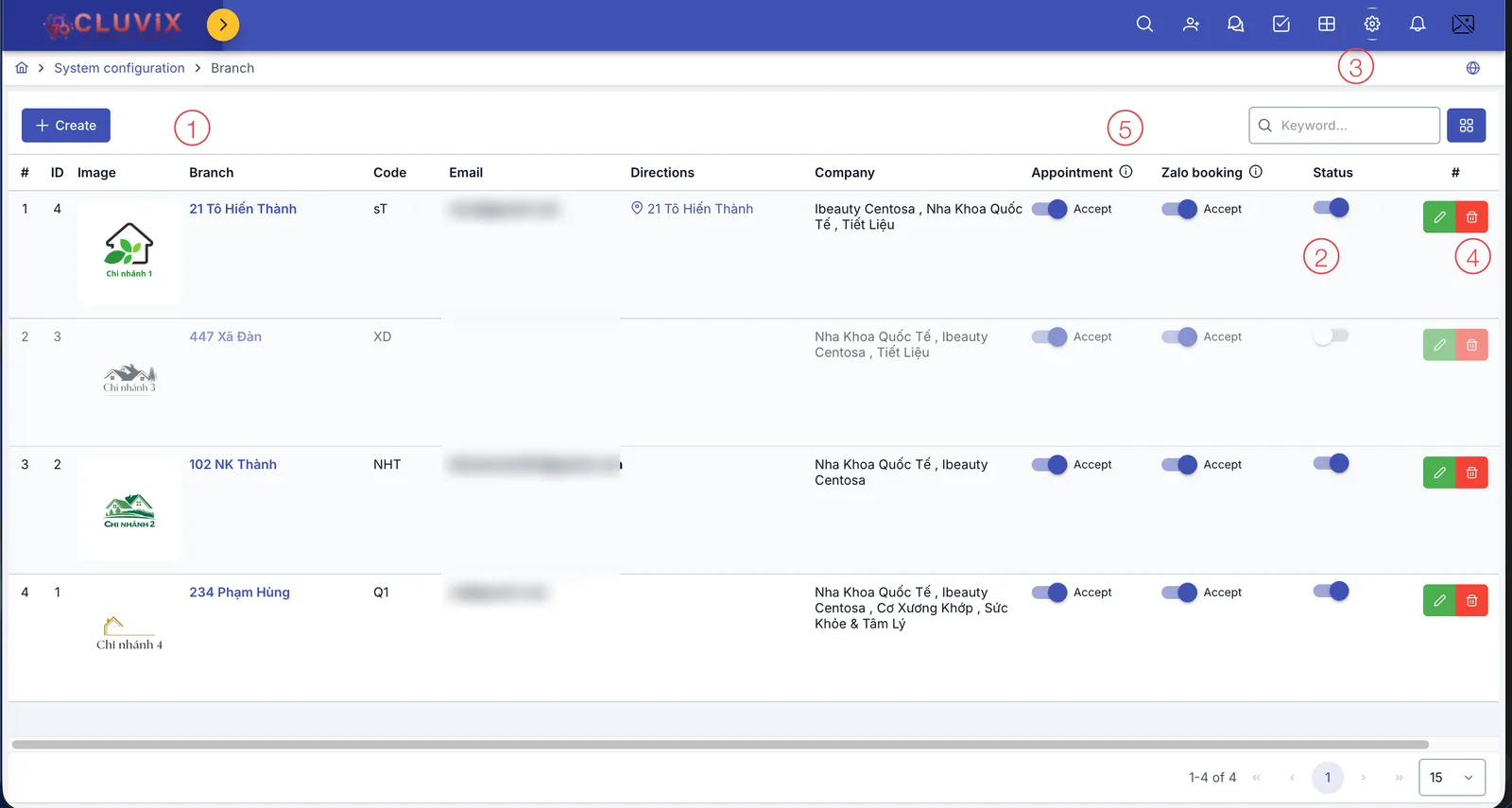
Screenshot of the Branch list
| # | What it is |
|---|---|
| 1. Create button | Opens the dialog to create a new branch. |
| 2. Status column | An on/off toggle — turning it off stops the branch from showing up and accepting bookings on every channel. |
| 3. Search box | Type a name or code to quickly filter the list. |
| 4. Buttons at the end of each row | Pencil to edit, trash can to delete that branch. |
| 5. Appointment / Zalo booking columns | 2 separate toggles: Appointment accepts bookings through the regular channel, Zalo booking accepts bookings through the Zalo Mini App. |
Clicking the branch name also opens the edit dialog. The Directions column is a Google Maps link — click it to open the map to that branch.
Filling in the branch details
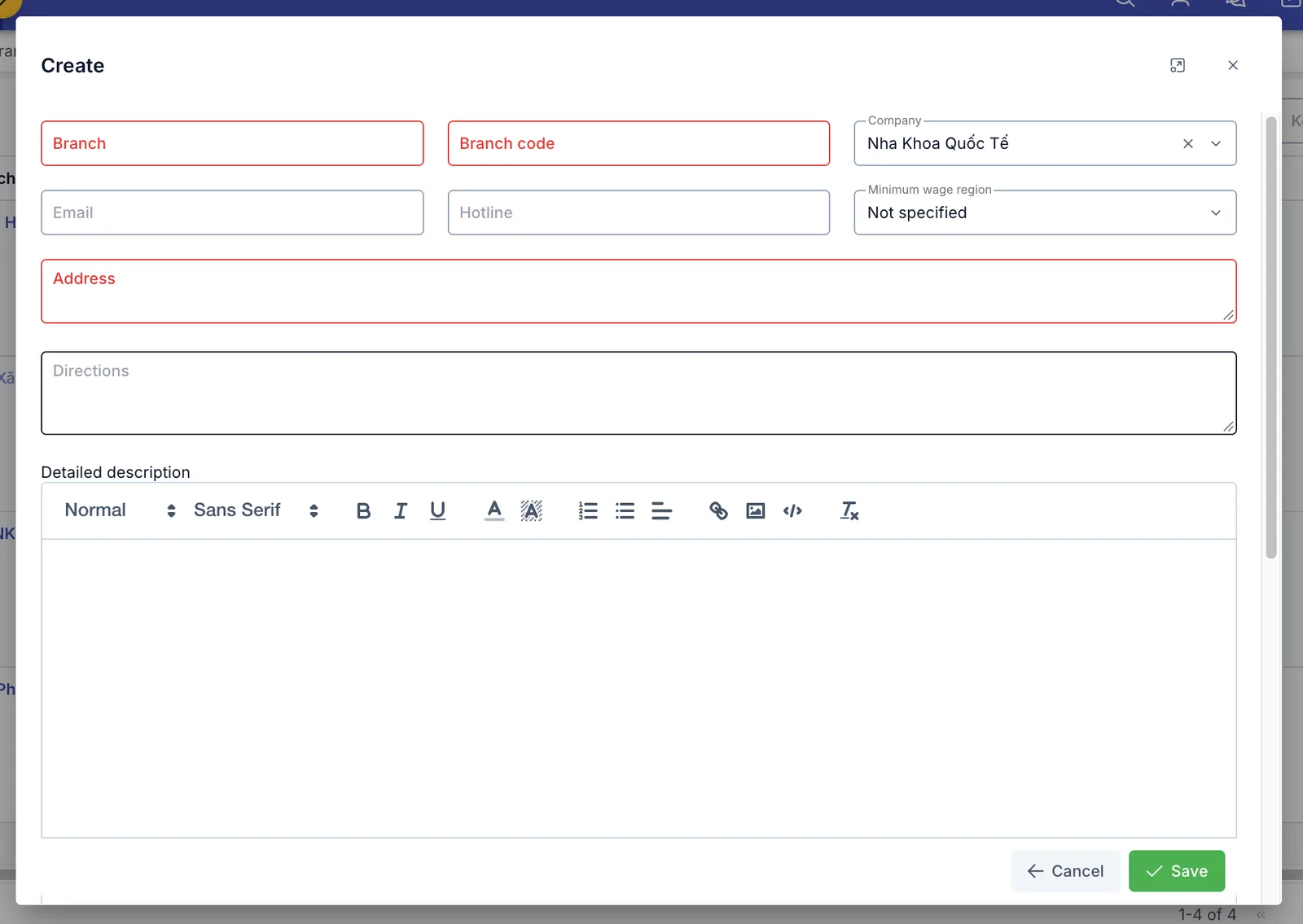
Screenshot of the basic info and detailed description section
| Field | What to enter |
|---|---|
| Branch (required) | The branch's name |
| Branch code (required) | Internal code, must not collide with another branch |
| Company (required) | Pick one or more companies this branch serves |
| Must be a valid email format | |
| Hotline | A 10–12 digit phone number |
| Minimum wage region | The government-set minimum wage region (I–IV) — used to warn when a staff labor contract's salary at this branch falls below the regional minimum. Leave as Not specified if you don't need this warning |
| Address (required) | The branch's full address |
| Directions | Paste a Google Maps link to the branch; customers (patients) click it to open the map |
| Detailed description | Extra notes about the branch, supports text formatting and inline images |
Booking status and image
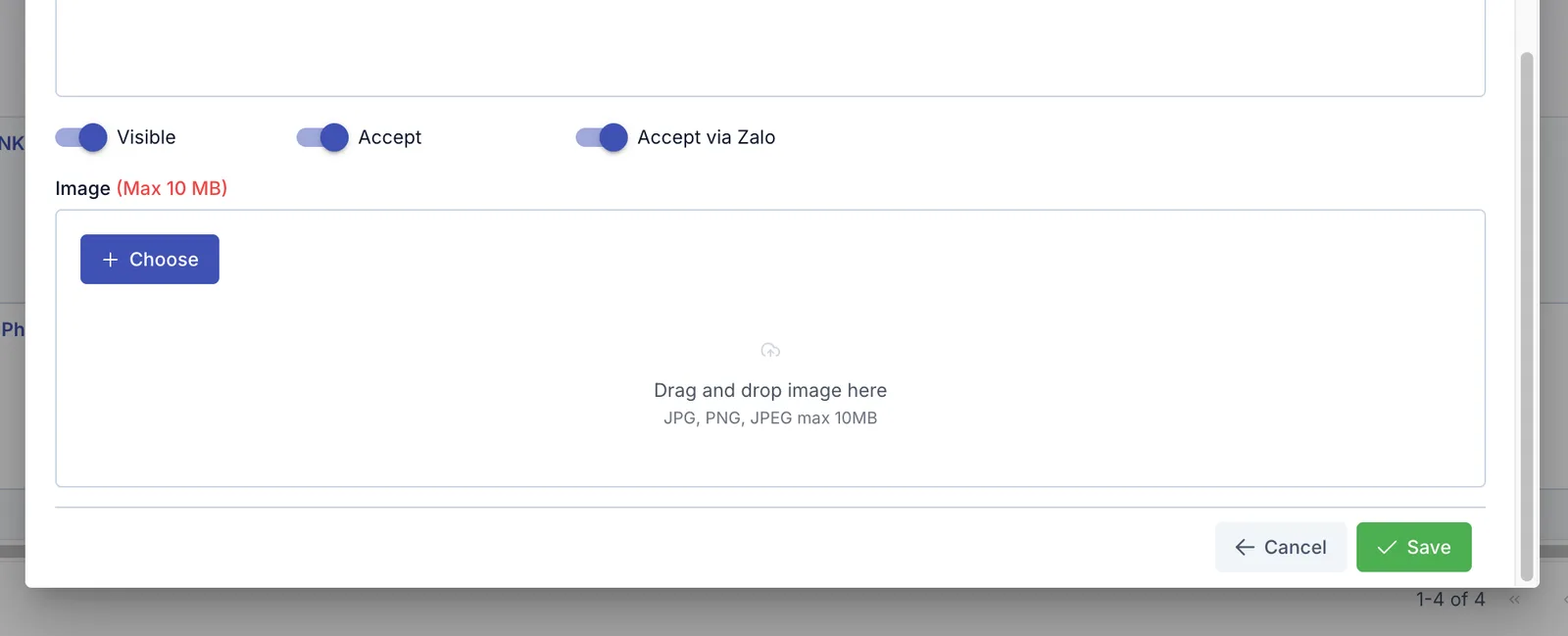
Screenshot of the accept-customer (patient) toggles and image section
- Visible: turn off to hide this branch from every place that lets you pick a branch (this doesn't delete its data).
- Accept: turn on so the branch accepts appointment bookings through the regular channel.
- Accept via Zalo: turn on so the branch accepts appointment bookings through the Zalo Mini App.
- Image: the branch's avatar image, drag and drop or click Choose — accepts JPG, PNG, JPEG, up to 10 MB.
Where this information shows up
A branch has its own Address, Hotline and Email fields. On printed documents, the software prefers the branch's value for these 3 fields; only when the branch leaves a field empty does it fall back to the Company's value for that same field. Logo, Website and Brand color always come from the Company, since branches have no field of their own for these.
Fill in the Address and Hotline for each branch so printed documents show the correct information for wherever the customer is actually visiting, instead of the shared Company information.
Related
- Company — the brand that owns this branch, where its logo and shared security settings are configured.