Task options
Task options is where you switch a whole range of the software's behaviors on or off — each card on the screen is an independent switch, affecting the whole clinic (every branch), you cannot turn one on for just one branch. This page explains each option in detail so you know exactly what changes when you turn it on.
Opening Task options
- Go to the System configuration screen (see Configuration overview), group System, click Task options.
- Faster way: type Task options into the quick search box at the top of the System configuration screen, then click the result.
Each card shows the option's name, a ? for a short tooltip, and radio buttons to pick one of the available values — picking one saves immediately, there's no separate Save button.
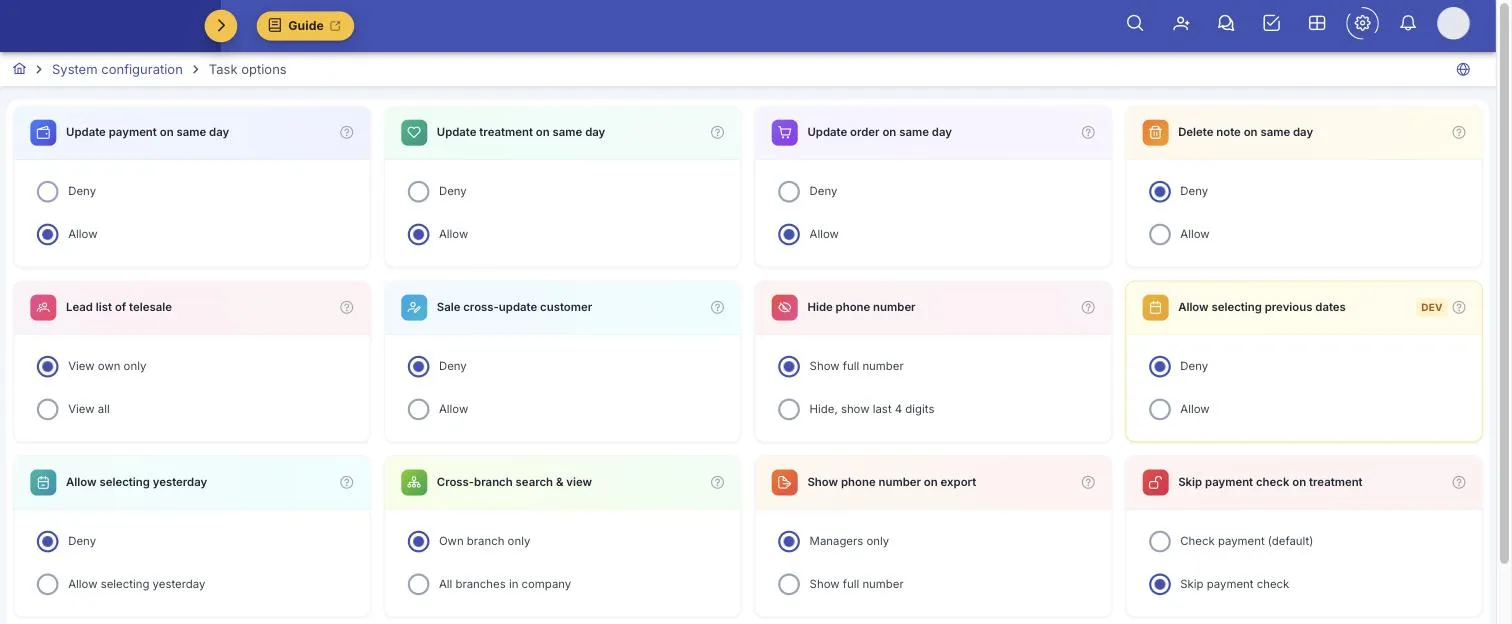
Screenshot of the Task options screen (part 1)
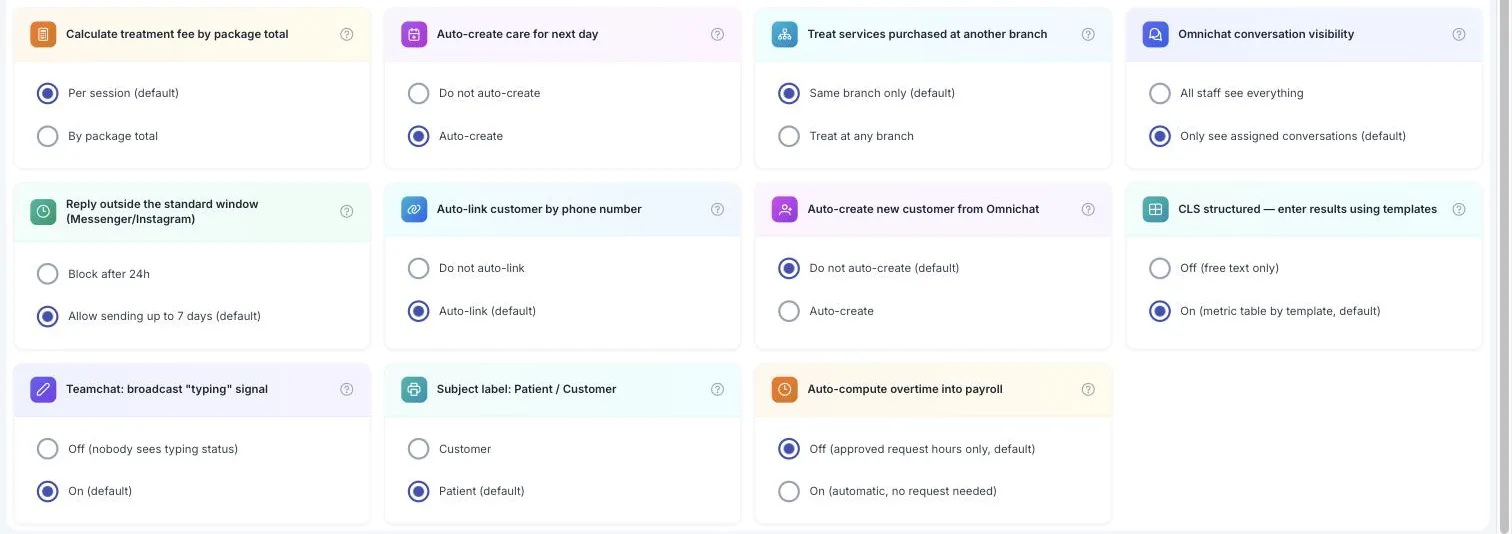
Screenshot of the Task options screen (part 2)
Allow editing/deleting same-day records
The 4 options below share one pattern: normally, a staff member who only has create permission (not edit/delete) can't touch data they just created. Turning on the matching option lets that staff member edit/delete exactly what they just created, only on the same day — the next day the permission is gone, and they need someone with full edit/delete rights. Staff who already hold full edit/delete permission aren't affected by these 4 options (they can always edit, no day limit).
Update payment on same day
Deny / Allow. Applies to payment and deposit receipts — staff who only have create permission can edit the receipt they created, on the day they created it.
Update treatment on same day
Deny / Allow. Applies to treatment sessions (dental, beauty, rehab). Note: even with this on, a treatment session that's already part of a completed/signed electronic medical record stays hard-locked — that's a separate, stronger lock that always applies regardless of this option.
Update order on same day
Deny / Allow. Applies to orders/treatment plans. Only affects editing an order — deleting an order is a separate permission, unrelated to this option.
Delete note on same day
Deny / Allow. Applies to notes (not editing — deleting) — staff who only have create-note permission can delete a note they wrote, on the day they wrote it.
Dates when entering data
The 2 options below both control one thing: which date a staff member without update permission can pick when creating a payment/order/treatment record. Staff who already have update permission can always pick any date freely, unaffected by these 2 options.
These 2 options block at the data-entry screen (the date picker won't let you go past the allowed range), helping staff avoid accidentally picking the wrong date — not an absolute server-side barrier.
Allow selecting previous dates
Only visible to accounts with advanced configuration permission (not every regular admin sees this card — if you don't see it, contact technical support). Deny / Allow. Turning this on lets staff pick any date in the past, unlimited — this option takes priority over "Allow selecting yesterday" below; turn this one on and the other no longer matters.
Allow selecting yesterday
Deny / Allow selecting yesterday. Only has an effect when "Allow selecting previous dates" above is off. Turning this on lets staff pick yesterday's date specifically (not any past date) — useful when staff enter data late, after midnight.
Sale & Lead
Lead list of telesale
View own only / View all. Only affects staff in the Telesale or Convert department — other departments aren't limited by this option. "View own only": the lead list/detail only shows customers (patients) currently assigned to that staff member (opening someone else's lead by link doesn't work either). "View all": Telesale/Convert staff see every lead company-wide.
Sale cross-update customer (Patient)
Deny / Allow. The label reads "still allow searching but not editing other sales's customer information", but in practice this option only controls one specific thing: reassigning a customer's owning consultant to someone else — it does not restrict editing a customer's other information (phone, notes…), which any sale staff can edit normally even for a customer that isn't theirs. Only applies to staff in the Telesale department; managers and other departments can always reassign. Even when off, staff can still reassign if the previous consultant has left/been deactivated — so a customer doesn't stay permanently "orphaned."
Customer (Patient) data & branches
Hide phone number
Show full number / Hide, show last 4 digits. Applies to most screens showing a
customer (patient)'s phone number (lists, customer (patient)/lead detail, appointments…). When hiding is on,
the number is masked on the server before it ever reaches the browser (as
xxxxxx1234) — not just blurred by the interface. Staff in the Board of Directors
department always see the full number, regardless of this option.
Show phone number on export
Managers only / Show full number. Applies when exporting an Excel/CSV customer (patient) list. This is independent from "Hide phone number" above — a clinic could show full numbers on screen but still mask them on export, or the other way around. "Managers only": only staff in the Board of Directors department can export a file with full numbers, everyone else's export still masks them.
Cross-branch search & view
Own branch only / All branches in company. Only affects the quick search box in the top bar (magnifying-glass icon) — it does not affect the customer list, reports, or electronic medical records, those always only show your own branch's data regardless of this option. Turning it on makes quick search also return customers (patients) from other branches in the same company.
Treat services purchased at another branch
Same branch only / Treat at any branch. A customer buys a service/package at Branch A — can Branch B see and treat that service? Staff who already have full update treatment permission can always view/treat across branches regardless of this option — this option mainly affects staff who only have create permission.
Payment & treatment
Skip payment check on treatment
Check payment (default) / Skip payment check. Only applies to services billed as a multi-session package/combo (e.g. a beauty package of N sessions) — dental services billed by percentage, or single-visit services (exam, consultation…), aren't governed by this option. With the default "Check payment": staff cannot record a new treatment session if the customer hasn't paid enough for that session yet — the software blocks saving with an error.
This is a real financial risk — with this on, staff can record a treatment session even while the customer still owes money. Only turn this on if the clinic deliberately accepts this risk (e.g. regular customers (patients) with debt tracked separately).
Calculate treatment fee by package total
Per session (default) / By package total. This option does not affect the commission/revenue calculated for the treating technician — that's always the package's total price divided evenly across sessions, unaffected by this option. What it actually changes is the amount that must already be paid before the next session can be recorded, in the "Skip payment check" setting above (only matters when that setting is on "Check payment"):
- Per session: uses the listed per-session price (before any package discount) as the baseline.
- By package total: uses the actual discounted package price sold as the baseline.
If the package being sold has a discount, choosing "By package total" lowers the amount required per session, making it easier to qualify than "Per session".
Auto-create care for next day
Do not auto-create / Auto-create. Turning this on: every time a new treatment session is recorded (not a product or consultation-fee item), the software automatically creates a "needs care" task for the customer dated exactly the next day, assigned to the Customer Care department (no duplicate created if that day already has a care task).
This is a separate, independent mechanism from the Care timing page you configure per service (which waits until a treatment session is completed before creating a task, on a custom day range). With both on, a customer can end up with 2 different care tasks for the same round of treatment — one generic "next day" task, and one on the service's own schedule.
Omnichat
Omnichat conversation visibility
All staff see everything / Only see assigned conversations (default). Applies to the Omnichat inbox (Zalo, Messenger, Instagram, Telegram, website Livechat). By default, staff only see conversations assigned to them or not yet assigned to anyone — a colleague's conversations don't show in their list. Staff with view all conversations permission (or a senior admin account) always see everything, regardless of this option. Changing it takes effect immediately, no page reload needed.
Reply outside the standard window (Messenger/Instagram)
Block after 24h / Allow sending up to 7 days (default). Messenger/Instagram only let a business proactively message within 24 hours of the customer's last message — this is Meta's own policy, not CluvixHealth's. Turning on "Allow sending up to 7 days": the software uses Meta's actual official "Human Agent" tag mechanism to extend the reply window to 7 days — a real send through Meta, not an interface trick.
This feature also depends on server-side configuration and Meta having approved Human Agent tag usage for the clinic's Facebook/Instagram page. If you've turned this on but still can't send after 24h, contact technical support to check the Meta-side configuration.
Auto-link customer by phone number (Patient)
Do not auto-link / Auto-link (default). Applies to Telegram and website Livechat conversations (not confirmed for Zalo). When the phone number in a conversation matches exactly one existing customer, the software automatically links the conversation to that customer — 0 or 2+ matches are left for staff to link manually.
Auto-create new customer from Omnichat (Patient)
Do not auto-create / Auto-create. Only applies when the phone number in a conversation doesn't match any existing customer, and applies to Telegram conversations — Livechat conversations from anonymous website visitors will not auto-create a customer even with this on, to avoid creating a flood of "fake" customers (patients) from people just browsing the website. Even with this off, staff can always click Create customer from conversation to create one manually.
Subject label: Patient / Customer
Patient (default) / Customer. Choose what the software calls the person being seen — set it once and a whole set of labels on screen and on printed paperwork follows, with no need to edit them one by one.
| Choice | Labels on screen |
|---|---|
| Patient (default) | The module tile and menu group read Care for the patient, the top-bar search box reads Search patient, printed vouchers read Code of the patient. |
| Customer | Those same places read Care for the customer, Search customer, Code of the customer. |
Pick whichever your clinic says day to day: medical practices usually keep Patient, aesthetic clinics and spas usually pick Customer. It applies to every staff member straight away, no need to sign in again.
The two words mean the same person. This guide writes customer (patient) so it fits either setting — your own screen shows just one of the two words, whichever is chosen here.
Electronic medical records and Pharmacy always say patient, as medical record regulations require, whichever value this option holds. The other way round, CRM, Sale, Marketing and Loyalty always say customer, because those are the business screens.
Other — EMR, Teamchat, HR
CLS structured — enter results using templates
Off (free text only) / On (metric table by template, default). Applies to the CLS (paraclinical/lab test) result entry screen in the medical record. Turning this on: if that CLS service already has a built-in metric template, the screen shows a table to enter each metric/unit/reference range per the template, instead of just one free-text description field like before.
Teamchat: broadcast "typing" signal
Off (nobody sees typing status) / On (default). Only affects whether colleagues see a "typing…" indicator while you type a Teamchat message — it has no effect at all on sending/receiving messages.
Auto-compute overtime into payroll
Off (only count approved request hours, default) / On (automatic, no request needed). Applies to the monthly payroll calculation. With the default "Off": overtime hours are only counted into payroll if the staff member has an approved overtime request for that exact day — a day with no approved request has its extra clocked hours not counted as overtime. With "On": the software uses the actual clocked-in hours beyond standard hours straight from the timekeeping machine to compute overtime, no request needed at all.
Related
- Care timing — the mechanism that creates care tasks on a custom day range per service, independent from "Auto-create care for next day" on this page.