Company
Company is the brand that owns the clinic — where you set its name, contact details, logo and the security settings shared by every branch under it. If you run several clinics under different names (say a dental clinic and a spa), each brand gets its own row in this list.
Opening Company
- Go to the System configuration screen (see Configuration overview), group System, click Company.
- Faster way: type Company into the quick search box at the top of the System configuration screen, then click the result — no need to scan the System group.
Company list
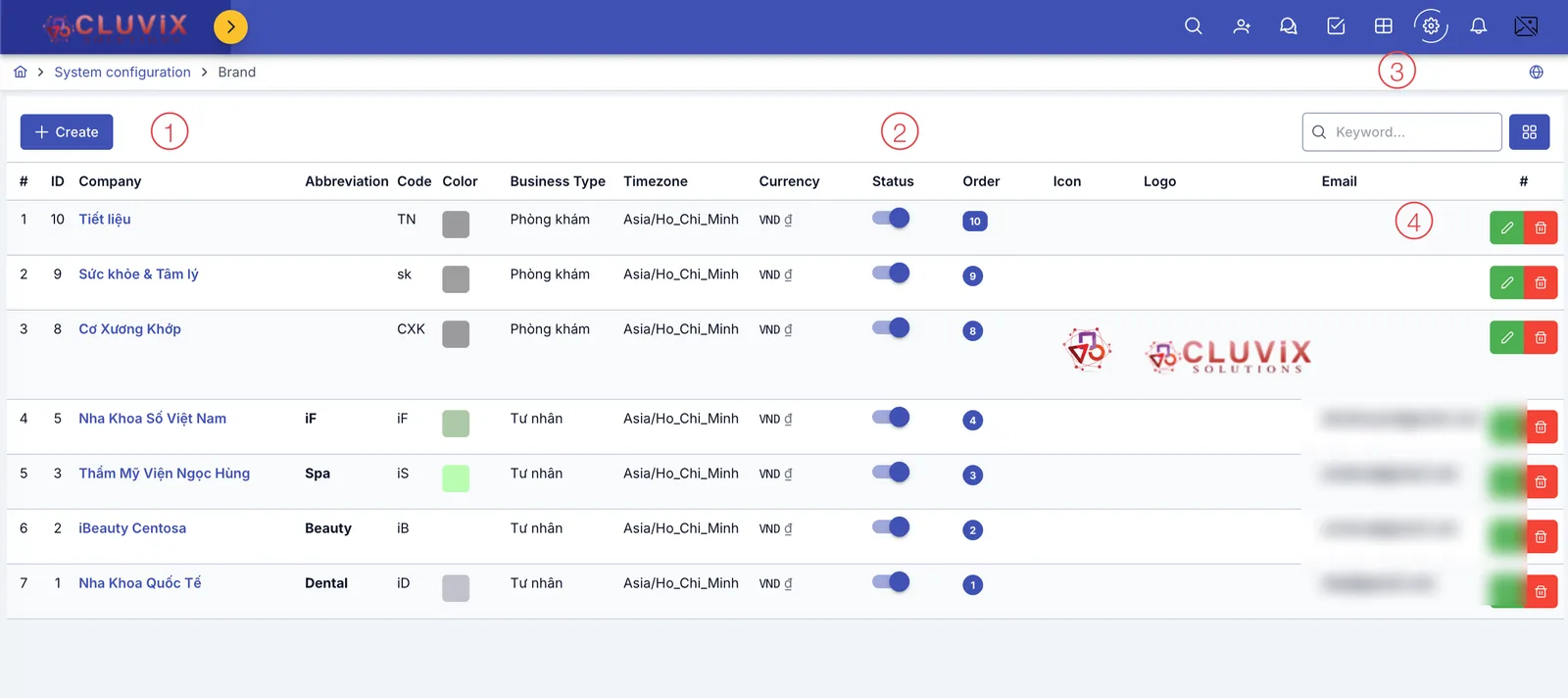
Screenshot of the Company list
Most clinics only have exactly 1 row in this list.
| # | What it is |
|---|---|
| 1. Create button | Opens the dialog to create a new company. |
| 2. Status column | An on/off toggle — turning it off stops the company (and all its branches) from operating in the software. |
| 3. Search box | Type a name or code to quickly filter the list. |
| 4. Buttons at the end of each row | Pencil to edit, trash can to delete that company. |
Clicking the company name also opens the edit dialog — you don't have to hit the pencil exactly.
Filling in the company details
The Create/Edit dialog has 4 sections, scroll down through them in order.
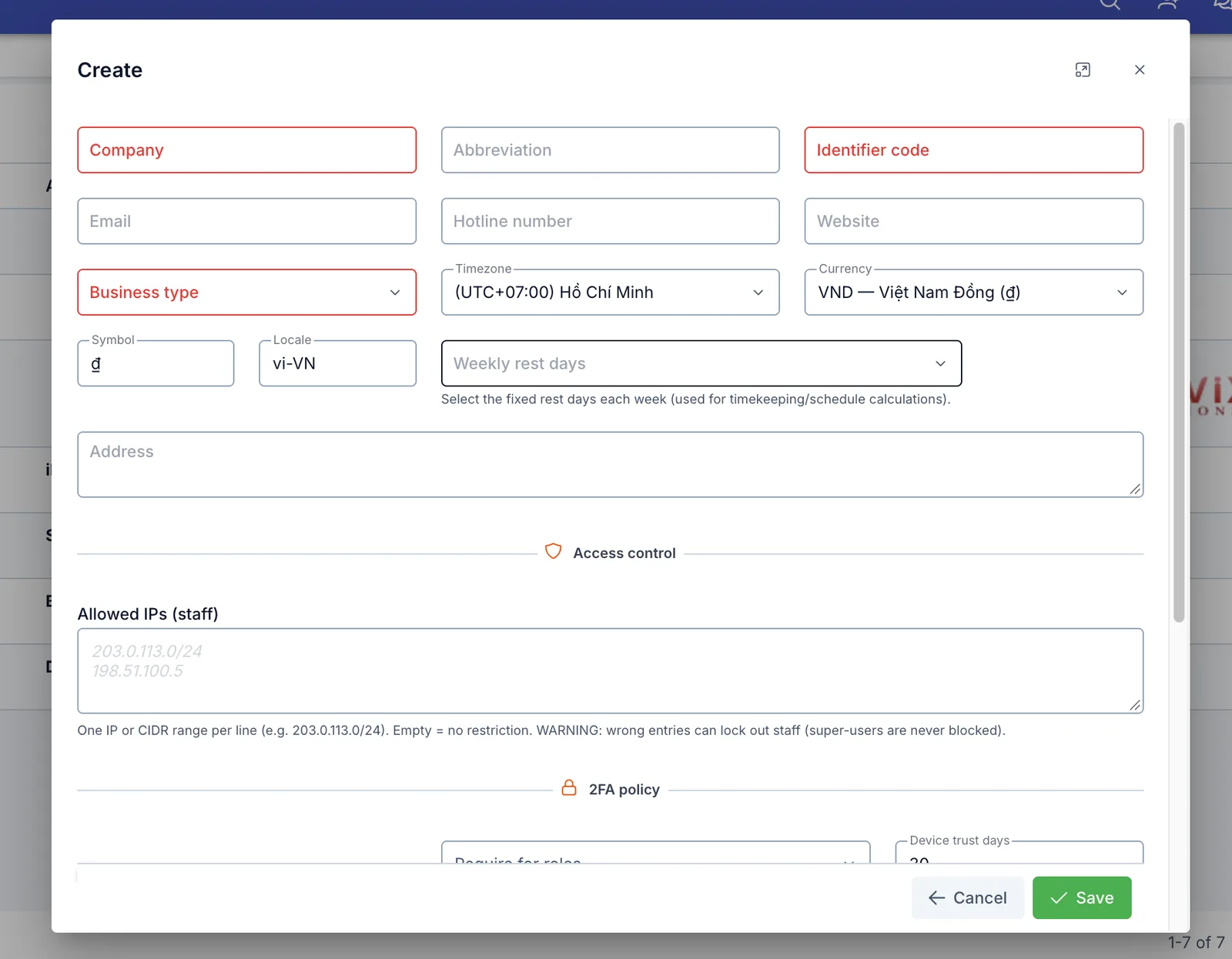
Screenshot of the basic info and access control section
| Field | What to enter |
|---|---|
| Company (required) | Full name, shown in the interface and on printed documents |
| Abbreviation | A short name, used where space is limited |
| Identifier code (required) | Internal code, must not collide with another company |
| Email / Hotline number / Website | The company's general contact details |
| Business type (required) | Pick the right model: Private, Public hospital, Clinic, General clinic, Specialty clinic, Private hospital, Medical center, Beauty center or Spa |
| Timezone / Currency / Symbol / Locale | Defaults already fit clinics in Vietnam — only change these if you really need to |
| Weekly rest days | Pick the fixed rest days each week, used for timekeeping and work schedules |
| Address | The company's headquarters address |
Access control
Allowed IPs (staff): one IP address or CIDR range per line (e.g.
203.0.113.0/24). Leave it empty for no restriction.
If the IPs are entered incorrectly, staff outside that range won't be able to log in (super-user accounts are never blocked). Only use this field when you're sure of the clinic's IP range.
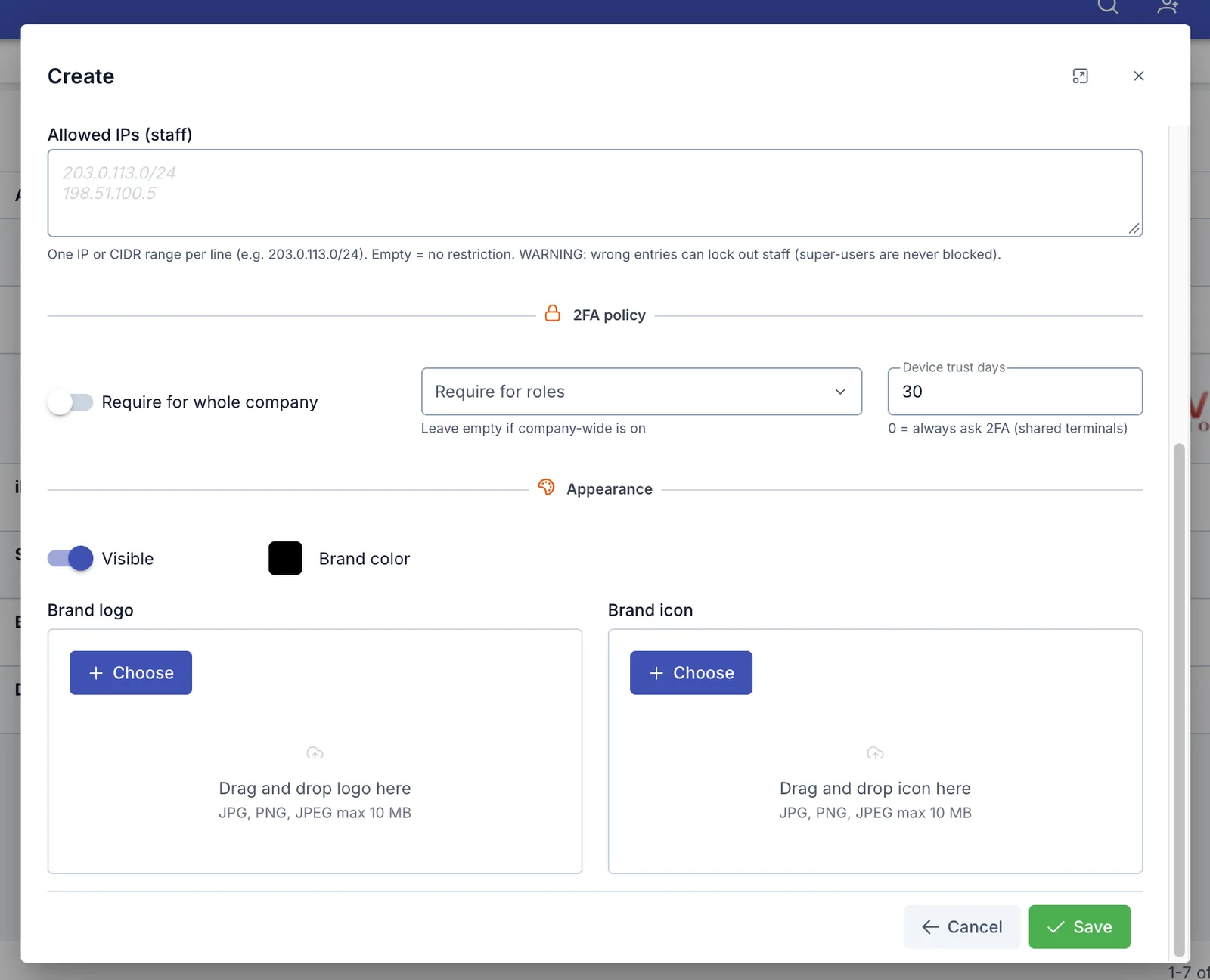
Screenshot of the 2FA policy and appearance section
2FA policy
Require two-factor authentication (2FA) for staff logins:
- Require for whole company: turn on to require 2FA for every staff member.
- Require for roles: leave empty if company-wide is on; otherwise pick which roles must use 2FA.
- Device trust days: how many days the software remembers a verified device without asking for 2FA again. Set to 0 for a shared terminal used by many people (always ask for 2FA).
Appearance
- Visible: turn off to hide this company from every place that lets you pick a company (this doesn't delete its data).
- Brand color: the representative color, shown next to the company name wherever it's tagged with color.
- Brand logo / Brand icon: drag and drop or click Choose to upload an image — accepts JPG, PNG, JPEG, up to 10 MB each.
Where this information shows up
The name, logo and contact details configured here appear on every printed document (invoices, exam slips, receipts…) that has a spot for that information.
- Logo, Website, Brand color: only configurable on Company — branches have no field of their own for these.
- Address, Hotline number, Email: Branch also has these fields. If the branch has a value filled in, printed documents use the branch's value; if the branch leaves that field empty, printed documents fall back to the Company's value for that same field.
If your branches have different addresses/hotlines, fill them in on each Branch so printed documents show the correct information for the branch the customer is actually visiting, instead of the shared Company information.
Related
- Branch — manage the facilities that belong to this company.