E-invoice configuration
E-invoice configuration is where you enter the clinic's account at its e-invoice provider, together with the registered invoice template code and series. Set it up once here, and every time the accountant clicks Issue in E-invoices the invoice goes straight to the provider and gets its number right in the software.
Open System configuration, and in the Accounting group click E-invoice configuration. The configuration-management permission is required.
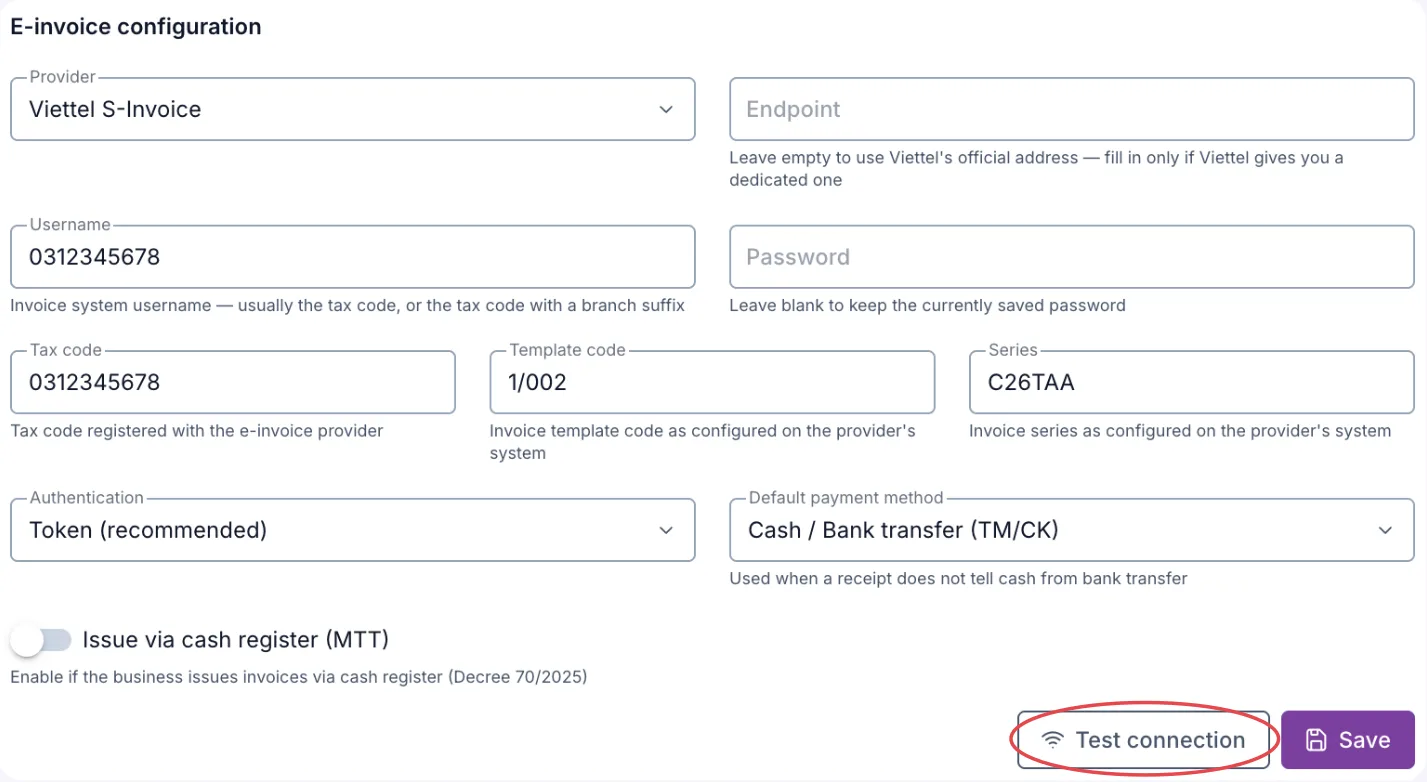
Illustration of the E-invoice configuration screen with Viettel S-Invoice
The configuration applies to the whole business: every invoice issued from the software uses this account, template code and series.
Before you start
Have ready the details the provider gave the clinic when the e-invoice contract was signed:
- The username and password of the provider's invoice system.
- The tax code of the issuing entity.
- The invoice Template code and Series registered with the tax authority.
You can find them by signing in to the provider's invoice administration site.
Filling in the details
Choose the Provider first — the fields below change with the provider selected. The software connects to Viettel S-Invoice and MISA meInvoice.
| Field | What to enter |
|---|---|
| Provider | The e-invoice provider the clinic has a contract with. |
| Endpoint | The provider's connection address. Leave it empty to use the official address; fill it in only when the provider assigns the clinic a different one. |
| Username | The username of the invoice system. With Viettel it is usually the tax code, or the tax code with a branch suffix. Example: 0312345678 |
| Password | That account's password. Once saved, the field shows saved; leaving it blank when saving again keeps the old password. |
| Tax code | The issuing entity's tax code registered with the provider. If left empty, the software uses the Username as the tax code. |
| Template code | The invoice template code exactly as on the provider's system. Example: 1/002 — 1 is a value-added tax (VAT) invoice, 2 is a sales invoice. |
| Series | The invoice series exactly as on the provider's system. Example: C26TAA — C means an invoice coded by the tax authority (K means without a code), 26 is the year 2026. |
| Issue via cash register (MTT) | Turn on when the business is registered to issue cash-register invoices under Decree 70/2025. When on, enter the Template code and Series registered for that invoice type. |
Viettel S-Invoice adds two more fields:
| Field | What to enter |
|---|---|
| Authentication | Keep Token (recommended). If you choose Basic Auth, first sign in to vinvoice.viettel.vn and enable API connections. |
| Default payment method | Printed on the invoice when a receipt does not tell cash from bank transfer. Usually Cash / Bank transfer (TM/CK). |
Click Save.
Sales invoice template
When the business is registered for sales invoices (template code starting with 2), the invoice carries no value-added tax. The software blocks issuing an invoice that has a line with a % rate, and prompts you to switch it to non-taxable or use the VAT invoice template. When you use this template, set your services' rate to Non-taxable (KCT) in VAT rate.
Testing the connection
With Viettel, after Save, click Test connection. The software tries to sign in to Viettel using the saved configuration. The software shows messages in Vietnamese; the meaning is given in brackets:
- "Kết nối nhà cung cấp hoá đơn điện tử thành công" (connected successfully) → ready to issue.
- An error → check the Username, Password, Tax code and Endpoint, correct them and Save again.
The Test connection button is greyed out while you have unsaved changes — hovering over it shows Save first. That is because the test always uses exactly the configuration the software will use when issuing.
Changing the seller tax code
While there are Viettel invoices still Pending, or Draft invoices that have already been sent once, the software does not allow changing the Tax code (or the Username when the tax code field is empty) and the Endpoint. Saving at that moment shows "Còn hoá đơn Viettel đang Chờ hoặc Nháp đã gửi…" (Viettel invoices are still pending or sent drafts — finish them before changing the seller tax code or API address).
What to do: go to E-invoices, filter Pending and Draft, click Check status or Issue until those invoices have their numbers — then come back and change the configuration. This rule keeps every sent invoice looked up under the right issuing entity, so no duplicate invoice is ever created.
Other fields (Template code, Series, Password…) can still be changed as usual.
The series contains the issuing year (e.g. C26TAA for 2026). At the start of a new year, after registering the new series on the provider's system, edit the Series field here and click Save before issuing the first invoice of the year.
Related
- E-invoices — issue, look up and replace invoices.
- VAT rate — tax rates and tax types of services.