VAT rate
VAT rate is the list of value-added tax rates the clinic uses on invoices. Every service line on an e-invoice takes its rate from this list — either the rate set on that service, or the business's rate in effect.
Open System configuration, and in the Accounting group click VAT rate.
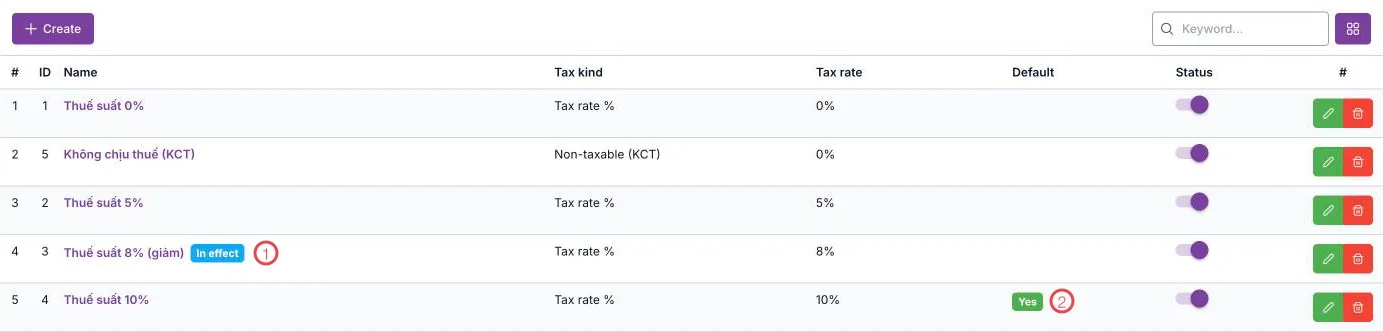
Illustration of the VAT rate list
| Area | What it is |
|---|---|
| 1. In effect tag | The rate the software uses today for services without a rate of their own — see below. |
| 2. Default column | The rate marked as default. Only one rate is default at a time. |
The Status column switches a rate on or off. A switched-off rate is not applied to new invoices; services set to it use the rate in effect instead.
Rate names are clinic data and stay in Vietnamese when the interface is in English.
The three tax types
| Tax type | Use it for |
|---|---|
| Tax rate % | Goods and services subject to VAT at a percentage: 0%, 5%, 8%, 10%… |
| Non-taxable (KCT) | Goods and services not subject to VAT. |
| Not declared/paid (KKKNT) | Amounts for which VAT is not declared or paid. |
KCT and KKKNT always carry a 0% rate — the Tax rate field locks when either is chosen. The tax amount is zero just like at 0%, but on the invoice and the tax return these three cases are recorded differently. Choose the right type following your accountant's or the tax authority's guidance; do not replace KCT with a 0% rate.
Adding or editing a rate
Click Create, or the green edit button at the end of a row.
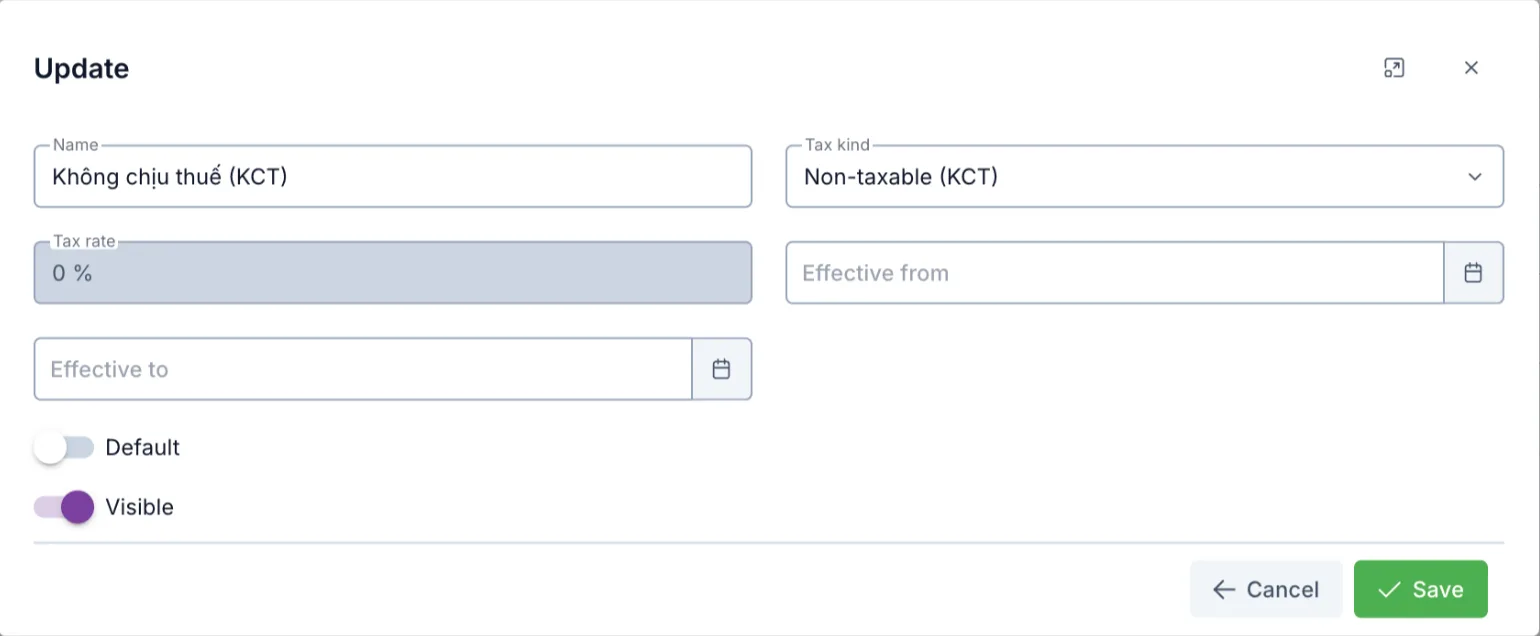
Illustration of the rate edit dialog
| Field | What to enter |
|---|---|
| Name | A name that is easy to recognise when choosing it on a service. Example: Thuế suất 8% (giảm) |
| Tax kind | One of the three types above. |
| Tax rate | The percentage. Locked at 0% for KCT and KKKNT. |
| Effective from · Effective to | The period in which the rate is valid. Leave empty for no limit. Example: a temporary tax reduction applies only until its end date. |
| Default | Turn on to make this the business's default rate. Turning it on for one rate switches the previous default off. |
| Visible | Turn off when the rate is no longer used. |
Click Save.
The shared statutory rates (such as the reduced 8% and 10%) are maintained by the system administrator so every clinic uses the correct values. If the clinic needs a rate of its own, click Create.
The rate in effect
A service without a rate of its own takes the rate in effect, chosen in this order:
- The Default rate the clinic created itself.
- If the clinic has none: a shared rate with a validity period that is currently in effect — for example the reduced 8%.
- If there is no such rate: the shared rate marked Default — 10%.
In the picture above, 10% is the shared default, but Thuế suất 8% (giảm) is within its validity period, so it carries the In effect tag. Once its end date passes, the software switches to 10% on its own, with nothing to edit.
Setting a specific rate on a service
When a service has a rate different from the general one (e.g. a medical service that is not subject to VAT), set it directly in the service's Tax rate field in Service / product. Leave it empty to follow the rate in effect.
- The service's own rate is still valid ⇒ invoices use it.
- The service's own rate has expired (past its Effective to date) or is switched off ⇒ invoices automatically use the rate in effect, so no invoice is issued with an expired rate.
The rate is fixed on each invoice line when the invoice is created. Editing the list afterwards does not change invoices already issued.
If the clinic is registered for sales invoices (template code starting with 2 in E-invoice configuration), invoices carry no VAT. Set Non-taxable (KCT) on your services — an invoice with a % rate line cannot be issued with this template.
Related
- E-invoices — where rates are used when issuing.
- E-invoice configuration — template code, series and provider connection.
- Service / product — set the rate on each service.
- VAT Report — output and input tax totalled by period.