Zalo OA Connection
Zalo OA Connection links the clinic's Zalo Official Account (OA) to the software, so it can send ZNS (branded Zalo messages) and receive, reply to customer (patient) messages sent to the OA right inside Omnichat.
Opening Zalo OA Connection
- Go to the System configuration screen (see Configuration overview), group Connected channels, click Zalo OA Connection.
- Faster way: type Zalo OA into the quick search box at the top of the System configuration screen, then click the result.
Zalo OA Connections list
Each row is one Zalo OA registered for one brand.
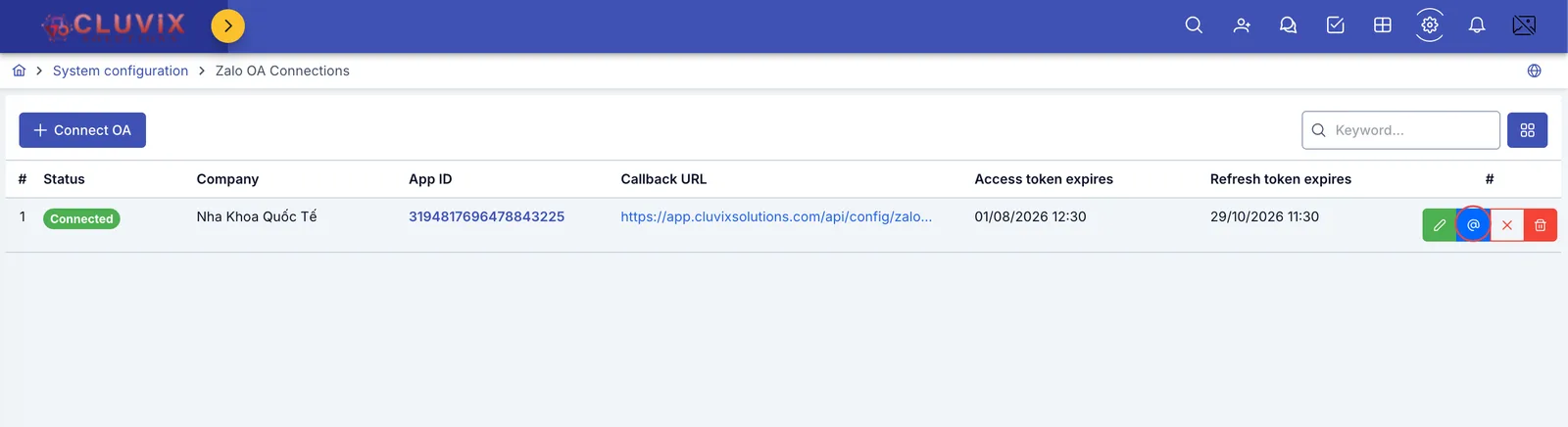
Screenshot of the Zalo OA Connections list
- Status: a green Connected label means this OA is sending/receiving messages normally. Never authorized yet, or disconnected, and this column shows no green label.
- Access token expires: the software automatically refreshes this token before it expires — no action needed.
- Refresh token expires: the expiry of the most recent authorization. Past this date without re-authorizing, click the @ button to authorize again from scratch.
- Row action buttons: green pencil to edit the connection's information; blue @ icon to run OAuth authorization (details below), only clickable once App ID, Secret Key and Callback URL are saved; red X to disconnect; red trash bin to delete this connection entirely.
The X button only pauses sending/receiving (it clears the tokens) but keeps App ID, Secret Key and Callback URL — authorizing again via @ works right away, no need to re-enter anything. The trash bin deletes the connection row entirely; existing Omnichat conversation history is kept, only new messages/sending stop until reconnected.
Declaring App ID and Secret Key
Click + Connect OA to declare a new Zalo OA, or click the pencil on an existing row to edit it.
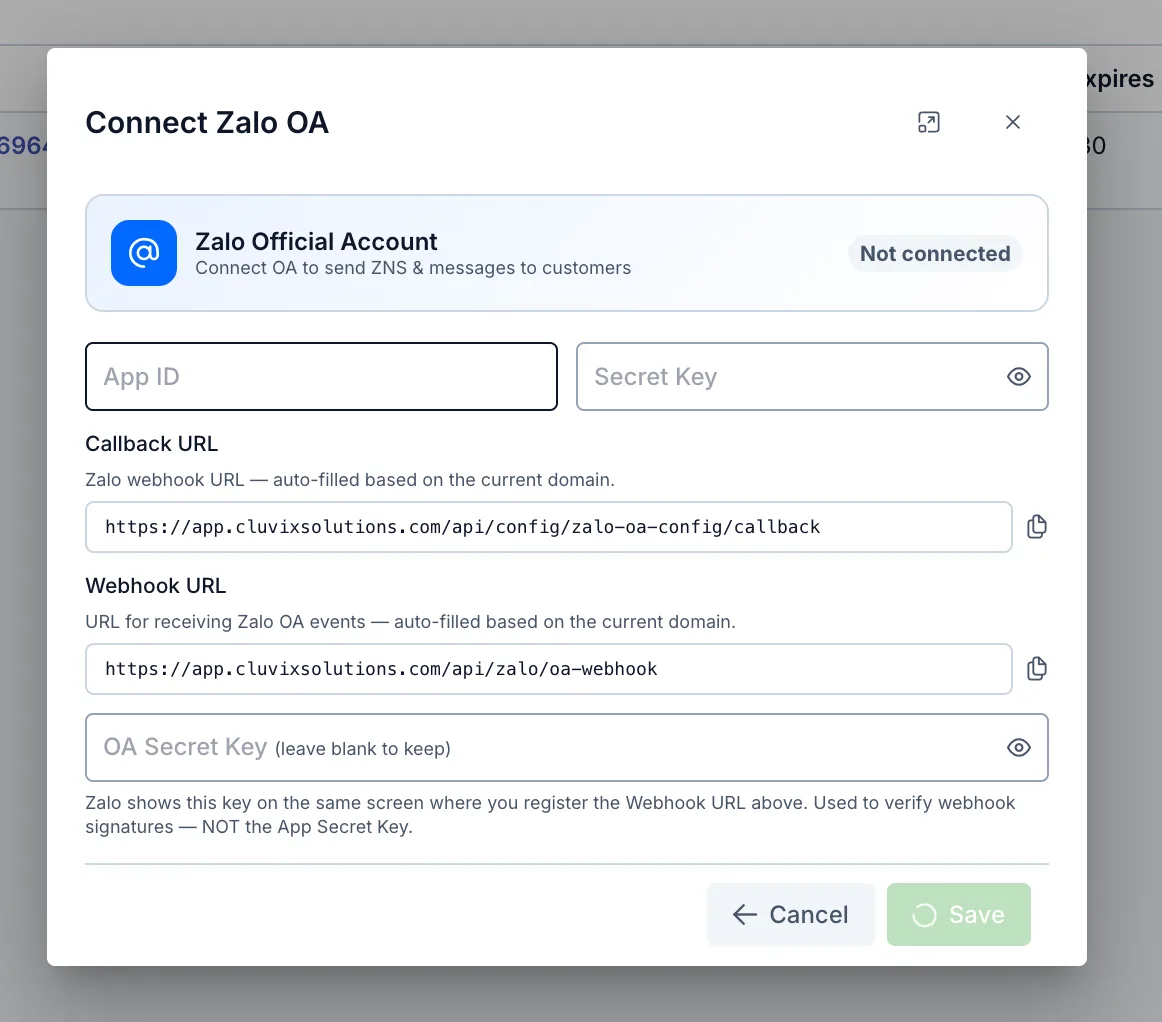
Screenshot of the Connect Zalo OA dialog
| Field | What to enter |
|---|---|
| App ID (required) | The app ID of the Zalo OA app registered on Zalo Developers |
| Secret Key (required) | That app's secret key — used to exchange for access during OAuth authorization |
| Callback URL | Auto-filled by the software based on the current domain — copy it into the Callback URL field in the app's configuration on Zalo Developers |
| Webhook URL | Auto-filled by the software based on the current domain — copy it into the OA's Webhook URL field on Zalo, so Zalo can report back whenever there's a new message/event |
| OA Secret Key | Zalo shows this key on the same screen where you register the Webhook URL above — used to verify webhook requests coming from Zalo, different from the app's Secret Key. Leave blank when editing to keep the saved key |
Once filled in, click Save.
Authorizing the connection (the @ button)
Once App ID, Secret Key and Callback URL are saved, click the blue @ button on that row to open Zalo's own authorization window.
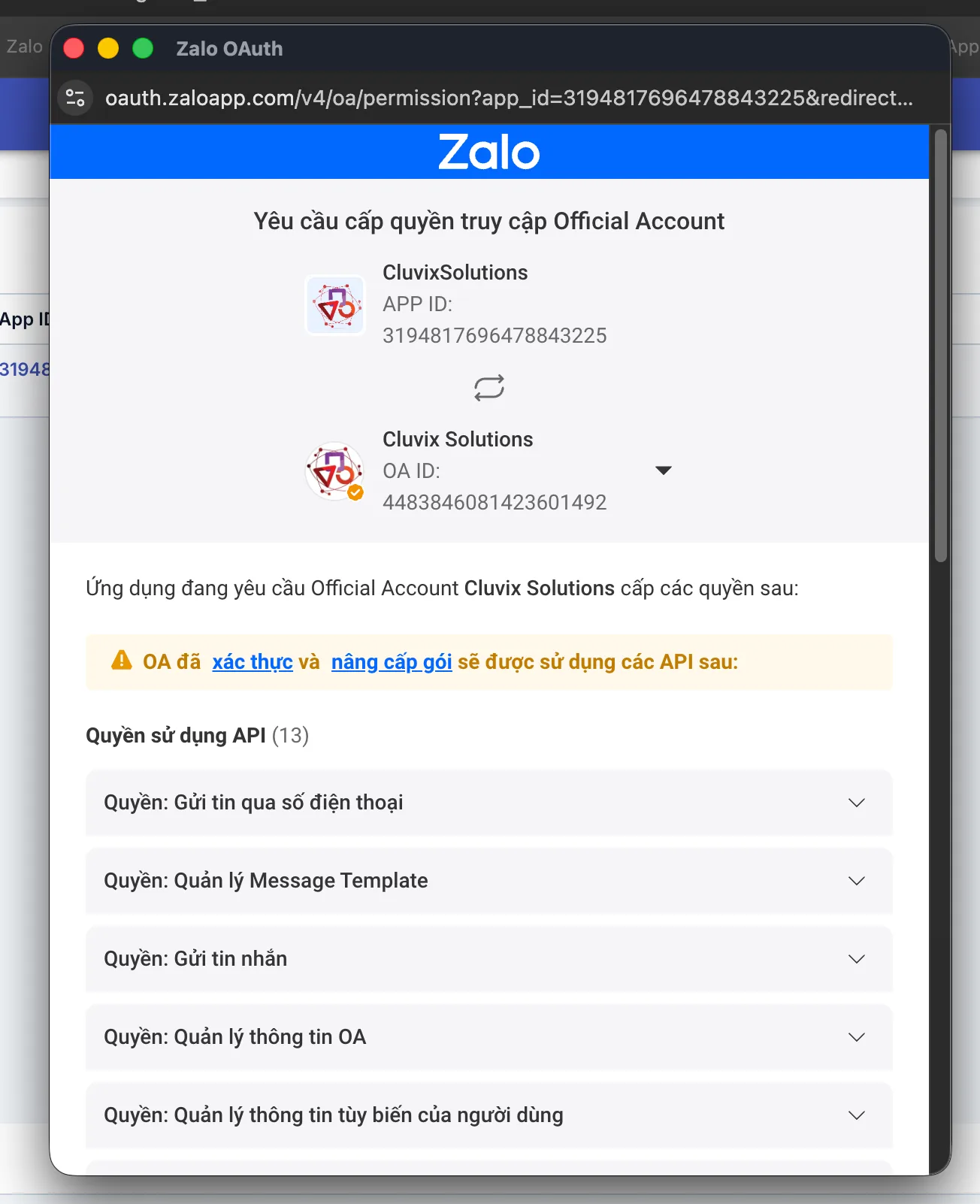
Screenshot of Zalo's access request page
This page is provided by Zalo, so it always shows in Vietnamese regardless of the language you're using in CluvixHealth. Scroll down to review the requested permissions, then click the blue Cấp quyền (Grant) button at the bottom of the page.
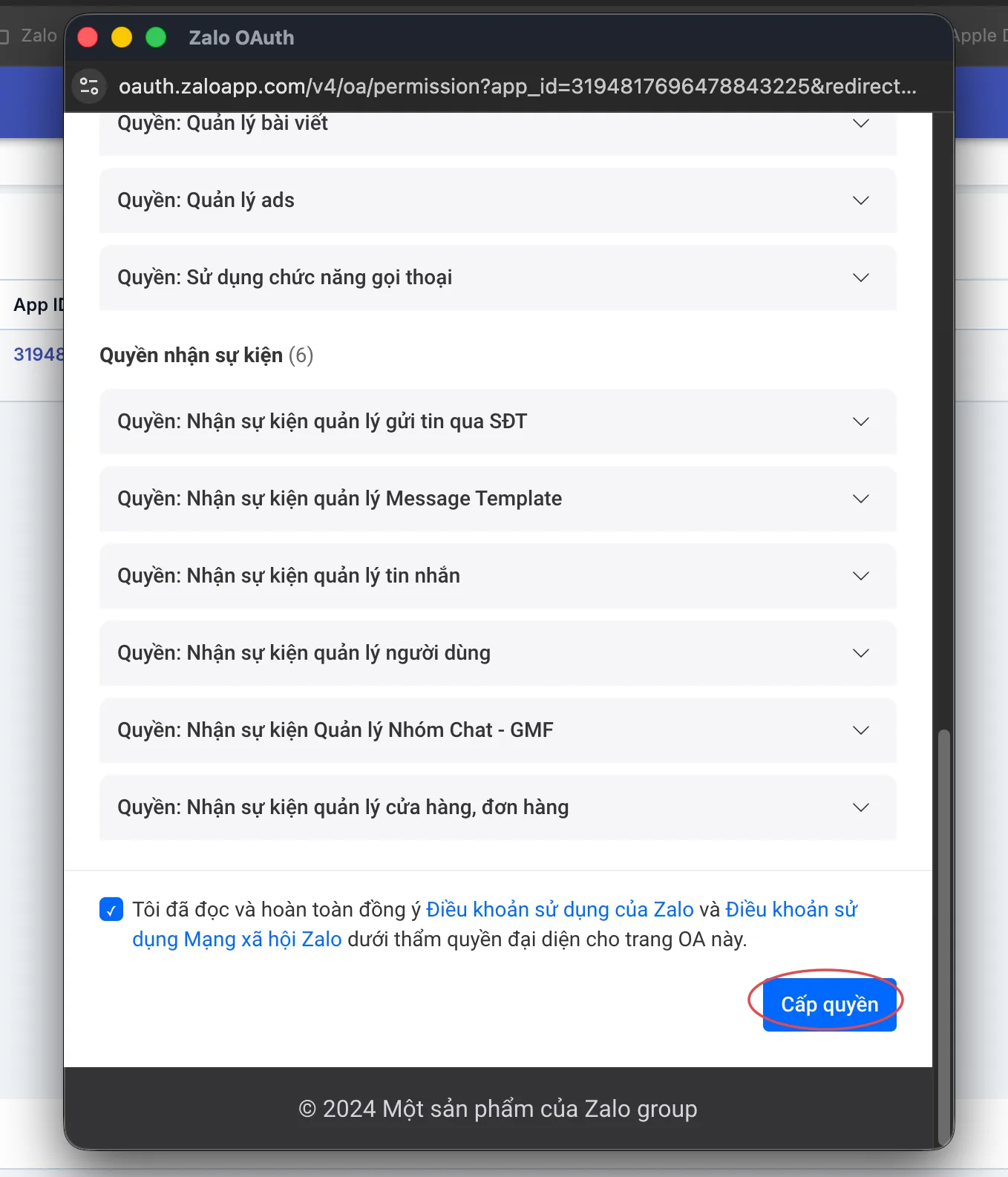
Screenshot of the Grant button that completes the connection
Once granted, the software automatically returns to the list screen, the Status column turns to Connected, and both expiry dates are filled in from this authorization.
A connected Zalo OA is used for 2 things: sending ZNS (appointment reminders, care campaigns via Zalo) and receiving, replying to customer (patient) messages sent to the OA right in Omnichat.
Related
- ZNS Templates — declare ZNS message templates sent via the Zalo OA connected here.