Organisation Channels
This screen decides the shape of chat across the clinic: which teams get their own channel, which branches get one, and which channels are open to everybody.
Go to System configuration → Internal chat → Organization channels.

Illustration of the Organization channels screen
| Area | What it is |
|---|---|
| 1. Create | Creates a channel you define yourself. |
| 2. Show archived | Turn it on to see archived channels too — see Members and archiving. |
| 3. The Channel type column | Whether the system built this channel or an administrator created it. |
| 4. The Public column | Flip it to let the whole company in. |
| 5. The three action buttons | Rename, Manage members, Archive. |
The table also carries Members, Created at and Status (Active or Archived).
Three kinds of channel
| Channel type | Who creates it | Membership |
|---|---|---|
| By department | Built by the system from the clinic's structure | Synced by department: join a team and its channel is there; move on and you are out |
| By branch | Built by the system from the branch list | Synced by the branch someone works at |
| Manual | An administrator clicks Create | You choose the members and adjust them later |
The two synced kinds save the most work: hire someone, move them, open a branch — membership follows the HR records, so nobody has to remember to add or remove anyone. Because they run off the org structure, the three action buttons in the last column are for Manual channels.
Creating a channel
Click Create:
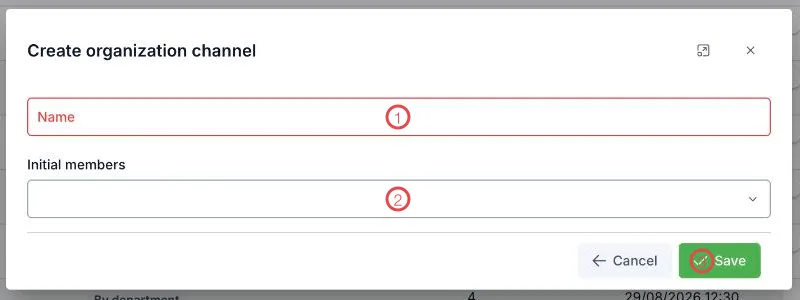
Illustration of the Create organization channel form
| Area | What goes in |
|---|---|
| 1. Name (required) | The channel name; name it after the job: Announcements, Weekend shift. |
| 2. Initial members | Pick who joins straight away. You can add and remove later. |
| 3. Save | Creates the channel. |
The new channel is tagged Manual and appears in its members' Internal Chat right away.
Public channels
Flip the switch in the Public column and the channel opens to the whole company: everyone sees it under Discover channels and can join without an invitation.
Once a channel is public, anyone joining afterwards can read all of its past messages. That suits announcement and knowledge-sharing channels; keep sensitive discussions non-public.
"Weekend shift" still works a year later. A channel named after one person becomes meaningless when they leave — while its history stays.
Related
- Members and archiving — changing people and closing old channels.
- Chat channels — the same channels seen by staff.
- Internal Chat Overview — what the module gives you.