Rank Discount
Rank Discount configures a discount % specific to individual services, for each member rank — used when the clinic wants different offers per service, instead of a single general discount % applied to every service the way Member rank does.
Opening Rank Discount
- Go to the System configuration screen (see Configuration overview), group Customer, click Rank Discount.
- Faster way: type Rank Discount into the quick search box at the top of the System configuration screen, then click the result.
Rank Discount list

Screenshot of the Rank Discount list
Each row is one configuration: one member rank, one discount %, applied to a specific group of services (listed by name in the Service column). Click 1. Create to add a new configuration, and the row action buttons (2.) to edit/delete. One rank can have several different rows, each applying to a different group of services at its own %.
Creating a rank discount configuration
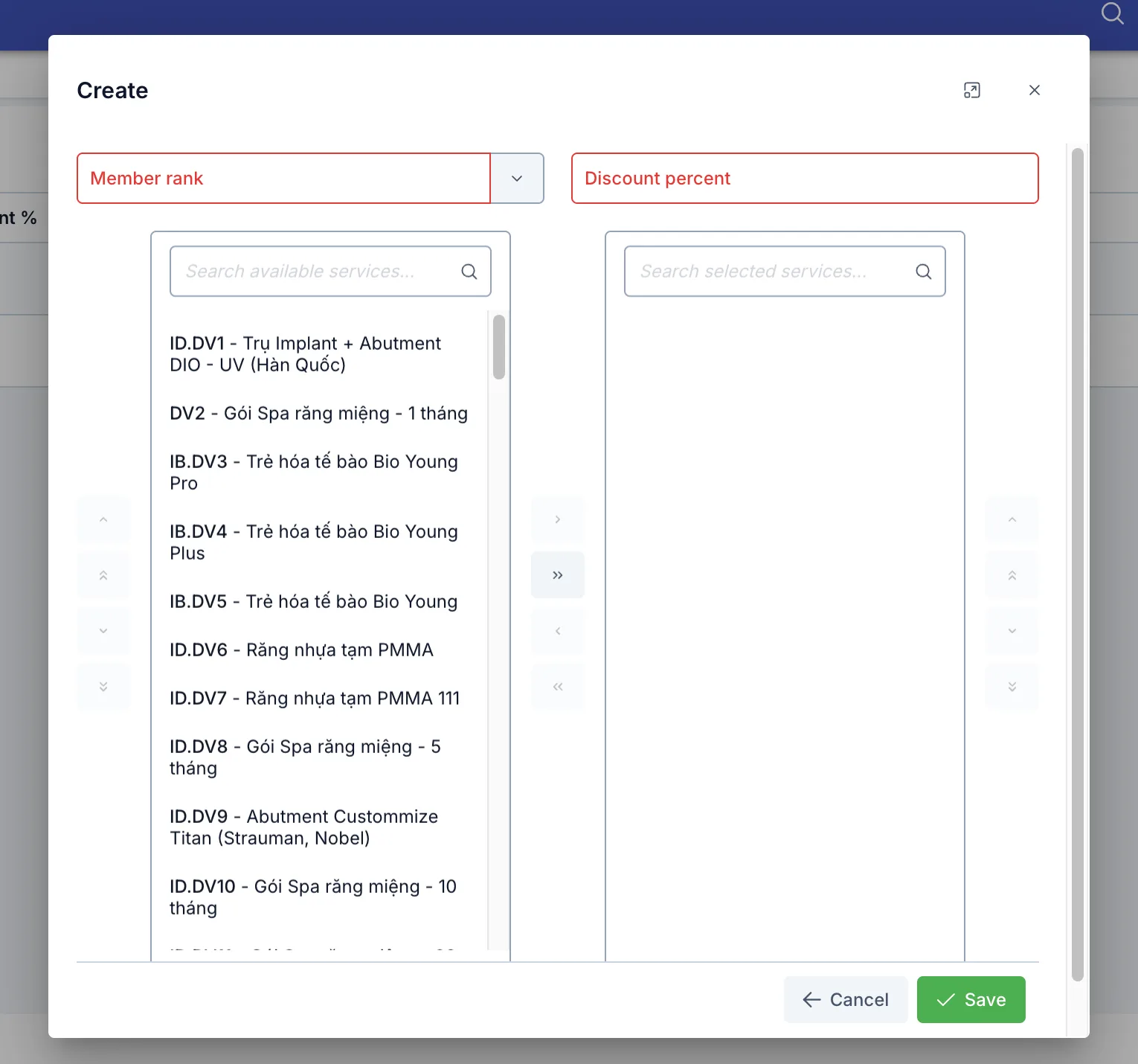
Screenshot of the Create Rank Discount dialog
| Field | What to enter |
|---|---|
| Member rank (required) | The rank this configuration applies to |
| Discount percent (required) | The discount % applied specifically to the services selected below |
Pick services using the two-column picker: search in the "Search available services..." box on the left, select services and click the > arrow to move them to the right column (selected services) — click >> to move the entire list at once. To remove selected services, do the reverse with < / <<.
How the two discount levels work together
Each rank only ever uses one kind of discount at a time — they don't stack:
- A rank with no rows on Rank Discount → uses the general discount % (configured on Member rank) for every service.
- A rank with at least one row on Rank Discount → the general discount % stops
applying to that rank's orders entirely. From then on:
- A service listed in one of the configured rows → gets that row's own discount %.
- A service not listed in any row → gets no rank discount at all (0%).
Gold rank has its general discount % set to 10% (on Member rank), with no rows yet on Rank Discount → every service a Gold customer (patient) buys gets 10% off. Then a row "Gold — 12% — 3 hair-removal services" is created on this page → from then on, Gold customers (patients) only get 12% off on those exact 3 hair-removal services; other services no longer get the 10% general discount.
Applying it when creating an order
- The rank discount is calculated automatically as soon as a service is added to a new order for a customer who already has a rank — staff don't need to select or turn anything on.
- The discount is locked in at the moment the order is created — editing the order afterward doesn't automatically recalculate it against the latest configuration.
Related
- Member rank — the catalog of ranks and the general discount % used when a rank has no dedicated configuration on this page.