Member rank
Member rank is the catalog of customer (patient) tiers (Silver, Gold, Diamond…) ranked by accumulated points — points a customer earns when a service/product with a configured reward point value is completed and paid for. Each rank has its own point range and one general discount % applied when a customer at that rank creates an order.
Opening Member rank
- Go to the System configuration screen (see Configuration overview), group Customer, click Member rank.
- Faster way: type Member rank into the quick search box at the top of the System configuration screen, then click the result.
Member rank list

Screenshot of the Member rank list
Each row is one rank, with its point range, general discount % and display color. Click 1. Create to add a new rank, and the row action buttons (2.) to edit/delete.
Creating a member rank
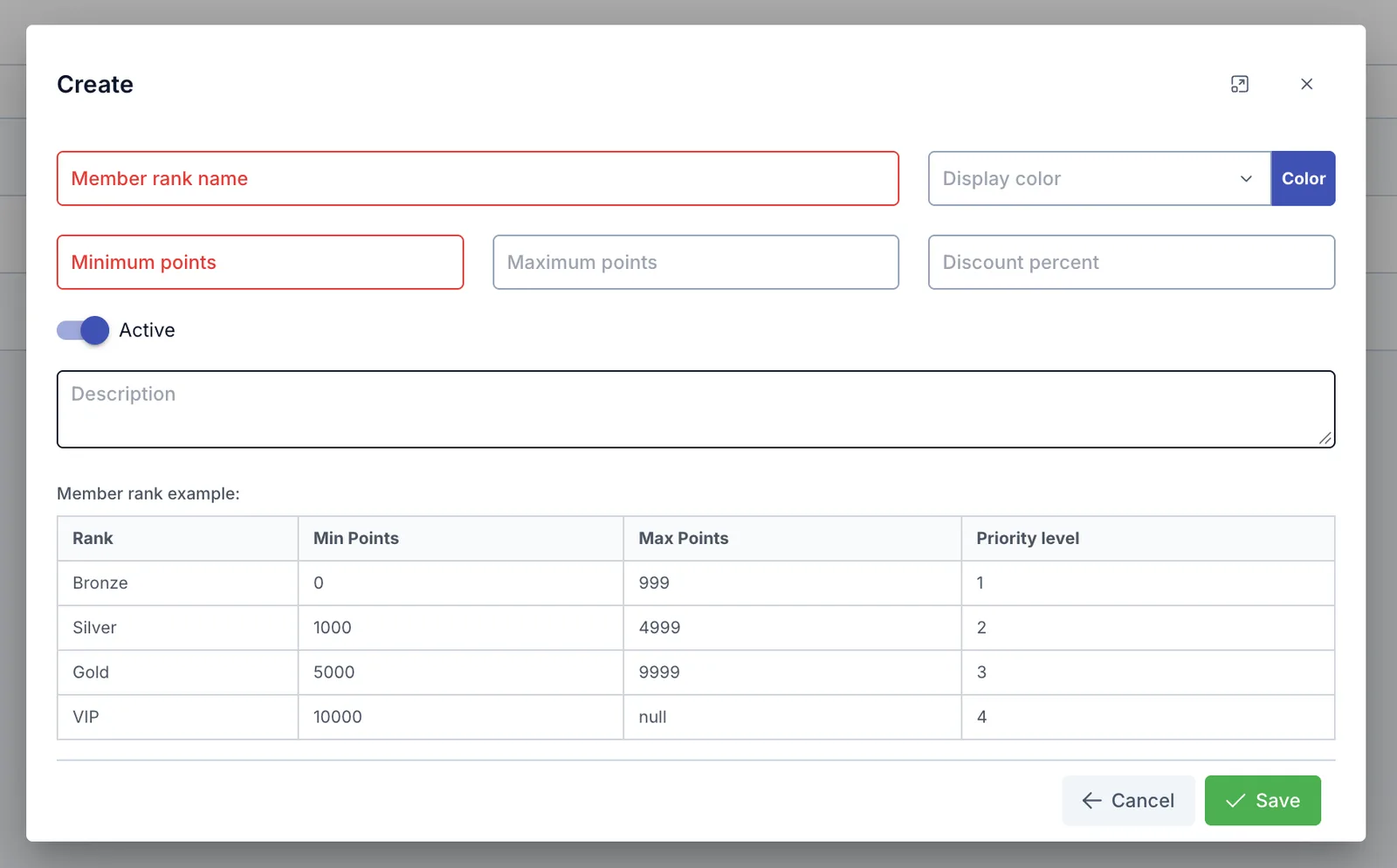
Screenshot of the Create Member rank dialog
| Field | What to enter |
|---|---|
| Member rank name (required) | The rank's display name, e.g. "Gold" |
| Display color | Pick a color for the rank's label, click the Color button to open the color picker |
| Minimum points (required) | The lowest accumulated points to reach this rank |
| Maximum points | The highest accumulated points still within this rank — leave blank for no upper limit (used for the top rank) |
| Discount percent | The general discount % applied when a customer at this rank creates an order — see how it's applied below |
| Active | Turn off to stop using this rank, without deleting the data |
| Description | Extra notes about the rank, optional |
The "Member rank example" table shown in the dialog is only a reference suggestion for reasonable point ranges (Bronze/Silver/Gold/VIP) — it's not real data, you don't need to match its levels exactly.
How the general discount % is applied
- If the rank has no dedicated configuration yet on Rank Discount: every service on an order for a customer at that rank gets discounted by the general discount % declared here.
- If the rank already has at least one row configured on Rank Discount: the general discount % here no longer applies — see the detailed calculation on the Rank Discount page.
Related
- Rank Discount — configure a discount % specific to individual services for each rank, instead of the general % on this page.