Material
Material is the catalog of supplies/materials the clinic has on hand. Each material can be used for one of 2 purposes:
- Direct retail sale — fill in Capital price/Retail price for reference pricing when sold.
- Consumed by a service — link the material to a service on the Service + Material screen (same Supply Warehouse group), and the software will automatically deduct stock by the configured quantity every time that service is performed — no manual stock deduction needed.
Opening Material
- Go to the System configuration screen (see Configuration overview), group Supply Warehouse, click Material.
- Faster way: type Material into the quick search box at the top of the System configuration screen, then click the result.
Material list

Screenshot of the Material list
| # | What it is |
|---|---|
| 1. Export button (blue upload icon) | Exports the currently filtered/searched material list to an Excel file — see Import/Export below. |
| 2. Import button (purple download icon) | Bulk-imports materials (create or update) from an Excel file. |
| 3. Create button | Manually declare a new material. |
| 4. Row action buttons | Blue icon to clone, pencil to edit, trash bin to delete that material. |
A material with the Capital price/Retail price columns blank ("-") is usually a material used only as an internal consumable for services, not sold directly to customers (patients), so no retail price is needed.
Creating a material
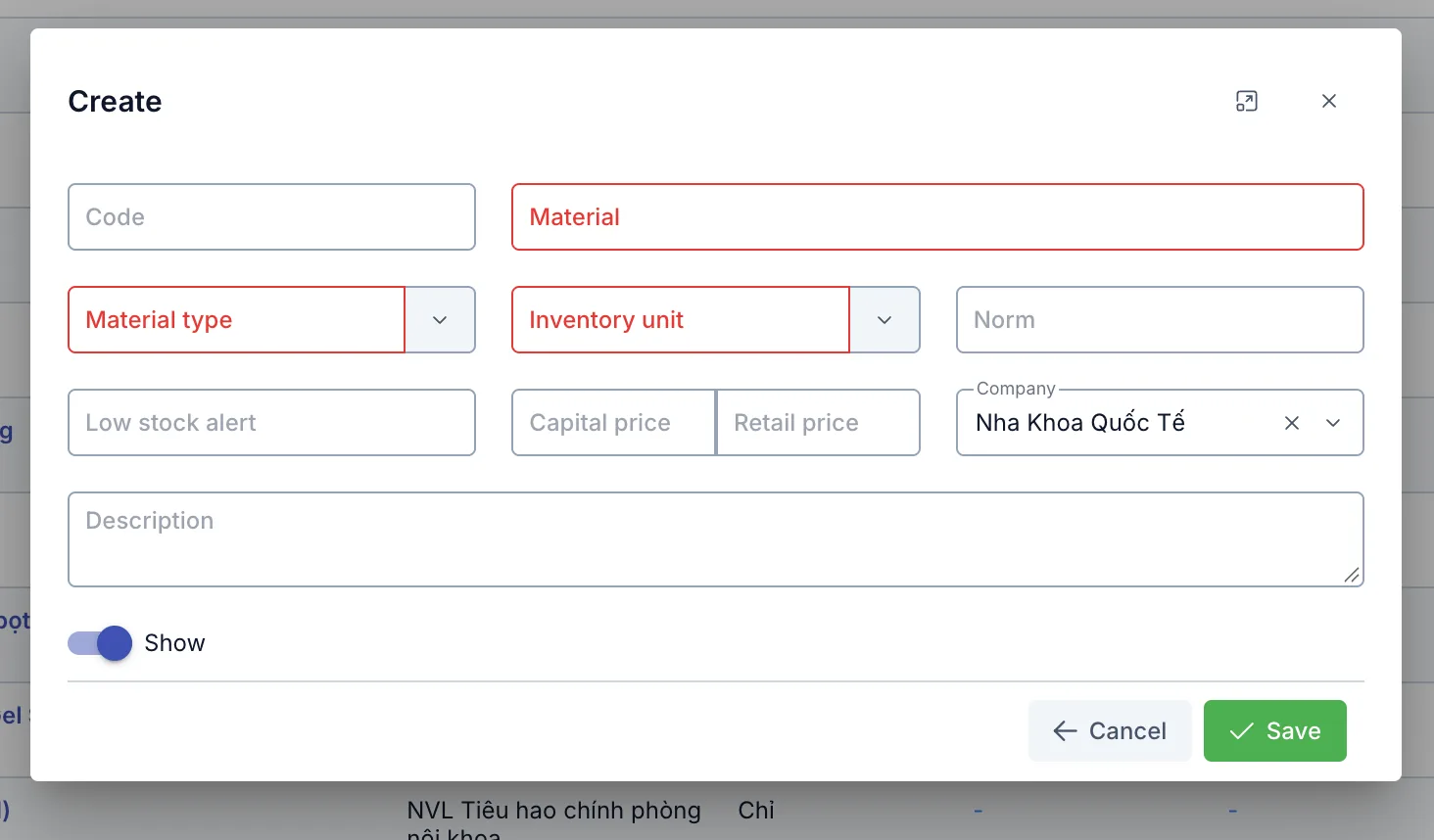
Screenshot of the Create Material dialog
| Field | What to enter |
|---|---|
| Code | An internal code for management, optional |
| Material (required) | The material's name |
| Material type (required) | Pick from the Material Type catalog (same Supply Warehouse group) |
| Inventory unit (required) | Pulled from the shared Unit catalog, showing only units tagged under the "Warehouse unit" category |
| Norm | A reference quantity — the quantity actually auto-deducted per service is configured separately on the Service + Material screen, not read from this field |
| Low stock alert | When actual stock falls below this number, the material appears in the low-stock alert list on the inventory dashboard |
| Capital price / Retail price | The purchase cost and the sale price, if this material is sold directly to customers (patients) |
| Company | Multiple brands can be selected at once — the material is shared across the selected brands |
| Description | Extra notes, optional |
| Show | Turn off to hide this material from picker lists, without deleting the data |
Cloning a material
The clone icon (blue) in each row's action buttons opens a Create dialog pre-filled with the selected material's full information — adjust a few differences and save to get a new material instantly, without retyping everything. Useful when creating several materials of the same kind that only differ in packaging (like the 3 "Băng gạc y tế" rows with different codes in the list screenshot above).
Import / Export
- Export: downloads exactly the list currently filtered/searched on screen.
- Import: the Excel file has an ID column — a row with a matching existing material's ID updates that material's information; a row with a blank ID creates a new one. The Material type/Unit columns in the file must exactly match names already in the catalog, or that row is skipped.
Related
- Unit — the shared unit catalog; the Inventory unit field on this page only shows units tagged under the "Warehouse unit" category.