Treatment step
A Treatment step splits a treatment session into specific steps (e.g. Ultrasound, Massage, Infrared lamp…). Each step can have its own preset KPI points and commission — when a technician performs it and it's logged on a treatment record, the software records exactly who did it, how long it took, and how many points and how much commission that step earned.
Opening Treatment step
- Go to the System configuration screen (see Configuration overview), group Clinic, click Treatment step.
- Faster way: type Treatment step into the quick search box at the top of the System configuration screen, then click the result.
Treatment step list
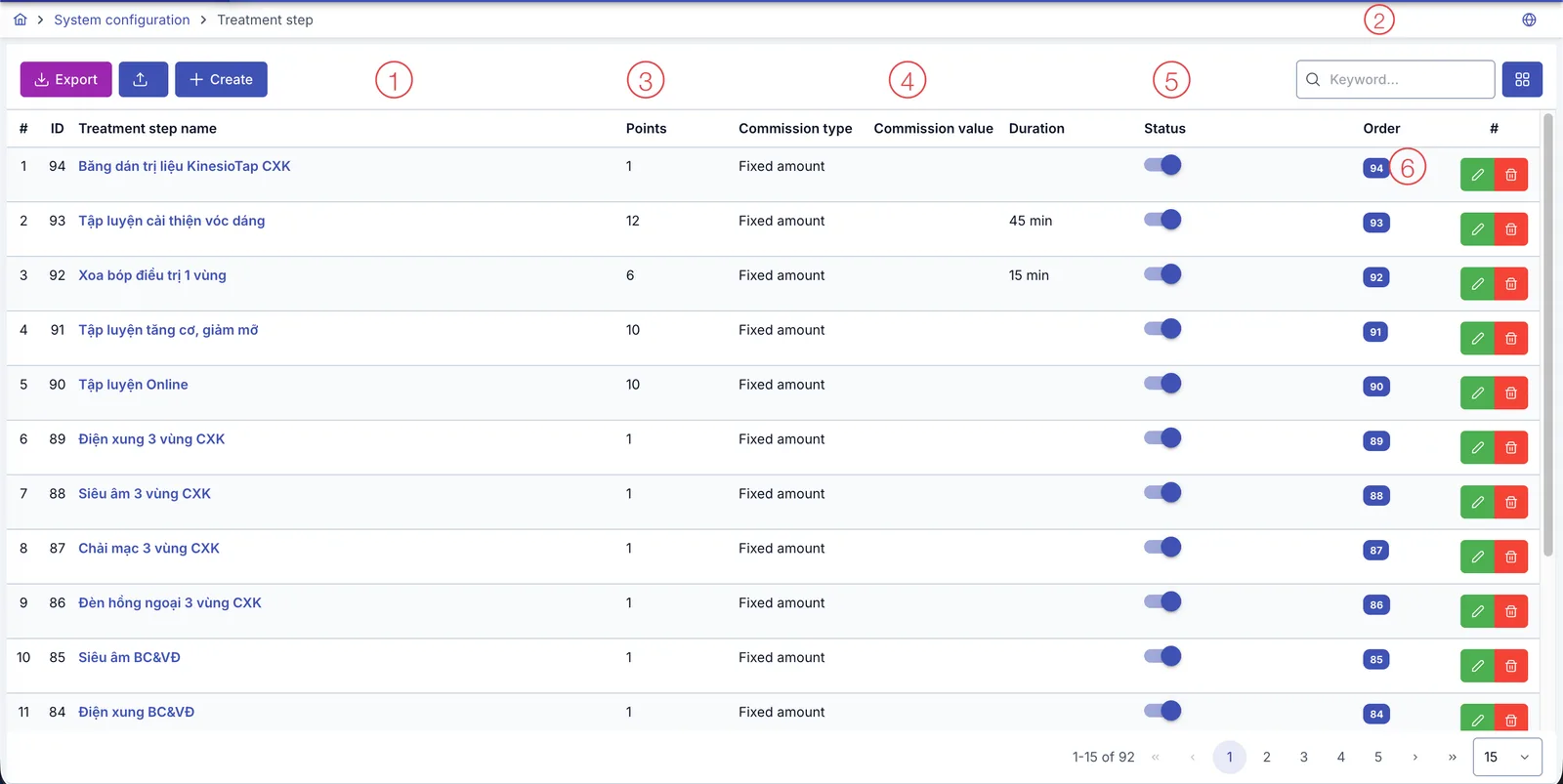
Screenshot of the Treatment step list
| # | What it is |
|---|---|
| 1. 3 buttons above the list | Export downloads the list to a file, Import brings in many steps at once from an Excel file, Create opens the dialog to create a new step. |
| 2. Search box | Type a name to quickly filter the list. |
| 3. Points column | A reward (KPI) for the technician who performs this step — not money, see details below. |
| 4. Commission type/value columns | This step's own commission rate — when set, it takes priority over the service's shared commission rate, see details below. |
| 5. Status column | An on/off toggle — turning it off makes the step unavailable when logging a treatment record. |
| 6. Buttons at the end of each row | Pencil to edit, trash can to delete that step. |
Creating a treatment step
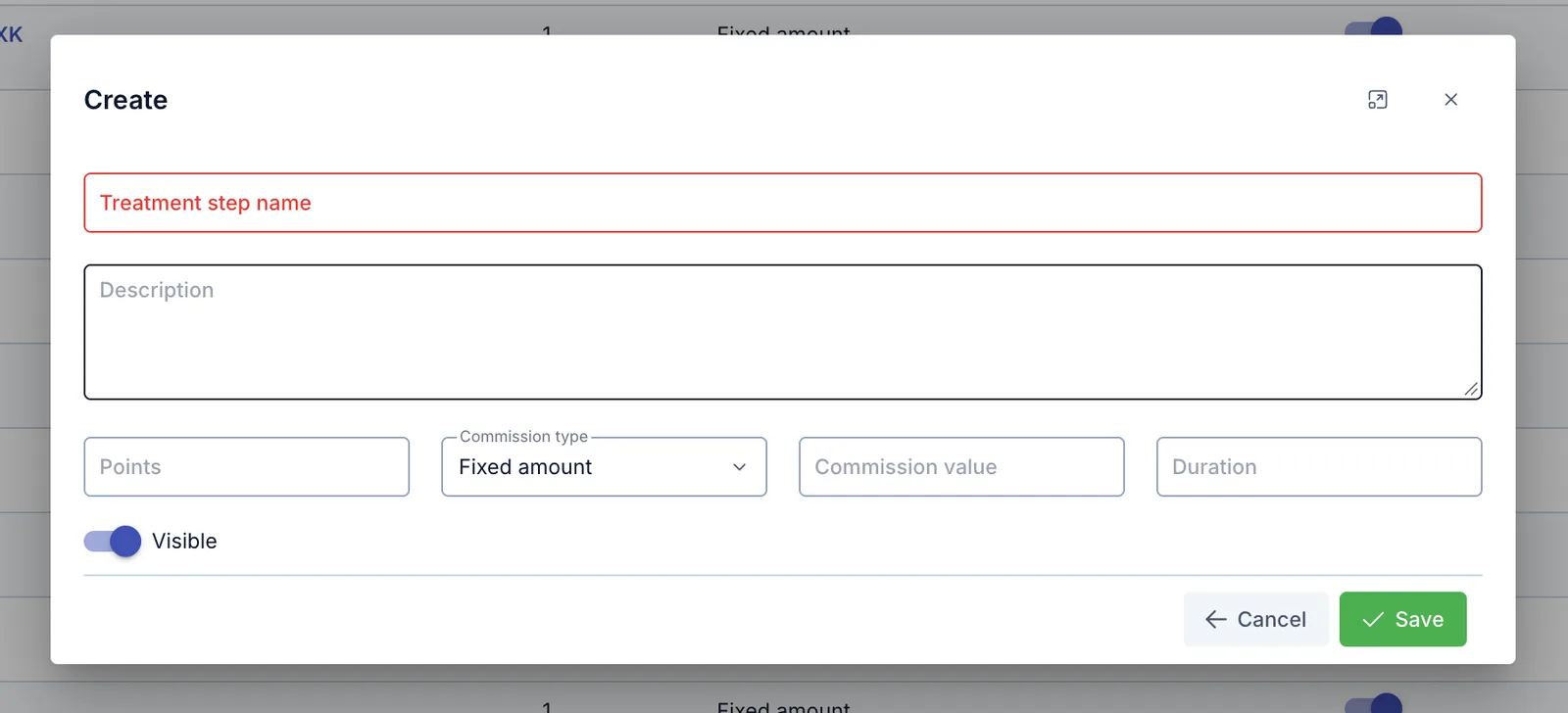
Screenshot of the Create treatment step dialog
| Field | What to enter |
|---|---|
| Treatment step name (required) | The display name |
| Description | Extra notes, optional |
| Points | The KPI points for the technician who performs this step |
| Commission type | Pick Fixed amount or % (of the service price) |
| Commission value | The amount or % matching the type picked above |
| Duration | Expected minutes — just a default suggestion; the technician can still enter the actual time when logging the treatment record |
After creating it, go to Service / product, the Treatment step tab, to attach this step to the right service.
What gets recorded from each step on a treatment record
When staff log a treatment record for a customer, they pick each step that was performed and assign the right technician to it — the actual duration can be edited to differ from the default. Every time it's saved, the software records in full: which technician, which step, how long, how many points, and how much commission for that exact step.
How points feed into KPI
Points on each step aren't money — they're KPI points for the technician who performed that step. Every technician has their own screen in Workspace listing every step they've performed, filterable by date range, along with the total points and total commission accumulated so far.
No need to wait for a month-end report — a technician can open their own Workspace screen right after a session to see the points and commission just accumulated.
A step's commission can override the service's commission
The service at Service / product also declares a shared Treating Technician Commission rate (Service commission tab). When logging a treatment record:
- If the treatment step has a Commission type/value set — the software uses that step's own rate for the technician performing it.
- If the treatment step's commission is left empty — the software falls back to the service's shared commission rate, split evenly if more than one technician performed that session.
Related
- Service / product — where a treatment step is attached to a specific service and the service's shared commission rate is declared.