Service / product combo
A Service / product combo is a bundle of several services/products with quantity, price and discount already declared — like a pre-built order template. When creating an order, staff just pick the right combo and every service inside it is added to the order at once, instead of finding and adding each service one by one — much faster, especially for bundles that sell together often.
Opening Service / product combo
- Go to the System configuration screen (see Configuration overview), group Clinic, click Service / product combo.
- Faster way: type Combo into the quick search box at the top of the System configuration screen, then click the result.
Combo list
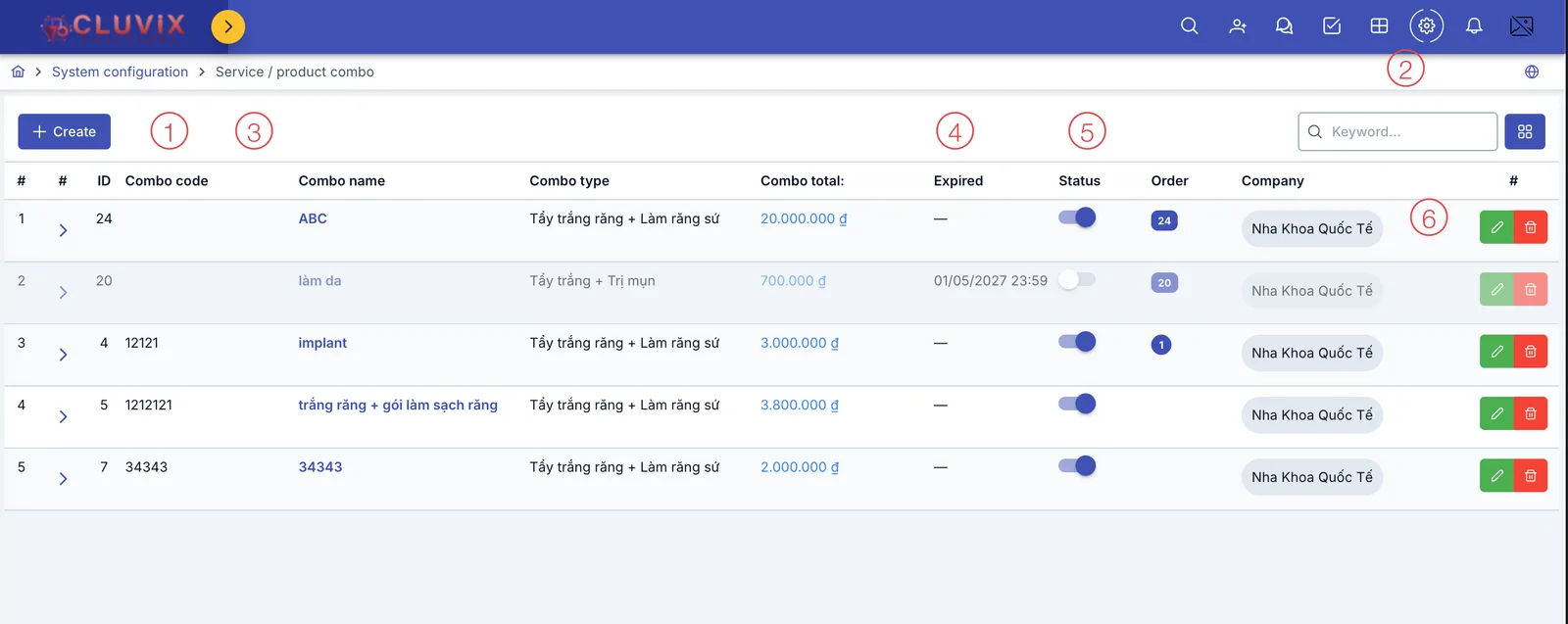
Screenshot of the Service/product combo list
| # | What it is |
|---|---|
| 1. Create button | Opens the dialog to create a new combo. |
| 2. Search box | Type a name or code to quickly filter the list. |
| 3. Arrow at the start of each row | Click to expand the row and see the combo's services right there, without opening the edit dialog. |
| 4. Expired column | A — means no time limit; a date means the combo can no longer be used after that date. |
| 5. Status column | An on/off toggle — turning it off makes the combo unavailable when creating an order. |
| 6. Buttons at the end of each row | Pencil to edit, trash can to delete that combo. |
Creating a combo
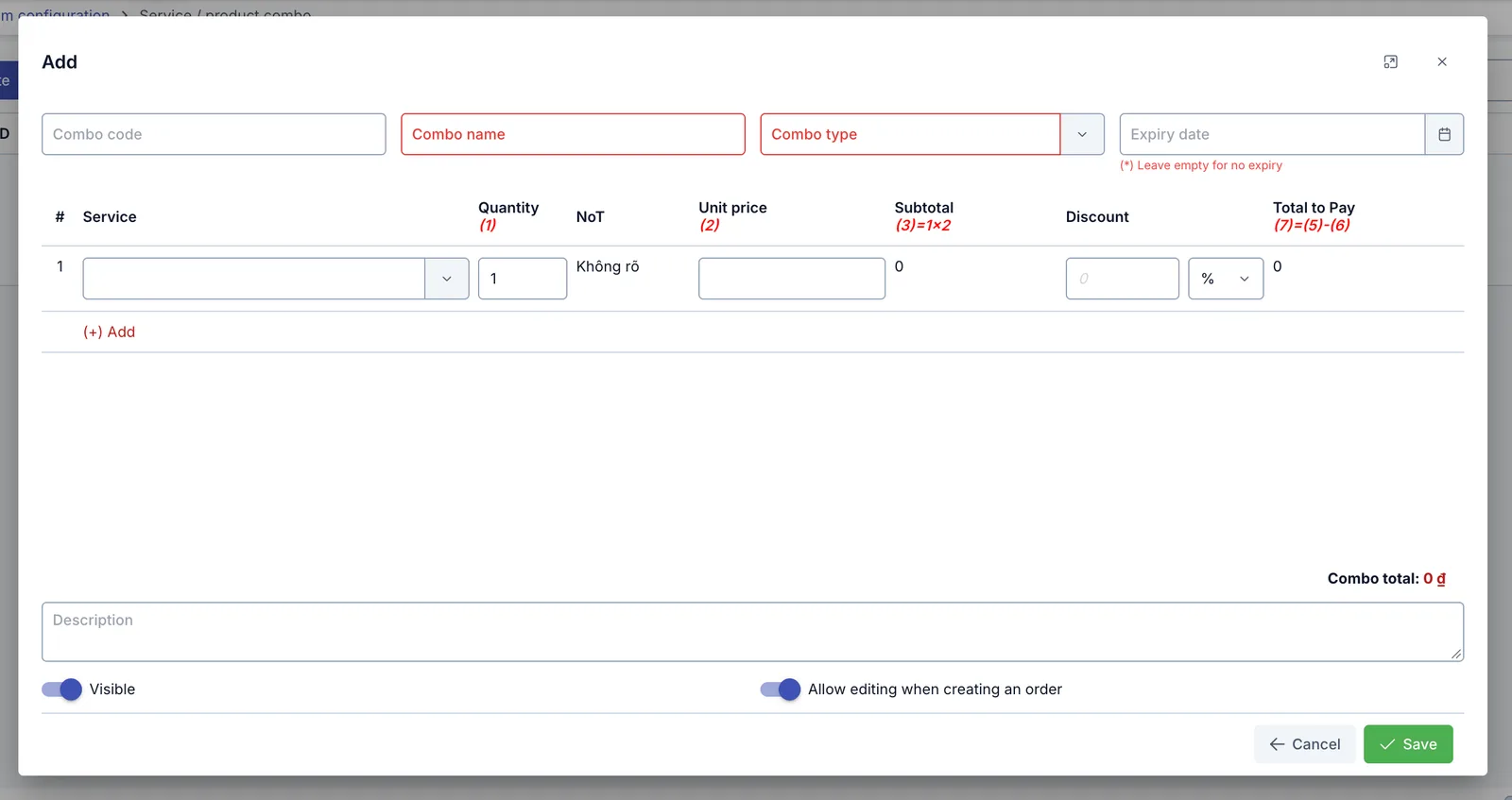
Screenshot of the Add combo dialog
| Field | What to enter |
|---|---|
| Combo code | Internal code, optional |
| Combo name (required) | The display name shown when picking this combo on an order |
| Combo type (required) | A grouping category, declared by the clinic itself |
| Expiry date | Leave empty for a combo that's used long-term, with no time limit |
The combo's service table
Each row is one service added to the combo — click (+) Add for another row. Services in the same combo don't have to belong to the same group or specialty — you can mix services from different specialties into one combo.
| Field | What to enter |
|---|---|
| Service | Pick the service/product to include — see Service / product |
| Quantity | How many of this service are in the combo |
| NoT | The selected service's number of treatment sessions (from Treatment progress, declared on Service / product) — shows Không rõ if no service is picked yet |
| Unit price | This service's price inside the combo |
| Discount | A discount just for this service inside the combo — pick % or a fixed amount |
The Subtotal and Total to Pay columns calculate automatically, following the formula the app prints right in the column header. Combo total at the bottom of the table adds up every service.
Visible & Allow editing when creating an order
- Visible: turn off to hide this combo from every place that lets you pick a combo, without deleting its data.
- Allow editing when creating an order: off by default. When off, each service's price inside the combo is locked — staff can't change the price when adding the combo to an order, keeping the pre-agreed price intact. Turn it on to let staff edit the price when creating an order.
How a combo speeds up creating an order
A combo works like a pre-built template: every service, quantity, price and discount is already declared back when the combo was created above. When creating an order for a customer, staff just pick that combo once — every service inside it (with the exact quantity, price and discount declared) is added to the order instantly, with no need to find and add each service, or re-type prices and discounts.
The clinic has bundles that sell together often, at a fixed price (e.g. Teeth whitening + Porcelain crowns) — build them as a combo. When a customer picks that bundle, staff just pick the combo and the order is done, with no risk of missing a service or mistyping the agreed price.
Related
- Service / product — where each service bundled into a combo is declared.