Service / product
Service / product is the catalog of everything the clinic sells — services, products, multi-session treatment courses. Each row declares its selling price, staff commissions, consumable materials and other settings used when creating an order.
Opening Service / product
- Go to the System configuration screen (see Configuration overview), group Clinic, click Service / product.
- Faster way: type Service into the quick search box at the top of the System configuration screen, then click the result.
Service / product list
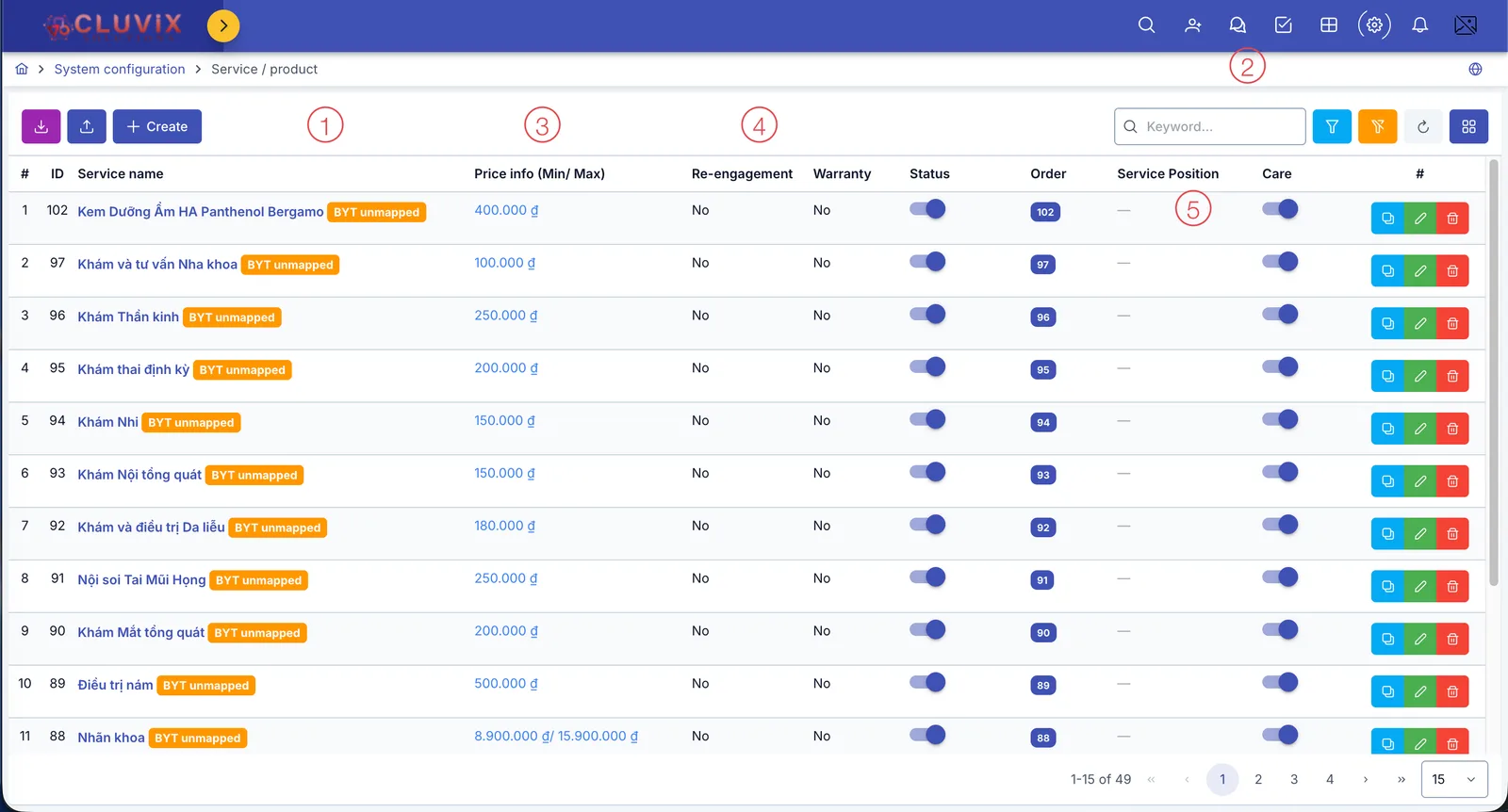
Screenshot of the Service / product list
| # | What it is |
|---|---|
| 1. 3 buttons above the list | Export downloads the list to a file, Import brings in many services at once from an Excel file (see the guide at the end of this page), Create opens the dialog to create a new service. |
| 2. Filter | Type a keyword to search, or click one of the 2 funnel icons to filter by category, status, department… |
| 3. Orange tag on the service name | BYT unmapped flags that this service hasn't been linked to a BYT technical code (set in the Other tab when editing the service). |
| 4. Status column | An on/off toggle — turning it off makes the service unavailable when creating an order. |
| 5. Buttons at the end of each row | 3 buttons: duplicate (blue, creates a new service copied from this one), edit (green), delete (red). |
Creating a service / product
The Create/Edit dialog has 7 tabs.
Information tab
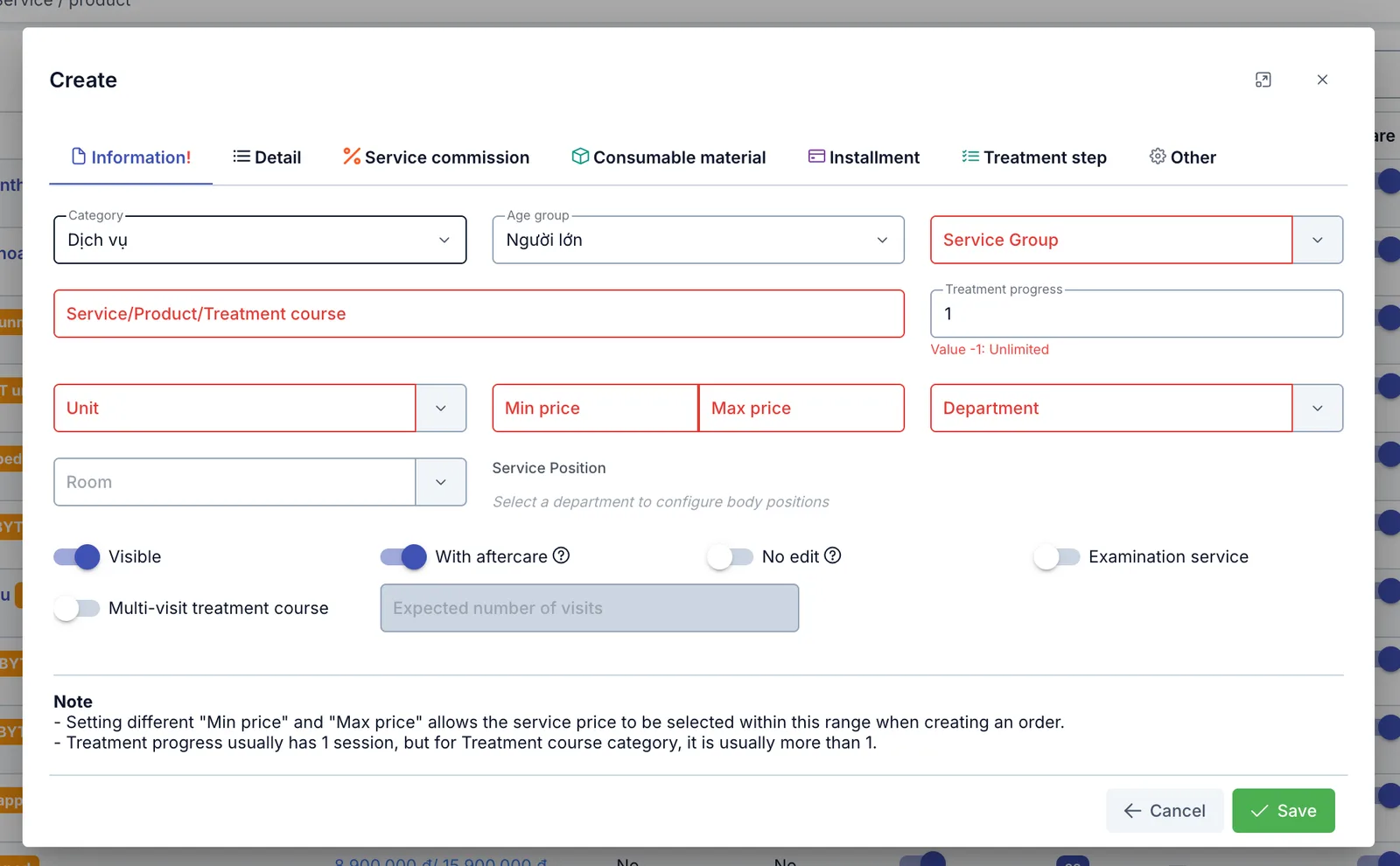
Screenshot of the Information tab
| Field | What to enter |
|---|---|
| Category | Service, Product or Treatment course |
| Age group | Adult or child, if the service is age-specific |
| Service Group (required) | Used to classify and report — see Service / product group |
| Service/Product/Treatment course (required) | The display name |
| Treatment progress | The default number of sessions in one course. Default 1; -1 = unlimited sessions |
| Unit (required) | The unit of measure — see Unit |
| Min price / Max price (required) | The price range allowed when creating an order |
| Department (required) | The clinical department that performs this service |
| Room | A specific room, if one needs to be pre-assigned |
| Service Position | The position on the body — only selectable after picking a Department |
4 toggles: Visible (show/hide the service), With aftercare (auto-creates an aftercare task after use), No edit (locks price/info from being changed when creating an order), Examination service (marks this as an exam service, not a treatment). Turning on Multi-visit treatment course also asks for the Expected number of visits.
Set Min price different from Max price and, when creating an order, staff will pick the service's price within that range — useful for services whose price varies with the customer's actual condition.
Detail tab
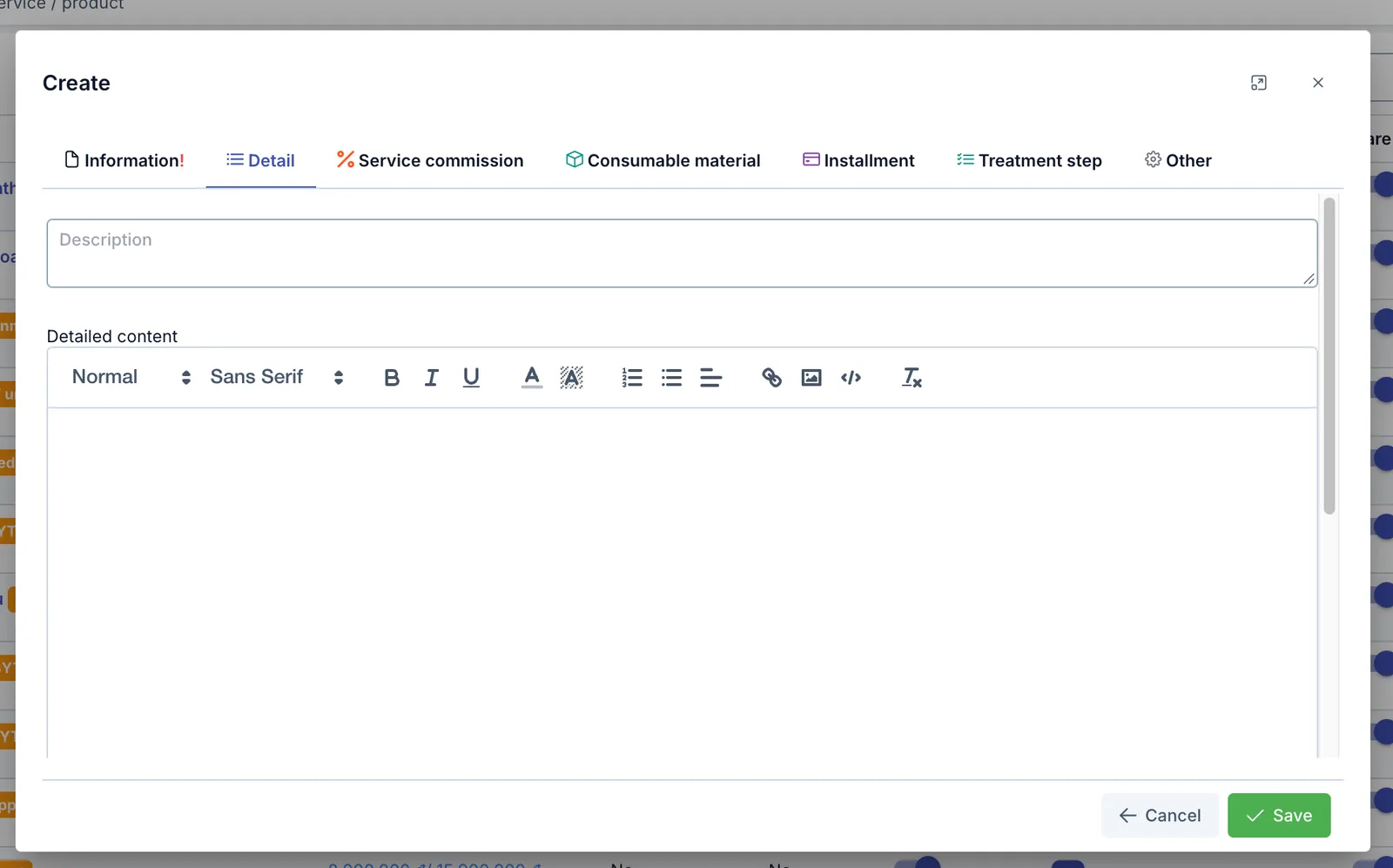
Screenshot of the Detail tab
- Description: a short summary.
- Detailed content: the full description, supports text formatting and inline images.
Service commission tab
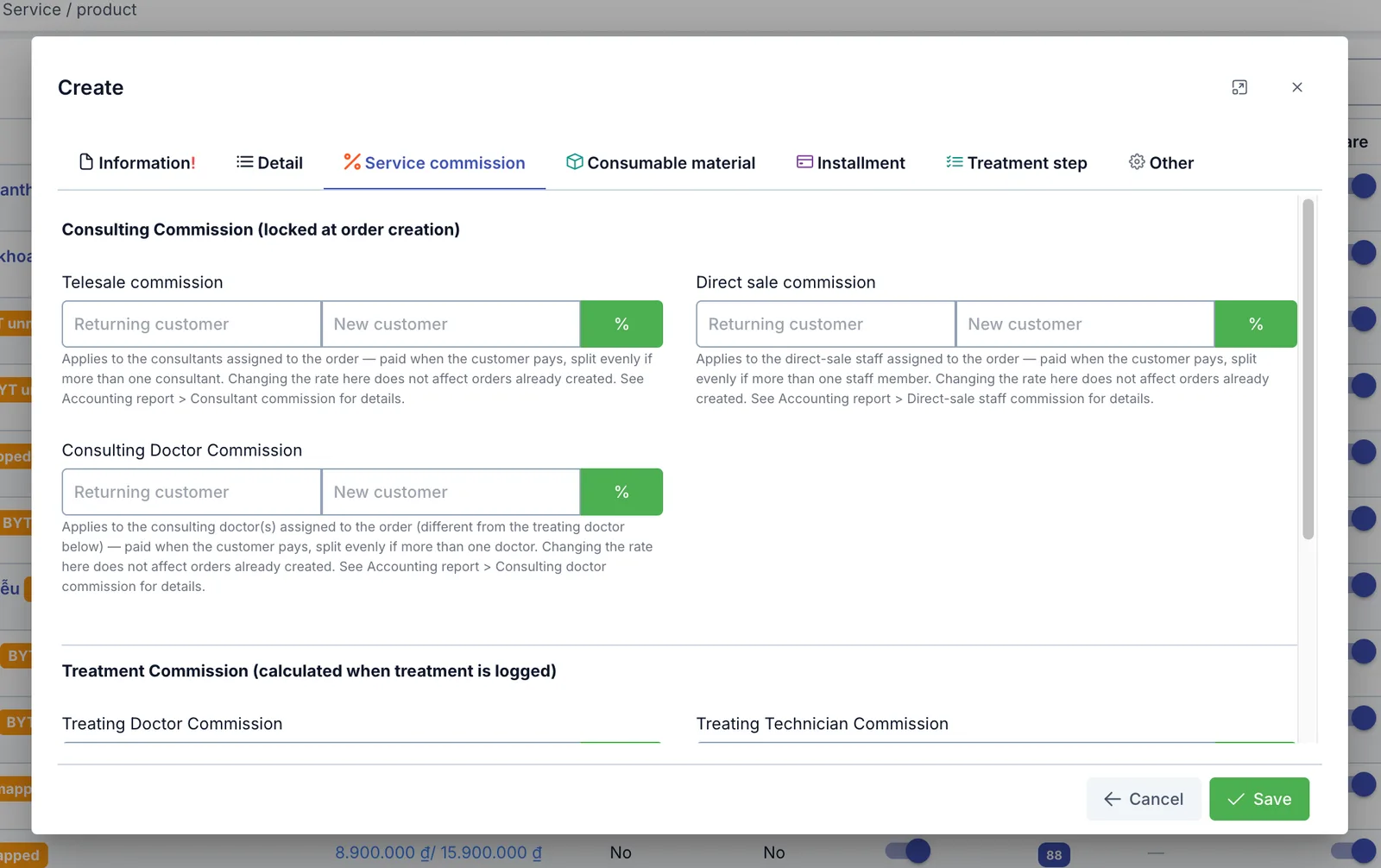
Screenshot of the Consulting commission section
Consulting Commission (locked at order creation) — paid as soon as the customer pays the order, split evenly if more than one person is assigned:
- Telesale commission — for the consultant assigned to the order.
- Direct sale commission — for the direct-sale staff assigned to the order.
- Consulting Doctor Commission — for the consulting doctor assigned to the order (different from the treating doctor below).
Each has 2 separate rates for Returning customer and New customer. Changing the rate here doesn't affect orders already created. See the matching Accounting report for the actual amounts paid.
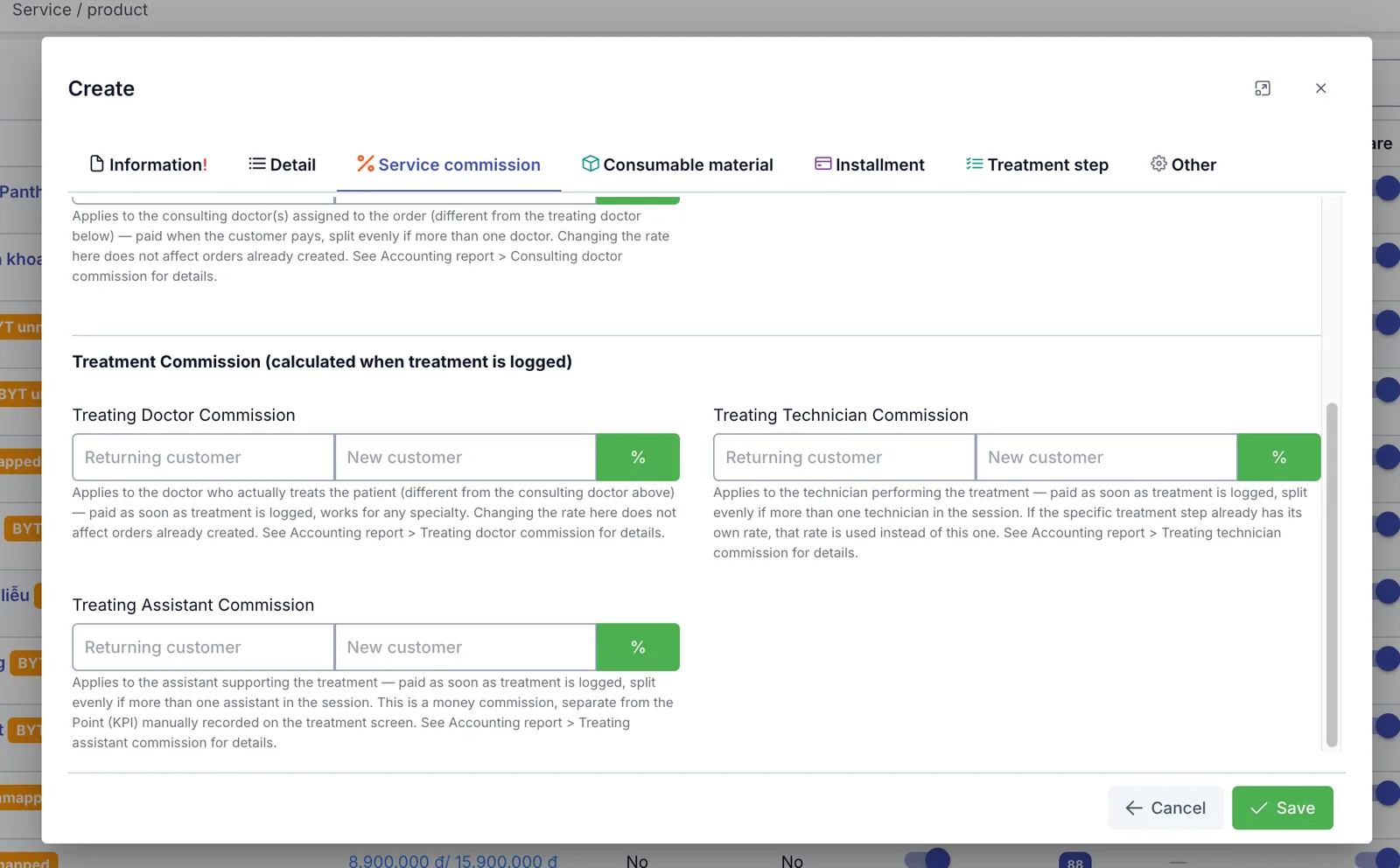
Screenshot of the Treatment commission section
Treatment Commission (calculated when treatment is logged) — paid as soon as the treatment is logged, split evenly if more than one person performs it in that session:
- Treating Doctor Commission — for the doctor who actually treats the patient.
- Treating Technician Commission — for the technician performing the treatment.
- Treating Assistant Commission — for the assistant supporting the treatment, separate from Assistant points (a KPI recorded manually on the treatment screen).
If a specific treatment step (see Treatment step) already declares its own technician commission rate, the software uses that rate instead of the one set here.
Consumable material tab
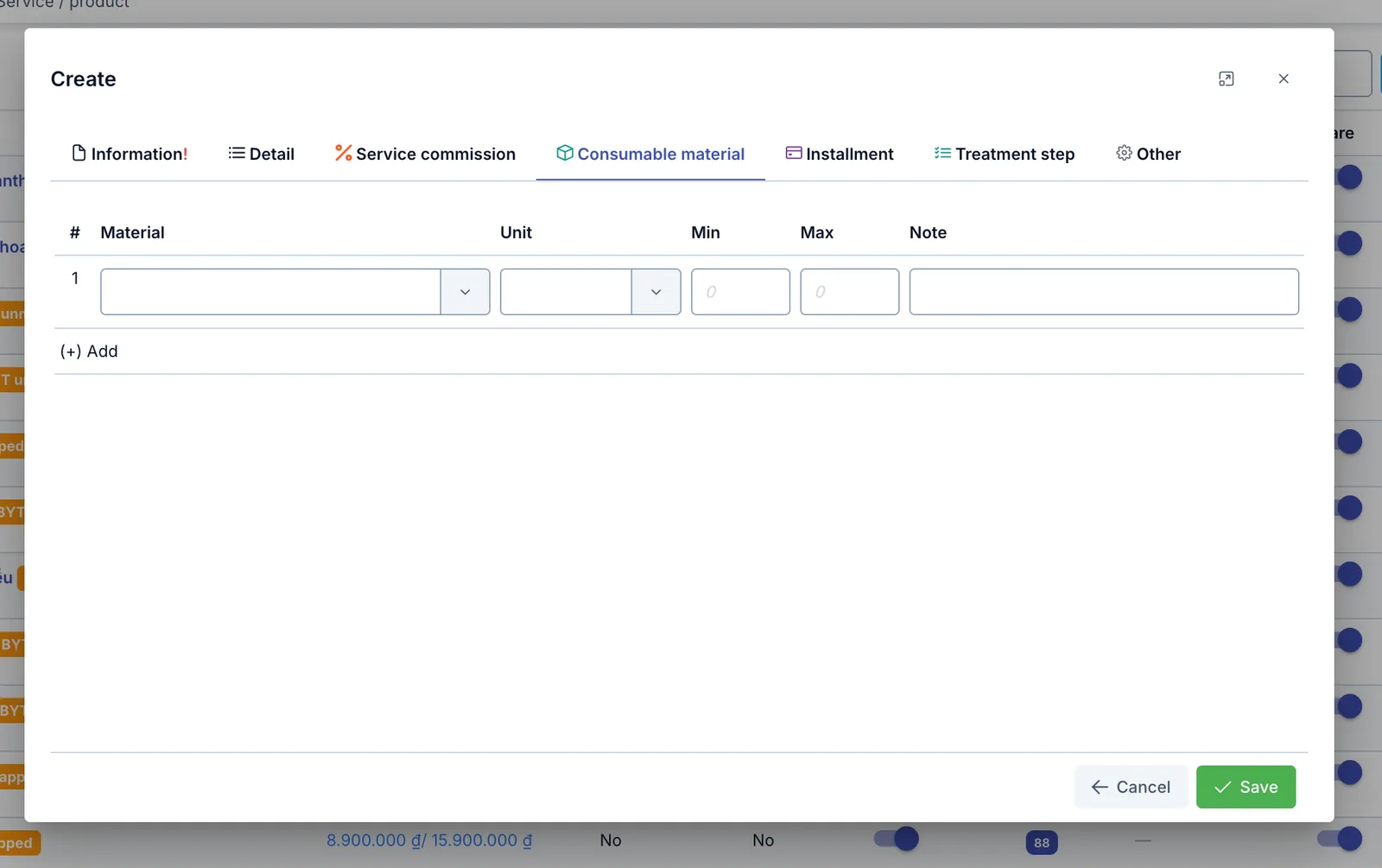
Screenshot of the Consumable material tab
Declare the materials used with this service so the software can calculate consumable usage when treatment is logged: Material, Unit, Min/ Max used per session, Note. Click (+) Add to declare more than one material for the same service.
Installment tab
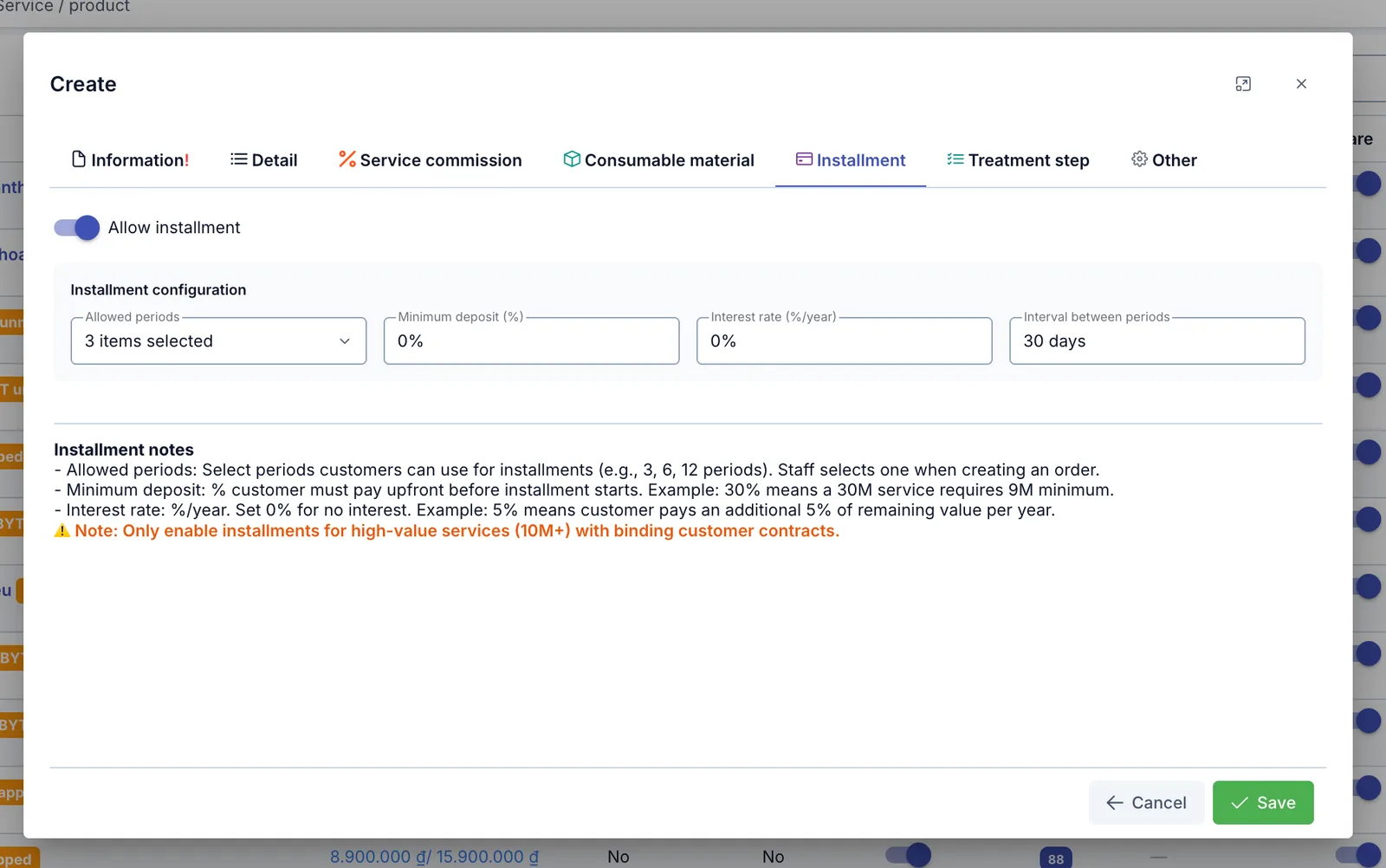
Screenshot of the Installment tab
Turn on Allow installment to open the Installment configuration section:
| Field | What to enter |
|---|---|
| Allowed terms | Pick the terms customers (patients) can pay in installments over (e.g. 3, 6, 12 terms) — when creating an order, staff pick one of these terms |
| Minimum payment (%) | The % the customer must pay before starting installments. E.g. 30% on a 30-million service = a minimum of 9 million upfront |
| Interest rate (%/year) | Leave at 0% for no interest. E.g. 5% = the customer pays an extra 5% of the remaining balance each year |
| Gap between terms | The number of days between two consecutive payment terms |
Only enable installments for services/treatment courses of high value (10 million VND or more), and make sure there's a binding contract with the customer.
Treatment step tab
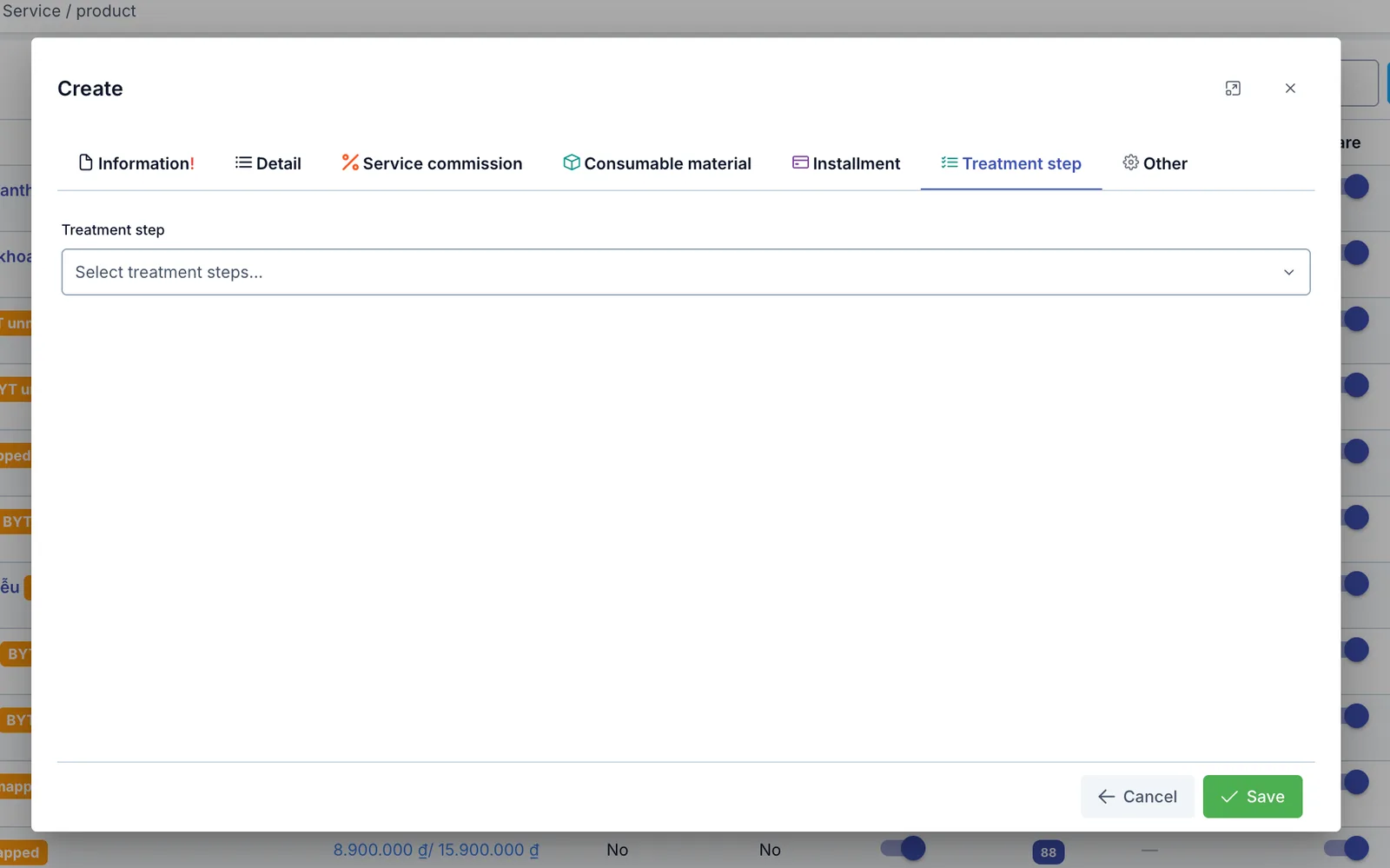
Screenshot of the Treatment step tab
Pick the Treatment steps that apply to this service — see Treatment step. You can pick several; every time treatment is logged, it goes through exactly the steps declared here.
Other tab
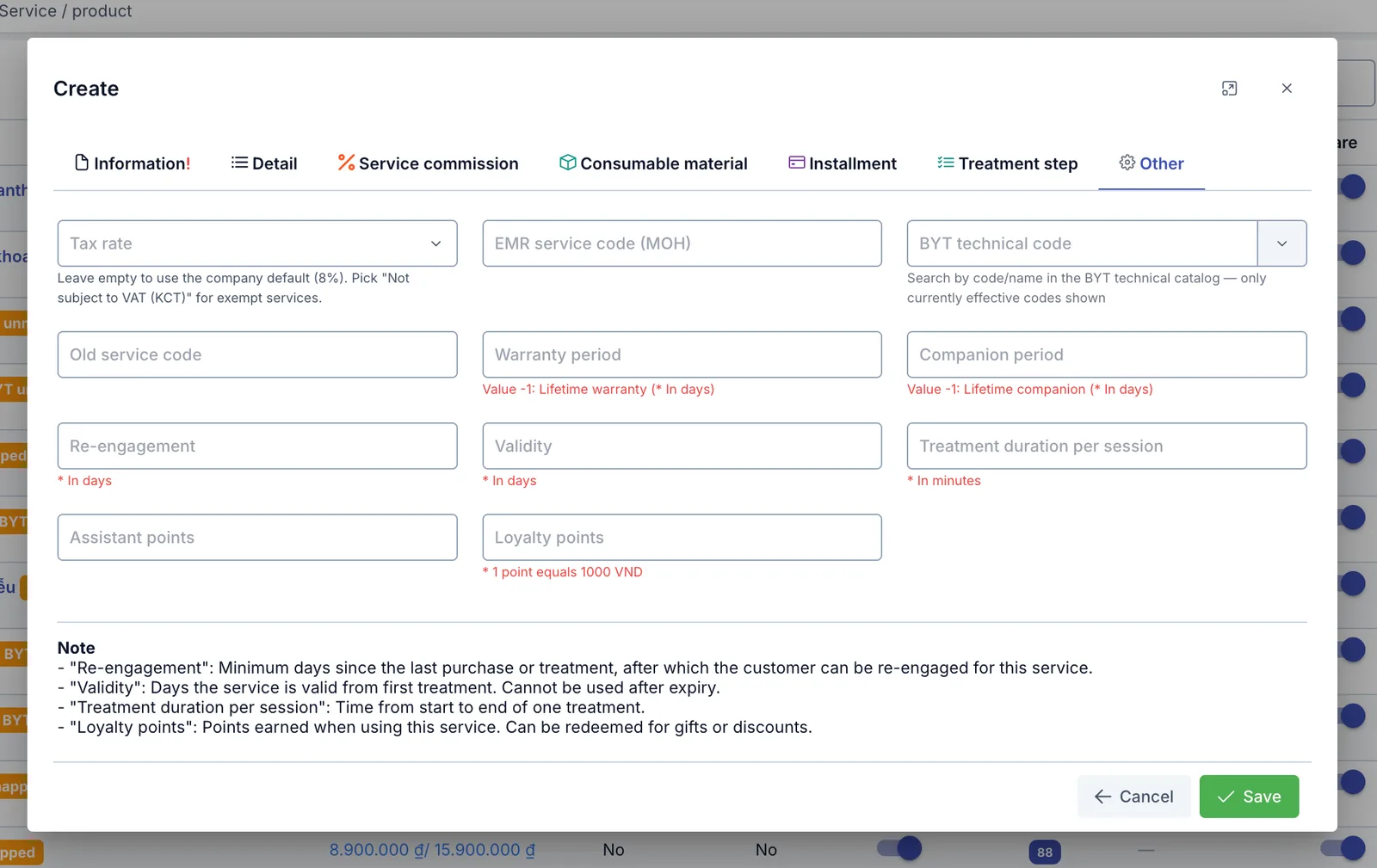
Screenshot of the Other tab
| Field | What to enter |
|---|---|
| Tax rate | Leave empty to use the company default (8%). Pick "Not subject to VAT (KCT)" for tax-exempt services |
| EMR service code (MOH) / BYT technical code | The technical catalog code required by the Ministry of Health — BYT technical code only matches currently effective codes |
| Old service code | The service code used before switching to the current one, if any |
| Warranty period / Companion period | Days of warranty/companion coverage after using the service. -1 = lifetime |
| Re-engagement | Minimum days since the last purchase/use, after which the software allows re-suggesting this service to the customer (in days) |
| Validity | Days the purchased service stays valid, counted from the first treatment session. Once expired, that service no longer appears as selectable for further treatment (in days) |
| Treatment duration per session | How long one treatment session lasts, from start to finish (in minutes) |
| Assistant points | A reward (KPI) recorded manually on the treatment screen for the assistant — separate from the money commission on the Service commission tab |
| Loyalty points | Points the customer earns from using this service. 1 point equals 1,000 VND |
Bulk export/ import via Excel
The fastest way to edit price or other info for many services at once: export the list to a file, edit it in Excel, then import it back.
- Click the purple button (Export) above the list to export every current service to a file.
- Edit price, name, description… directly in the downloaded file.
- Click the blue button (Import) to open the Import services dialog.
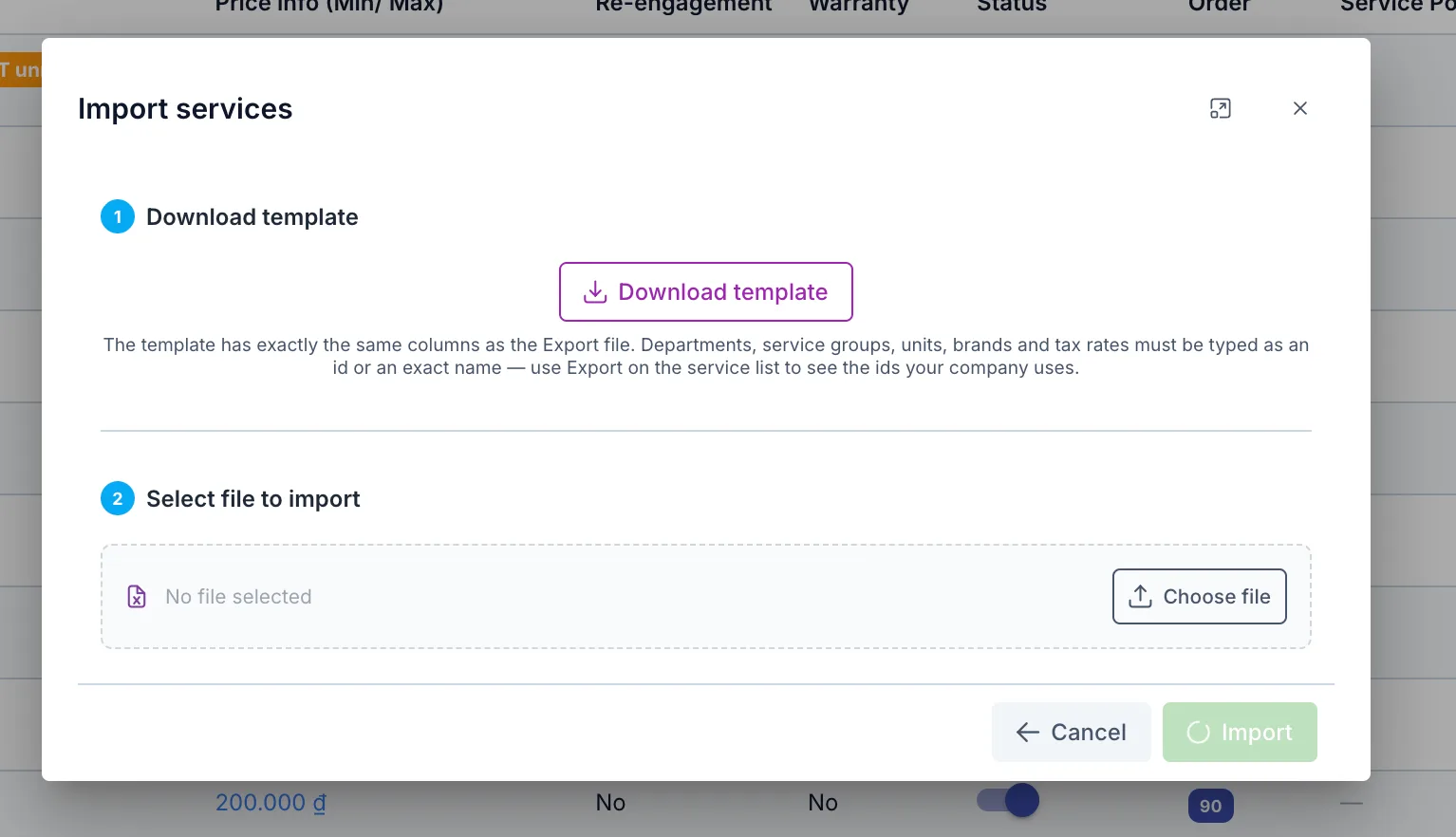
Screenshot of the Import services dialog
- If you don't already have the file exported in step 1, click Download template — the template has exactly the same columns as the exported file.
- Click Choose file to pick the edited file, then click Import.
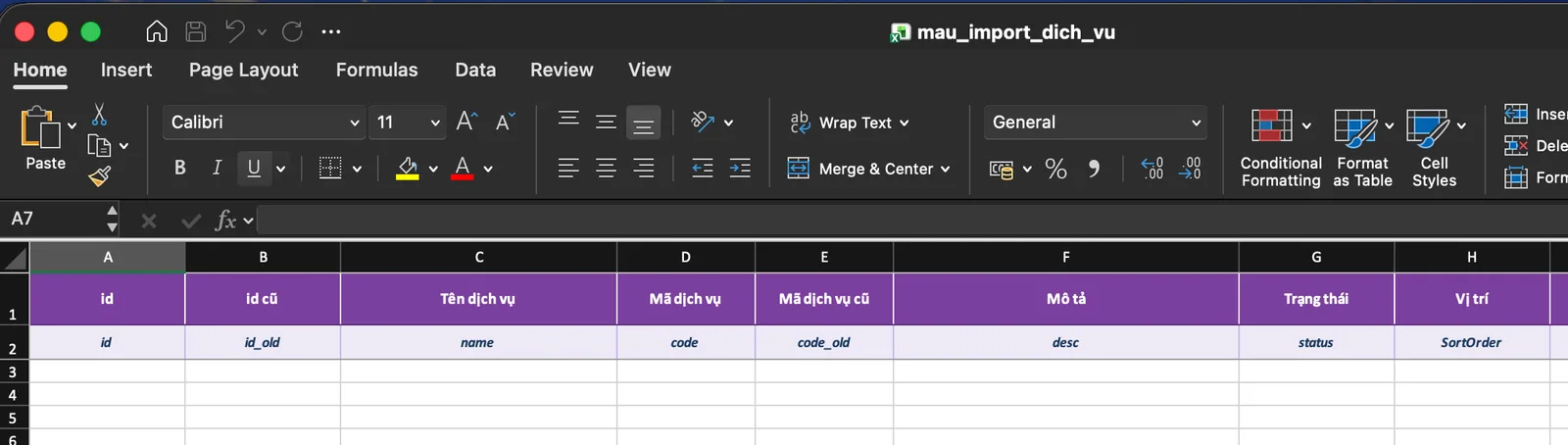
Screenshot of the service import template file
File structure: row 1 is the Vietnamese column name, row 2 is the data field key
(id, name, code…), and from row 3 on is the actual data.
The software reads data by the field name in row 2 — deleting or editing the first 2 rows will make the import fail or import wrong data.
- Empty
idcolumn → the software creates a new service from that row. idcolumn has a value → the software updates the service with that id using the row's data, overwriting its existing info.- Department, service group, unit, company and tax rate must be entered as either their id or their exact name — click Export on the service list to see the ids your business uses.
Related
- Service / product group — groups services/products together for easier management.
- Service / product combo — bundles several services/products sold together.
- Treatment step — the steps used in the Treatment step tab above.
- Unit — the unit catalog used for the Unit field.