Treatment phase
A Treatment phase is for long, multi-step courses (like orthodontic braces). Each phase can have a pre-set % completion — when staff log a treatment record and pick the right phase, the software auto-fills the customer's completion percentage to that preset level, so both the customer and staff know where the course currently stands.
Opening Treatment phase
- Go to the System configuration screen (see Configuration overview), group Clinic, click Treatment phase.
- Faster way: type Treatment phase into the quick search box at the top of the System configuration screen, then click the result.
Treatment phase list
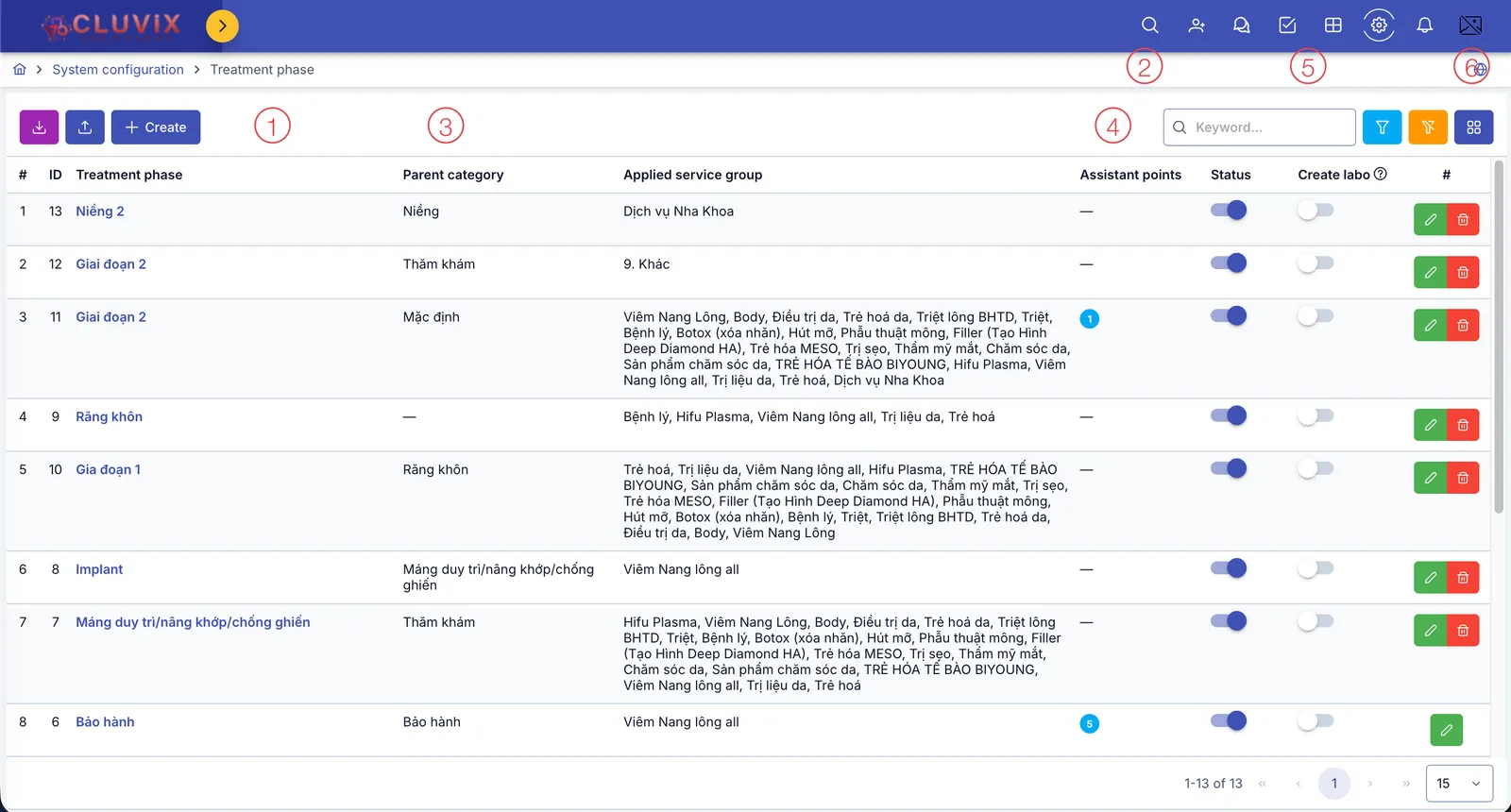
Screenshot of the Treatment phase list
| # | What it is |
|---|---|
| 1. 3 buttons above the list | Export downloads the list to a file, Import brings in many phases at once from an Excel file, Create opens the dialog to create a new phase. |
| 2. Filter | Type a keyword to search, or click one of the 2 funnel icons to filter by other criteria. |
| 3. Parent category column | A phase with a parent phase set gets nested under that parent when picking a phase while logging a treatment record — handy when a course has several branches of sub-phases. |
| 4. Assistant points column | A reward (KPI) for the assistant when this phase is performed, recorded manually on the treatment screen — not money. |
| 5. Create labo column | When on, logging a Dental treatment record at this phase shows an extra section for a lab order (sending a sample to the dental lab) for staff to fill in if needed — it doesn't create a lab order on its own unless staff actually fill it in. |
| 6. Buttons at the end of each row | Pencil to edit; some of the software's built-in phases (like Warranty) only have the edit button, no delete. |
Creating a treatment phase
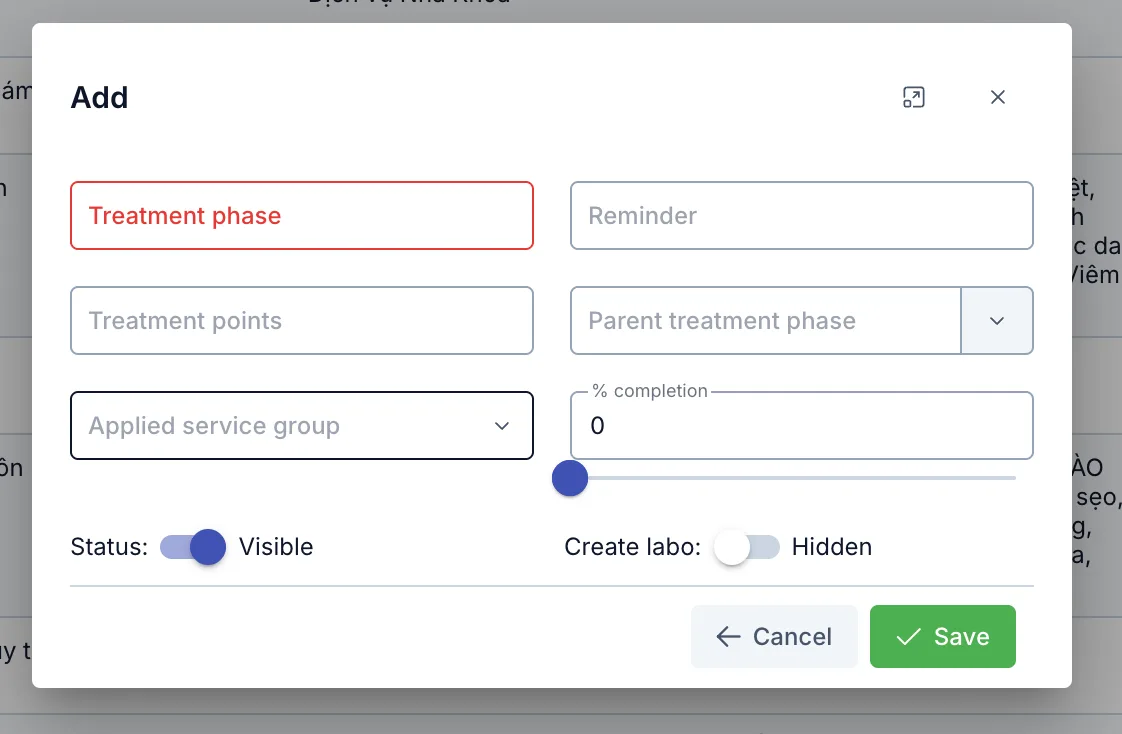
Screenshot of the Add treatment phase dialog
| Field | What to enter |
|---|---|
| Treatment phase (required) | The display name |
| Reminder | A number of days, used as an extra note, optional |
| Treatment points | The reward (KPI) for the assistant who performs this phase — the same value as the Assistant points column on the list |
| Parent treatment phase | Pick this if the phase is a sub-phase of another one, so it nests under it when picking a phase while logging a treatment record |
| Applied service group | Which service group this phase can be used for |
| % completion | Drag the slider 0–100, see details below |
Also: Status (Visible/Hidden) and Create labo (Show/Hide the lab order section when logging a Dental treatment record).
How % completion works when logging a treatment record
For example, a braces course has 5 phases, pre-set at 20% / 40% / 60% / 80% / 100% completion in order. When staff log a treatment record and pick the phase the customer is currently at, the software auto-fills the completion percentage to that preset level — staff can still adjust the % on the slider before saving if needed.
% completion does not add up across treatment records. The software always shows the highest % ever recorded for that course — for example, if a customer already reached 60% and a later record is mistakenly logged at the 40% phase, the customer's displayed % stays at 60%, it doesn't drop back down.
Related
- Service / product — where the service group a treatment phase applies to is declared.