Service / product group
A Service / product group is used to bundle services and products that share the same nature — every service declared in Service / product must pick one group, which is used for filtering and reporting.
Opening Service / product group
- Go to the System configuration screen (see Configuration overview), group Clinic, click Service / product group.
- Faster way: type Service group into the quick search box at the top of the System configuration screen, then click the result.
Service / product group list
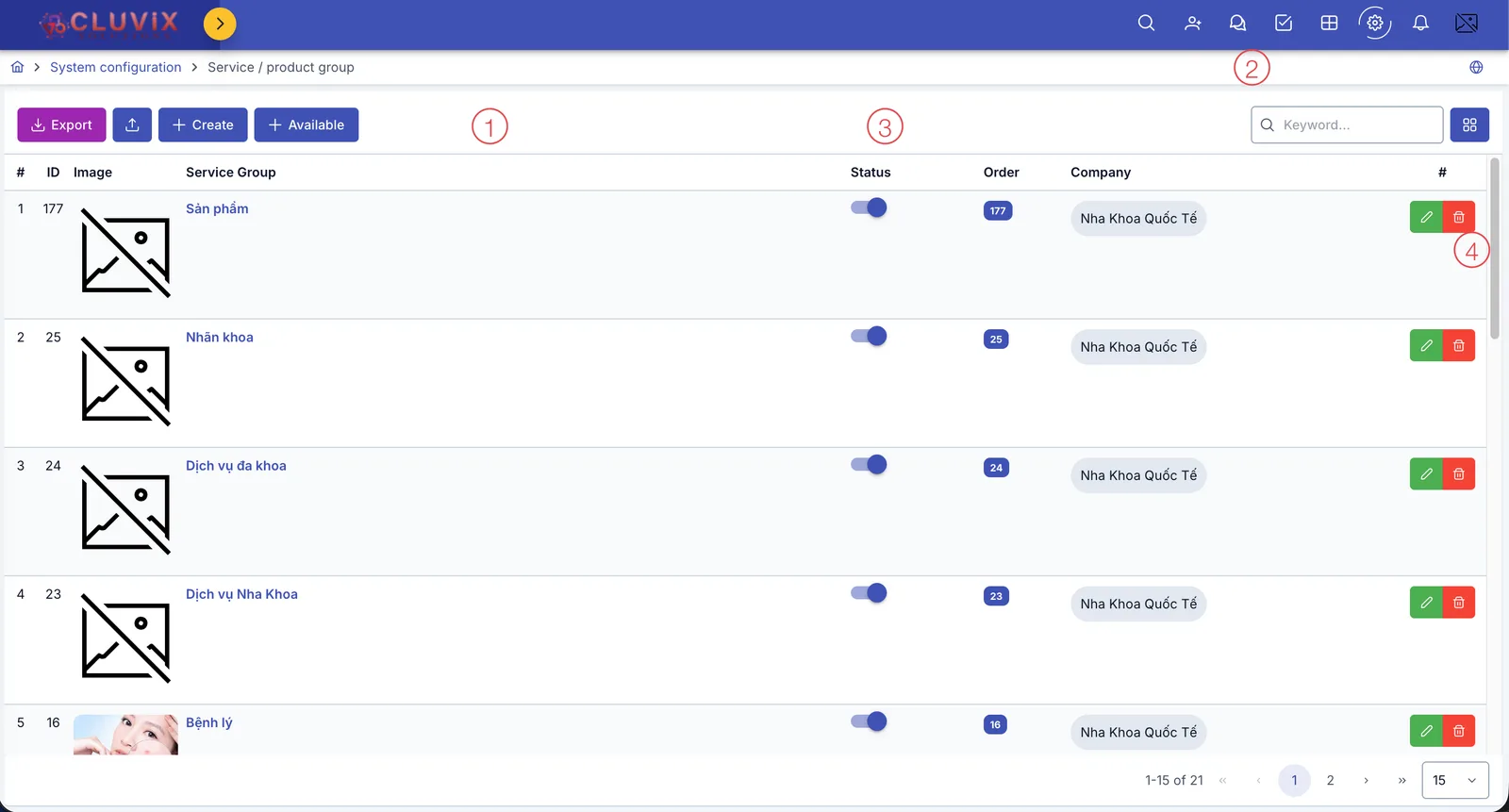
Screenshot of the Service / product group list
| # | What it is |
|---|---|
| 1. 4 buttons above the list | Export downloads the list to a file; Import brings in many groups at once from an Excel file; Create manually declares a brand-new group; Available quickly picks several ready-made service groups by specialty — the recommended way, see the guide right below. |
| 2. Search box | Type a group name to quickly filter the list. |
| 3. Status column | An on/off toggle — turning it off makes the group unavailable everywhere else. |
| 4. Buttons at the end of each row | Pencil to edit, trash can to delete that group. |
Way 1: Pick from the ready-made list (recommended)
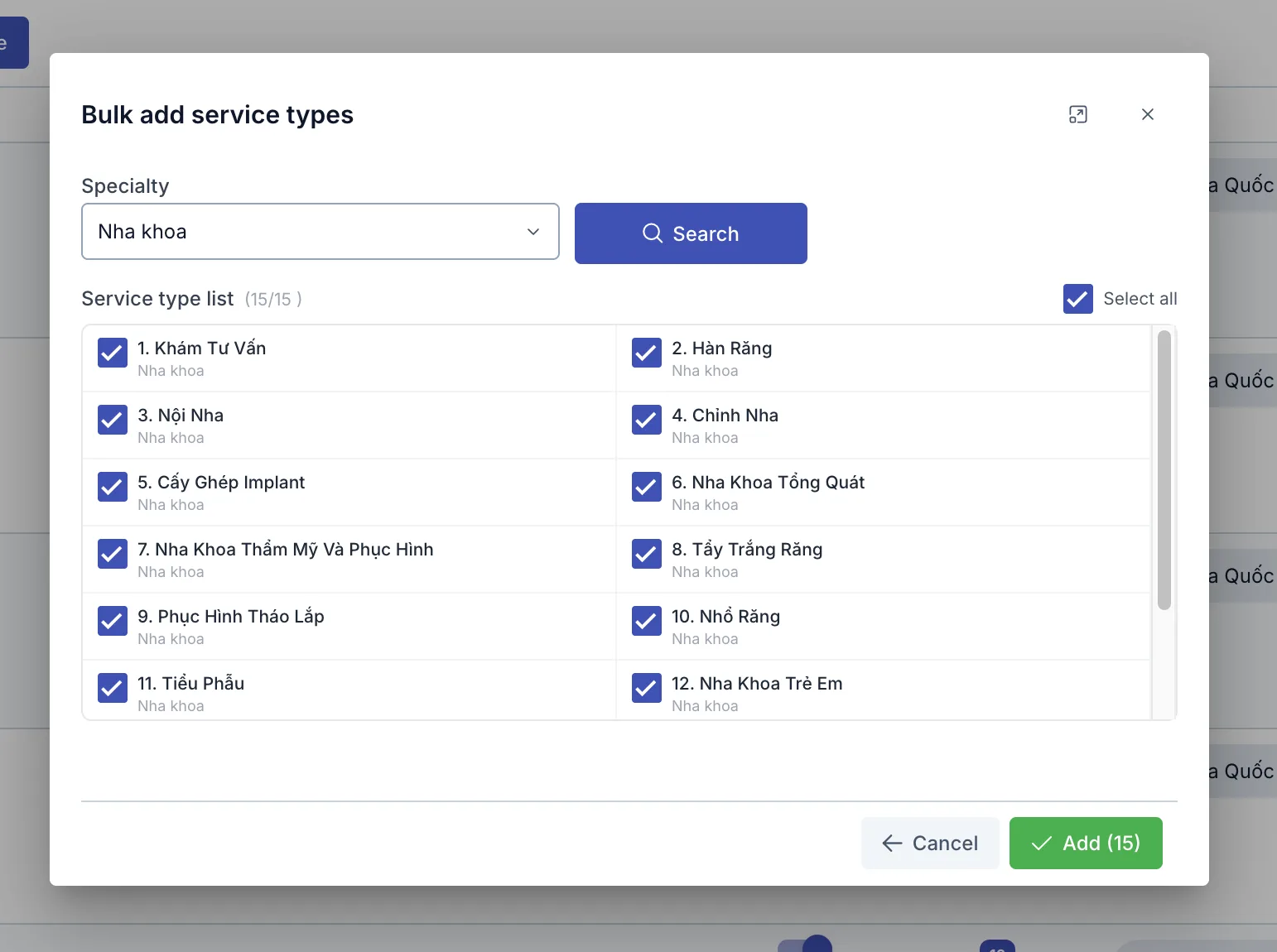
Screenshot of the Bulk add service types dialog
- Click Available.
- Pick the Specialty the clinic uses.
- Click Search — the suggested service groups for that specialty appear, all pre-checked.
- Uncheck any groups you don't need, or use Select all at the top to check/uncheck everything at once.
- Click Add (with the selected count) to create every checked group in a single click.
Way 2: Create manually
Only use this when the service group you need is not in the ready-made list from Way 1.
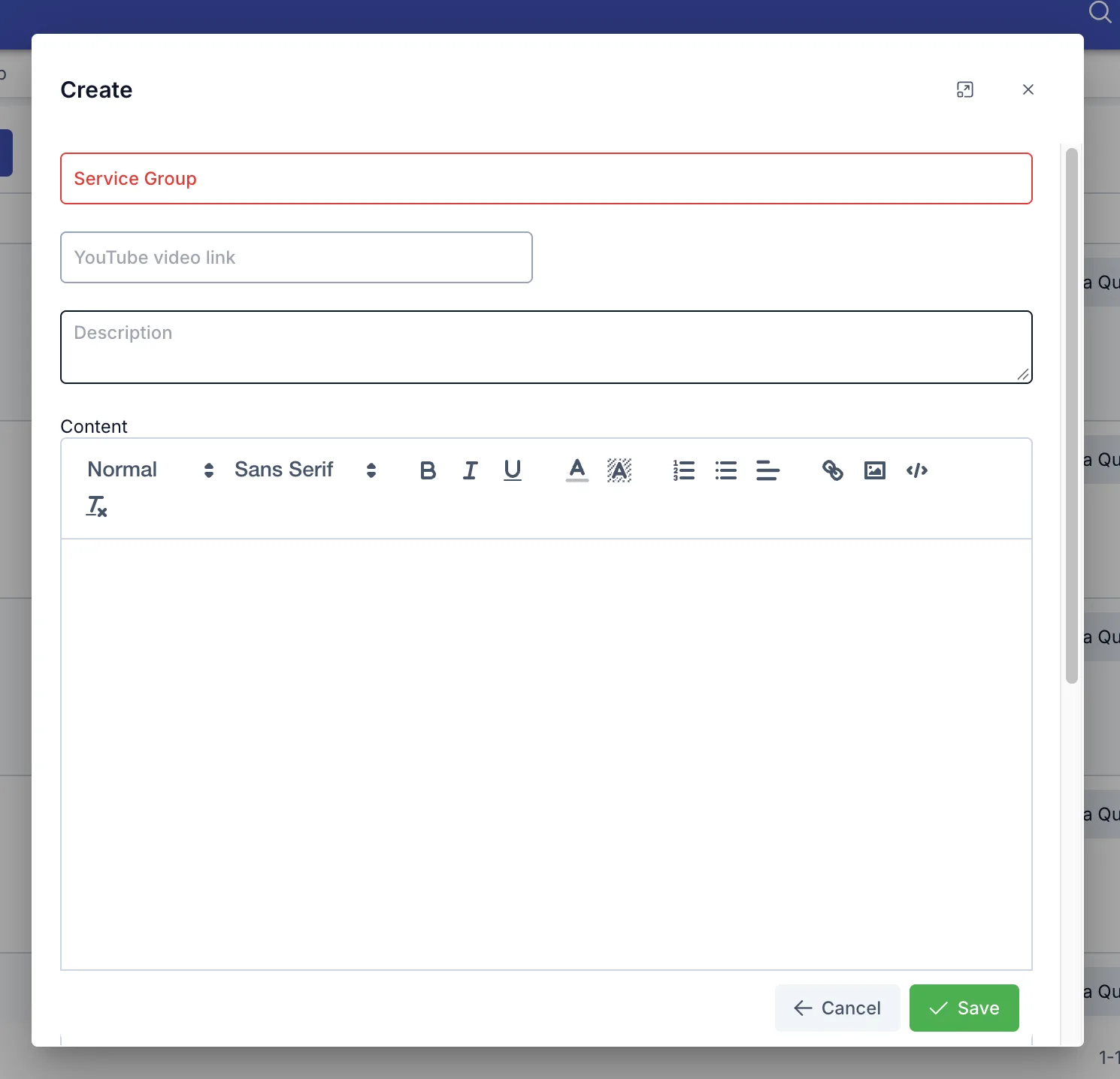
Screenshot of the Create service group dialog
| Field | What to enter |
|---|---|
| Service Group (required) | The group's name |
| YouTube video link | An intro video for this service group, if you have one |
| Description | A short explanation |
| Content | The full content, supports text formatting and inline images |
| Visible | Turn off to hide this group from selection lists, without deleting its data |
| Image | The group's avatar image — accepts JPG, PNG, JPEG, up to 10 MB |
Related
- Service / product — where each service picks a group created here.
- Service / product combo — bundles several services/products sold together.