Channel Members and Archiving
Two jobs come up once channels have been running a while: changing who is in a channel and clearing out channels nobody uses. Both sit in the three buttons at the end of each row in Organisation channels.
Adding and removing members
Click Manage members (the people icon) on the channel's row:
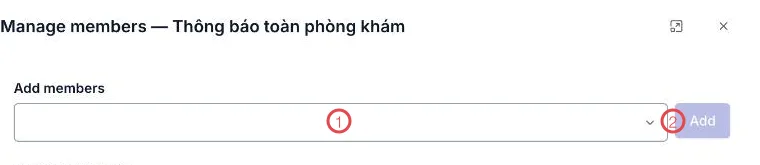
Illustration of the Manage members dialog
| Area | What it does |
|---|---|
| 1. Add members | Pick one or more staff to bring into the channel. |
| 2. Add | Confirms and adds them. |
Below sits Remove members: pick whoever should leave and click Remove. They no longer see the channel in their list.
By department and By branch channels take their members straight from the HR records. To change who is in one of those, change the employee's department or branch in HR — the next sync brings the channel into line.
Archiving a channel nobody uses
A campaign ends, a project finishes, a team is folded into another — leaving the old channel around only lengthens everyone's list. Click Archive (the box icon) at the end of the row:

Illustration of the archive confirmation
The software spells out what happens: the channel disappears from members' lists, the history is kept. Click Yes to archive it.
Finding and restoring them
An archived channel is not gone. Turn on Show archived in the toolbar and they reappear in the table, tagged Archived. Each row has a Restore button to bring the channel back — former members see it again with everything that was said in it.
Once a quarter, run down the list and archive anything untouched for three months. Everyone's list gets shorter, and when someone needs to look something up, Show archived brings it back.
Related
- Organisation channels — creating channels and making them public.
- Chat channels — the same channels seen by staff.
- Staff directory — where staff find and join public channels.