DQG Integration Config
DQG Integration Config is where the clinic's facility account on the National Prescription Portal (donthuocquocgia.vn) is registered. Once it is, the software can sign in to the portal to send electronic prescriptions and to add doctors to the facility.
Each set of these details is a licence. One customer can hold several licences — separate clinics, for instance — while each branch belongs to exactly one licence.
You need the manage configuration permission to open this screen.
| Level | Where it is entered | What it does |
|---|---|---|
| Facility account (the clinic's) | This screen | Signs in to the portal, adds and removes doctors |
| Doctor account | Doctor portal credentials | Sends each prescription |
Putting one level's password in the other's field is the most common reason the portal rejects a request.
From nothing to a prescription that sends
| Step | Where | What happens |
|---|---|---|
| 1 | The portal | The facility registers, the Department of Health approves it → a facility linkage code is issued. |
| 2 | This screen | Create the licence with the facility code and password. |
| 3 | This screen | Click Branches & doctors and assign the branches to the licence. |
| 4 | The portal | Each doctor fills in their profile → the clinic approves → the Department of Health approves → the doctor gets a doctor linkage code. |
| 5 | System configuration | Enter each doctor's code on Doctor portal credentials. |
| 6 | This screen | Click Branches & doctors → Add to portal for each doctor. |
Miss any of these and prescriptions will not send — the software names the step that is missing, see Common errors.
Get this ready on donthuocquocgia.vn first
Sign in to the portal with the facility account. The dashboard has to say the profile is approved and show the linkage code. Until it is approved there is nothing to enter here.
Facility linkage code = 01 + facility code. The facility code is five characters
under Decision 384; provinces that run out of numbers issue codes with letters. A facility
code of 79abc gives a linkage code of 0179abc.
The facility code sits under Thông tin thành viên (Member information) on the portal:
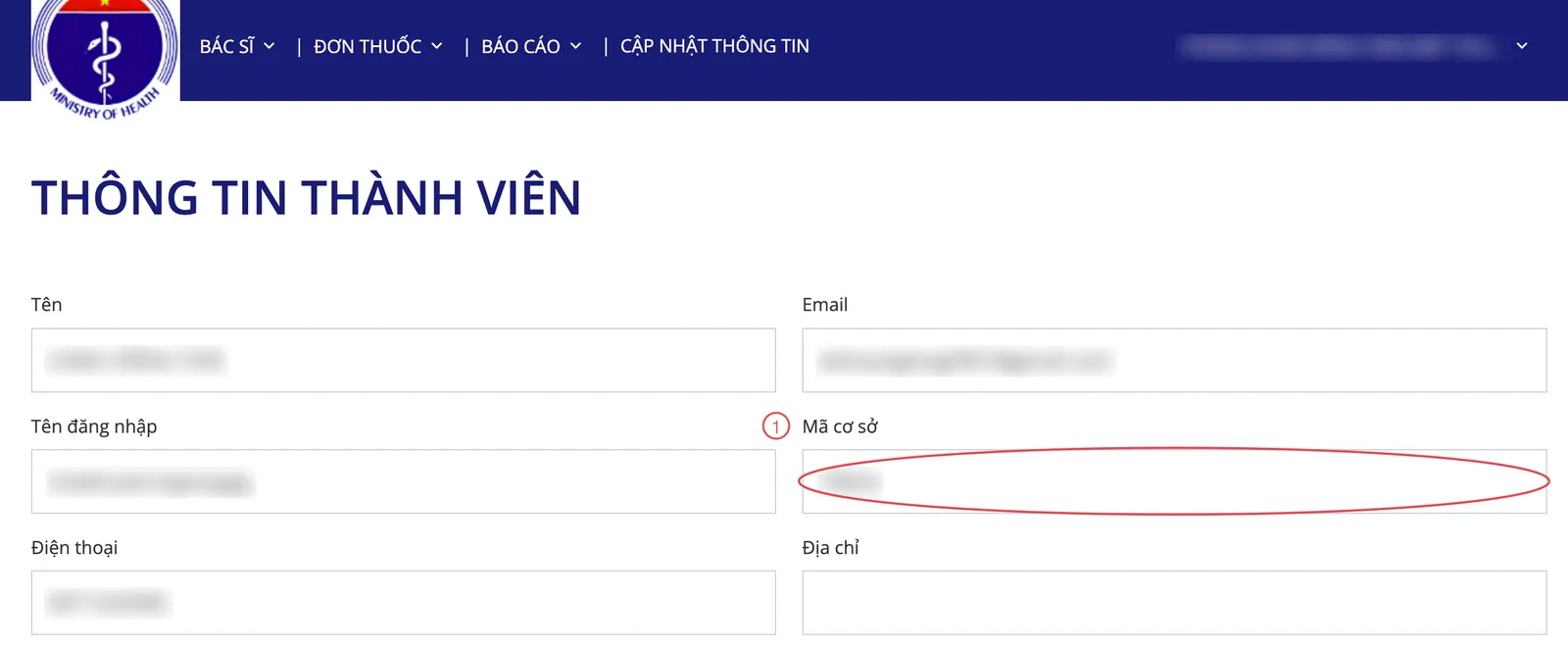
The Member information page on the National Prescription Portal
Field 1 is Mã cơ sở (facility code) — take that string and put 01 in front of it.
Everything else in the illustration is blurred. The portal has no English interface, so
its screens stay in Vietnamese.
0179abc and 0179ABC are two different codes. Copy it exactly as the portal shows it.
The portal's website accepts a username, an email or the linkage code. The software can only use the linkage code. Clinics used to typing their username often hand that string over by mistake.
The list of licences
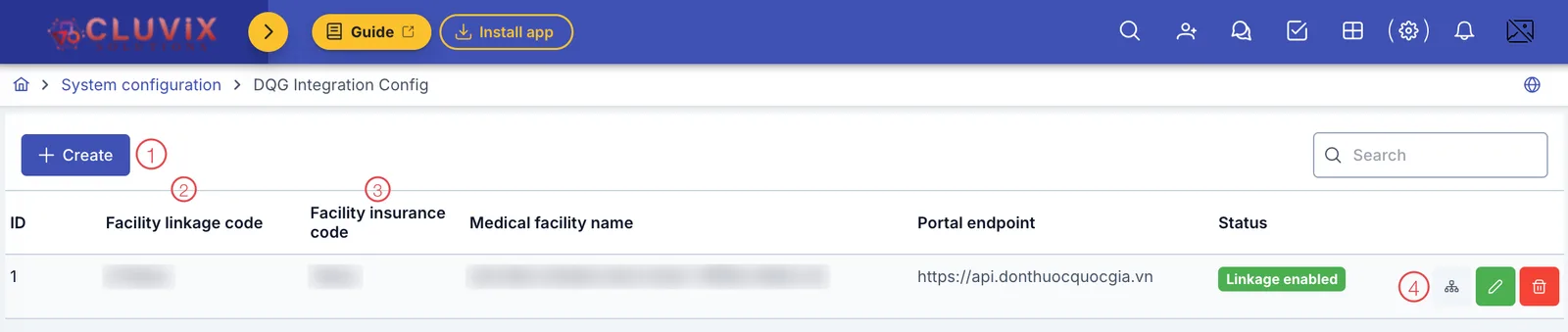
The DQG Integration Config screen
| # | What it is |
|---|---|
| 1. The Create button | Register another licence. |
| 2. The Facility linkage code column | The code used to sign in to the portal. |
| 3. The Facility insurance code column | The first five characters of every prescription code sent to the portal. |
| 4. The buttons at the end of each row | The diagram icon opens Branches & doctors, the pencil edits, the bin deletes. |
The remaining columns are Medical facility name, Portal endpoint and Status (Linkage enabled / Disabled). The codes and the facility name are blurred in the illustration.
Add or edit a licence
Click Create to open the Add linkage licence dialog.
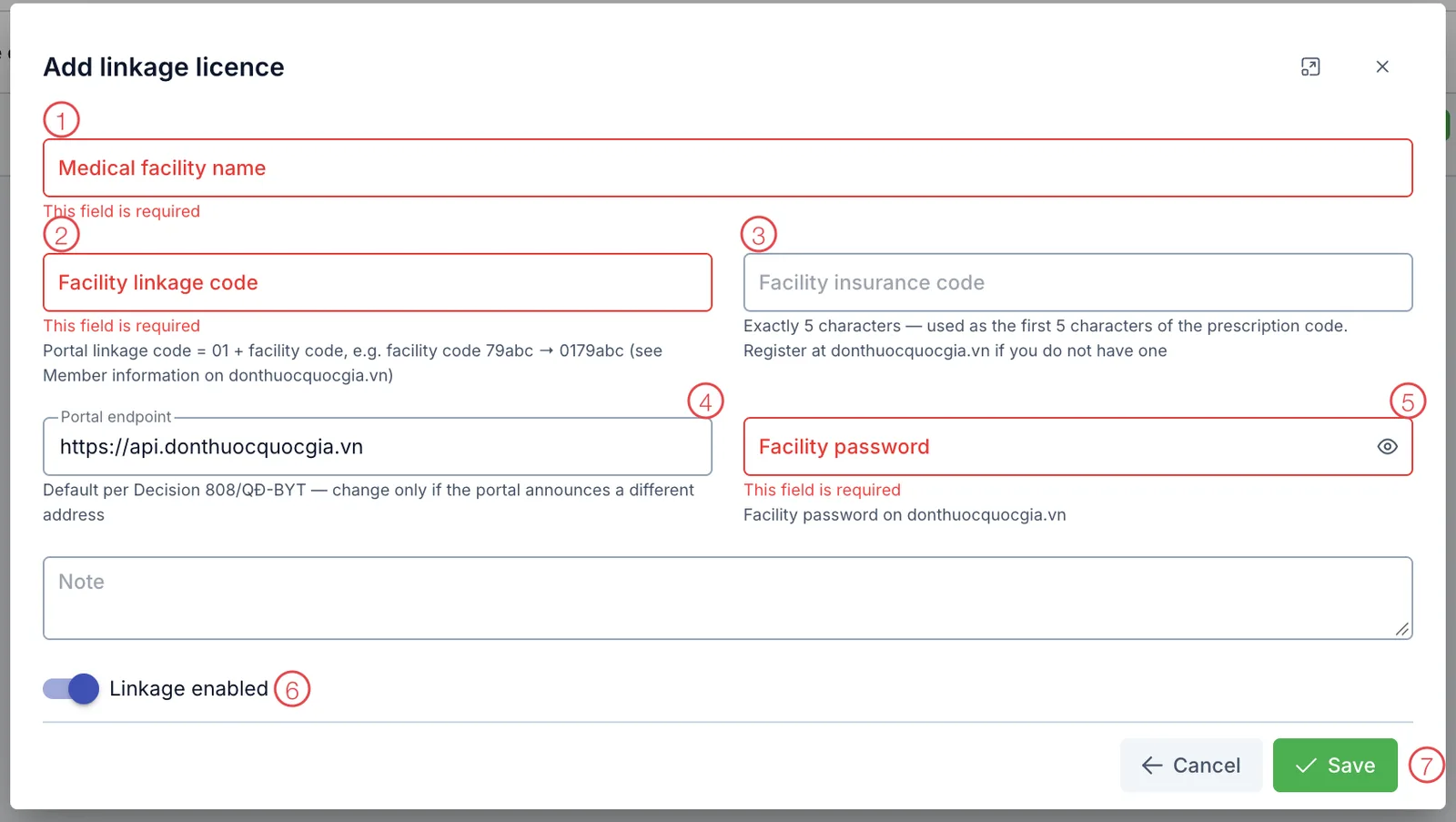
The Add linkage licence dialog
| # | Field | What goes in |
|---|---|---|
| 1. | Medical facility name (required) | Exactly as it reads on the operating licence. |
| 2. | Facility linkage code (required) | 01 + the facility code, exactly as the portal shows it. It cannot repeat a code already used on another licence. |
| 3. | Facility insurance code | Exactly 5 characters — the facility code itself, that is the linkage code without the leading 01. Keep the same case. |
| 4. | Portal endpoint | Pre-filled with https://api.donthuocquocgia.vn per Decision 808/QĐ-BYT. Change it only if the portal announces a different address. |
| 5. | Facility password (required when creating) | The password of the facility account on donthuocquocgia.vn. |
| 6. | Linkage enabled | Switch off and every branch under this licence stops sending. |
| 7. | Save | Writes the licence into the software. |
The Note field is for your own reference and is not sent to the portal.
The insurance code forms the first five characters of the prescription code, so without it the software cannot build one. You can still save the licence and come back to it.
Getting the password in cleanly
- Click the eye icon to see what you are typing — it catches a browser quietly filling in a different password.
- Type it by hand and turn off the Vietnamese input method. Pasting often brings a stray space with it.
- The software never shows a saved password again (it is stored encrypted). When you edit, leaving the password field empty keeps the existing one.
- Change the password on the portal and you must update it here, or everything sent afterwards fails to sign in.
Do not send the facility password over chat, email or messaging. If it does get out, change it on donthuocquocgia.vn first, then edit the licence here.
Branches & doctors
On the licence row, click the diagram icon to open the Licence: <facility name> dialog.
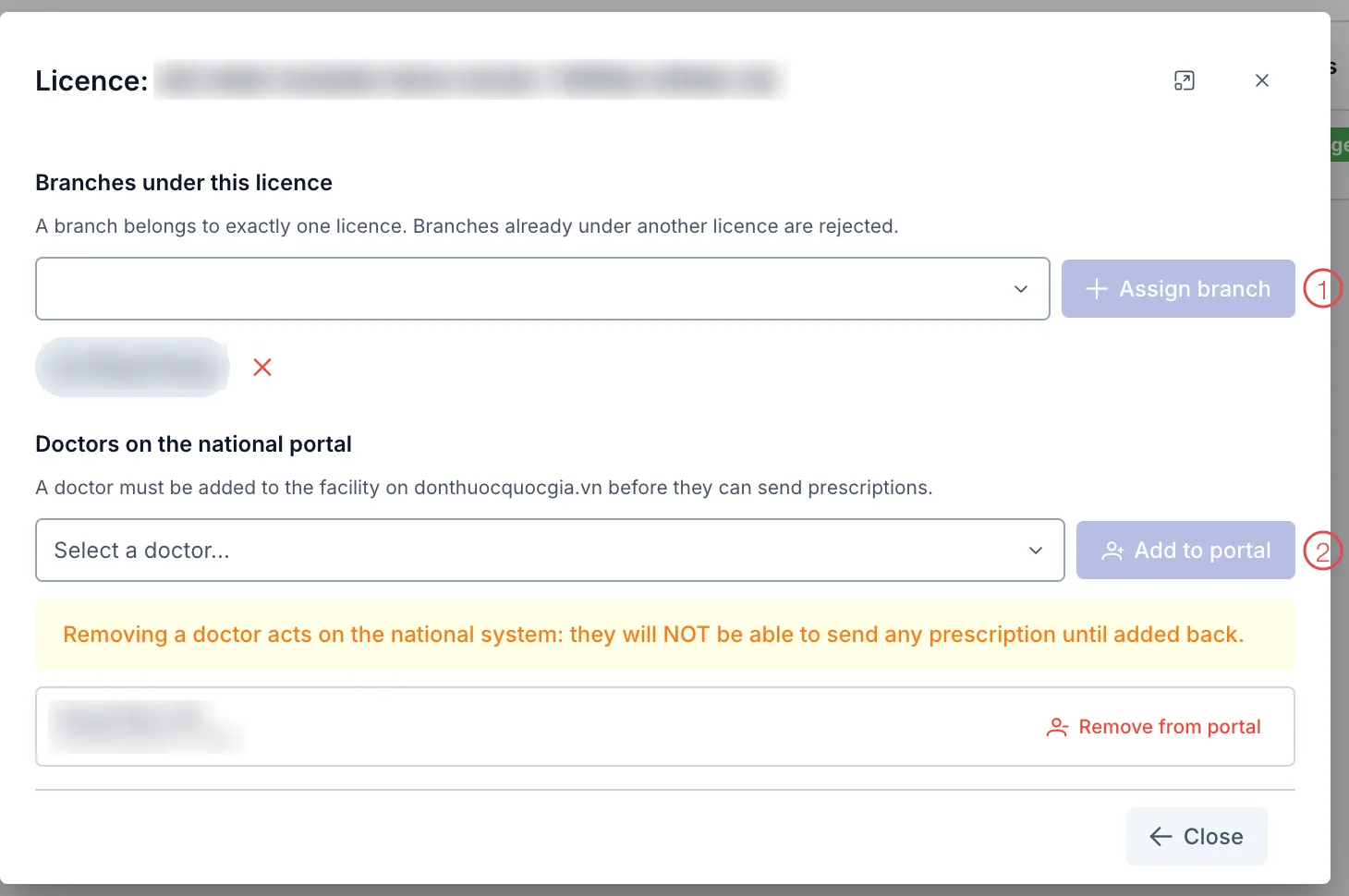
The Licence dialog
Branches under this licence
A prescription is sent using the licence of the branch that wrote it. A branch that belongs to no licence cannot send anything.
Pick the branch and click Assign branch (number 1). Assigned branches appear as small chips below; the ✕ removes one.
A branch belongs to exactly one licence — picking a branch already under another licence is rejected. And a licence with branches still attached cannot be deleted: detach them first.
Doctors on the national portal
Pick the doctor in Select a doctor... and click Add to portal (number 2). Each doctor needs this once per licence.
The picker only lists doctors whose code is already registered on Doctor portal credentials. With none registered, the dialog says "No doctor has declared a portal code yet…".
Remove from portal cuts the doctor's linkage on the Ministry of Health's system, not just inside the software. That doctor will not be able to send any prescription until they are added back. The software asks for confirmation twice — read both.
For the same reason, to delete a doctor's credentials you must remove them from the portal first; while they are still registered there, the software will not delete them.
What this configuration is for
- A prescription is sent as the doctor who wrote it, not the person clicking send — usually a pharmacist. A retail sale with no prescribing doctor is out of scope.
- Where to watch and send: Pharmacy › Prescriptions, the DQG status column. The statuses are Not sent, Sending, Sent and Error. A Sent prescription cannot be sent again; an Error one can, once the cause is fixed.
- Before the first send, open DQG integration readiness. It lists exactly what is missing, grouped as Branches without a licence, Doctors without credential and Doctors not added to facility. When nothing is left it says so.
The portal accepts a prescription the moment it is sent, and one already there cannot be edited or withdrawn. So do not send one "just to try": use DQG integration readiness to check the setup, then pick a genuinely simple prescription — one or two ordinary medicines, a complete patient record — as the first real send.
What a prescription needs before it will send
The software checks first and stops with a message naming what is missing:
- A diagnosis on the prescription (ICD-10 code or the name of the condition).
- The patient's full name, date of birth and address in their record.
- A guardian, if the patient is under 72 months old.
- A medicine code for every medicine — not empty, no longer than 20 characters.
- At least one medicine on the prescription.
Common errors
| Message | Why | What to do |
|---|---|---|
| The National Prescription Portal rejected the facility login — check the facility linkage code and password… | The linkage code is wrong (the 5-character facility code, a username, or the wrong case), or the password is wrong or was auto-filled | Edit the licence: enter the code exactly as the portal shows it, retype the password and check it with the eye icon |
| Doctor does not exist in the system or the identifier is not approved | The doctor linkage code is wrong, or the doctor's profile has not been approved by the clinic and the Department of Health | Complete the approval steps on the portal and take the code from the doctor's dashboard |
| The facility insurance code must be exactly 5 characters | Usually the whole linkage code was pasted in | Enter the 5-character facility code, that is the linkage code without the leading 01 |
| This facility linkage code is already used by another licence | Two licences share one code | Check the list; each facility is registered once |
| The prescription's branch is not assigned to any linkage licence | The branch assignment step was skipped | Open Branches & doctors and assign the branch |
| The branch's linkage licence is disabled | The licence is switched off | Edit the licence and turn Linkage enabled back on |
| The prescribing doctor has no linkage code, or it is disabled | The doctor is not registered, or is registered but switched off | Register or re-enable them on Doctor portal credentials |
| Medicine "…" has no code / The code for "…" is longer than 20 characters | The medicine catalogue is missing a code, or the code is too long | Fix the code in Medicine list |
| The prescription has no diagnosis… and the messages about date of birth, address and guardian | The patient record or the prescription is missing required data | Fill it in and send again |
| This licence still has branches assigned | Deleting a licence before detaching its branches | Detach them in Branches & doctors, then delete |
Frequently asked questions
Three branches — how many licences? As many as the facility codes the portal issued. Three branches under one legal entity sharing one facility code means one licence with all three branches assigned. A separate code for each branch means a licence each.
Does a new doctor mean redoing the licence? No. The licence is set up once. A new doctor only needs steps 4, 5 and 6 from the table at the top.
Does switching Linkage enabled off lose the prescriptions already sent? No. What is on the portal stays there; switching off only stops the branches under this licence from sending new ones.
Does changing the portal password affect prescriptions already sent? No. But you must edit the licence with the new password, or everything sent afterwards reports a login error.
Related
- Doctor portal credentials — each doctor's portal code, step 5 in the table above.
- Medicine list — where the medicine codes the portal requires are entered.