Prescription template
Prescription template is a pre-built set of medicines (with quantity and usage instructions) that a doctor can insert quickly into a real prescription — no need to re-pick every medicine and retype usage instructions each time. Useful for recurring visit types with mostly the same prescription (inflammation, after tooth extraction, after implant placement…).
Opening Prescription template
- Go to the System configuration screen (see Configuration overview), group Medicine & Prescriptions, click Prescription template.
- Faster way: type Prescription template into the quick search box at the top of the System configuration screen, then click the result.
Prescription template list

Screenshot of the Prescription template list
| # | What it is |
|---|---|
| 1. Create button | Create a new prescription template. |
| 2. Arrow at the start of each row | Click to expand and preview the template's medicine list (name, quantity, unit, usage) right there, without opening it for editing. |
| 3. Row action buttons | Pencil to edit, trash bin to delete that template. |
Unlike Medicine list, a newly created prescription template leaves the Order column blank until you manually edit the number directly in that cell.
Creating a prescription template
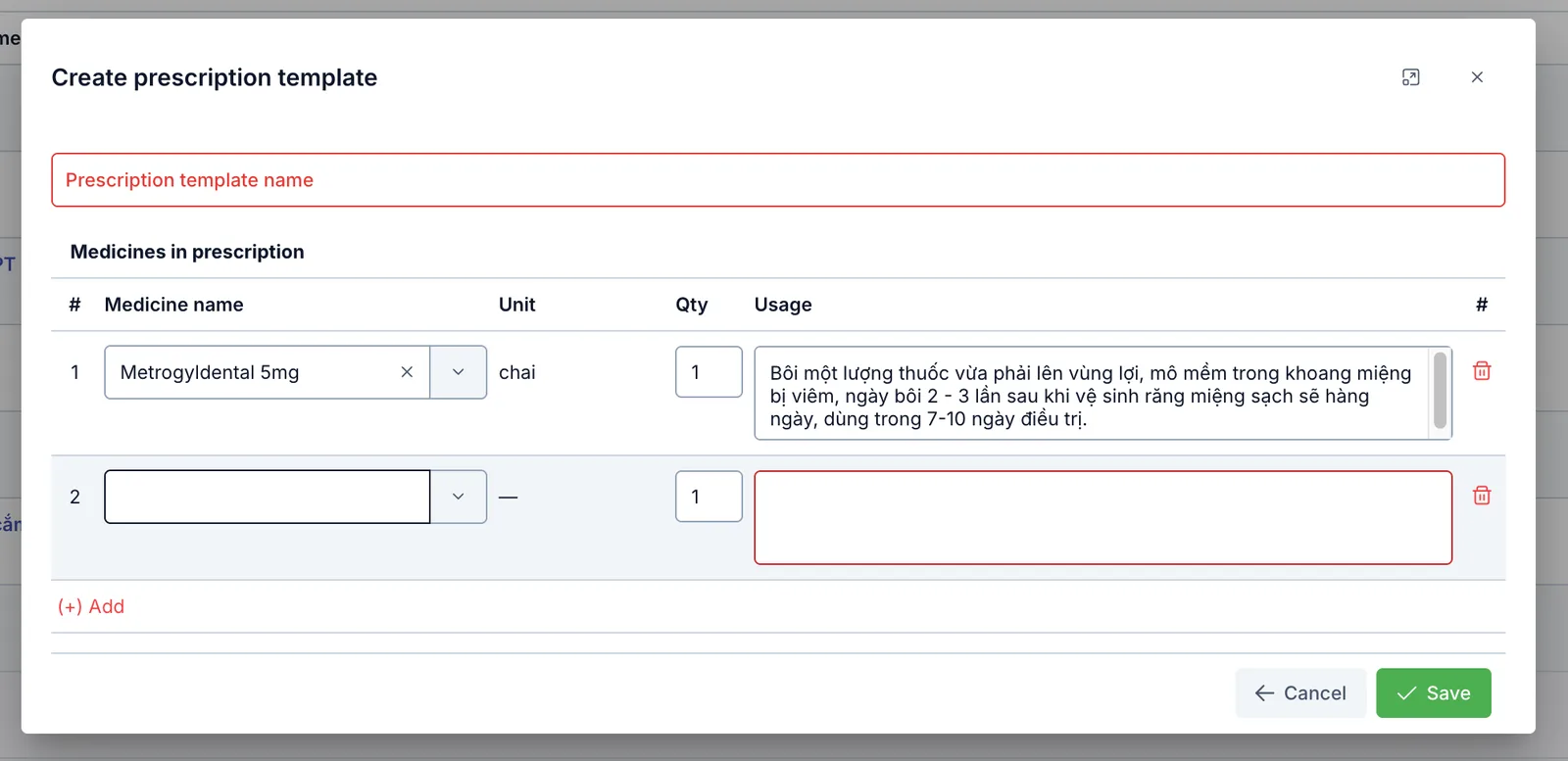
Screenshot of the Create prescription template dialog
- Enter the Prescription template name (required, must not duplicate an existing template's name).
- In the Medicines in prescription table, for each medicine row:
| Field | What to enter |
|---|---|
| Medicine name | Pick from Medicine list |
| Unit | Auto-filled from the picked medicine, cannot be changed |
| Qty | The default quantity for this medicine in the template |
| Usage (required) | Usage instructions — this text gets inserted directly into the real prescription when the template is used |
Click (+) Add to add another medicine row to the template.
Using a template when writing a real prescription
On the real prescription screen, the doctor clicks Select prescription template, picks a template created on this page — every medicine in the template (with its saved quantity and usage) is inserted directly into the prescription in one click, with no need to add each medicine manually.
- Still editable after inserting: the quantity and usage of each medicine row inserted from a template can still be edited normally on the prescription — the template is just a fast starting point, not locked to its exact values.
- Multiple templates can be inserted into the same prescription: picking another template adds its medicines on top of what's already there, without clearing what was already inserted. A medicine that appears in both templates only keeps one row, it doesn't duplicate.
On the Medicine list page, the software does not automatically pull each medicine's declared Usage text onto a real prescription — staff still have to type it fresh every time. Prescription template is exactly the tool that solves this: save the usage instructions for each medicine per common scenario once, then insert it instantly from then on.
Related
- Medicine list — the medicine catalog used to pick medicines when creating a prescription template on this page.
- Doctor instruction template — pre-built advice snippets, used together with prescription templates when writing a real prescription.