Doctor instruction template
Doctor instruction template holds pre-built advice snippets (e.g. after-extraction instructions, after-whitening instructions…) to insert quickly into a prescription's Instruction field — instead of typing it out every time. The inserted text is printed directly onto the prescription given to the patient.
Opening Doctor instruction template
- Go to the System configuration screen (see Configuration overview), group Medicine & Prescriptions, click Doctor instruction template.
- Faster way: type Doctor instruction template into the quick search box at the top of the System configuration screen, then click the result.
Doctor instruction template list

Screenshot of the Doctor instruction template list
| # | What it is |
|---|---|
| 1. Create button | Create a new instruction template. |
| 2. Row action buttons | Pencil to edit, trash bin to delete that template. |
The Order column is auto-set to the row's own ID when created — no need to adjust unless you want a custom order.
Creating an instruction template
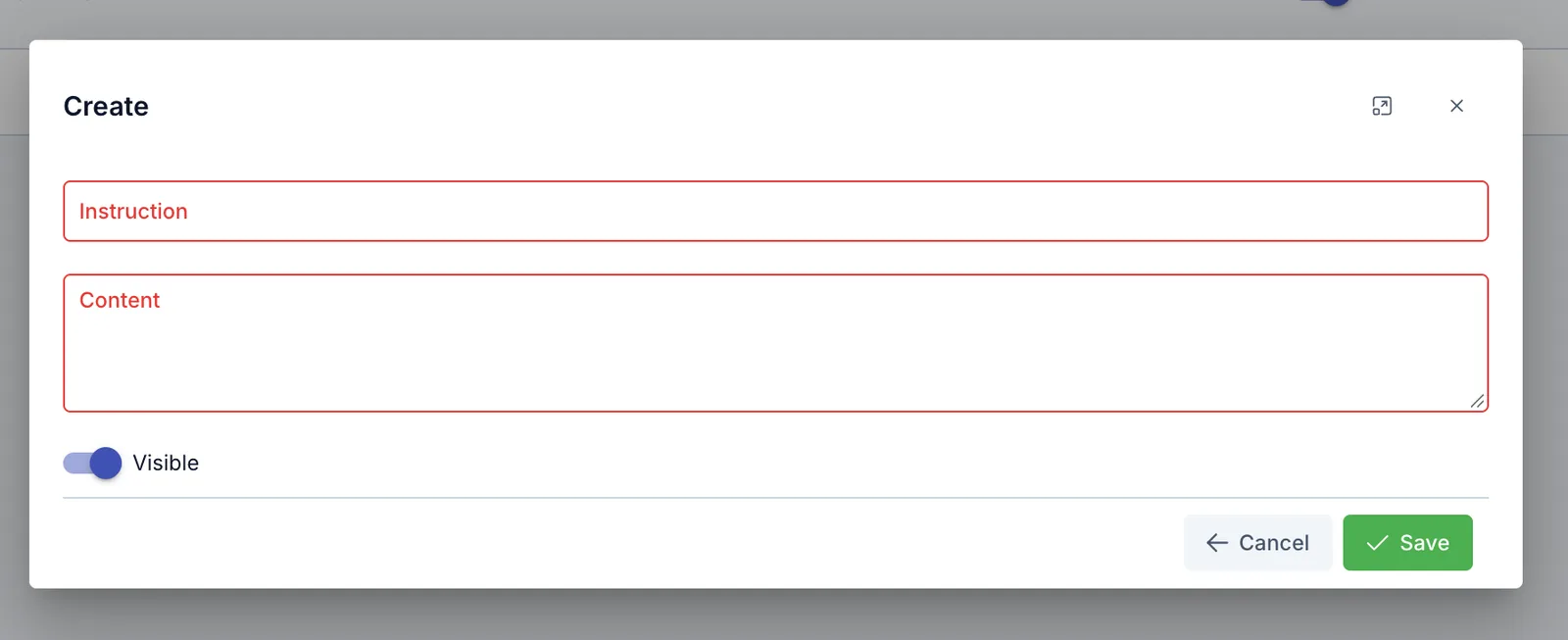
Screenshot of the Create doctor instruction template dialog
| Field | What to enter |
|---|---|
| Instruction (required) | A memorable name for the template, e.g. "After-extraction instructions" — must not duplicate an existing template's name |
| Content (required) | The full advice text — plain text only, no bold/italic/color formatting |
| Visible | Turn off to hide this template from picker lists, without deleting the data |
Using an instruction template when writing a real prescription
On the prescription screen (both in the Medicine & Prescriptions module and the Prescription tab inside an electronic medical record), the doctor clicks Select instruction template, picks one or more templates — the selected templates' content is joined together and filled into the prescription's Instruction field.
Every time the template selection changes (adding/removing a template), the Instruction field is rebuilt from scratch based on whichever templates are currently selected — if you've typed or edited anything by hand in that field and then change the template selection, those manual edits will be lost, replaced by the newly combined template text. Pick all the templates you need first, then make manual edits afterward.
After inserting, the Instruction field can still be freely edited as normal — the template is just a fast starting point, not locked.
Besides the prescription's overall Instruction field, each medicine line in the prescription also has its own small note field — typing in it suggests matches from the names of templates created on this page (not their content).
Related
- Prescription template — pre-built medicine sets with usage instructions, used together with instruction templates when writing a real prescription.