Doctor portal credentials
When the clinic sends an electronic prescription to the National Prescription Portal (donthuocquocgia.vn), the portal requires the login of the doctor who wrote it — not the person clicking send, who is usually a pharmacist. So every doctor who prescribes needs one set of credentials registered on this screen.
| Level | Where it is entered | What it does |
|---|---|---|
| Facility account (the clinic's) | The DQG Integration Config screen, on each licence | Adds and removes doctors on the portal |
| Doctor account | This screen | Sends each prescription to the portal |
Putting the facility password in the doctor's field, or the other way round, is the most common reason the portal rejects a request — see Common errors.
You need the manage configuration permission to open this screen and the DQG Integration Config screen.
Do this on the portal first
The linkage code is issued by the Department of Health; the software cannot generate one. Until step 4 below is done, anything you enter in CluvixHealth will be rejected by the portal.
| Step | Who | What |
|---|---|---|
| 1 | Clinic | The facility already has its facility linkage code (its portal profile is approved). |
| 2 | Doctor | Registers their own account on donthuocquocgia.vn, signs in, fills in their profile and picks your facility as their place of work. |
| 3 | Clinic | Signs in with the facility account, goes to Bác sĩ › Danh sách bác sĩ (Doctors › Doctor list), opens the Chờ duyệt (Pending) tab and approves the doctor's profile. |
| 4 | Department of Health | Approves the profile and issues the code — usually 3 to 5 days. |
| 5 | Doctor | Once approved, the dashboard of the doctor's portal account shows the Mã liên thông (linkage code). That is the code to enter here. |
donthuocquocgia.vn has no English interface, so the portal screenshots below stay in Vietnamese. The Vietnamese menu names are given with a translation the first time.
At step 2 the doctor types the practising certificate number with no "/" and no
spaces. A certificate reading 012345/HCM-CCHN is entered as 012345HCM-CCHN. Getting
this wrong carries straight through to a wrong linkage code at step 5.
What the doctor signs in with

The three sign-in methods on the National Prescription Portal
The portal accepts Tên đăng nhập (username), Email or Mã liên thông (linkage code) — three different things. What the software needs is the linkage code, not the username the doctor types to reach the website.
The clinic approves the doctor's profile (step 3)
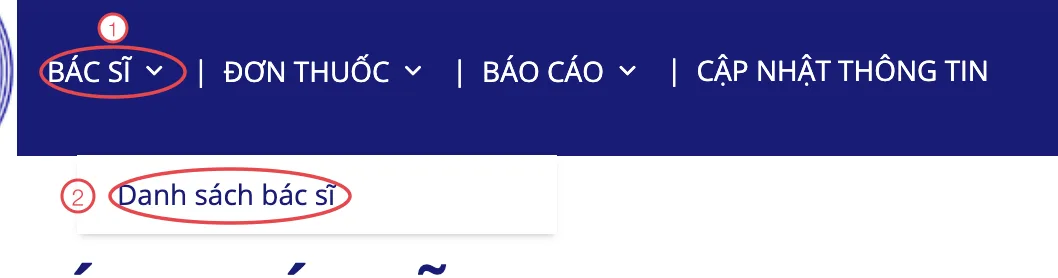
The path to the doctor list on the portal
- Click the BÁC SĨ (Doctors) menu.
- Choose Danh sách bác sĩ (Doctor list).
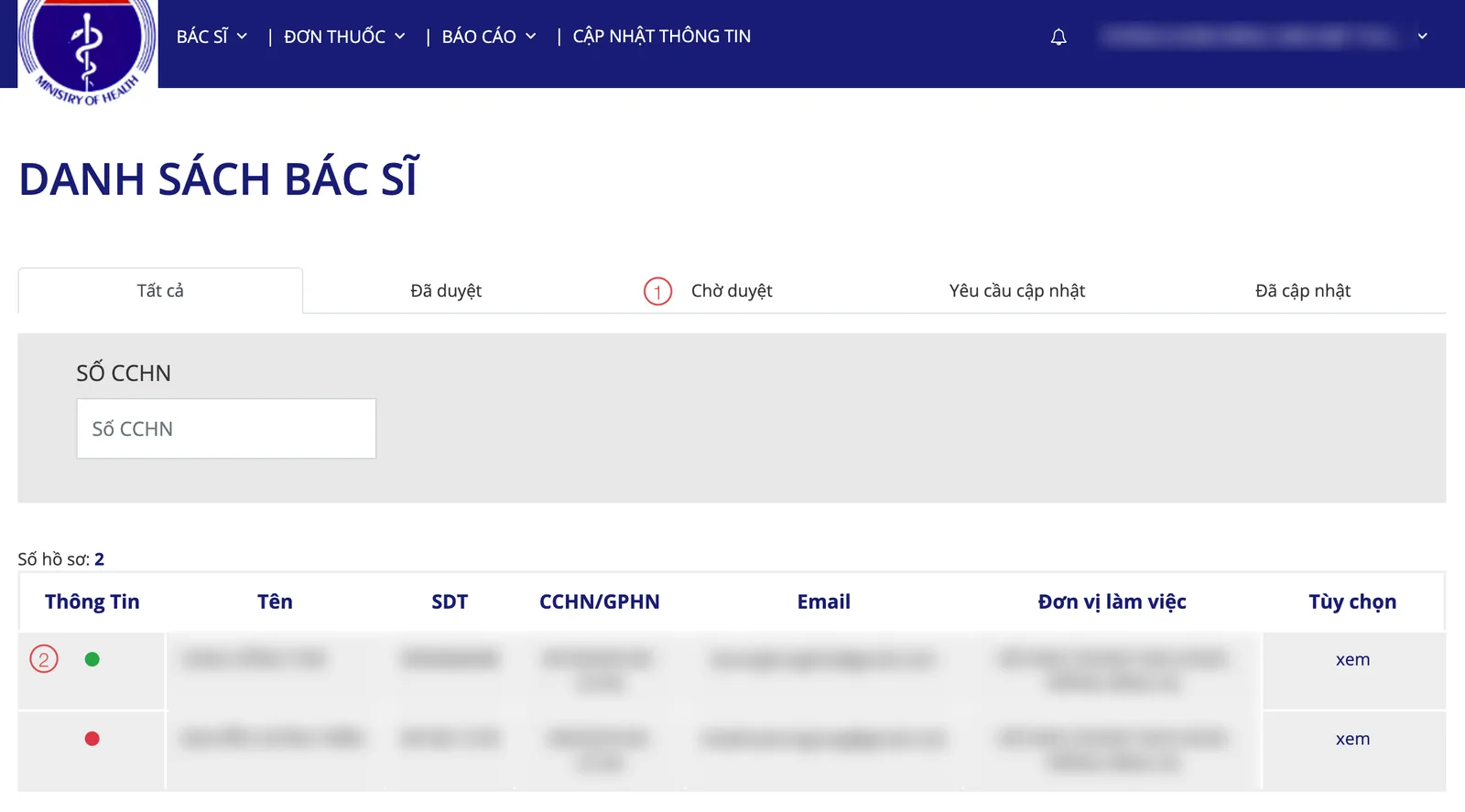
The doctor list on the portal
| # | What it is |
|---|---|
| 1. The Chờ duyệt (Pending) tab | Profiles the doctors have just registered, waiting for the clinic. Once approved they move to Đã duyệt (Approved). |
| 2. The dot in the Thông Tin (Information) column | Green means the profile is complete, red means something is missing. Only a doctor with a green dot gets a linkage code. |
If the Tất cả (All) tab shows no doctors, no profile has been approved into the facility yet. Entering a code in the software at this point will certainly be rejected.
Open Doctor portal credentials
- Go to System configuration (see Configuration overview), group Medicine & prescription, click Doctor portal credentials.
- Quicker: type Doctor portal credentials into the quick search box at the top of the System configuration screen and click the result.
The list of registered credentials
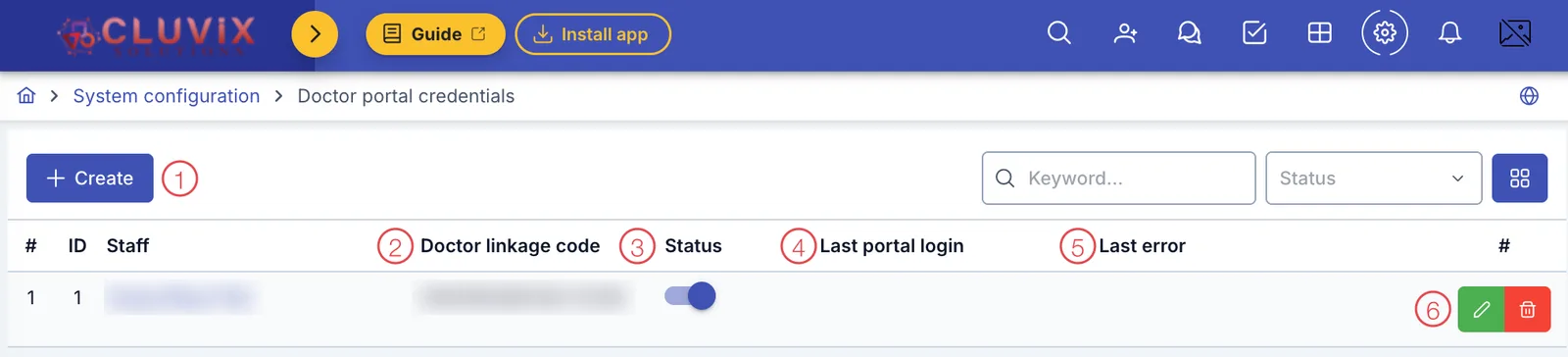
The Doctor portal credentials list
| # | What it is |
|---|---|
| 1. The Create button | Register credentials for a doctor who has none yet. |
| 2. The Doctor linkage code column | The code the portal issued to that doctor. |
| 3. The Status column | Switch off to suspend the credentials without deleting them. |
| 4. The Last portal login column | The last time the software signed in to the portal with these credentials successfully. |
| 5. The Last error column | What the portal said the last time it failed — the first place to look when a prescription will not send. |
| 6. The buttons at the end of each row | The pencil edits, the bin deletes. |
The Staff column is the doctor's name from the clinic's HR records. The name and the code are blurred in the illustration.
Register one doctor
Click Create to open the Add doctor credentials dialog.
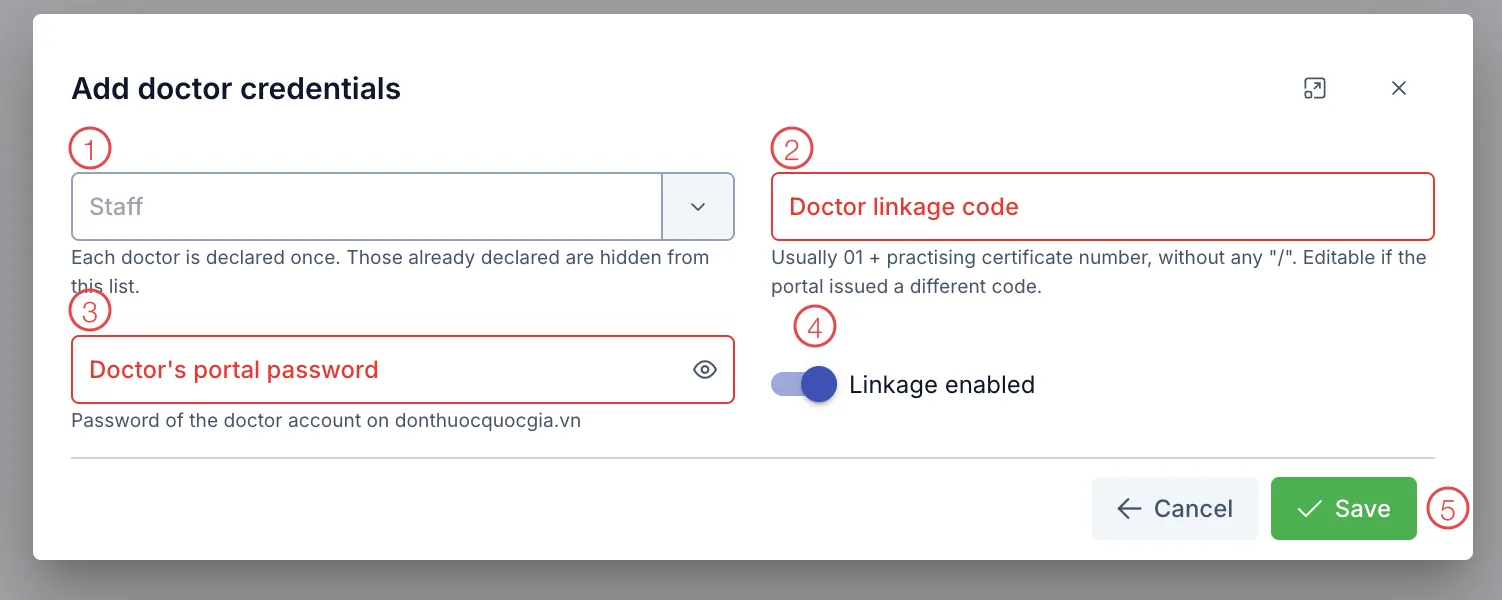
The Add doctor credentials dialog
| # | Field | What goes in |
|---|---|---|
| 1. | Staff (required) | Pick the doctor from the HR list. Each doctor is registered once — anyone already registered is hidden from this list. |
| 2. | Doctor linkage code (required) | The code from the dashboard of the doctor's portal account. It reads 01 + certificate number, with no /. |
| 3. | Doctor's portal password (required when creating) | The password the doctor uses to sign in to donthuocquocgia.vn. |
| 4. | Linkage enabled | On means the software uses these credentials when sending that doctor's prescriptions. |
| 5. | Save | Writes the credentials into the software. |
After Save, the doctor appears as a row in the list.
Where the linkage code comes from
Once you pick the Staff member, the software suggests a code from the practising
certificate already in their HR record: it takes the most recent certificate, strips the
/ and puts 01 in front. The line Certificate no.: … appears under the field so you
can compare.
For example, certificate 012345/HCM-CCHN suggests 01012345HCM-CCHN.
The software applies the usual formula, but the code that counts is the one the portal issued. Always open the doctor's portal dashboard and compare; if it differs, correct it to match the portal. The portal is case-sensitive, so type it exactly as shown there.
This is the mistake people make most often: the doctor hands over a username like
bs012345, because that is what they type every day. The software expects the linkage
code; send a username and the portal replies that it cannot find the doctor.
Getting the password in cleanly
- Click the eye icon in the password field to see what you are typing — it catches typos and a browser quietly filling in a different password.
- Type it by hand and turn off the Vietnamese input method. Pasting often brings a stray space at the start or end.
- The software never shows a saved password again (it is stored encrypted). When you edit, leaving the password field empty keeps the existing one.
If a doctor changes their portal password without updating the software, prescriptions stop going through and the Last error column shows a login failure.
Editing and deleting
When you edit, the Staff field is locked — the person cannot be changed, because the linkage code belongs to that doctor's own practising certificate. To move to somebody else, delete the row and register a new one.
Delete asks for confirmation and spells out the consequence: that doctor cannot send prescriptions until the credentials are entered again. To pause them only, switch off the Status column instead of deleting.
Last step: add the doctor to the portal
Registering the code here is only half of it. The doctor also has to be added to the facility on the portal, which is done from the DQG Integration Config screen:
- On the licence row, click Branches & doctors.
- The Licence: <name> dialog opens; find the Doctors on the national portal section.
- Pick the doctor in Select a doctor... and click Add to portal.
Each doctor only needs this once per licence.
The picker only lists doctors already registered on the Doctor portal credentials screen. With none registered, the dialog says "No doctor has declared a portal code yet…" — come back here and register them first.
Remove from portal cuts the doctor's linkage on the Ministry of Health's system, not just inside the software. That doctor will not be able to send any prescription until they are added back. The software asks for confirmation twice — read both.
A doctor who has not been added to the portal can still have prescriptions sent, but the DQG integration readiness screen lists them under Doctors not added to facility so you can finish the job.
The National Prescription Portal accepts a prescription the moment it is sent, and a prescription already on the portal cannot be edited or withdrawn. So get the code and the password right first rather than sending one "just to try".
Common errors
| Message | Why | What to do |
|---|---|---|
| Bác sĩ không tồn tại trong hệ thống hoặc chưa được duyệt mã định danh (Doctor does not exist or the identifier is not approved) | The doctor linkage code is wrong — usually the website username was entered — or the doctor's profile has not been approved by the clinic and the Department of Health | Take the code from the doctor's portal dashboard; if the facility's doctor list is empty, go back to steps 2 and 3 above |
| Mã liên thông cơ sở khám chữa bệnh hoặc mật khẩu không đúng (Facility linkage code or password is wrong) | The facility account is wrong, not the doctor's. The facility linkage code is 01 + facility code and is case-sensitive | Edit the licence on the DQG Integration Config screen: enter the code exactly as the portal's member information page shows it, and retype the facility password using the eye icon |
| No doctor has declared a portal code yet… | The licence dialog has no doctor to add | Register the credentials on this screen first, then go back to Branches & doctors |
The Last portal login and Last error columns tell you whether the software's last sign-in with that doctor's credentials worked, and what went wrong if it did not — read those two before guessing.
Related
- Prescription template — a ready-made set of medicines for faster prescribing.
- Doctor instruction template — the advice printed with the prescription.