AI config
AI config is where you declare an AI provider and its API Key so the software can call AI — used for the AI chat feature right on a customer's detail page (CRM), for example asking AI to assess that customer's value or predict churn risk.
Opening AI config
- Go to the System configuration screen (see Configuration overview), group Utilities, click AI config.
- Faster way: type AI into the quick search box at the top of the System configuration screen, then click the result.
AI config list
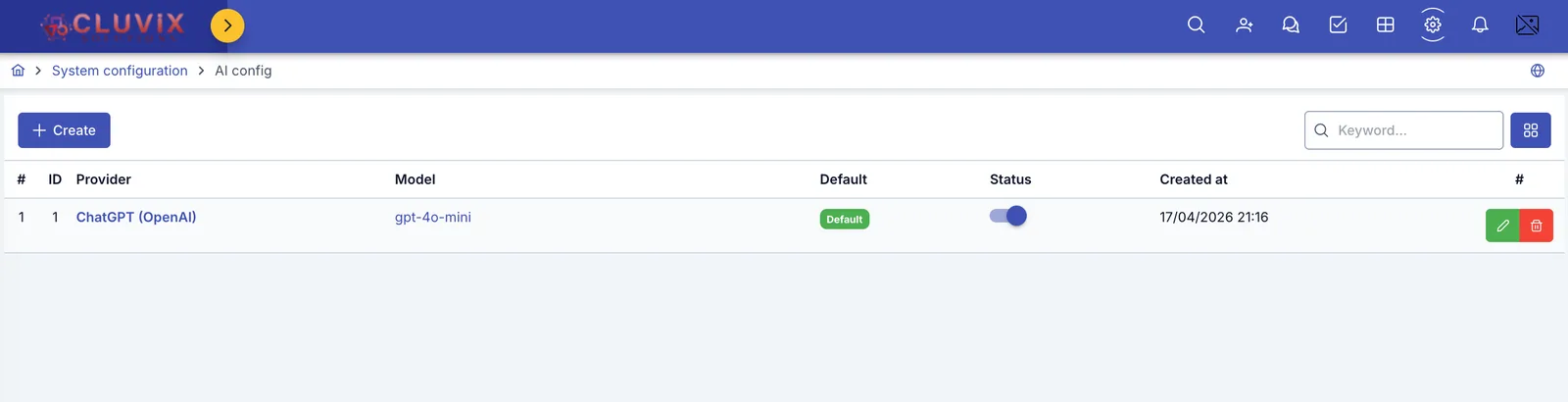
Screenshot of the AI config list
- Default: a green label marks the config the software prioritizes when it calls AI without specifying a particular provider. Only turn on Default config for exactly 1 row at a time.
- Status: a toggle right on the list — turn it off to temporarily stop using this config (AI stops calling that provider) without losing the saved API Key or Model; turn it back on to use it again right away.
- Row action buttons: pencil to edit, trash bin to delete.
Creating an AI configuration
Click + Create to declare a new AI configuration.
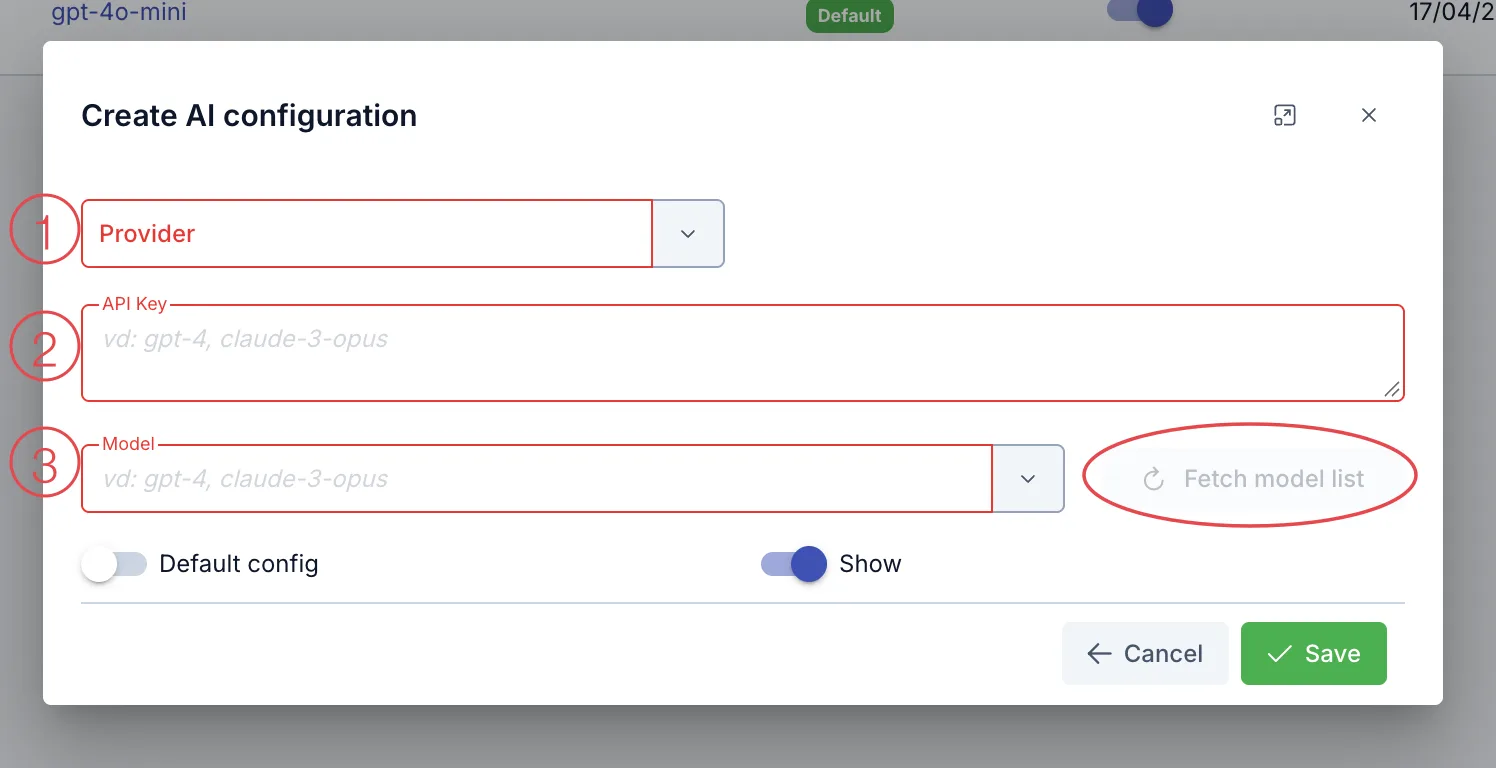
Screenshot of the Create AI configuration dialog
Fill in, in this order:
- Provider (required) — pick from the AI provider catalog declared under AI - Provider (same Utilities group); several common providers come built in, such as ChatGPT (OpenAI), Claude (Anthropic), Gemini (Google), Mistral AI, Cohere, Perplexity, Groq, DeepSeek, OpenRouter.
- API Key (required) — the API key from the selected provider's account.
- Model (required) — once Provider is selected and API Key is filled in, the Fetch model list button lights up; click it and the software pulls the real model list available for that API key, so you can pick a model instead of typing it. A few providers have no model list available via API (Perplexity, for example) — type the model name into this field directly for those.
Then you can optionally turn on:
- Default config — makes this the main config the software prioritizes using.
- Show — turn on so this config is usable right after saving.
Once filled in, click Save.
Changing the API Key later
Click the pencil to edit — the dialog reopens prefilled just like at creation, with the API Key field showing a partially masked value. Leave it as-is to keep the saved key, or type a new key to replace it.