Call Center Provider
Call Center Provider connects the clinic to an automated phone system (currently supports Omicall and Stringee). Once connected and each staff member has their own extension, phone numbers shown anywhere in the software (customer (patient), lead, appointment…) become click-to-call — no desk phone or separate call center app needed.
Opening Call Center Provider
- Go to the System configuration screen (see Configuration overview), group Utilities, click Call Center Provider.
- Faster way: type Call Center Provider into the quick search box at the top of the System configuration screen, then click the result.
Call Center Provider list

Screenshot of the Call Center Provider list
| # | What it is |
|---|---|
| 1. Create button | Add a new call center configuration for a brand. |
| 2. Status column | Not activated (orange) or Activated (green) — only a config that is Activated is actually used for calling. |
| 3. Row action buttons | Pencil to edit; a round button (blue when pending, orange when active) to Activate/Deactivate; trash bin to delete. |
A brand can store several configs at once (e.g. both an Omicall and a Stringee config as a backup), but only one can be Activated at a time per brand — activating one row makes it the one in use, and every other row for the same brand automatically switches back to Not activated.
Clicking Activate just picks this config as the one in use — the software does not verify the SIP Realm/API Key at this step. If something was entered wrong, the error only surfaces when a staff member tries to make a call (it fails to connect to the call center) — double-check the details before activating.
Configuring Omicall
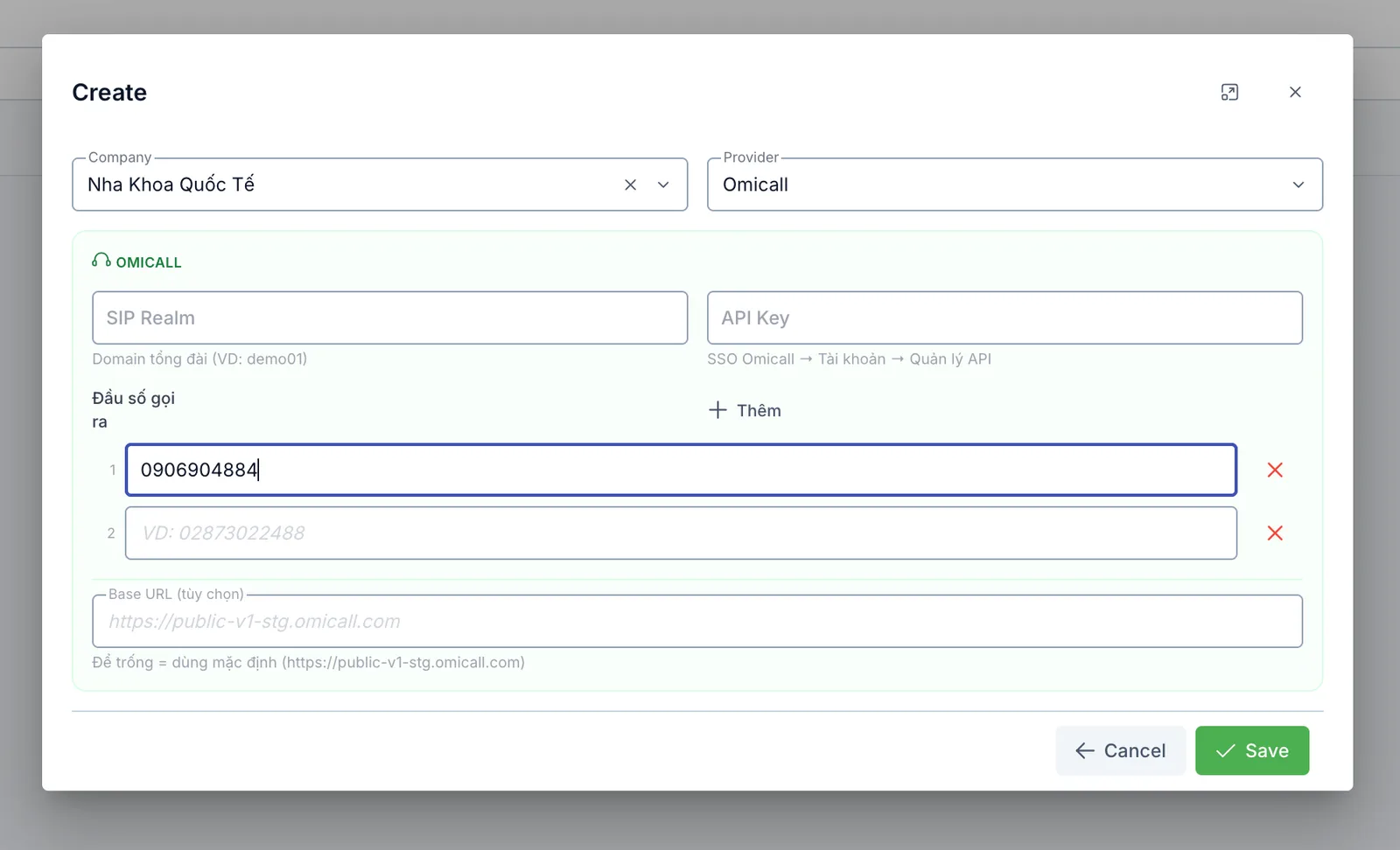
Screenshot of the Create Call Center Provider dialog, Omicall configuration
- Pick the Company this applies to.
- Set Provider to Omicall — a green box appears with the fields to fill in.
- Fill in the following, taken from the clinic's Omicall account:
| Field | What to enter |
|---|---|
| SIP Realm | The Omicall call center domain, e.g. "demo01" |
| API Key | From Omicall: SSO Omicall → Account → Manage API |
| Outbound number(s) | One or more hotline numbers used to place calls — click Add for more. At least one number is required before staff can make outbound calls |
| Base URL (optional) | Leave blank to use Omicall's default address |
Configuring Stringee
Opened the same way as Omicall, just pick Provider = Stringee at step 2 — a blue box appears with 2 fields:
| Field | What to enter |
|---|---|
| API SID Key | From the clinic's Stringee account |
| Secret Key | From the clinic's Stringee account |
The Provider dropdown also has a Voip24h option for a more advanced setup — a clinic that needs Voip24h should contact technical support for help configuring it.
After configuring: calling directly from the software
Activating a call center config for the brand is not enough by itself to start calling — one more step is needed for each staff member:
- Activate an Omicall or Stringee config for the brand, as described above.
- Go to the Extension Config screen (same Utilities group), and add an extension for each staff member who needs to make calls. As soon as a provider is activated, the software also reminds you with a green banner above the list: "Provider is active — configure extensions for each employee to start calling.", with a Configure extensions now button.
Once both steps are done, phone numbers shown on any screen in the software (customer detail, lead, appointment, reminder, collaborator…) turn into clickable text:
- Hover over a phone number to see the tooltip "Call phone" → click it, a floating call panel pops up in the corner of the screen and places the call right away through the connected call center (the browser will ask for microphone permission).
- A staff member without an extension yet sees the tooltip "Copy phone number" instead — clicking it only copies the number, it doesn't call.
Not just outbound calls — when a customer calls in, it rings live in this same floating call panel while the staff member is logged into the software. Every call (outbound and inbound) is logged under History > Call Log.