ZNS Templates
ZNS Templates manages ZNS (Zalo Notification Service — branded messages via Zalo) templates registered with Zalo, attaching each one to an event for automatic sending, or sending manually from a campaign.
This screen pulls the template list directly from the currently selected brand's Zalo Official Account (OA), so you need to connect a Zalo OA first. If it isn't connected yet, the create dialog clearly tells you so — connect it first, then create.
Opening ZNS Templates
- Go to the System configuration screen (see Configuration overview), group Zalo, click ZNS Templates.
- Faster way: type ZNS into the quick search box at the top of the System configuration screen, then click the result.
ZNS Templates list
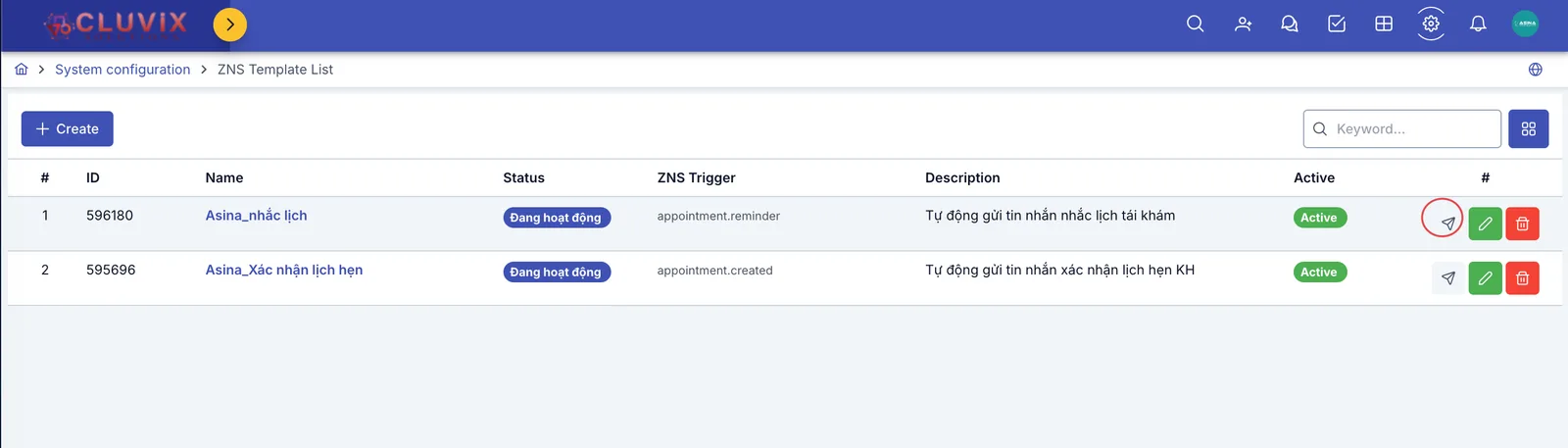
Screenshot of the ZNS Templates list
- Status: reflects the template's approval state on Zalo's side — only an active, approved template can actually send; one still pending review or rejected by Zalo can't send even if Active is turned on.
- ZNS Trigger: the event that makes this template send automatically — see details in the create section below.
- Active: a separate switch owned by the software (different from Zalo's approval status) — turn it off and the template stays saved but the software stops auto-sending it on its trigger.
- Row action buttons: paper-plane icon to send a test, pencil to edit, trash bin to delete.
Creating a ZNS Template
Click + Create.
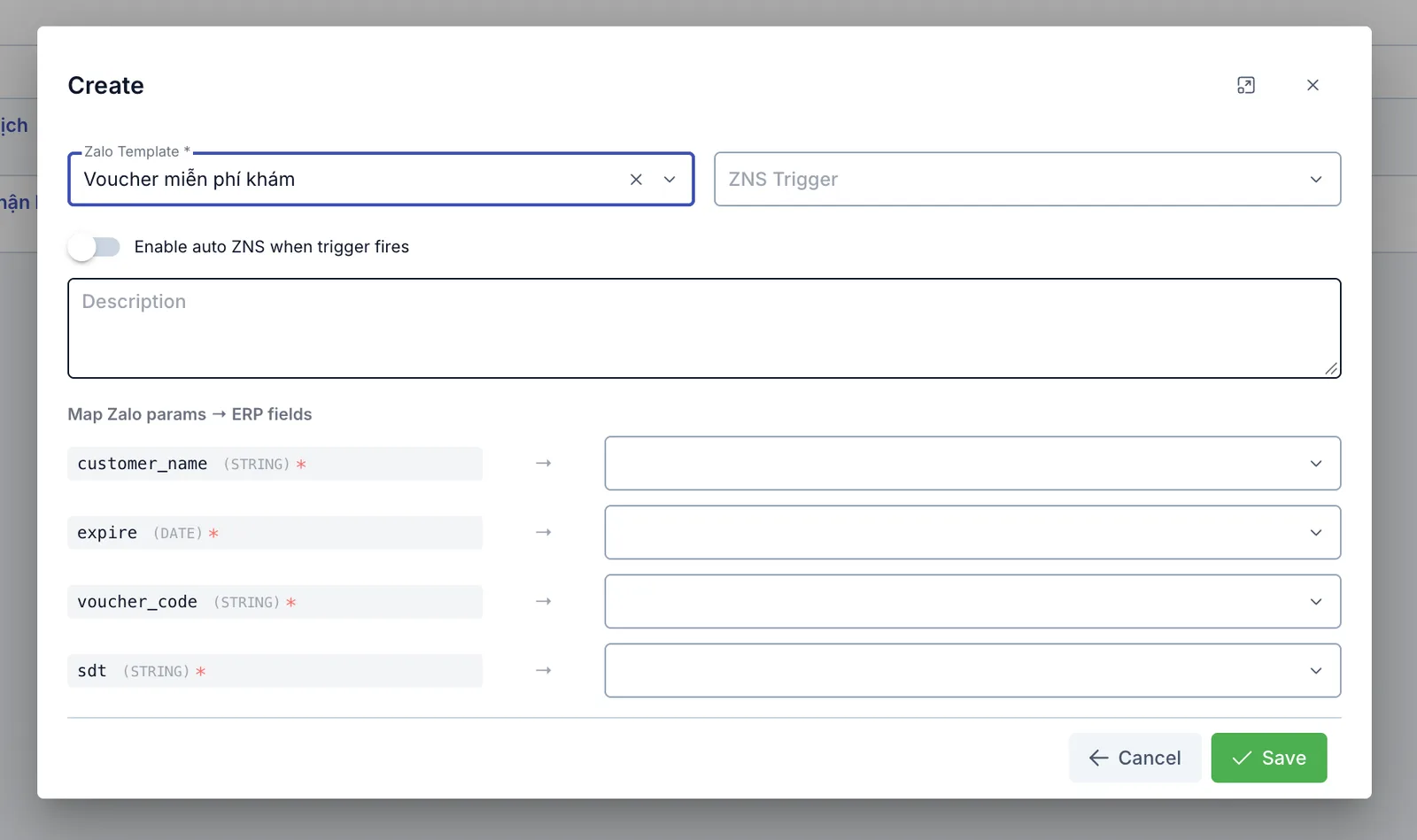
Screenshot of the Create ZNS Template dialog
| Field | What to enter |
|---|---|
| Zalo Template (required) | Pick one of the message templates already approved by Zalo for the connected OA |
| ZNS Trigger | The event that makes this template send: appointment created successfully (sends right after an appointment is created), appointment reminder (the software scans and reminds about upcoming appointments on a daily background run), or send via ZNS campaign (used manually from the campaign screen, not sent automatically on an event) |
| Enable auto ZNS when trigger fires | On: the template sends automatically as soon as the selected trigger occurs; off: the template is just saved, it never auto-sends |
| Description | Extra notes, optional |
Once you pick a Zalo Template, the software automatically pulls that template's real
parameter list from Zalo into Map Zalo params → ERP fields — each parameter on the
left is a placeholder inside the template's content (for example customer_name,
expire, voucher_code, sdt), pick the matching ERP data on the right so the software
fills it in automatically when actually sending. Depending on the Trigger selected, the
ERP data available to pick from is:
- Appointment created successfully / Appointment reminder: customer (patient) full name, customer phone, appointment datetime, appointment date, appointment time, branch name, branch address, branch phone, company name.
- Send via ZNS campaign: customer (patient) full name, customer phone, company name, branch name, branch phone.
Once filled in, click Save.
Sending a test
Click the paper-plane icon on a row to send a test of that template before using it for real.
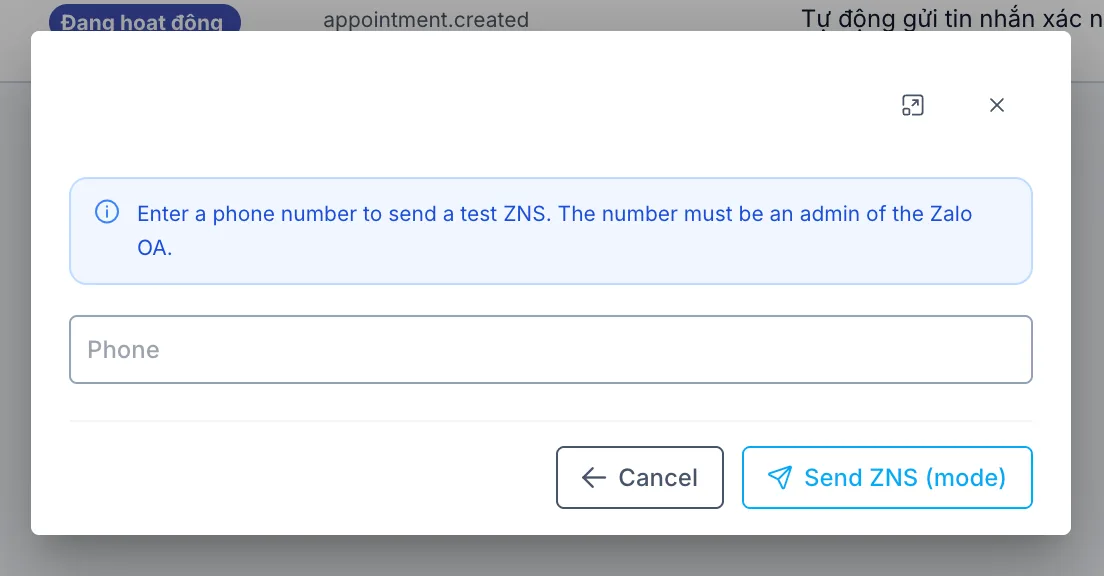
Screenshot of the send test ZNS dialog
Enter a phone number and click send. The software uses sample data Zalo provides for the template to send the test — no need to have mapped parameters or turned on auto-send first. Note: per Zalo's own rule, the phone number receiving the test must be an admin currently managing that Zalo OA — entering a different number returns a send error.
Related
- Zalo OA Connection — connect the Zalo Official Account, a required precondition before using ZNS Templates.