CRM Overview
CRM is where the clinic manages the entire customer (patient) lifecycle — from the first appointment booking, to front-desk check-in, to the notes staff keep after every visit. It's usually the screen your front-desk and consulting staff use the most during the day.
How to open CRM
Right after you sign in, the software opens the module selection screen: a board of square tiles, each tile being one area of the clinic's work.
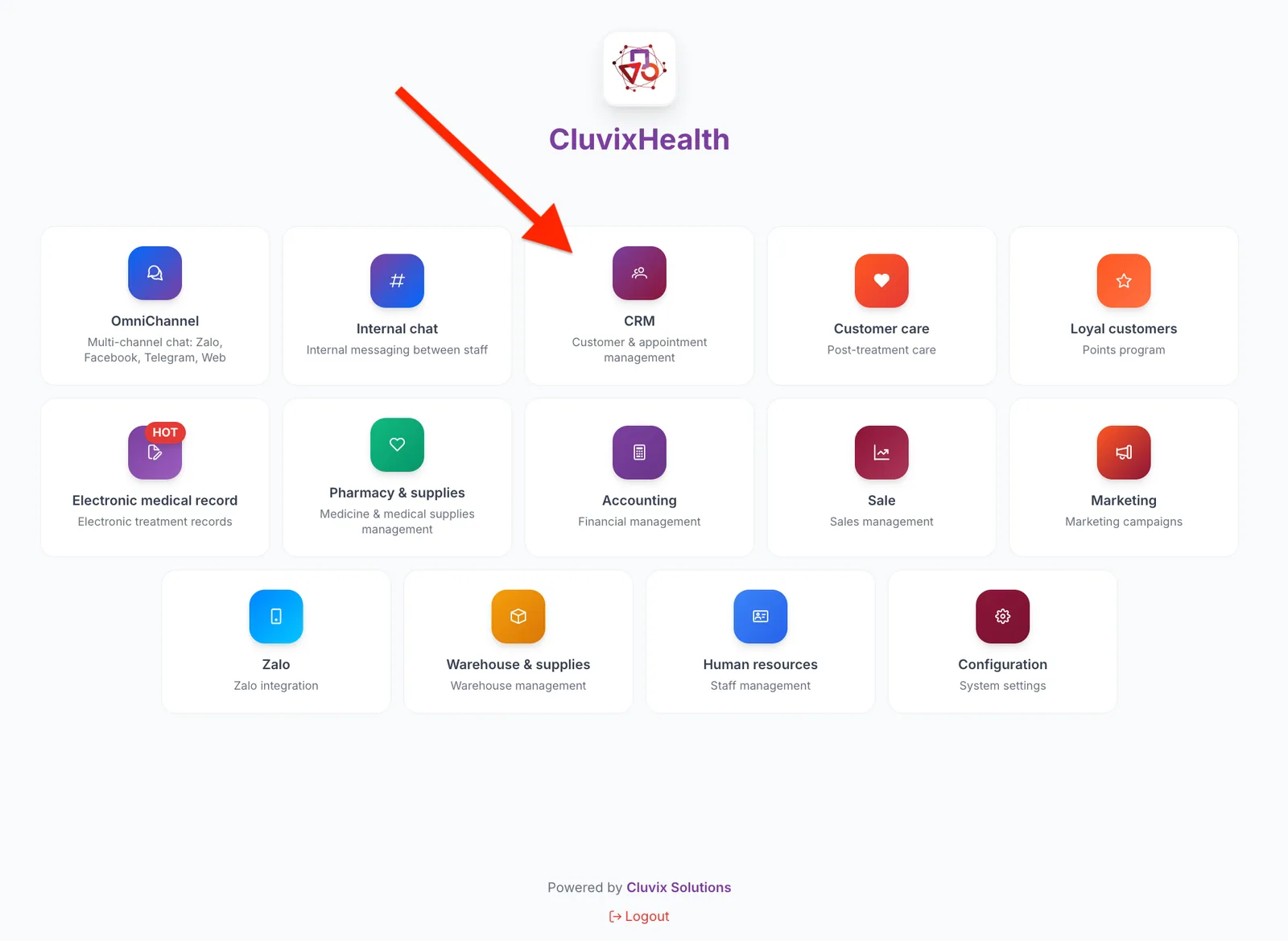
Illustration of the module selection screen
- Find the tile labelled CRM, with the small caption "Customer (Patient) & appointment management" underneath. It shows a two-people icon on a purple background.
- Click that tile — CRM opens straight away.
No need to sign out or return to the screen above. On the purple bar at the very top, click the grid icon (four small squares, named System modules) and choose CRM.
The screen only shows the modules your account is allowed to use, so the number and position of tiles may differ from the illustration. If there is no CRM tile, your account has not been given access yet — ask your clinic administrator.
What's on the working screen
Once CRM is open, the screen is always split into the same fixed areas — whichever item you open, everything stays in the same place, so you only have to learn it once.
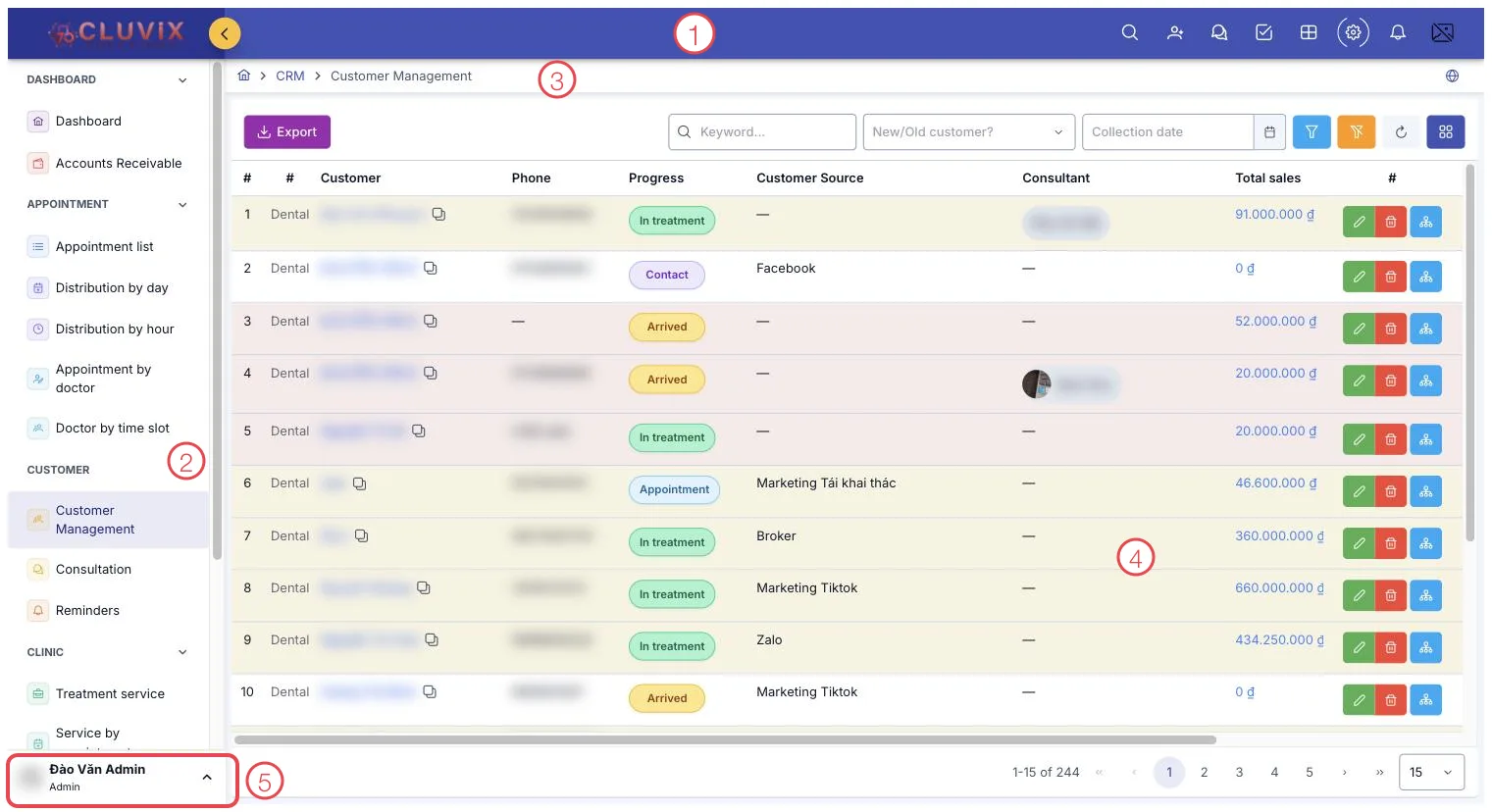
Illustration of the CRM working screen
| Area | What it is |
|---|---|
| 1. Purple top bar | Clinic logo, the search box, the grid icon for jumping to another module, and the notification bell. |
| 2. Left menu | Every item in CRM, grouped by area (Appointment, Customer (Patient), Clinic…). Click an item to open it. |
| 3. Breadcrumb | Tells you where you are, e.g. CRM › Customer Management. Click an earlier word to go back. |
| 4. Content area | The actual work: a toolbar on top (search, filters, create button, export), the data table below it, and page numbers at the bottom. |
| 5. Account block | Your photo and name at the bottom of the menu. Click it to change your password, switch brand or sign out. |
Scroll inside the menu to see the rest. For more room, click the < arrow next to the logo to collapse the menu into a strip of icons.
The module covers four main areas:
Customers (Patients) (Patient)
Each customer's profile and interaction history, for long-term care.
- Create a New Customer — add a new customer (patient) to the software: contact details, address, medical history, health insurance, and their first appointment.
- Customer Details — read a customer's full file: finance, appointments, orders, treatments and care notes.
- Add a Note — record what was discussed with the customer, attach images, pin what the next shift must read first.
- Create a Reminder — set a task for a customer at a given time, assign it to the right person and mark it done when finished.
- Create a Check-up — log a check-up visit for a customer, attached to their record.
- Upload a Photo — upload images tied to a customer (patient) to their profile, or capture them straight from a webcam, scope or ultrasound machine.
- Create a Care Record — create a post-treatment care record for a customer.
Appointments
Manage the clinic's full schedule — from booking to check-out.
- Create a New Appointment — book a slot for a new or existing customer, pick the doctor and time that works.
- Check-in / Check-out — confirm a customer (patient) has arrived, and close out the appointment once the visit is done.
- Cancel an Appointment — cancel a booked appointment when the customer can't make it or plans change.
- Appointment Details — view the full details of an appointment: customer (patient), doctor, service, status.
- Confirm Customer Arrival — call the customer (patient) before the visit and mark them as confirmed.
- Ways to View Appointments — five screens: the list, distribution by day and hour, by doctor, and doctors by time slot.
Clinic
Orders, payments, and treatment that come up while a customer is at the clinic.
- Create a New Order — create a service order for a customer.
- Create a New Payment — record a payment against an order.
- Create a New Deposit — take a deposit ahead of an order or service.
- Transfer a Deposit — move a deposit already taken to a different order.
- Create a New Installment Plan — set up an installment plan for an order.
- Record a Treatment — log one treatment session; each specialty gets its own entry screen: dental, rehabilitation, other specialties.
- Ways to View Treatments — how Treatment service, Service by appointment and Treatment course differ.
- Create a New Prescription — write a prescription for a customer after a visit.
- Create a New Warranty — issue a warranty slip for a service or product provided.
Other
Extra information and utilities on a customer's profile.
- Financial Information — an overview of a customer (patient)'s finances: spent, owed, outstanding balance.
- CLV & Behavior — customer (patient) lifetime value and service usage behavior over time.
- Add a Label — tag a customer for filtering and group-based care.
- Upload Avatar — upload a profile photo for a customer (patient)'s record.
- Membership Tier — view and update a customer (patient)'s tier in the loyalty program.
- AI Chat — an AI assistant to look up and interact with a customer's profile.
- Documents — manage documents attached to a customer (patient)'s record.
- Call Recordings — listen back to recorded calls with a customer.
- Video — manage videos tied to a customer.
- Call History — review the full call history with a customer.
New to CluvixHealth? Start with Create a New Customer — you need the customer in the system before you can book an appointment for them.