Audio Recordings
The Audio tab stores sound files attached to one customer: a recording of a consultation, a doctor's instructions, or a call recording brought in from elsewhere.
Unlike Call History — where the phone system records calls automatically — the Audio tab is where you upload files yourself.
Open the Audio tab
Open the customer (patient) profile → Info tab → in the conversation tab row, choose 🎵 Audio.
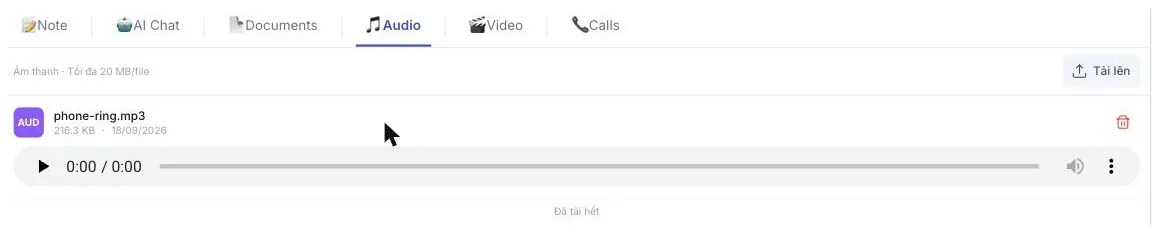
Illustration of the Audio tab on a customer profile
The line on the left states the cap — 20 MB per file — and Tải lên (Upload) on the right picks a file from your machine.
Each file appears as a row with an AUD badge, the file name, its size and the upload date, with a player underneath — press ▶ to listen in place, no download needed. The red bin on the right deletes the file.
With nothing uploaded the panel reads "Chưa có file âm thanh" (no audio files).
The limit line, the upload button and the empty-state message have not been translated yet.
consultation-18-09.mp3 is far better than REC001.mp3. Months later the file name is the
only clue about what the recording contains.
Long recordings hit the cap quickly. Record at lower quality (mono, lower bitrate), or split the recording into shorter topic-based parts.
Recording customers (patients) — the rule that matters (Patient)
Recording a conversation without telling the customer breaches their privacy and can put the clinic in legal trouble. Always say clearly that the conversation is being recorded, and only record if they agree.
- Upload only recordings that relate to that customer's treatment.
- Never upload a recording that contains other customers.
- Never forward files outside the clinic or save them to a personal machine.
Related
- Call History — recordings the phone system saves automatically.
- Documents — paperwork, same tab row.
- Video — video files for this customer.