Upload Avatar
The avatar is the small round photo at the top left of a customer profile. With a photo the front desk recognises regulars the moment the profile opens, and stops mixing up two customers (patients) with the same name — which happens constantly with common names.
This is not a treatment photo. Before-and-after images live in the Image tab, see Upload Images.
Setting the photo
Open the customer (patient) profile. The avatar sits next to the customer's name.
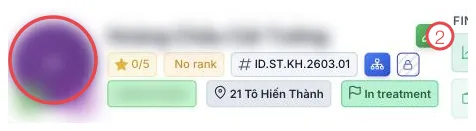
Illustration of the avatar on a customer profile
Hover over the photo and two small buttons appear along the bottom edge:
| Button | What it does |
|---|---|
| Camera | Take a photo with a camera — see Take the avatar photo below. |
| Up arrow | Pick an existing image file from the machine. |
Once you choose a file it is saved immediately — there is no separate Save button. To change it, repeat the same steps; the new photo replaces the old one.
The green pencil at position 2 edits the whole profile and has nothing to do with the avatar.
The software shows a coloured circle with the first letter of their name. That is the default, not a failed upload.
Straight on, face clear, well lit — like an ID photo. A dark or angled shot is unreadable once shrunk into a small circle.
A portrait is personal data. Get their permission, and never reuse the photo for marketing or anything beyond recognising them inside the software.
Take the avatar photo
Click the Camera button and the Take photo window opens with the camera feed.
- If the computer has several cameras, pick the right one in Select camera — the software remembers it for next time.
- Ask the customer to look straight ahead, centre their face and click Capture. The photo appears in the frame straight away.
- Not happy? Click Retake — the frame goes back to the live camera so you can line up and shoot again.
- Happy with it? Click Upload. The window closes once the photo is saved and the avatar on the profile updates immediately.
If a shaky connection stops the photo uploading, it stays in the window — click Upload again, no need to retake it. Choosing a camera and handling errors in the capture window work exactly as in Capture directly on the Upload Images page.
The avatar capture and upload buttons also appear in the patient information panel on the examination screen, and work the same way.
When the upload fails
- File too large — avatars are capped at 10 MB. Photos from a modern phone easily exceed that; shrink the image and try again.
- Unusual format — use ordinary images (JPG, PNG). Convert iPhone HEIC files to JPG first.
- The capture window says no camera was found, the camera is busy or blocked — see how to fix it on Upload Images.
- No buttons on hover — the account needs permission to edit customer (patient) profiles or to edit leads; ask your clinic administrator.
Related
- Customer Details — the profile layout.
- Upload Images — before/after treatment photos.
- Update Your Profile — changing your own photo, not a customer's.