Customer Details (Patient)
The customer detail page is one person's complete file: personal information, money, appointments, orders, treatments, images and every care note live here. Receptionists and consultants open it whenever a customer calls or arrives, to see immediately who they are, what they have had done, what they still owe and what to do next.
Open the customer detail page (Patient)
There are two ways in:
- Right after creating a customer — the software opens their detail page as soon as you press Save (see Create a New Customer).
- From the list — go to CRM › Customer Management and click the customer's name in the Customer column. The name is the blue, clickable text; clicking elsewhere in the row does not open the file.
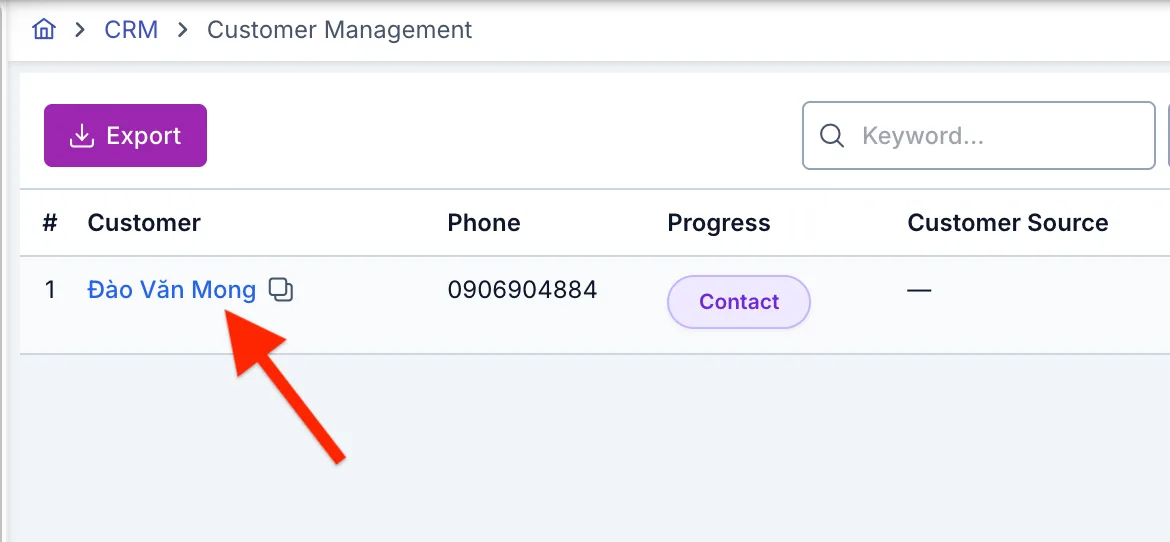
Illustration of how to open the customer detail page
The two-squares icon next to the name is a copy name button — it only copies the name, it does not open the file.
Screen layout — 8 areas
The detail page is long and holds a lot of information. Split into the 8 areas below, it is easy to tell what you are looking at.
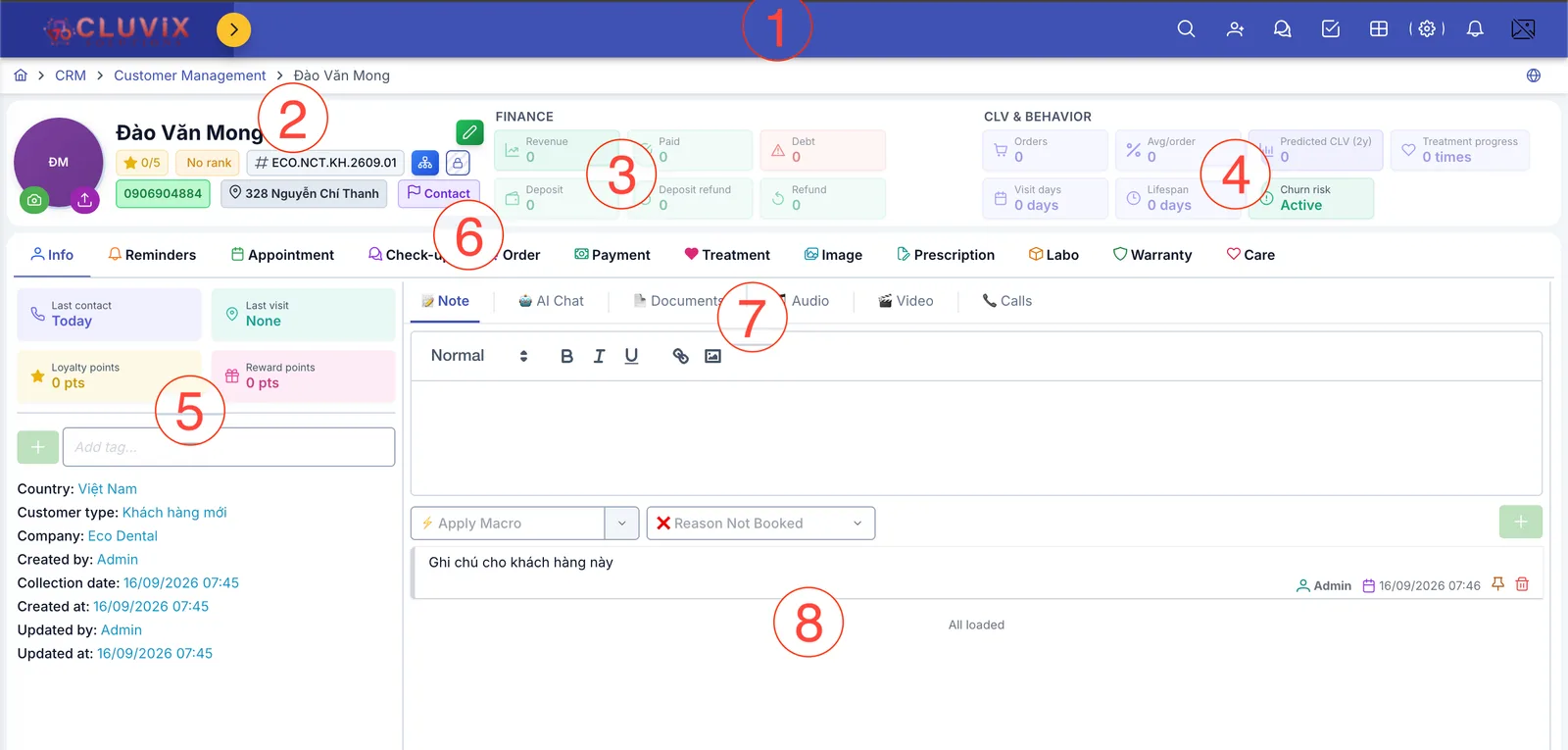
Illustration of the areas on the customer detail page
| Area | What it is for |
|---|---|
| 1. Top bar | Buttons shared across the whole software: find a customer, add a customer, internal chat, approval inbox, switch module, settings, notifications, your account. |
| 2. Customer (Patient) identity block | Avatar, name, review score, member rank, customer code, phone, branch, progress. |
| 3. Finance | The 6 money figures for this customer. |
| 4. CLV & behavior | 7 figures on how attached the customer is and the risk of losing them. |
| 5. Left information column | Quick care figures, tags and the full customer (patient) record. |
| 6. Business tab row | Switch between Appointment, Order, Payment, Treatment and so on. |
| 7. Communication tab row | Note, AI Chat, Documents, Audio, Video, Calls. |
| 8. Note area | Write new notes and read the old ones. |
1. Top bar
The purple bar across the top belongs to the whole software, not just to customers (patients). From left to right, the icons on the right-hand side are:
| Icon | What it does |
|---|---|
| Magnifying glass | Find any customer quickly. |
| Person with a plus sign | Add a new customer. |
| Chat bubble | Internal chat between staff (customers (patients) cannot read it). |
| Square with a tick | Approval inbox — requests waiting for your approval. |
| Grid | Switch to another module (HR, Inventory, Accounting…). |
| Cog | Adjust the interface (colour, text size, light/dark). |
| Bell | New notifications. |
| Avatar | Your account, sign out. |
The round yellow arrow next to the logo collapses or reopens the left-hand menu — collapsing gives the content more room on a narrow screen.
2. Customer (Patient) identity block
This area answers the question "whose file am I looking at".
- Avatar — hover over it and two small buttons appear: a camera to take a photo on the spot and an up arrow to upload an existing picture.
- Customer name, with a pencil button to its right that reopens the same Add new customer (patient) box you filled in when creating them.
- Review score (for example 0/5) — the customer's most recent rating of your service.
- Member rank — their tier in the loyalty programme; it reads No rank until they qualify.
- Customer code (like
ECO.NCT.KH.2609.01) — click the code to copy it to the clipboard and paste it elsewhere. - Sitemap button — view the customer's history as a timeline.
- Padlock button — open an internal discussion channel about this file. It is not a way to message the customer; they cannot read what is written there.
- The bottom row shows the phone number, the branch and the customer's progress (Lead, Contact, Appointment, Arrived…).
3. Finance
Six money figures, all recalculated by the software whenever the customer gets a new order or payment — you never add them up by hand.
| Figure | What it means |
|---|---|
| Revenue | The total value of services the customer has agreed to. |
| Paid | The total amount actually collected from them. |
| Debt | What the customer still owes for services already delivered. This tile has a red border so you notice it. |
| Deposit | Money the customer has put down that has not been applied to any service yet. |
| Deposit refund | Deposit money returned to the customer. |
| Refund | Money refunded for services the customer no longer wants. |
Open the file and check Debt first. Anything other than 0 means the customer still owes money — a gentle reminder while they are standing at the desk is far easier than chasing it by phone later. A Deposit other than 0 is the opposite: the customer has money sitting with the clinic that can go straight onto a new order.
4. CLV & behavior
Seven figures showing how attached the customer is, how much they spend and whether they may not come back: Orders, Avg/order, Predicted CLV (2y), Treatment progress, Visit days, Lifespan and Churn risk.
What each one means, how the software calculates it and the 5 levels of Churn risk are explained on the CLV & behaviour page.
5. Left information column
This is the content of the Info tab (the first tab in area 6).
The four coloured tiles at the top:
| Tile | What it means |
|---|---|
| Last contact | The last time anyone contacted the customer. It reads None if nobody has yet. |
| Last visit | The last time the customer came to the clinic. |
| Loyalty points | Points earned from spending, used by the membership programme. |
| Reward points | Extra points the clinic grants on top of loyalty points. |
The Add tag field — type a keyword and press the + button (or Enter) to tag the customer (patient), for example "Demanding customer (patient)" or "Waiting for follow-up". Tags are used later to filter and group customers (patients) for care. Click the ✕ on a tag to remove it.
The list underneath shows what was entered when the customer was created: Country, Customer type, Company, Consultant, Marketing, Pathology, Customer Source, Occupation, Date of birth, Facebook, Zalo, through to Created by, Collection date, Created at, Updated by and Updated at.
The list only shows fields that hold data — anything left empty when the customer was created does not appear. To fill in more, press the pencil button in area 2 to reopen the record.
6. Business tab row
The large row of tabs across the middle of the screen is everything you can do with this customer (patient). Click a tab and the area below changes to match.
| Tab | What it holds |
|---|---|
| Info | The record and its notes (areas 5, 7 and 8) — open by default. |
| Reminders | Reminders set for this customer → Create a Reminder. |
| Appointment | Every appointment, past and upcoming → Create a New Appointment. |
| Check-up | Examinations already recorded → Record a Check-up. |
| Order | Service orders for the customer → Create an Order. |
| Payment | Each collection → Create a Payment. |
| Treatment | Sessions in progress and completed → Record a Treatment. |
| Image | Before/after photos → Upload Images. |
| Prescription | Medicines prescribed, with National Prescription submission status → Prescription in the customer profile, Create a Prescription. |
| Labo | Lab slips (dentures, aligner trays…). |
| Warranty | Warranty slips issued → Create a Warranty. |
| Care | Post-treatment care history → Create a Care Record. |
You may see fewer tabs than the table above: Labo and Check-up only appear for dental clinics, and Image only appears for staff with permission to view images.
7. Communication tab row
Inside the Info tab, these 6 smaller tabs are all things said about the customer rather than transactions:
| Tab | What it holds |
|---|---|
| 📝 Note | Care notes — open by default, see area 8. |
| 🤖 AI Chat | Ask the AI assistant about this customer's file. |
| 📄 Documents | Attached files → Documents. |
| 🎵 Audio | Attached recordings → Audio Recordings. |
| 🎬 Video | Videos related to the customer → Customer (Patient) Videos. |
| 📞 Calls | Call history through the phone system → Call History. |
Each tab keeps its content when you switch away — start writing in AI Chat, jump to Documents and come back, and your text is still there.
8. Note area
The largest part of the screen, and the part used most every day.
Writing a new note: type in the editor at the top. The toolbar lets you use bold, italic and underline, insert a link and insert an image. The two fields below are optional:
- ⚡ Apply Macro — pick a pre-written phrase instead of typing it out again.
- ❌ Reason Not Booked — record why the customer has not booked an appointment, which feeds later reports.
Press the green + button on the right to save the note.
Reading old notes: notes are listed below, each showing who wrote it and when. Every note has two buttons on its right:
- Pin (the drawing-pin icon) — moves the note to the top of the list, under the Pinned notes heading. Use it for things that must always be seen ("allergic to local anaesthetic"). Press again to Unpin.
- Bin — deletes the note.
Scroll to the bottom of the list and you will see All loaded — meaning there are no older notes left, not that something failed to load.
There is no recycle bin. If a note is wrong, write a new one correcting it; only delete when you are certain.
Related
- Create a New Customer — add the customer before this file exists.
- Add a Note — full instructions on writing and managing notes.
- CLV & Behavior — explains the 7 figures in area 4.
- Financial Information — a deeper look at the customer's money.