Add a Note
A note is where you keep everything discussed with the customer that no field can hold: what they asked, when to call back, what they are hesitating about, what to watch out for before treatment. Whoever is on duty next reads the notes and picks up where you left off, instead of asking the customer all over again.
Open the note editor
Notes live inside each customer's file; there is no separate screen:
- Open the customer detail page.
- On the Info tab (open by default), choose the 📝 Note tab on the right — also open by default.
The editor sits at the top, with older notes listed underneath.
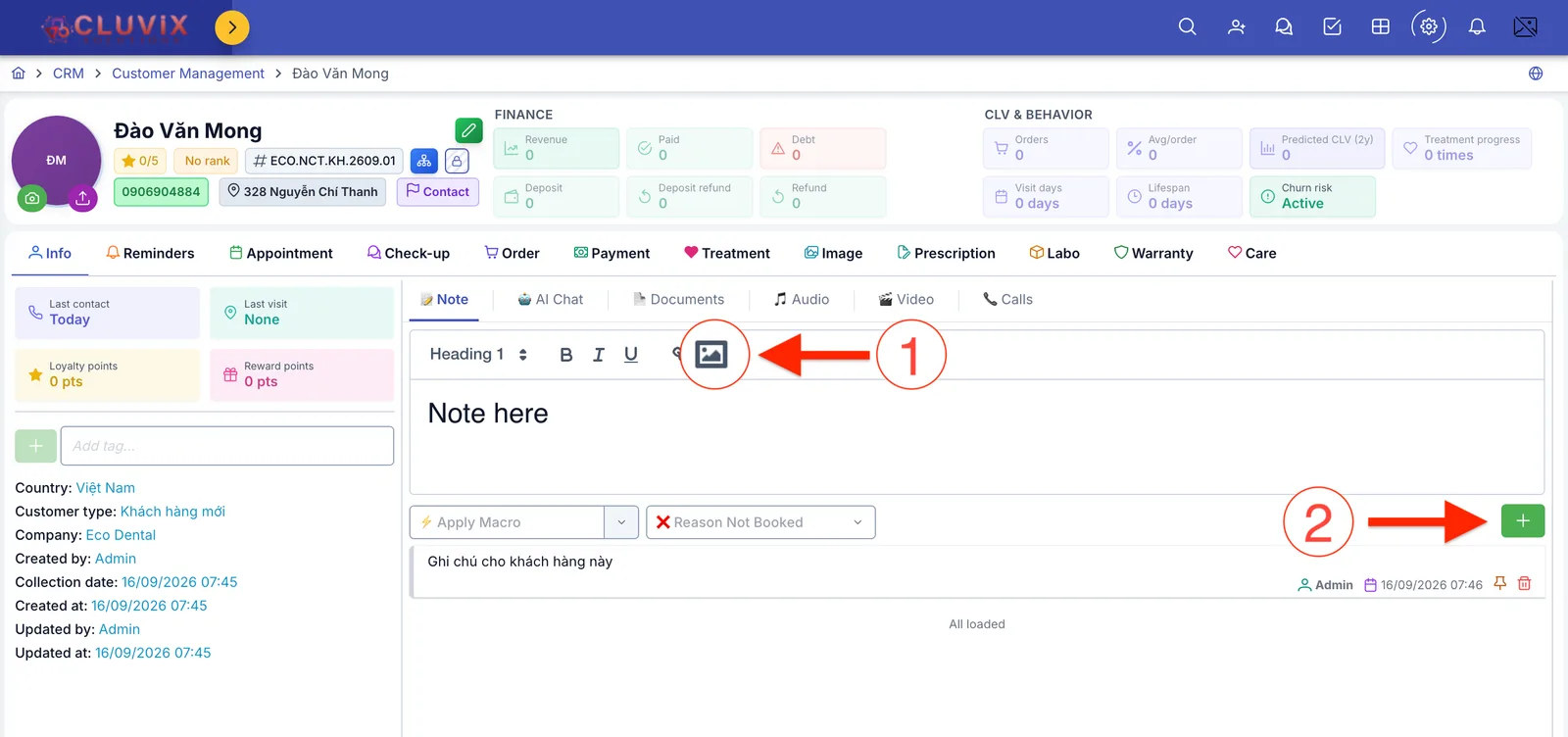
Illustration of the note editor
Write and save a note
Type into the editor, then press the green + button on the right (circled 2 in the picture) to save. The note appears at the top of the list below with your name and the time, and the editor clears itself ready for the next one.
The + button only works when the editor has content — if it looks faded, you have not typed anything yet.
Formatting toolbar
| Button | What it does |
|---|---|
| Normal (the first dropdown) | Text size: Normal for body text, Heading 1/2/3 for increasingly large headings. |
| B | Bold text. |
| I | Italic text. |
| U | Underlined text. |
| Chain link | Insert a link. |
| Picture frame | Insert an image (circled 1 in the picture). |
Inserting images
Press the picture frame button and a file picker opens — you can select several images at once. They appear small in the editor, each on its own line.
Images are only really uploaded when you press +. Because of that:
- A note with images takes a little longer to save — wait for "Note created successfully" before moving on.
- If any image fails to upload, the software says "Image upload failed — Removed X/Y images" and saves nothing at all. Check the images (too large, unstable connection) and press + again.
A screenshot can accidentally contain another customer's name, phone number or medical record. Crop or mask anything extra before inserting it into a note.
The two fields below: Macro and Reason Not Booked
Just under the editor sit two fields. They look like part of the note, but they are not.
Picking a value here saves it straight to the customer's record and shows a success message immediately — you do not need to press + to "save" them. Equally, whatever you are typing in the editor is not saved when you only pick a macro or a reason.
⚡ Apply Macro
A macro is a status label for the customer defined by your clinic, for example Cọc Online (online deposit), Hẹn lịch (booked), Tiềm năng - Cần xác nhận lịch (promising, needs confirmation), Tiềm năng (promising), Tham khảo (just browsing), Số Rác (junk number). Macros make it easy to filter and group customers (patients) for later care.
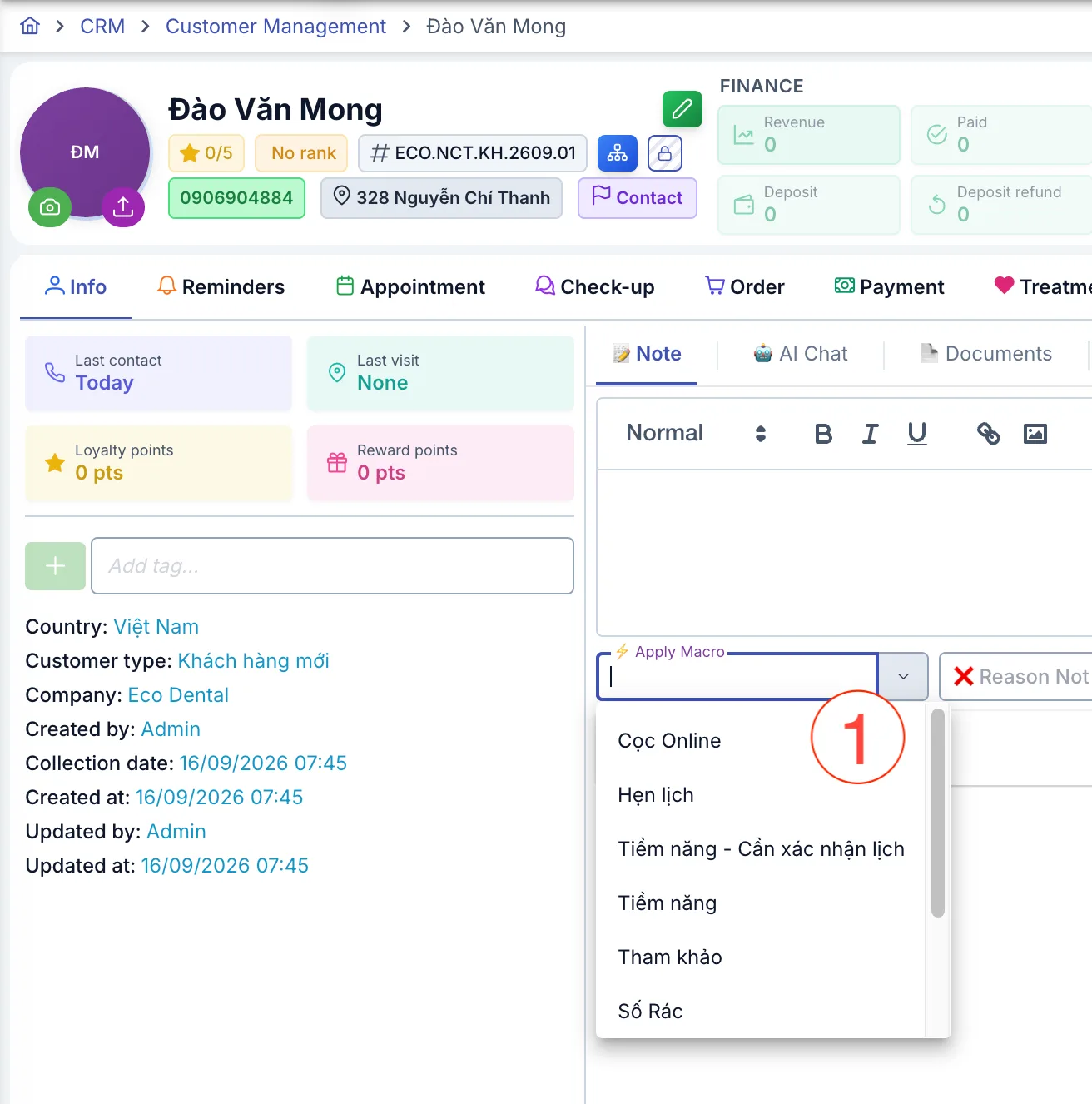
Illustration of the Macro list
Click the field and pick an entry. A "Macro attached successfully" message confirms it. Because these entries are your clinic's own data rather than software labels, they stay in the language they were typed in, and your list may differ from the screenshot.
❌ Reason Not Booked
Use this when you have given advice but the customer still has not booked an appointment — recording why lets the clinic see what is actually costing it customers (patients).
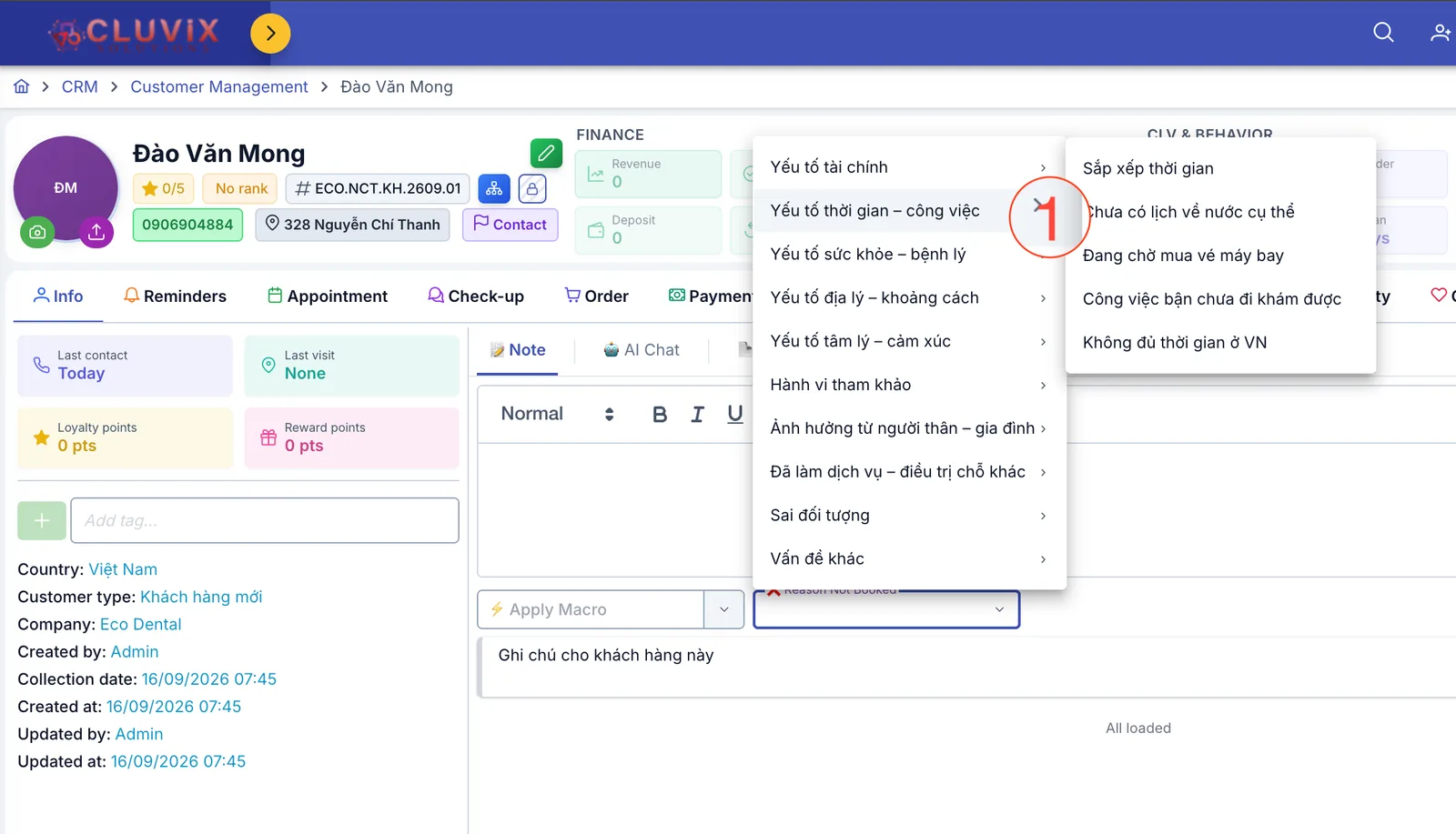
Illustration of the Reason Not Booked list
This list has two levels: click the field to see the broad groups (Yếu tố tài chính — financial, Yếu tố thời gian – công việc — time and work, Yếu tố sức khỏe – bệnh lý — health, Yếu tố địa lý – khoảng cách — distance, Yếu tố tâm lý – cảm xúc — emotional…), hover over a group to reveal the specific reasons inside it, then pick one. The group Yếu tố thời gian – công việc, for instance, holds Sắp xếp thời gian (scheduling), Đang chờ mua vé máy bay (waiting on a flight), Công việc bận chưa đi khám được (too busy to come in).
A "No-appointment reason added" message confirms the choice. This list is also your clinic's own, so it may hold more or fewer entries than the screenshot.
What changes on its own after you save a note
Saving a note does more than store text. The software also does three things:
| Change | What it means for you |
|---|---|
| The customer's Last contact becomes Today | That tile is in the left column of the detail page — one look tells you whether a customer has gone untouched for a while. |
| A customer whose progress is Ticket becomes Lead | Customers (Patients) who arrived as a request move into the sales flow after their first care contact. |
| The CLV & behavior figures are recalculated | See what they mean on the CLV & behaviour page. |
Cover three things: what the customer said, what you did, what to do next. Compare "Advised the customer" with "Asked about clear aligner pricing, comparing us with another clinic. Sent the price list on Zalo. Call back next Thursday" — only the second one helps whoever takes the next shift.
Pinning and deleting notes
Every note in the list has two buttons on its right:
- Pin (the drawing-pin icon) — moves the note to the top of the list, under the Pinned notes heading, with a Pinned badge and the time it was pinned. Use it for things that must always be read first, such as "allergic to local anaesthetic". Press again to Unpin.
- Bin — deletes the note. The software asks "Delete this note?" and only removes it once you confirm.
Scroll to the end of the list and you will see All loaded — meaning there are no older notes, not that something failed.
There is no recycle bin. If a note is wrong, write a new one correcting it — a complete care history beats a missing piece.
Common errors
- The green + button is faded and does nothing → the editor is empty. Type something and it lights up.
- "Image upload failed" → an image could not be uploaded and the note was not saved. Remove the failing image or try again, then press +.
- "Missing content — Note is empty after image processing" → the note held only an image and that image was dropped. Add at least one line of text.
- You picked a macro but no note appeared → that is correct. A macro is saved to the customer (patient)'s record and does not create a note. For a note, type content and press +.
- You see the list of old notes but no editor → your account does not have permission to create notes. Ask your clinic administrator.
Related
- Customer Details — the full screen that holds the note editor.
- Create a Reminder — for when you need the software to remind you at a set time, rather than just recording something.
- CLV & Behavior — the figures recalculated after every note.