Create a Reminder
A reminder is something to do for a customer at a specific time: call back tomorrow afternoon, message them about how they are healing after a procedure, meet next week. Unlike a note — which records what has happened — a reminder is what still has to be done, with someone responsible for it and a completion status.
Open the reminder list
- Open the customer detail page.
- Click the Reminders tab in the business tab row.
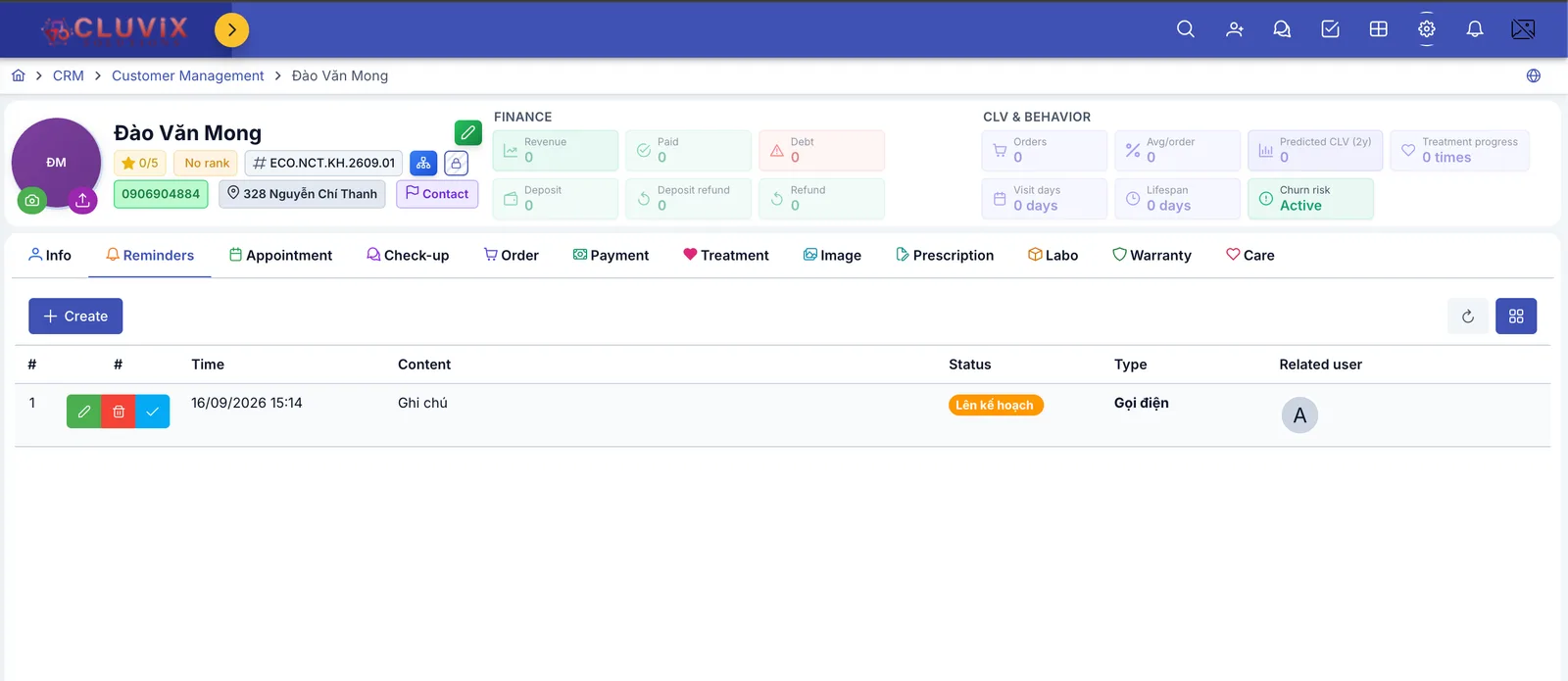
Illustration of the reminder list
This table only shows reminders for the customer currently open, not every reminder in the clinic.
Create a new reminder
Press + Create in the top-left corner and the Add reminder box opens.
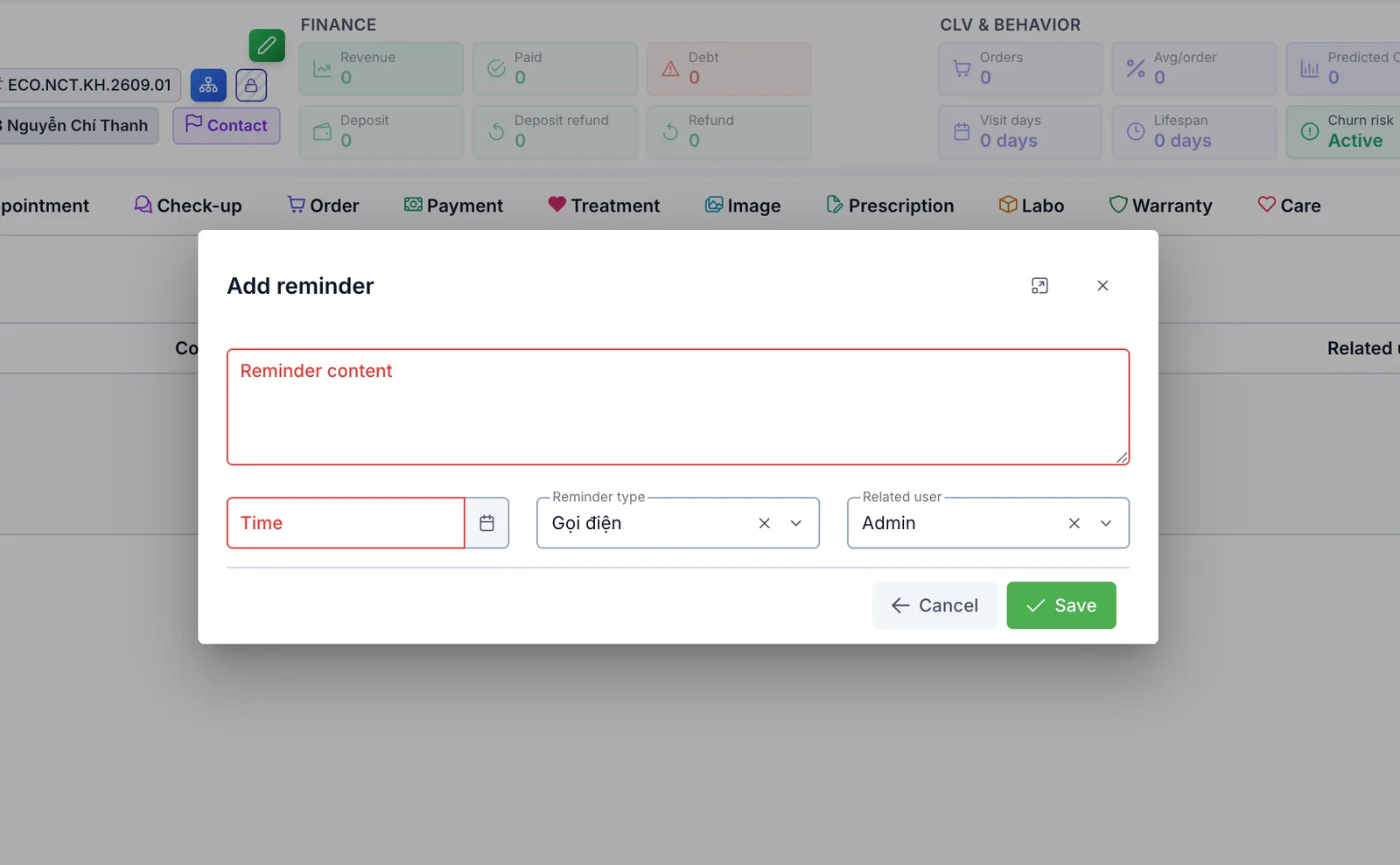
Illustration of the Add reminder box
| Field | Required | What to enter |
|---|---|---|
| Reminder content | Yes | The task, written clearly enough for someone else to understand. |
| Time | Yes | The date and time it has to happen. |
| Reminder type | Yes | How it will be done: Phone call, Facebook chat, Task, Meeting. Phone call is pre-filled. |
| Related user | Yes | Who has to do it. The software pre-fills you, and you can pick several people. |
The screenshot only outlines Reminder content and Time in red because the other two already hold a value. If you clear Reminder type or Related user (with the ✕ inside the field), pressing Save does nothing — fill them back in and it saves.
Press Save. The new reminder appears in the table with the status Planned.
A faster way to enter Time
You can type the date and press Enter instead of opening the calendar: both
20/09/2026 and 20092026 work. A wrong format shows "Invalid time entered" and leaves
the field as it was. To set a particular hour, open the calendar icon and pick both the
date and the time.
Only the people named in Related user are reminded when the time comes. Setting a reminder for a colleague means picking their name; if the whole group should know, add several people to one reminder instead of creating one each.
Reading the table
| Column | What it shows |
|---|---|
| Time | When the task is due. |
| Content | The task itself. |
| Status | Planned (orange badge) or Done (green badge). |
| Type | Phone call, Facebook chat, task or meeting. |
| Related user | Avatars of the people responsible. |
The grid button in the top-right reveals the hidden columns: ID, Reminder code, Created by, Created at, Updated by, Updated at. The circular arrow next to it reloads the table.
Edit, delete and mark as done
Each row has three buttons in its second column:
| Button | What it does |
|---|---|
| Pencil (green) | Edit the reminder — reopens the same box you filled in. |
| Bin (red) | Delete the reminder. |
| Tick (blue) | Mark as done once the task is finished. The software asks "Confirm completed?" before changing the status. |
Once done, the row switches to Done and turns green, so a glance tells you what is still outstanding.
The moment a reminder becomes Done, all three buttons disappear — you cannot edit it, delete it, or move it back to Planned. Only press the tick when the task really is finished; if you hit it by mistake, you have to create a new reminder.
When you actually get reminded
You are reminded two ways, both only for the people named in Related user:
- On the web — if you have unfinished reminders for today, the software opens the "Pending reminders" dialog by itself as soon as you start working. It lists the customer (patient), phone number, due date and content, with a tick button to mark the task done on the spot. The dialog only appears once per session — close it and you have to open the Reminders tab yourself next time.
- On the staff mobile app — a push notification when a reminder falls due, if your clinic uses that app.
The dialog lists every unfinished reminder up to the end of today, including ones already overdue from previous days — so do not be surprised to see older tasks there.
Common errors
- Pressing Save does not close the box → a required field is empty. Check all four: content, time, reminder type, related user.
- "Invalid time entered" → the date was typed in the wrong format. Use
20/09/2026or20092026, or pick it with the calendar icon. - No + Create button → your account lacks permission to create reminders. In the same way, without edit or delete permission those buttons do not appear either. Ask your clinic administrator.
- A row has no buttons at all → that reminder is already Done.
Related
- Customer Details — the screen holding the Reminders tab.
- Add a Note — record what was discussed, with no deadline attached.
- Create an Appointment — when the task is the customer coming in, book an appointment instead of a reminder.