Create a New Customer (Patient)
Creating a customer means adding someone who has just contacted or walked into the clinic into the software, so you can then book appointments, create orders, write medical records and care for them over time. Receptionists and consultants usually do this while on the phone, while replying to a message, or the moment a guest reaches the front desk.
Open the Add new customer box (Patient)
On the top bar, click the person with a plus sign icon. This button is available on every screen — you do not have to be on the Customer Management page to use it.
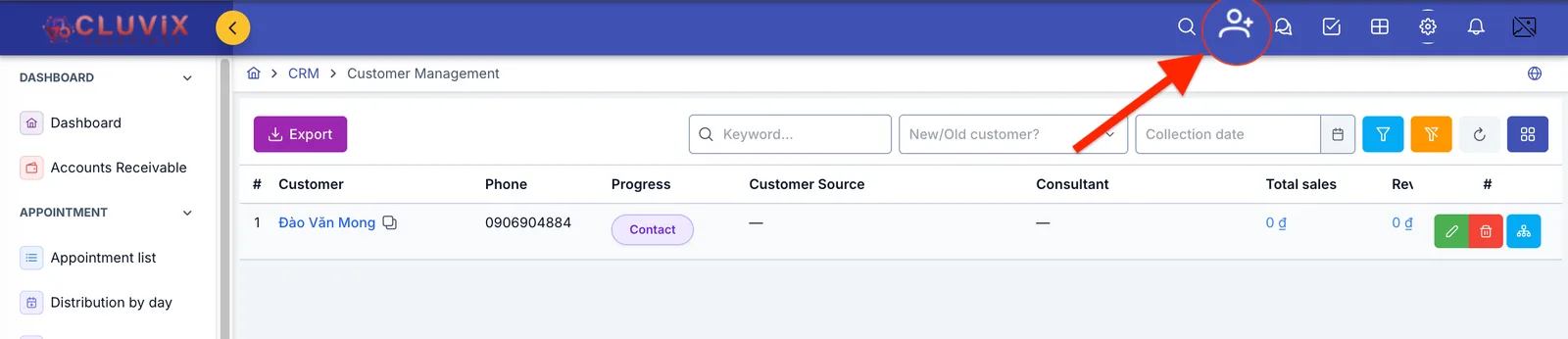
Illustration of the add customer button
If you prefer the keyboard, press Alt + C to open the same box without reaching for the mouse.
Layout of the Add new customer box (Patient)
The Add new customer box is split into 7 tabs, each holding one group of information. You do not have to fill in all 7 — enter what you have now and add the rest later on the customer detail page.
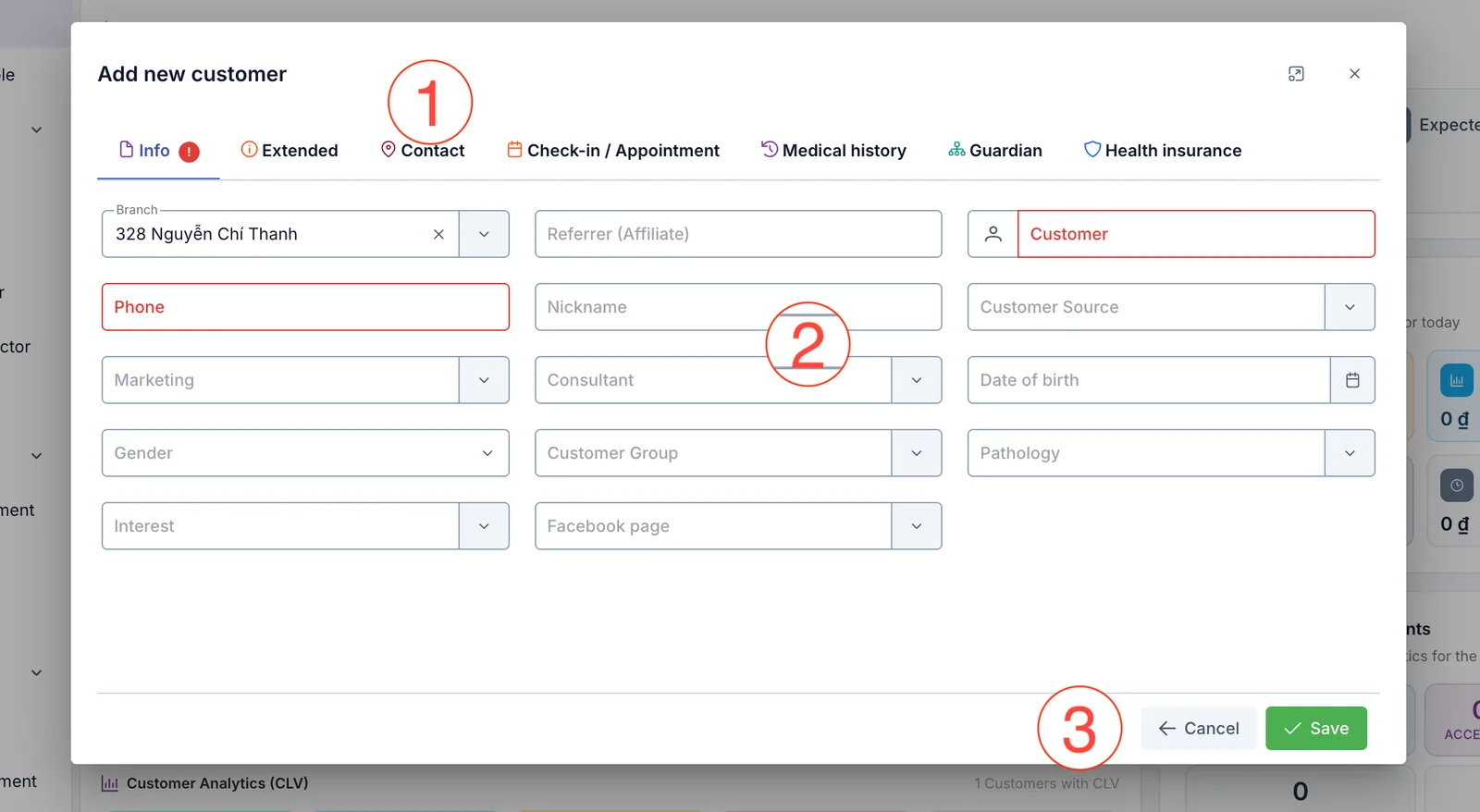
Illustration of the Info tab
- Tab row — click to move between groups of information. A tab that still has an invalid field shows a red dot with an exclamation mark next to its name, so you know which tab to go back to.
- Input area — the fields of the tab you are on. A field with a red border is required; you cannot save while it is empty.
- Cancel and Save buttons — always in the bottom-right corner, whichever tab you are on.
Apart from Customer (full name), which is required everywhere, whether a field is marked required depends on each clinic's own configuration, and it can differ between sales staff and front-desk staff. So the screenshots here may show a red border on a field that is optional for you, or the other way round — always trust the red borders on your own screen.
Info tab
This is the tab that opens first and holds the information used most often day to day.
| Field | What to enter |
|---|---|
| Branch | The branch receiving the customer. The software pre-fills the branch you are working in. Example: 328 Nguyen Chi Thanh |
| Referrer (Affiliate) | The affiliate who referred this customer. Type at least 2 characters (name, code or phone) and pick from the suggestions. Example: Nguyen Thi Hoa - 0912… |
| Customer | The customer's full name, up to 100 characters. Required. Example: Dao Van Mong |
| Phone | Main contact number, up to 25 characters. Example: 0906904884 |
| Nickname | The name the customer usually goes by, up to 50 characters. Example: Ms. Mong |
| Customer Source | How the customer heard about the clinic. The list is defined by your clinic. Example: Facebook, Word of mouth |
| Marketing | The marketing staff member in charge of this customer. Example: Tran Thu Ha |
| Consultant | The person who advises and follows up with the customer. Example: Le Minh Anh |
| Date of birth | The customer's date of birth. Example: 12/05/1990 |
| Gender | Choose Male, Female or Other. Example: Female |
| Customer Group | The group your clinic uses to classify customers (patients). Example: VIP customer (patient) |
| Pathology | The condition the customer has or is interested in. Example: Dermatology |
| Interest | The type of service the customer is asking about. Example: Braces |
| Facebook page | The Facebook page the customer messaged. Example: Main fanpage |
A faster way to enter Date of birth
You can type the date and press Enter instead of opening the calendar: both
12/05/1990 and 12051990 work, and the software fills the field for you. A wrong
format shows "Invalid birthday" and leaves the field empty. Future dates cannot be
selected.
Customer, Phone and Customer Source are the three fields to always capture. Without a phone number you cannot call back; without a source you will not know at the end of the month which channel your advertising money is actually bringing customers (patients) from.
Extended tab
This tab covers administrative details and advertising tracking. For a regular walk-in customer (patient) you can skip the whole tab.
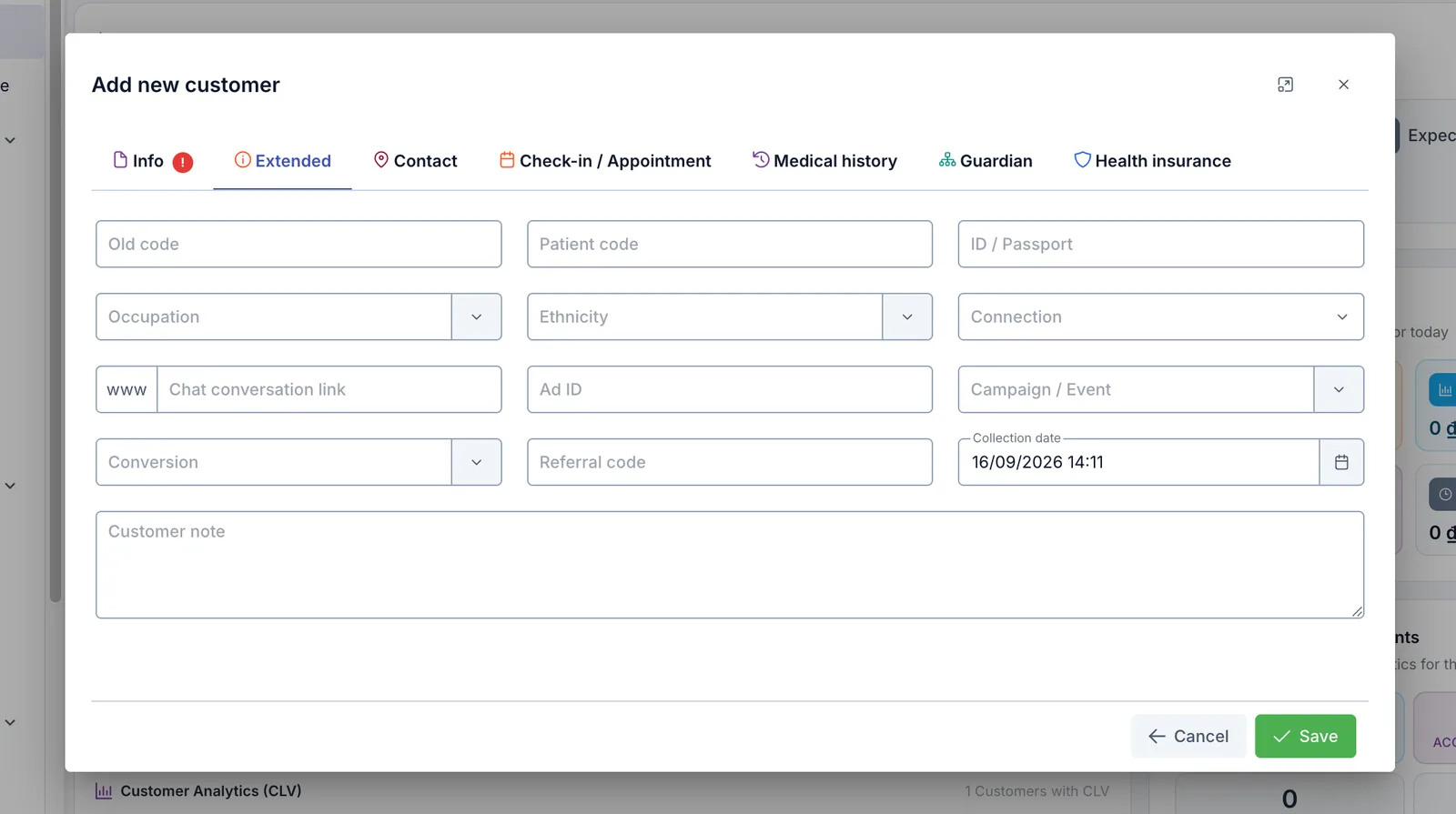
Illustration of the Extended tab
| Field | What to enter |
|---|---|
| Old code | The customer's code in your previous software, used when migrating data into CluvixHealth. Up to 50 characters, no spaces. |
| Patient code | A patient code defined by your clinic, up to 50 characters. |
| ID / Passport | ID card, passport or personal identification number, up to 20 characters. Needed for medical records and health insurance. |
| Occupation | The customer's occupation, picked from the existing list. |
| Ethnicity | The customer's ethnicity, picked from the existing list. |
| Connection | Contact status with the customer: Connected or Disconnected. |
| Chat conversation link | Link to the conversation with the customer on Facebook/Zalo, up to 500 characters. |
| Ad ID | The identifier of the advert that brought the customer in, up to 100 characters. |
| Campaign / Event | The promotion or event the customer came from. |
| Conversion | The conversion-team member handling this customer. |
| Referral code | The code the referrer gives the customer so their commission is tracked, up to 25 characters. |
| Collection date | The date and time you received the customer's details. The software pre-fills the current moment; you can change it, but not to a future date. |
| Customer note | A free-text note. It is saved as the first note in the customer's file, not as a field on the customer record. |
Contact tab
Where you keep every other way of reaching the customer, plus their addresses.
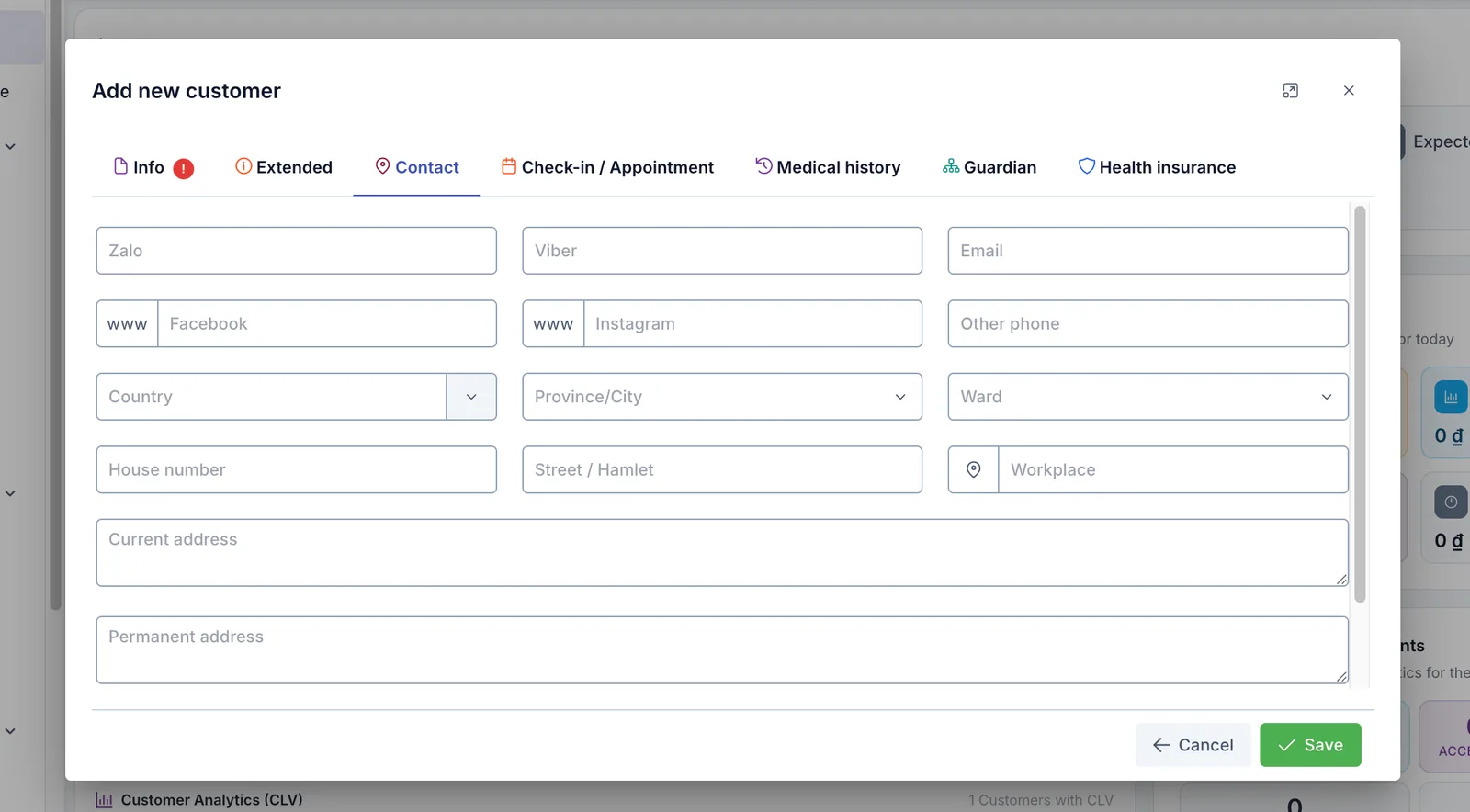
Illustration of the Contact tab
| Field | What to enter |
|---|---|
| Zalo, Viber | The number or account the customer uses on these two apps. |
Email address. An invalid format (a missing @) is rejected when you save. | |
| Facebook, Instagram | Links to the customer's profiles. |
| Other phone | A secondary number, for example a relative's, up to 25 characters. |
| Country | Pre-filled with Việt Nam. |
| Province/City | Pick the province first — only then does the Ward list appear. |
| Ward | Chosen after Province/City. |
| House number | House number, up to 100 characters. |
| Street / Hamlet | Street, village or hamlet name, up to 255 characters. |
| Workplace | The company the customer works for. |
| Current address | Where the customer lives now, up to 500 characters. |
| Permanent address | The address on their documents, up to 500 characters. Used for medical records and insurance. |
| Other address | An additional address, up to 500 characters. |
These three fields depend on each other. When you change Country, the software also clears Province/City and Ward so an address cannot be mixed up — you have to pick them again. In the same way, clearing Province/City clears Ward.
Check-in / Appointment tab
This tab lets you create the customer and book their appointment in one go, without opening the appointment screen. It only appears when creating a new customer, not when editing an existing one.
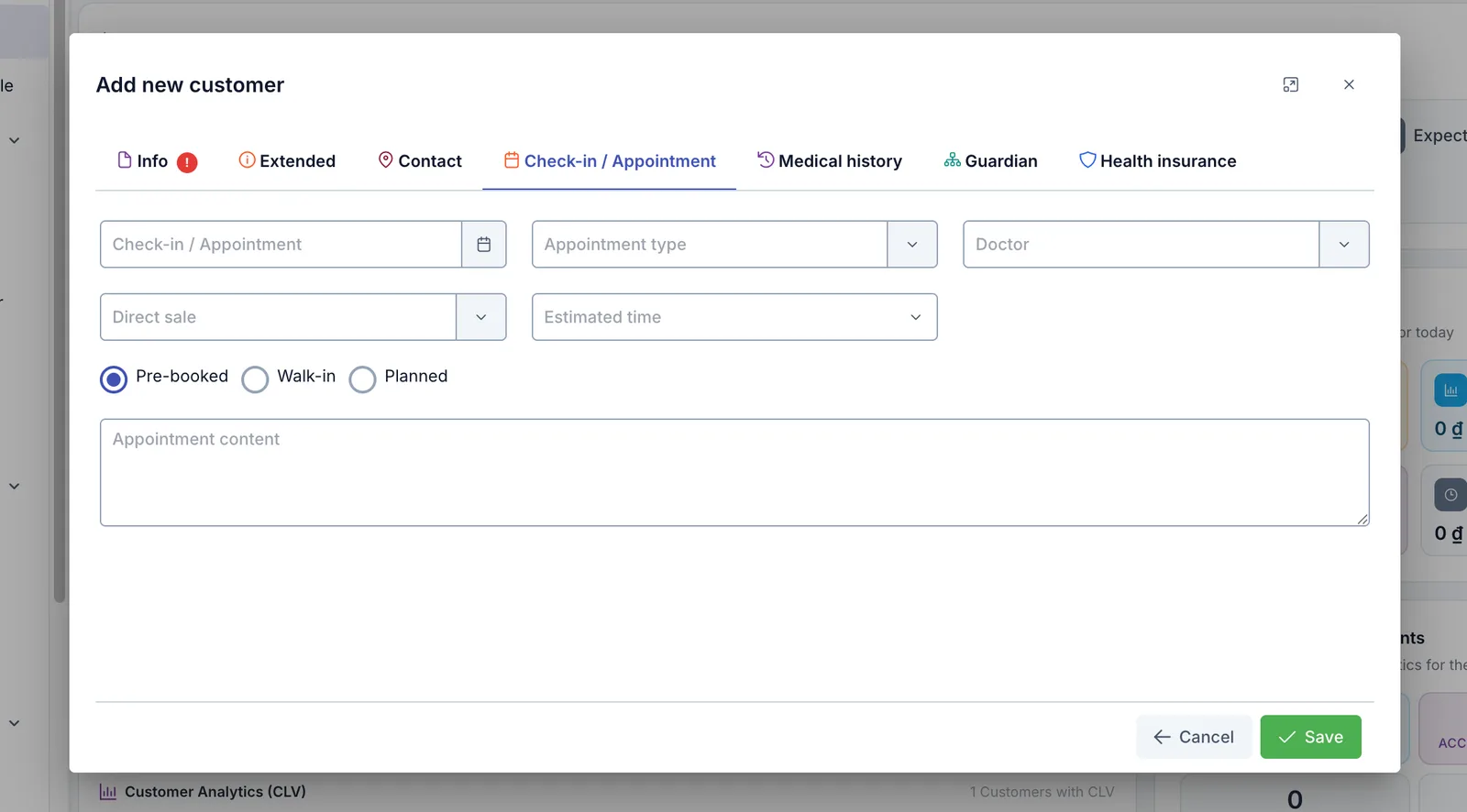
Illustration of the Check-in / Appointment tab
| Field | What to enter |
|---|---|
| Check-in / Appointment | The date and time the customer will arrive. Leave it empty and no appointment is created. |
| Appointment type | The type of visit, from the list your clinic defines (first visit, follow-up…). |
| Doctor | The doctor who will see the customer. |
| Direct sale | The direct sales staff member handling the visit. |
| Estimated time | How long the visit should take: 30 minutes, 1 hour, 1 hour 30 minutes, 2 hours or 3 hours. |
| Pre-booked / Walk-in / Planned | How the customer shows up: Pre-booked means arranged in advance, Walk-in means they came without an appointment, Planned means it is still a rough plan. Pre-booked is selected by default. |
| Appointment content | What the visit is for, in free text. |
The time you enter also decides the starting status of the appointment:
| Time you enter | What the software assumes |
|---|---|
| In the future | The customer has not arrived — the appointment waits, and the customer's Progress column reads Appointment. |
| Now or in the past | The customer is already here — the appointment is checked in straight away, and the Progress column reads Arrived. |
If you enter an appointment time while Branch on the Info tab is empty, the software shows "Please select a branch to create an appointment" and saves nothing — neither the customer nor the appointment is created. Go back to the Info tab, choose a branch, then press Save again.
Medical history tab
Where you quickly flag the underlying conditions that matter before any treatment.
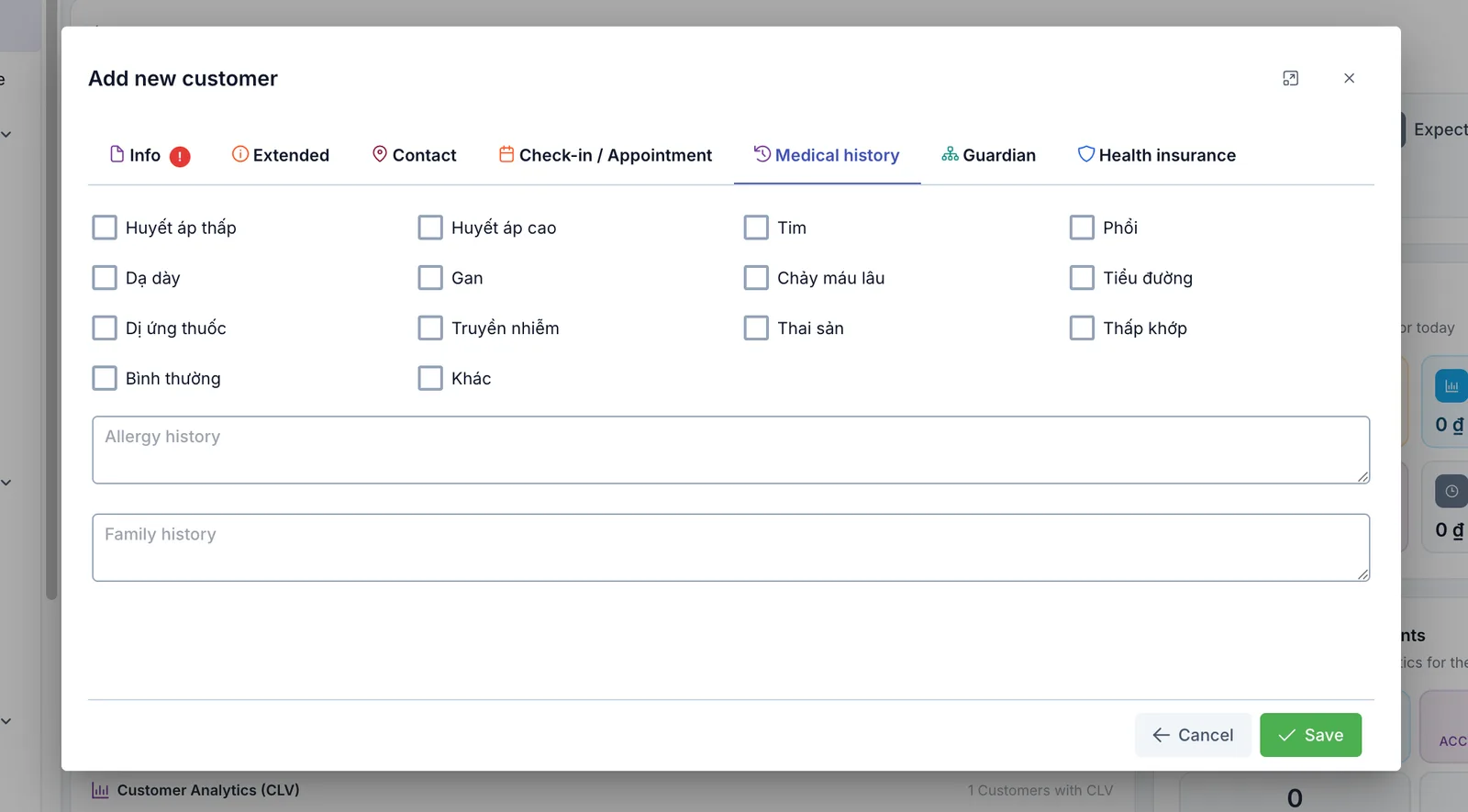
Illustration of the Medical history tab
- The upper part is a set of checkboxes — tick one and the customer has that history; you can tick as many as apply. This list is defined by each clinic, so yours may have more or fewer entries than the screenshot. Because the entries are your clinic's own data rather than software labels, they stay in the language they were typed in — in the screenshot they read Huyết áp thấp (low blood pressure), Huyết áp cao (high blood pressure), Tim (heart), Phổi (lungs), Dạ dày (stomach), Gan (liver), Chảy máu lâu (prolonged bleeding), Tiểu đường (diabetes), Dị ứng thuốc (drug allergy), Truyền nhiễm (infectious disease), Thai sản (pregnancy), Thấp khớp (rheumatism), Bình thường (normal) and Khác (other).
- Allergy history — spell out what the customer is allergic to, drug allergies above all.
- Family history — conditions in close relatives that may affect the customer.
This section is shown again in the medical record, so the doctor reads it before prescribing or performing a procedure. If drug allergy or prolonged bleeding is ticked, add the details in Allergy history — one specific line is worth far more than a tick box.
Guardian tab
This tab has two clearly separated parts used for two different purposes.
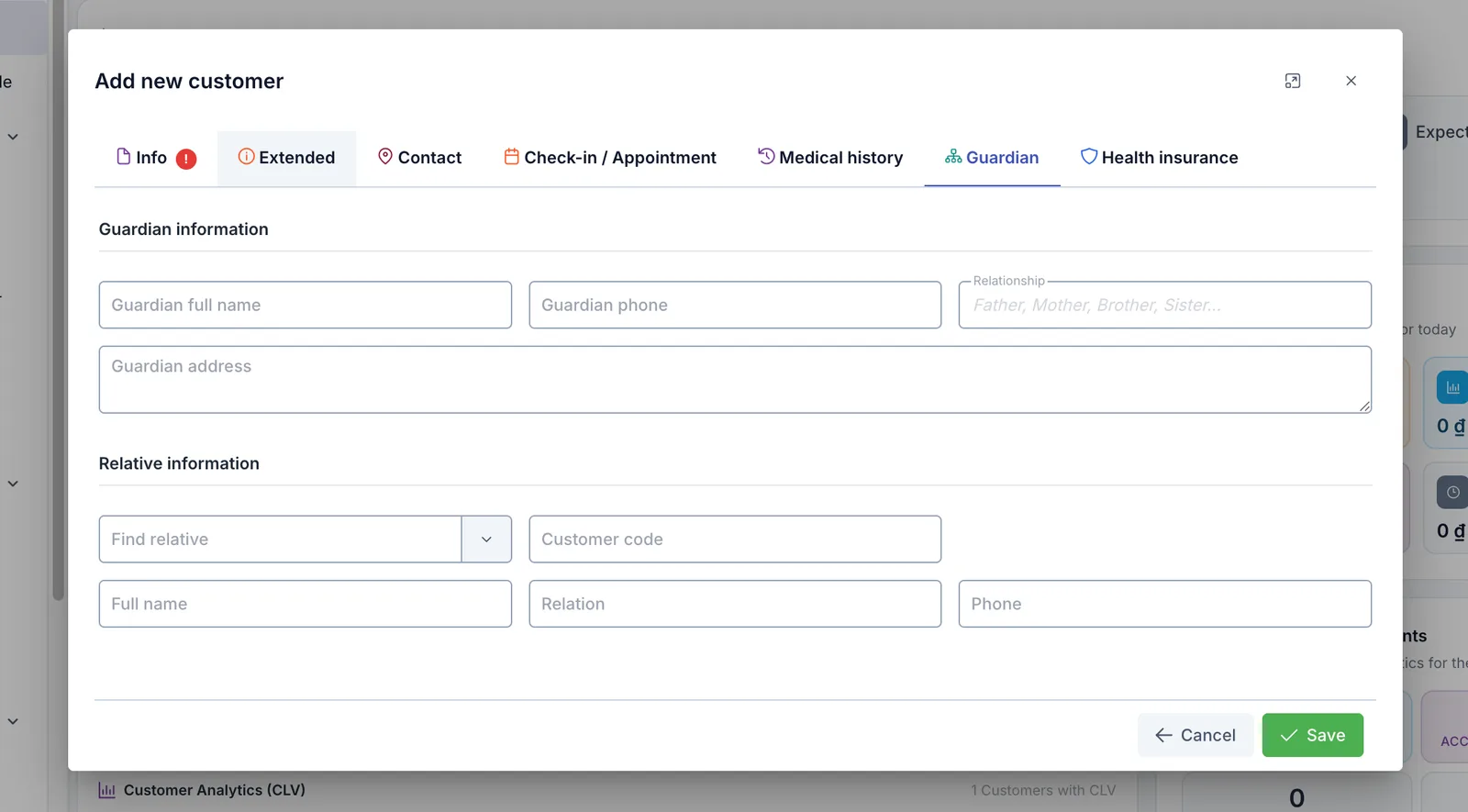
Illustration of the Guardian tab
Guardian information — used when the customer is a child, an elderly person, or anyone who needs someone else to sign documents for them. It holds Guardian full name, Guardian phone, Relationship (free text: Father, Mother, Brother, Sister…) and Guardian address.
Relative information — used when a family member is also a customer of the clinic, so the two files can be linked:
- Type at least 3 characters in Find relative (name or phone) and pick the person from the list.
- Customer code, Full name and Phone are filled in automatically from the person you chose. Click the ✕ to clear them and search again.
- Add the Relation field yourself (Spouse, Child…).
The relative section is only saved when Full name has a value. If the relative is not in the list yet, you can still type all three fields by hand.
Health insurance tab
Used when the customer is treated under health insurance, or when the clinic needs the card details on file.
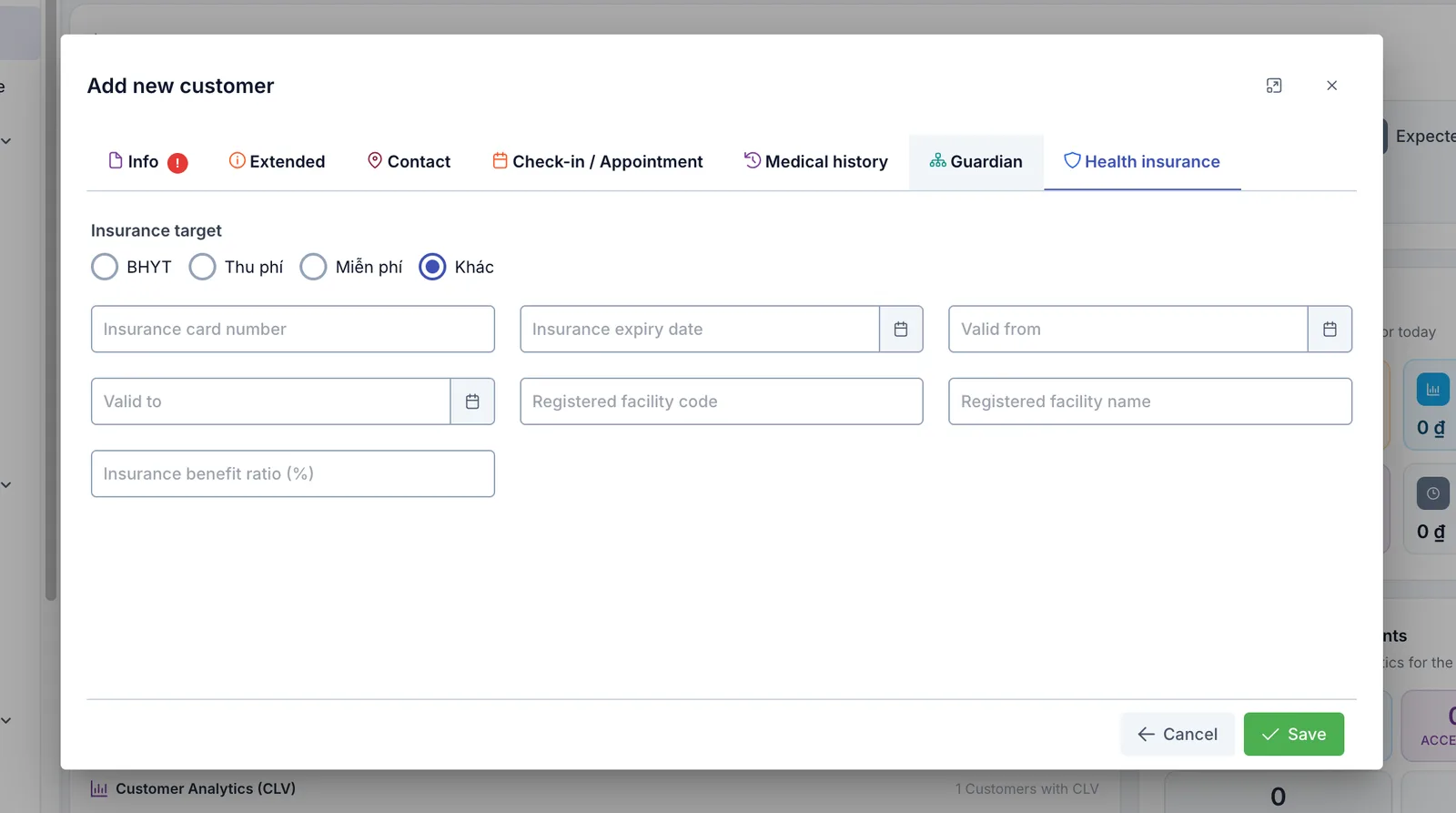
Illustration of the Health insurance tab
The tab starts with Insurance target and its 4 options. These four labels stay in Vietnamese even in the English interface, so they are written here exactly as they appear on screen. Khác (other) is selected by default:
| Option | Use it when |
|---|---|
| BHYT | The customer is treated under a health insurance card. |
| Thu phí (fee-paying) | The customer pays for everything themselves. |
| Miễn phí (free) | The customer is exempt under your clinic's policy. |
| Khác (other) | Everything else — this covers most private-service customers (patients). |
The fields below are: Insurance card number (up to 15 characters, typed in capitals), Insurance expiry date, Valid from, Valid to, Registered facility code (up to 5 characters), Registered facility name and Insurance benefit ratio (%) — a number between 0 and 100.
The moment you select BHYT, the fields Insurance card number, Valid to and Registered facility code become required. If one is missing, the Health insurance tab shows a red dot and the record cannot be saved. Switching back to Thu phí, Miễn phí or Khác makes them optional again.
Save and check the result
Press Save in the bottom-right corner. If everything is valid, the box closes and the software opens the new customer's detail page — the surest sign the record was saved.
On that page, check two things:
- The Customer code exists: the software generates it from the branch. If Branch was empty when you saved, the customer has no code — open their file, choose a branch and save again.
- The customer's Progress: it reads Appointment or Arrived if you entered an appointment; otherwise Lead or Contact, depending on the team the creator belongs to.
The new customer also appears straight away in CRM › Customer Management.
When the software warns about a duplicate
Duplicates are checked at two levels — one only warns you, the other blocks the save.
A warning: same phone number or same old code
If the phone number (or Old code) you entered already belongs to another customer, a Possible duplicate customer table appears listing those customers together with their consultant, who created them and when. You have two choices:
- Press Cancel to go back and edit — the right choice when you realise this is an existing customer and you should open their file instead of creating a second one.
- Press Save duplicate to create the new customer anyway — for when two people really do share one number (a couple, a mother and a young child).
A block: same full name and phone number
If both the full name and the phone number match an existing customer, the software answers "Duplicate customer (patient), this action cannot be performed" and creates nothing. That is almost certainly an existing file — find it with the magnifying glass on the top bar and work on the record you already have.
Common errors
- "Invalid birthday" → you typed the date of birth in the wrong format. Retype it as
12/05/1990or12051990, or use the calendar icon. - "Invalid collected date" → the same thing in the Collection date field on the Extended tab.
- "Please select a branch to create an appointment" → you entered an appointment time but no branch. Choose a branch on the Info tab and save again.
- Pressing Save does nothing → a required field is still empty. Look at the tab row: the tab with a red dot holds it, and inside it the field with the red border is the one.
- The Ward list is empty → you have not chosen a Province/City yet. Pick the province first and the wards will appear.
- Customer Source, Interest, Pathology, Facebook page or Campaign / Event cannot be selected → these fields depend on the brand you are working in; if they stay locked, the matching list has not been set up — ask your clinic administrator to add it.
Related
- Create a note — add a note to a customer once their file exists.
- Create an appointment — book a visit for a customer already in the software.
- CLV & behaviour — the customer-value figures shown on the detail page.