Record a Check-up
A check-up is the record of a doctor examining a customer: which tooth has what problem, what is proposed, what the customer said. The neat part is that you do not type the diagnosis — you pick a condition and click the tooth on the chart, and the software writes the sentence for you.
Doctors and assistants use this; the front desk usually just reads it.
Open the Add consultation window
- Go to CRM › Customer Management and click the customer's name to open their profile.
- Choose the Check-up tab in the tab row.
- Click Create.
The tab is only enabled for dental clinics. Other specialties use Electronic Medical Records instead.
What is in the window
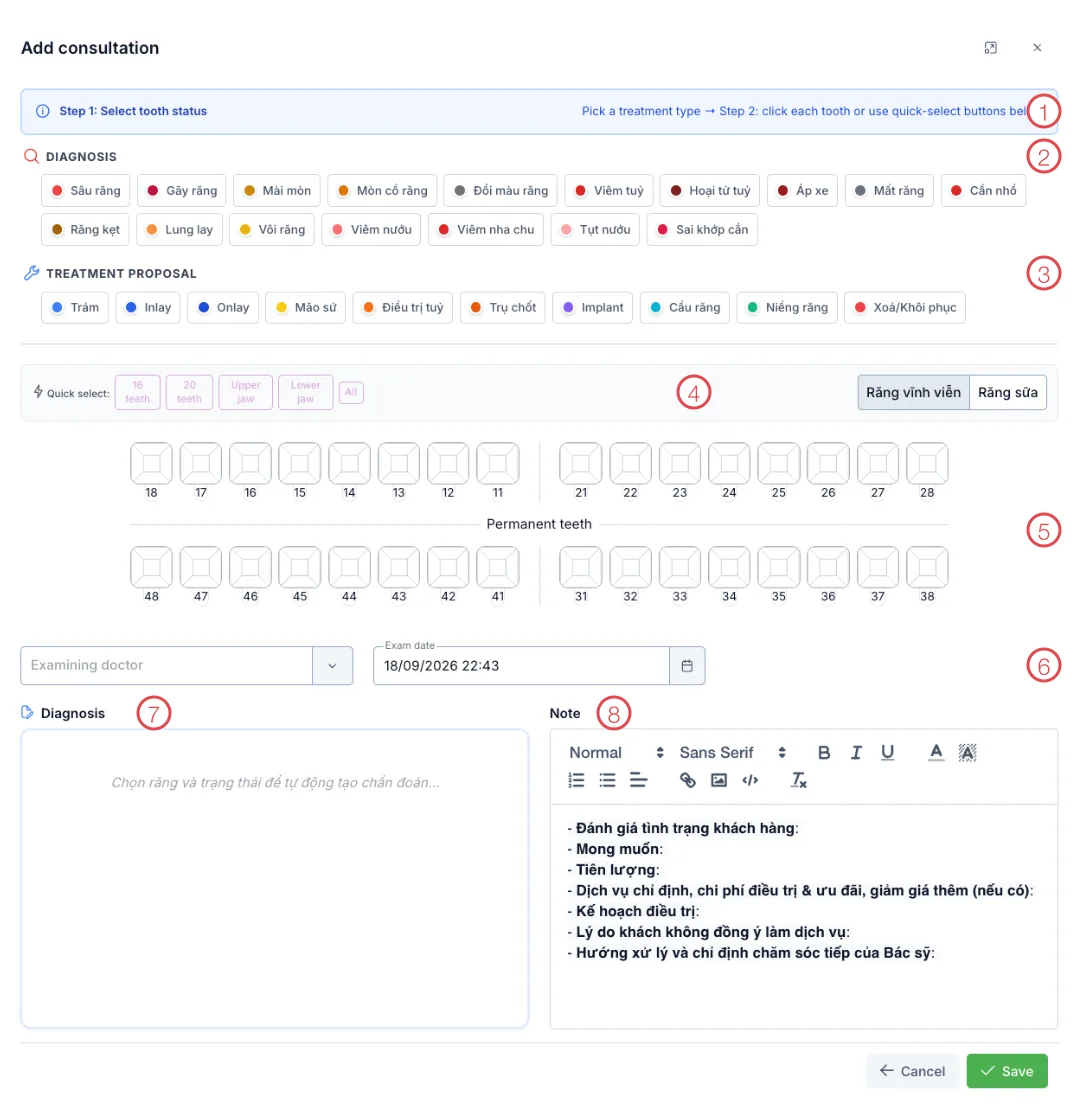
Illustration of the Add consultation window
| Area | What it is for |
|---|---|
| 1. Guidance bar | Tells you which step you are on: pick a status, then click the teeth. |
| 2. Diagnosis | 17 tooth conditions. |
| 3. Treatment proposal | 10 suggested treatments. |
| 4. Quick select & tooth set | Select whole groups at once; switch between permanent and baby teeth. |
| 5. Tooth chart | Click each tooth to apply the status you picked. |
| 6. Doctor & exam date | Who examined, and when. |
| 7. Diagnosis box | The sentence the software writes for you from your clicks. |
| 8. Note | A seven-line template for what was discussed. |
Step 1: Pick the tooth status
The blue bar reads "Step 1: Select tooth status". Click one item under DIAGNOSIS (what is wrong) or TREATMENT PROPOSAL (what you intend to do).
The 17 diagnoses and 10 treatments come from your clinic's own list, so they stay in Vietnamese even when the software is in English. Xoá/Khôi phục is the eraser: pick it and click a tooth to undo a mark.
Every item has its own colour — that colour is what fills the tooth on the chart.
Step 2: Click the teeth
Once picked, the bar turns green: "Step 2: Click the tooth to treat", with Selected: <condition> on the right. Now click the teeth.
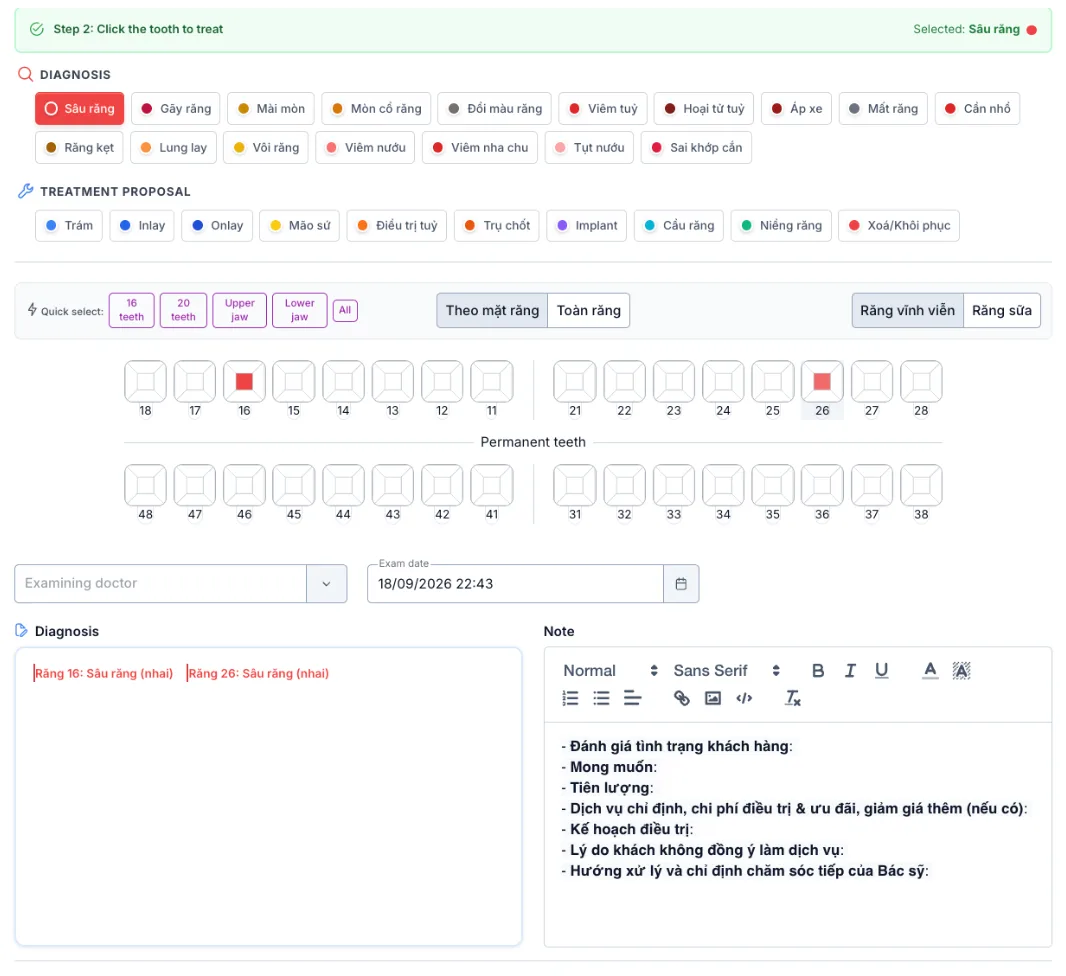
Illustration of the result after selecting teeth
Clicked teeth take the colour of the condition and the Diagnosis box gains a line such as "Răng 16: Sâu răng (nhai)" — tooth 16, decay, chewing surface.
Reading the chart: teeth use the international numbering. The top row is the upper jaw (18→11 on the left, 21→28 on the right), the bottom row the lower jaw (48→41 and 31→38). The first digit is the quadrant, the second the position counting out from the middle.
Two ways to click (the toggle in the middle of the quick-select bar):
| Mode | Meaning |
|---|---|
| Theo mặt răng (by surface) | Marks one surface of the tooth — for a single-surface filling. |
| Toàn răng (whole tooth) | One click marks the whole tooth. |
Quick select handles many teeth at once: 16 teeth, 20 teeth, Upper jaw, Lower jaw, All. For a child, switch the chart to Răng sữa (baby teeth).
Pick Xoá/Khôi phục (remove/restore) from the treatment list and click that tooth again — it returns to white and its line disappears from the Diagnosis box.
Step 3: Doctor, date and notes
- Examining doctor — who performed the examination.
- Exam date — pre-filled with now; change it if you are recording afterwards.
- Diagnosis — written by the software; you can still type into it.
- Note — a seven-line template covering the customer's condition, what they want, the prognosis, the services and prices quoted, the treatment plan, why the customer declined, and the doctor's follow-up instructions.
When a customer listens to the consultation and does not commit, recording the real reason — price, fear of pain, needs to ask family — tells the next consultant how to talk to them. Leaving it blank throws that away.
Click Save to store the check-up in the customer's profile.
Related
- Customer Details — where the Check-up tab lives.
- Upload Images — before/after photos for the visit.
- Create a Care Record — schedule the follow-up call.