Upload Images
Before-and-after photos are the clearest evidence of the clinic's work: the customer sees the progress, the doctor compares across visits, and if there is ever a complaint the photos speak for themselves. The Image tab in the customer profile holds all of them — phone shots, webcam captures, scope images and ultrasound frames alike.
Open the Image tab
Open the customer (patient) profile and click the Image tab in the tab row.
It only appears for accounts with permission to view customer photos. Treatment images are sensitive data, so clinics usually restrict who can see them — ask your administrator if you need access.
Step 1: Create a folder
The first time, the screen says "Create a folder before uploading treatment images". The software requires a folder before any upload, so photos never pile up unsorted.
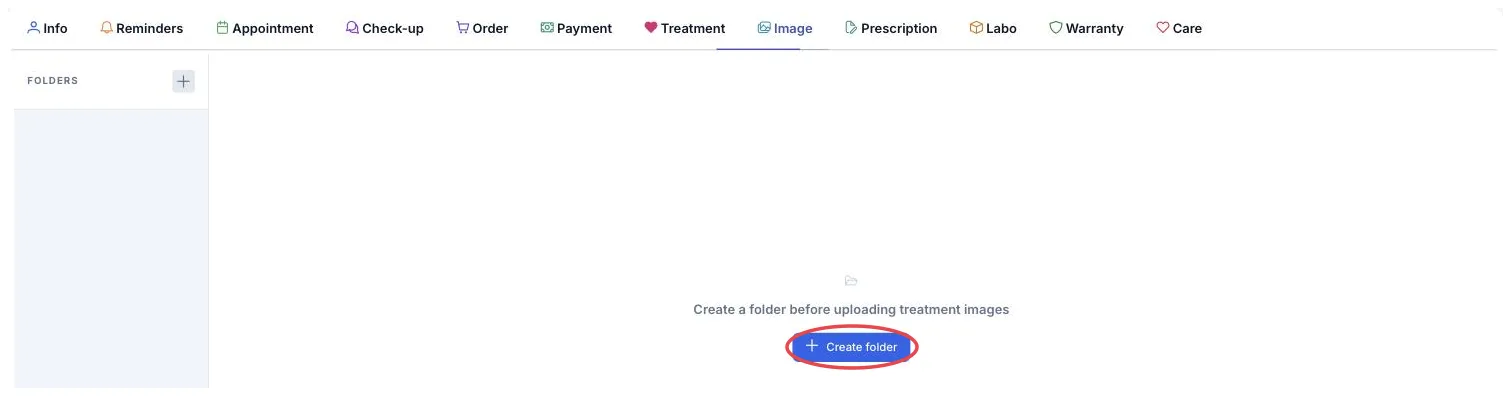
Illustration of the Image tab before any folder exists
Click Create folder (or the + in the FOLDERS column on the left), type a name and click Save.
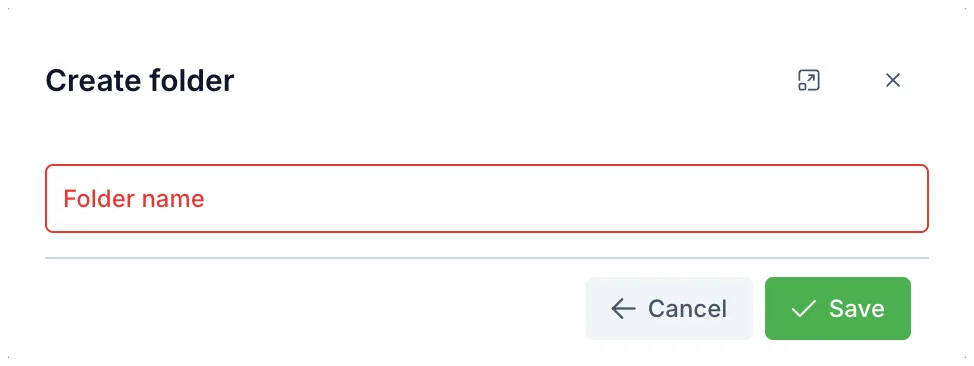
Illustration of the Create folder window
Names like "Before treatment 03-2026" or "6 months into braces" tell the next person exactly what they are looking at. "Photos 1" or "New" will confuse even you in a few months.
Step 2: Upload the photos
With a folder selected on the left, the toolbar appears on the right.

Illustration of the Image tab once a folder exists
| Position | What it is for |
|---|---|
| 1. Folder list | This customer's photo folders. Click to open one. |
| 2. Open folder name | Shows where the next upload will land. |
| 3. Capture | Shoot straight into the profile with a webcam, scope or ultrasound machine — see Capture directly. |
| 4. Upload | Pick existing image files from the machine. |
Photos taken on a phone: send them to the computer → click Upload → select them → wait for the upload to finish. Select as many as you like at once; the software uploads them in turn.
Photos always go into the folder shown at position 2. Uploading into the wrong one means deleting and doing it again.
Capture directly
Click Capture (position 3) and the Capture image window opens. When the clinic has a device plugged into the computer this is the fastest route: the photo lands in the profile the moment you take it, no copying back and forth.
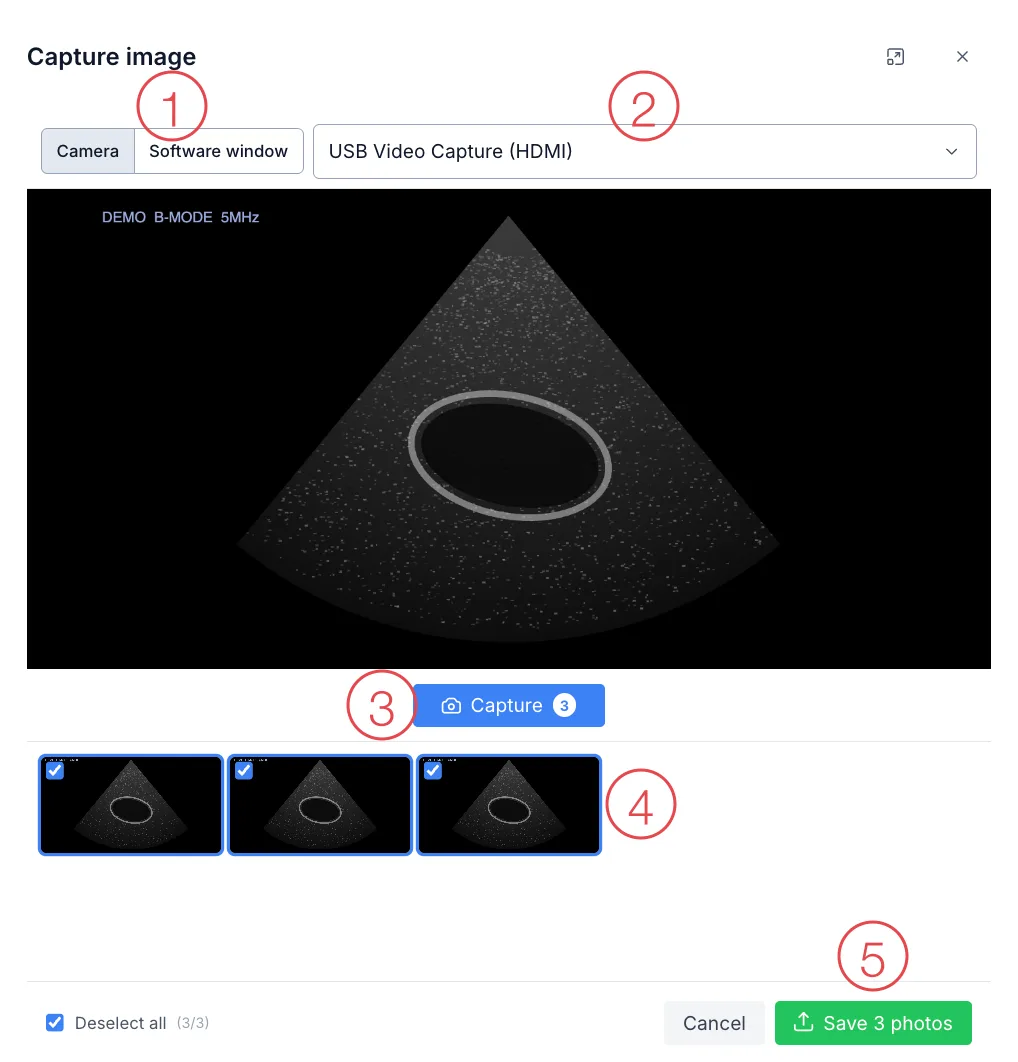
Illustration of the Capture image window (demo ultrasound image)
| Position | What it is for |
|---|---|
| 1. Image source | Choose Camera or Software window — see the table just below. |
| 2. Select camera | The device providing the picture, when the computer has several cameras. |
| 3. Capture | Take one photo. The number on the button is how many you have taken. |
| 4. Captured photos | The photos just taken. Untick one to leave it out; hover a photo to show the x that deletes it. |
| 5. Save N photos | Upload the ticked photos into the open folder. |
The image source switch (position 1) has two modes:
| Source | Use it when |
|---|---|
| Camera | The device plugs into the computer and Windows sees it as a camera: webcams, dermatoscopes, ENT endoscopes, intraoral cameras, ultrasound machines connected through a video capture adapter. |
| Software window | The device is only viewable in its maker's own software (e.g. a USB ultrasound probe). CluvixHealth captures straight from that window. |
The software remembers the source and device you picked on each computer. Next time the window opens on the device you normally use.
Capture with a camera or scope
- Choose Camera on the source switch.
- If the computer has several devices (say a webcam and a scope), pick the right one in Select camera. Plug a device in or out and the list updates itself.
- Frame the shot on screen and click Capture. Click as many times as you need — each click is one photo, shown in the strip below.
- Untick photos you don't want, or hover a photo and click its x to delete it.
- Click Save N photos (N is the number ticked).
The capture window only closes once every photo has uploaded. If a shaky connection leaves some photos behind, they stay in the window — click save again and you're done, no need to retake them.
The browser asks whether this page may use the camera — click Allow. It only asks once per computer.
Connect an ultrasound machine through its video output
If the ultrasound machine has a video output for a second monitor (HDMI, DVI, VGA, S-Video), connect it to the computer with a USB video capture adapter (often called a capture card):
- Run a cable from the machine's video output into the adapter, and plug the adapter's USB end into the computer.
- Open the Capture image window, choose Camera, then pick the adapter in Select camera (its name usually contains USB Video, Capture or the adapter's brand).
- The ultrasound image appears — click Capture just as with a normal camera.
Pick one labelled UVC or driver-free / plug and play — Windows recognises these as a webcam the moment they are plugged in. For an older machine with only S-Video/AV output, choose an adapter with that input, or add a converter to HDMI.
Capture from a device's software window
For devices that display their image in the maker's own software — typically an ultrasound probe plugged straight into a USB port.
In the Capture image window, switch the image source to Software window and the Select window button appears.
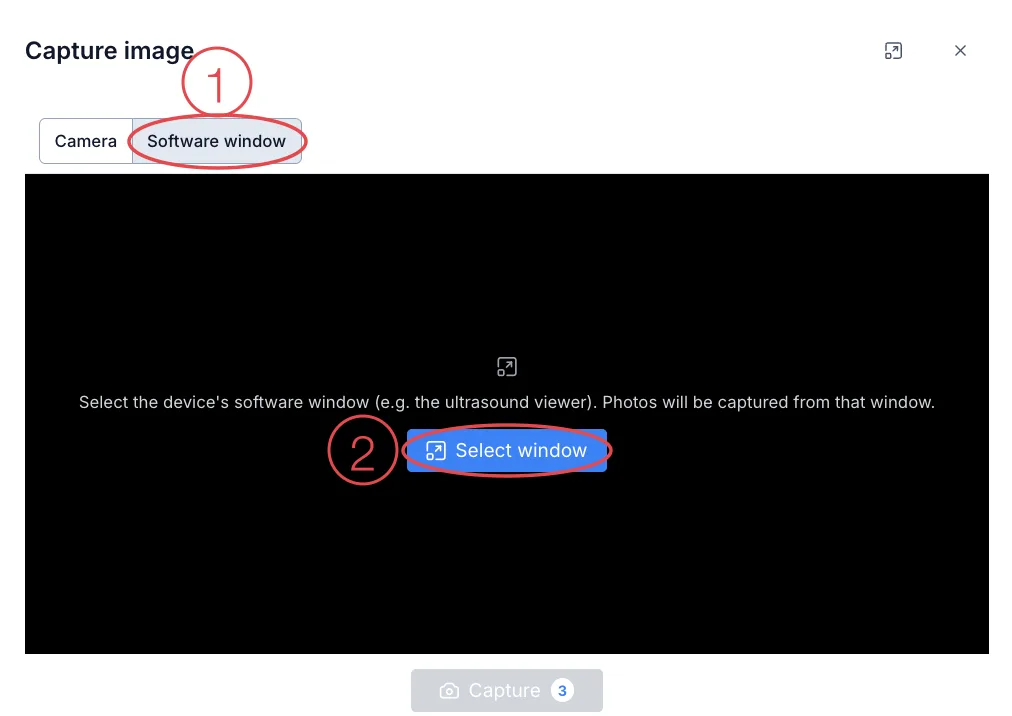
Illustration of the Capture image window in Software window mode
- Open the maker's software on the computer so the image is on screen.
- In the Capture image window, choose Software window (position 1) and click Select window (position 2).
- The browser shows a picker — choose the device's software window and click Share.
- The image from that window appears in the capture window — click Capture and save as usual.
For privacy, the browser asks you to pick the window each time the Capture image window opens. If you click Stop sharing on the browser's bar, the capture window shows a Select window again button so you can carry on.
Keep the device's software window open on screen while capturing — don't minimise it to the taskbar. Maximise that window for a bigger, sharper image.
When the Capture image window shows an error
- "No camera found. Please connect a camera device." — the computer can't see any device yet. Check the cable and try another USB port; once plugged in it is detected automatically, no need to reopen. If the device is only viewable in its maker's software, click the Software window button shown right under the message.
- "The camera is being used by another application…" — another program is holding the device (Bandicam, Zoom, OBS, a screen recorder…). Close it and click Retry.
- "Cannot access camera. Please check your permissions." — the browser or Windows is blocking the camera. Click the camera / padlock icon at the start of the address bar and choose Allow; in Windows go to Settings → Privacy & security → Camera and allow it for the browser.
- "This browser does not support the camera, or the page is not served over HTTPS." —
open the software in an up-to-date Chrome or Edge, at the clinic address you were given
(starting with
https://). - "N image(s) were not uploaded, please try again" (when using Upload for many photos) — the connection dropped part-way. Photos already uploaded are kept; select the missing ones and upload them again.
How to take the photos
- Same angle, same distance for before and after — a different angle destroys the comparison.
- Good light, sharp focus on the area that matters.
- No paperwork or screens in frame that carry other customers' information.
- After uploading, add a line in the notes saying when the photos were taken and after which treatment session.
Treatment images are tied to one person's health. Never send them outside the clinic or post them on social media without the customer's explicit consent, even when the face is not visible.
Related
- Customer Details — where the Image tab lives.
- Upload an Avatar — the customer's profile picture, not a treatment photo.
- Record a Check-up — the visit these photos belong to.