Ways to View Appointments
The Appointment menu holds five entries, and newcomers often think they repeat each other. In fact each screen answers a different question, and picking the right one saves a lot of time.
| What you need to know | Open |
|---|---|
| Who is booked today and what to do with each of them | Appointment list |
| Which days this week are busy and which are quiet | Distribution by day |
| Which time slots on a given day can still take a customer | Distribution by hour |
| Which doctor is fully booked and which is free | Appointment by doctor |
| The customer wants Saturday 3 pm — who is available then | Doctor by time slot |
1. Appointment list — the everyday working screen
This is the screen the front desk keeps open: one row per appointment, with the buttons to confirm, check in, cancel or view details.
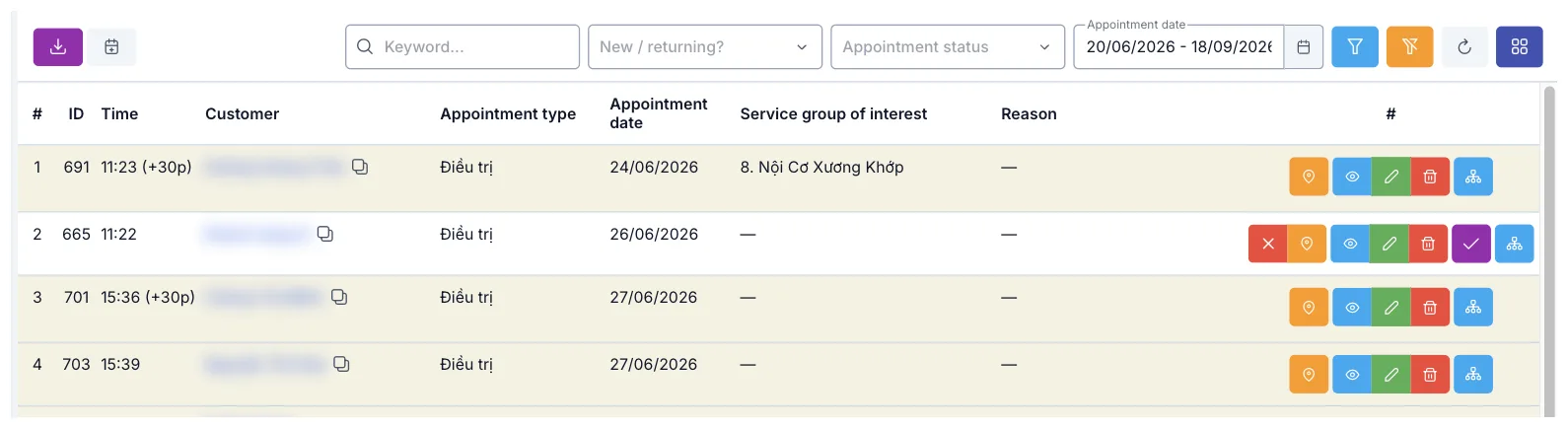
Illustration of the Appointment list screen
The bar on top holds: a Keyword box (name, phone), a New / returning? filter, an Appointment status filter and Appointment date — a date range.
This screen shows today only by default. If nobody is booked today, the table is completely empty. To see past or future appointments, click Appointment date and pick a wider range.
The buttons to the right of the filters: funnel (advanced filters), crossed funnel (clear all filters), circular arrow (reload), small squares (choose visible columns). The two on the left download the list and sync to Google Calendar.
2. Distribution by day — which days are busy
This table counts appointments per day, split by branch and by appointment type.

Illustration of the Distribution by day screen
Each branch is a coloured block containing one column per appointment type plus a status column showing how loaded that day is.
Use it when: planning next week's shifts, or answering "which day next week is quiet?".
Appointment types are your clinic's own list, not interface text, so they appear exactly as your clinic entered them whatever language you use the software in.
3. Distribution by hour — which slots are free
Read the same way, but each row is a 30-minute slot of the day you pick, from 7:00 to 21:00.
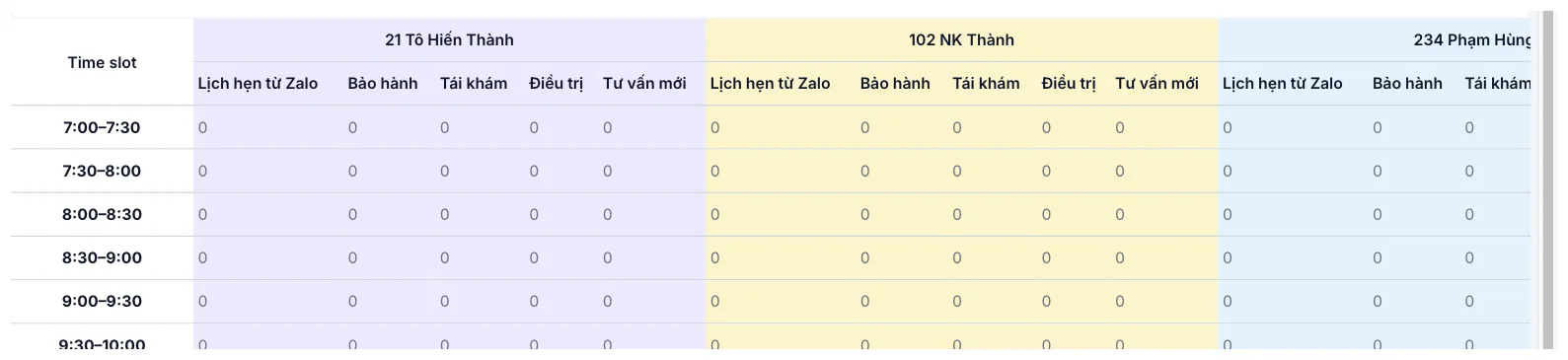
Illustration of the Distribution by hour screen
Use it when: the customer can come tomorrow but is flexible about the time — offer them a thin slot instead of piling everyone into 9 am and leaving the afternoon idle.
4. Appointment by doctor — who is fully booked
Same as Distribution by day, but the columns are doctors instead of branches.

Illustration of the Appointment by doctor screen
A highlighted number (red background) marks a day where that doctor already has customers (patients). Use it when: spreading customers (patients) evenly, or answering a customer who wants one specific doctor.
5. Doctor by time slot — matching a time to a free doctor
The most detailed one: rows are 30-minute slots, columns are doctors, for the single day you choose at the top right. This is the screen that answers the most common phone question: "who can do it tomorrow at 3 pm?".
It means no doctor is listed for the day you picked. Try another date in Appointment date at the top right; if it stays empty, ask your clinic administrator about the doctors' working schedule.
General tips
- The four statistics screens (2–5) are read-only; you cannot click through to a single appointment. When a figure looks odd, go back to the Appointment list and filter that day.
- The figures count per appointment type, so choosing the right type when booking is what makes these screens useful.
- Multi-site clinics: always check the branch heading above a coloured block before concluding that the clinic is busy or quiet.
Related
- Create a New Appointment — book into the slot you just found.
- Appointment Details — dig into one appointment.