Appointment Details
The detail panel shows everything about one appointment without opening the customer's profile: who they are, where they are in the visit, which doctor is responsible, and who did what. It slides in from the right edge; the list behind it stays where it was.
Open the detail panel
Go to CRM › Appointment list, find the customer's row and click the blue eye button in the cluster at the end of the row.
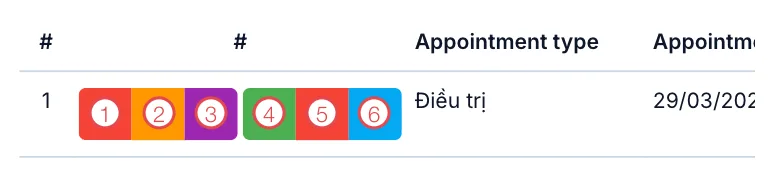
Illustration of the action buttons on an appointment row
| Button | What it does |
|---|---|
| 1. Red ✕ | Cancel the appointment. |
| 2. Orange ◉ | Arrived — the customer is at the desk. |
| 3. Purple ✓ | Confirm the customer is coming — the reminder call. |
| 4. Green ✎ | Edit the appointment — reopens the booking window. |
| 5. Red 🗑 | Delete the appointment. |
| 6. Blue 👁 | Open the detail panel — this page. |
A button only appears while the action is still possible. Once the customer has arrived there is no Cancel and no Confirm; a cancelled appointment only keeps view and delete. Seeing fewer buttons than in the picture is normal, not a lost permission.
You can also open the panel from the customer profile: Appointment tab → eye button on the row.
Top: who the customer (patient) is and where they are
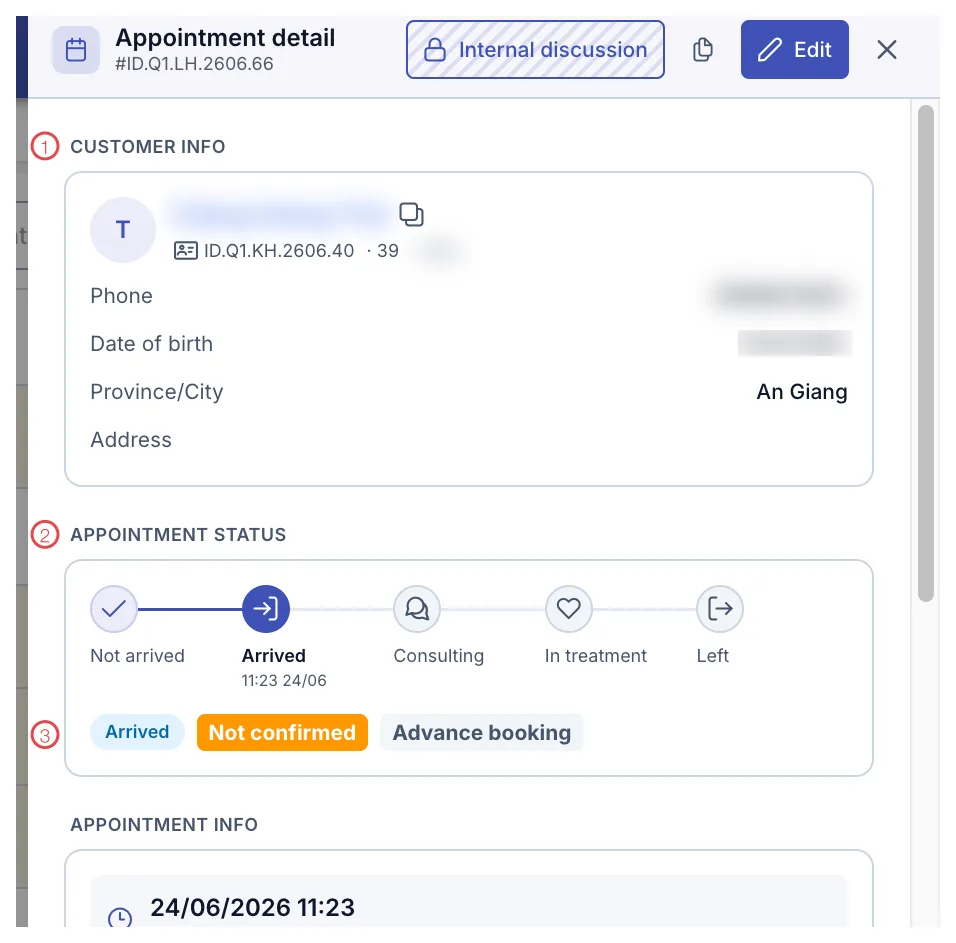
Illustration of the top of the appointment detail panel
1. Customer info — photo, name, customer code, age, gender, phone, date of birth, province and address. The two-square icon next to the name copies the name so you can paste it elsewhere.
2. Appointment status — the five steps a visit goes through:
| Step | Meaning |
|---|---|
| Not arrived | Booked, the customer is not here yet. |
| Arrived | The front desk recorded them at the desk, with the time and date underneath. |
| Consulting | The customer is with a consultant or doctor. |
| In treatment | The service is being performed. |
| Left | The visit is over. |
Completed steps carry a tick, the current step is highlighted. One glance tells you whether the customer is still in the building.
3. The three labels below — three different things, do not mix them up:
- Light blue label: the current status, matching the highlighted step above.
- Orange Not confirmed / Confirmed: the result of the reminder call before the visit — see Confirm Customer (Patient) Arrival.
- Grey Advance booking / Walk-in / Planned: how the appointment came about.
At the top of the panel, Edit reopens the booking form and Internal discussion opens a staff-only thread about this visit — customers (patients) cannot read it.
Lower down: appointment, services and medical data
Scrolling inside the panel you will pass:
- Appointment info — date and time, expected duration, type, first appointment date, number of visits, brand and branch.
- Service — the service group of interest and the service chosen when booking.
- Medical information — queue number, medical record and vital signs.
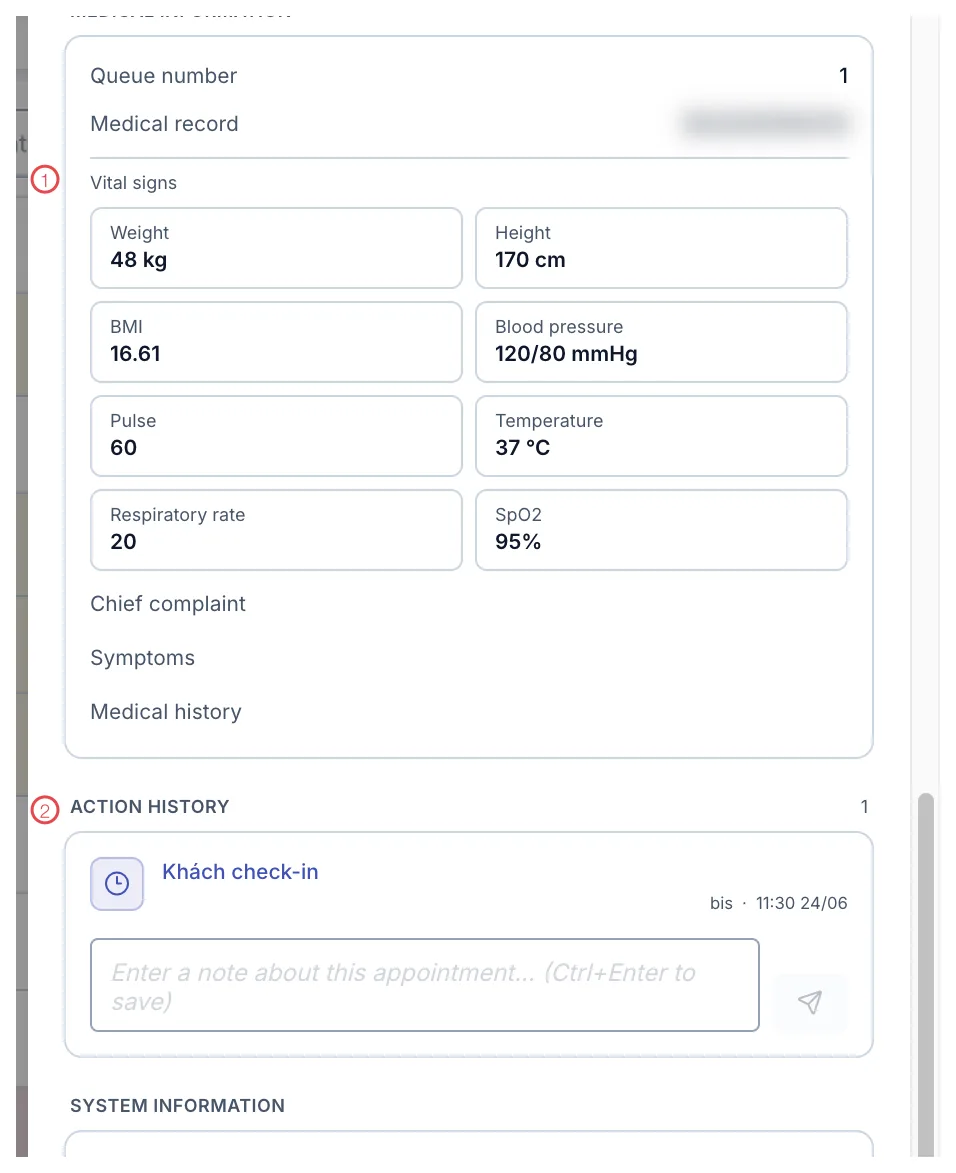
Illustration of the medical information and action history
1. Vital signs — weight, height, BMI, blood pressure, pulse, temperature, respiratory rate and SpO2, plus chief complaint, symptoms and medical history. Nurses measure and enter these at intake; the front desk usually only reads them.
2. Action history — the log for this appointment: who clicked check-in and when, who edited what. The box underneath lets you add a note that belongs to this appointment only — press Ctrl + Enter to save it.
Open the detail panel and look at Action history: the check-in time is recorded automatically and cannot be typed by hand. Compare it with the booked time and you know whether the customer came early or the clinic ran late — no arguing from memory.
At the very bottom, System information shows who created the appointment, when, and who last changed it.
Related
- Create a New Appointment — book a customer in.
- Check-in / Check-out — moving the status as the visit progresses.
- Ways to View Appointments — five screens, five different questions.