Cancel an Appointment
The customer is busy, changed plans or cannot be reached — the appointment needs to be cancelled so the slot is no longer treated as taken and the reports match reality.
How to cancel
Go to CRM › Appointment list, find the customer's row and click the red ✕ button — position 1 in the picture.
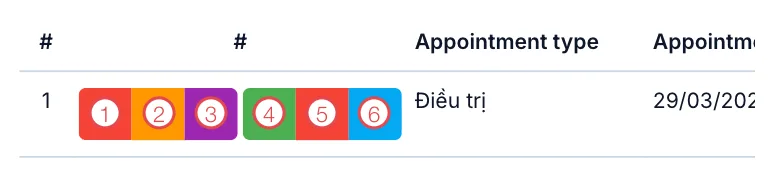
Illustration of the cancel button on an appointment row
Hovering shows "Cancel appointment". Click it and answer the confirmation question.
You can also cancel from the customer profile: Appointment tab → ✕ on the row.
The cancel button only exists for appointments that have not happened yet. Once the customer (patient) has checked in or been treated, or the appointment is already cancelled, the button is gone — what has happened cannot be un-happened.
Cancel is not delete
The two buttons sit side by side and are easy to mix up, but they do very different things:
| Cancel (red ✕, position 1) | Delete (🗑 bin, position 5) | |
|---|---|---|
| Stays in the list | Yes, marked as cancelled | No, disappears |
| History still readable | Yes | No |
| Appears in reports | Yes, counted as cancelled | No |
| Use when | The customer cannot come | Booked by mistake, duplicated, wrong customer (patient) |
The rule of thumb: if the customer and the event were real, cancel; delete only when the record itself is rubbish.
There is no recycle bin for deleted appointments. When in doubt choose Cancel — always the safer button.
What to do after cancelling
- Ask for another date straight away. While the customer is still on the phone is the easiest moment to book a new appointment.
- Record the reason in the customer (patient)'s notes. Several cancellations for the same reason is a sign they need more attention.
- No new date yet? Set a reminder to call back in a few days so the customer does not fall off the radar.
- Tell whoever was preparing if a specific doctor, room or material had been set aside.
Related
- Confirm Customer (Patient) Arrival — reminder calls reduce last-minute cancellations.
- Create a New Appointment — rebook the customer.
- Appointment Details — the history of a cancelled appointment.